
Help

Answers to what people usually ask

Getting started, privacy and hours, all in one place

Still have a question?

We’ve gathered the questions we get most often, along with the real problems that come up in use and how to solve them.

Traducore frequently asked questions

General questions

1. What do I need to get started?

Windows 10 or Windows 11, an internet connection and a free account. You can install it from the Microsoft Store, which keeps it up to date, or download the portable file, which has no installer and doesn't need admin rights. Open it, sign in with your email and password, and your session stays active for 30 days.

2. How long does the translation take to arrive?

Between 3 and 6 seconds behind what is being said. On a paid plan the subtitles fill in as the sentence arrives; on the free plan each sentence appears whole when its voice starts. That delay isn't a flaw: the engine needs to hear enough to translate well and to deliver the sentence whole rather than in pieces.

3. Can I translate any program?

Yes. On Windows 11 you can pick the exact application the sound is coming from — Zoom, Teams, Meet, your browser, a media player — and only that one is captured. It's the convenient way to use it and it avoids any echo. On Windows 10 you need the virtual microphone explained below.

4. Can I keep just the subtitles, without the voice?

Yes. Subtitles and translated speech are two separate checkboxes: turn on either one, or both. The subtitles appear in a floating window near the bottom of the screen, where they don't cover people's faces on a video call, and you can scroll up to reread what came before.

5. Can I put the subtitles over a game or bring them into OBS?

Yes, with the two buttons in the header of the subtitle window. GAME removes the background and leaves only the text with a dark outline, and clicks pass straight through so it doesn't get in the way: you go in and out with Ctrl+Alt+S from anywhere, including from inside the game. If the game runs in exclusive full screen, Windows won't let anything draw on top: set it to «borderless window». OBS puts a plain green background so you can key it out on a live stream, and it is remembered for next time.
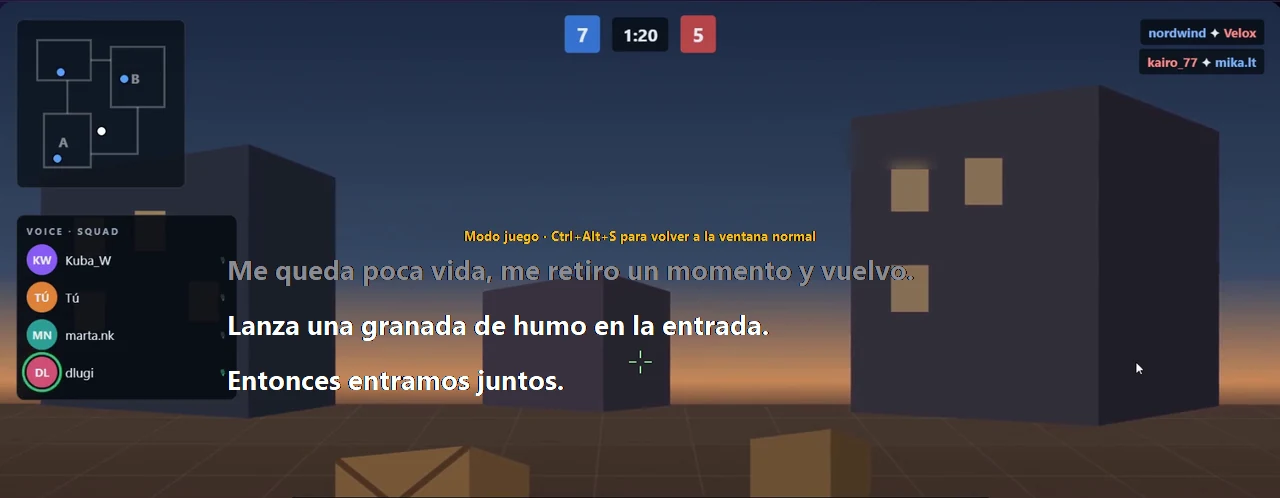
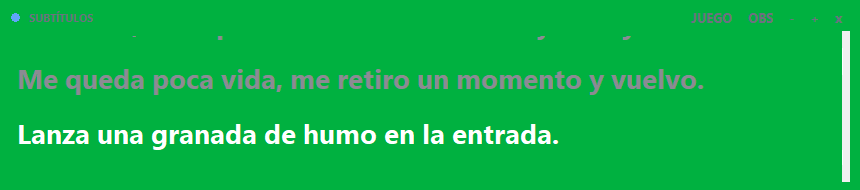
Traducore subtitles in game mode: text with no background, over the match, with the Ctrl+Alt+S hintThe subtitle window in OBS mode, on a green background for chroma keying

6. Can I save what has been translated?

Yes. At the bottom of the program there's a link, «Save transcript», which writes the session as TXT, SRT or VTT: with the time of each line, who said it —«Other person» or «You» in Conversation mode— and the original text if the engine sends it. It works well for meeting minutes or for subtitling a recorded class. It is only written when you click it and choose the file: until then it is in the program's memory, and it is lost when another translation starts or you close it.

Bottom of the program with the «Save transcript» link

7. My application or my headphones aren't in the list

Press «Refresh». The list is built when the program opens, so anything you started afterwards won't show up until you refresh. With Bluetooth headphones you'll see the same device listed twice: pick the one that does not say «hands-free», which sounds considerably better.

8. Is there a browser extension?

It's coming very soon, for Chrome and Edge. It will be for meetings you open in the browser — Google Meet, Zoom web and Teams web: it will let the other person hear you in your already-translated voice, with no virtual microphone to install, together with the desktop app, which does the translating. In the meantime, and with the Zoom, Teams or Discord desktop apps, you use VB-CABLE, which is free.

9. Which languages does it work in?

78 languages, and it detects the source language on its own. On a paid plan the translation is voiced in all of them. On the free plan the voice is available in Spanish, English, French, German, Italian and Portuguese; in other languages the translation arrives as subtitles.

10. Can I use a glossary with my own terms?

Yes, from your customer area: it replaces or hides the terms you mark. What it corrects depends on your plan:

  • Paid plans: it corrects the subtitles, but not the voice. The translated voice is generated by Google's translator and can't be corrected, so it may say the original word.
  • Free plan: it corrects the subtitles and the voice too, and helps recognise proper names.

In a conversation there are only subtitles for what the other person says, so the glossary shows in what they say, not in what you say.

Privacy and support

1. Is what I say in my conversations stored?

We don't keep anything, and that has no exceptions: neither the program nor the server keeps the text or the audio of what it translates. All that is left of each session is technical data —when it was, how long it lasted, which languages— so the minutes can be counted. What you can do is save it yourself: with «Save transcript», at the bottom of the program, you choose the file and it stays on your computer, as TXT, SRT or VTT. Until you click there, the transcript lives only in the program's memory and disappears when another translation starts or you close it.

2. So what is in the logs?

Only timestamps, durations and errors. No content at all. At the bottom left of the program there's a link, «Open log folder»: that file is what to send us if you need support.

3. Where are the translation engine credentials kept?

On the server, never on your computer. The program you run contains no credentials at all.

4. The other person can't hear me translated

This is the most common problem and it's almost always the same one: inside Zoom, Teams or Meet the microphone has to be set to «CABLE Output». The speaker, on the other hand, stays as it was, on your usual headphones. If you set the speaker to «CABLE Input», the other person will hear themselves. Coming soon: in browser meetings (Google Meet, Zoom web or Teams web), the Chrome and Edge extension will do it without the cable.

5. I have the Microsoft Store version — how do I install the virtual microphone?

The Microsoft Store doesn't allow a program to install drivers, so there the virtual microphone is set up by hand, once. In the program, click «Install virtual microphone»: a guide opens with the download and four steps —unzip the file into a folder, right-click «VBCABLE_Setup_x64.exe» and choose «Run as administrator», click «Install Driver», and restart the computer—. You have the same package and the same steps in your client area, under «Download». On the portable version none of this is needed: that same button installs it for you, asking for administrator permission.

6. How do I get help if something doesn't work?

Write to us from the contact page and attach the log file. It tells us what happened without us needing access to anything of yours.

7. What happens if a session cuts out?

If a session is cut short by a fault on our side, we refund that time automatically (up to 60 minutes per session and 2 hours per day). You don't have to ask: it goes back to your balance as soon as the session ends.

Plans and hours

1. How are the hours counted?

You're charged for the time translation is running, whether anyone is speaking or not. Remember to press «Stop translation» when you're done. Your remaining hours are always in view, at the top left, and they update during the session.

2. Do unused hours roll over to the next month?

No. The hours on paid plans reset every month and don't carry over.

3. What does the free plan include?

15 minutes of translation every day, topped up automatically, with two-way conversation included. The difference with a paid plan isn't the time, it's the voice: the free plan speaks with a synthetic voice we generate on our servers, while a paid plan gives you the translation in the voice of whoever is speaking. The free voice is available in Spanish, English, French, German, Italian and Portuguese; in other languages the translation arrives as subtitles.

4. What's the difference between the Video and Conversation plans?

The Video plans are for understanding: you translate whatever is playing on your computer and receive it as subtitles and speech. The Conversation plans add the other direction, so your own voice reaches the other person translated into their language on a video call (the free plan includes it too). For conversations, headphones work best: with speakers, your microphone isn't sent while anything is playing through them, so you take turns. The first time, the program installs the free virtual microphone and Windows asks for administrator permission.

5. Can I change plan later on?

Yes. You can move up a plan, switch type or cancel your subscription whenever you like from your account area, with no lock-in. Bear in mind that at renewal you start the month with your plan's hours: anything left over doesn't carry over. If you switch plans mid-month, your balance is adjusted in proportion to what's left of the month, just like the charge: moving up adds the proportional share of the difference; moving down subtracts it. If your balance goes below zero, the difference is taken from your next renewal.

6. Can I buy extra hours if I run out?

Yes, as long as you have an active paid plan. It's a one-off pack of 5 hours, and it covers a month when you run short without having to switch plans: €3.79 an hour on Video and €5.09 on Conversation.

These hours never expire. Unlike your plan's hours, which renew every month, pack hours stay there until you use them. And if you ever cancel your subscription they aren't lost either: they are frozen, and become available again as soon as you activate a paid plan.