Real-time voice translation for Windows

Don't read the meeting. Hear it in your language.

Traducore speaks aloud what the other person is saying, while they say it. And if you want, they hear you in their own language — with nothing to install and no bot invited to the call.

languages available
0
Automatic detectionof the source language
free minutes to try it
0
No cardor lock-in
usage modes
0
Video calls and talksshort turns or continuous speech
recordings kept
0
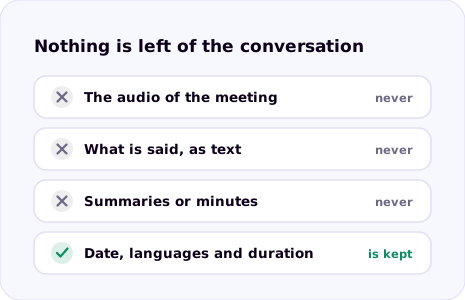
No audio, no textis kept after the session
Microsoft StoreWindows 10 and 11Chrome and Edge extension (coming soon)

See it work in one minute

The demos are real recordings of the program, with the translated voice it generates live.Narrated in Spanish, with English subtitles.

In the voice of whoever is speaking

The translation keeps each person's tone and register, so in a meeting you still know who said what without looking at the screen.

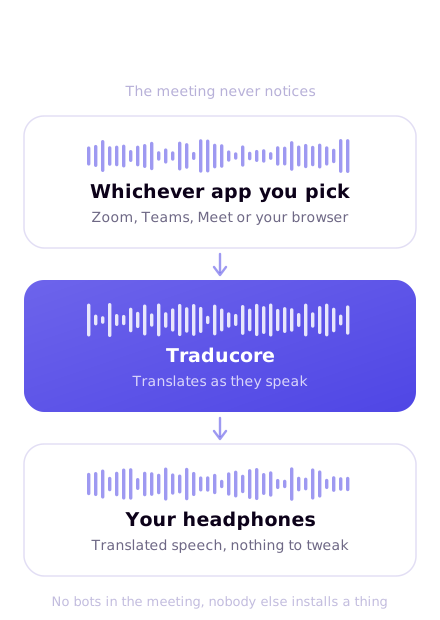
It translates one application, not your whole PC

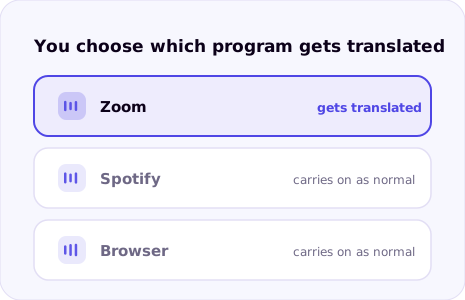
On Windows 11 you choose which program you want to hear translated. Notifications, music and the rest of your computer's sound stay out, and don't burn minutes.

How Traducore works
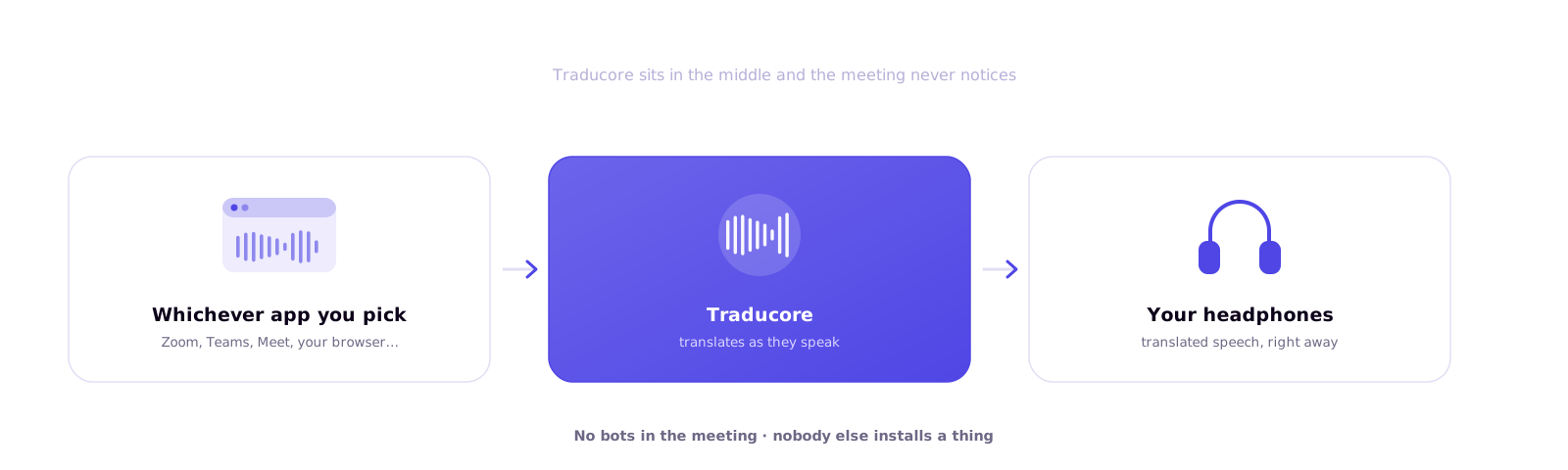
The sound goes from the application you choose to Traducore, which translates it as it is spoken, and from there to your headphones.

Four ways to use it, with real examples

The same meeting translated from English into Spanish, recorded with the program running on Windows. They have sound: press play.

Bilingual subtitles

You can check the translation instead of trusting it. You see the sentence in both languages at once, so a name, a figure or a technical term can be checked there and then, without stopping the meeting.

Clean subtitles

Less reading, more meeting. Just the translation, with the latest sentence highlighted and the earlier ones dimmed: you know where to look at a glance and get straight back to the camera.

Voice only

There's nothing to show on screen:
this is what you hear.

You understand it with your eyes free. Almost every live translator gives you subtitles and makes you choose between reading and looking at the camera. Here the original voice is turned down and the translation comes in over it: you listen and you answer.

Voice and subtitles

You hear it first and confirm if in doubt. The voice arrives first so you can answer in time, and the subtitle stays as a backup for acronyms, figures and names. This is the mode for meetings that get decided live.
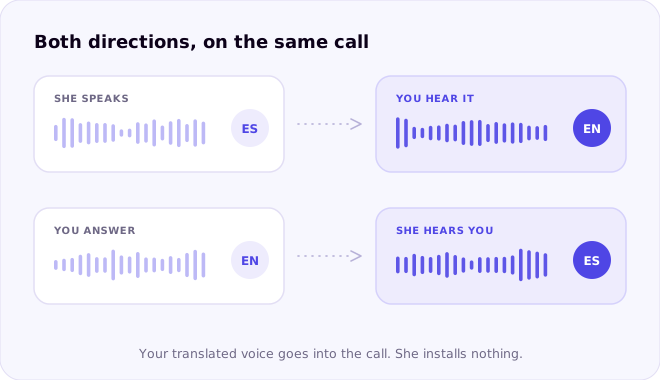
Diagram of two-way conversation: what the other person says reaches you in your language and your answer reaches them in theirs

Conversation in both directions

And they hear you, in their language

When you speak, your translated voice goes into the call: the other person installs nothing and opens no separate link. It's the only thing on this list that can't be shown in a screen recording, because it needs someone on the other end.

Try it free →

Not a word of the four recordings was written by hand: it's what the translator produced in those sessions. The example voices are synthetic; what's being shown is the translation.


Traducore

Follow the conversation as it happens, whatever the language.

Any application

Zoom, Meet, Teams, YouTube or a local video: if it plays on your computer, it gets translated.

Voice and subtitles

You hear the translation spoken and, if you like, read it on screen as well.

Two ways to use it

One for video calls with turn-taking, one for videos and classes with no pauses.

Nothing is kept

We don't record the text of your conversations. Never, no exceptions.

Works over any Windows program that makes a sound

ZoomMicrosoft TeamsGoogle MeetWebexYouTubeYour browserVideo players

It doesn’t need to be on a list: if it plays on your computer, it can be translated. You choose the program and the rest of the sound carries on unchanged.

Features

The right mode for each situation: watching or talking

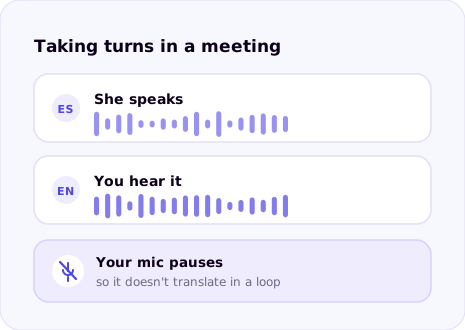
Video call mode

For video calls and meetings with turn-taking. It puts getting the answer to you first, so you can reply without leaving awkward silences.

Diagram of video call mode: short turns with pauses so you can reply

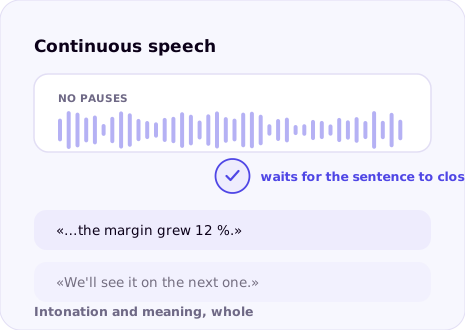
Video and talk mode

For talks, classes and videos with no pauses. It waits until the sentence is complete, so the intonation and the meaning arrive whole.

Diagram of video and conference mode: continuous speech, the sentence arrives whole

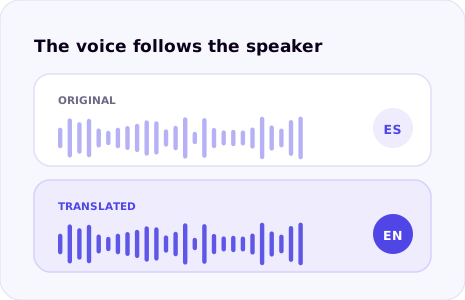
A voice that sounds human

On paid plans, the translated voice follows the speaker’s tone. No cutting off mid-word, no sentences patched together.

The translated voice follows the speaker, over the original audio

Per-application capture

On Windows 11 it translates only the application you pick. Every other sound on your computer carries on as normal.

Traducore captures the audio of a single Windows app, not the whole computer

Fresh hours every month

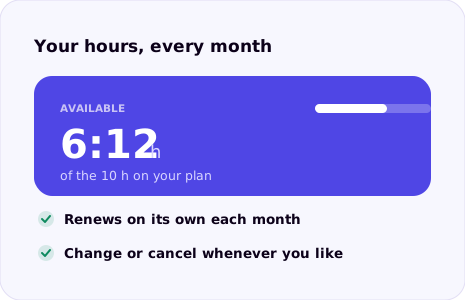
Your plan gives you a number of hours a month, and the balance starts over when it renews. Change plan or cancel whenever it suits you, from your account area.

Plan hours renew every month

Pick your mode and try it free

Compatibility

Works with what you already use

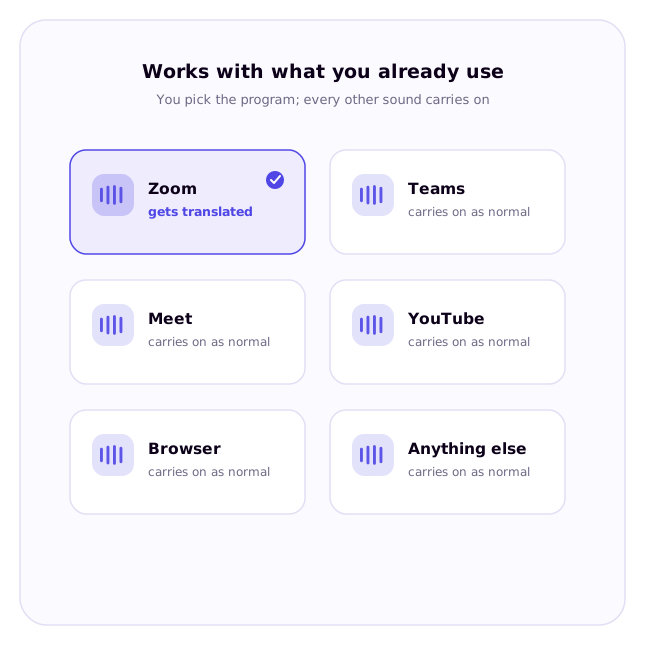
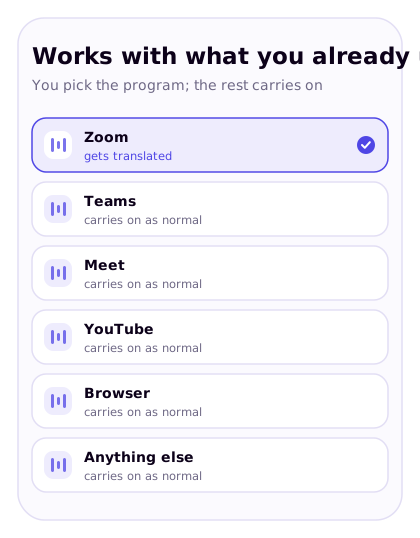
You choose Zoom to be translated; Teams, Meet, YouTube, the browser or any other program keep playing as normal.

No plugins, no bots and nothing for the others to install

Windows 10 and 11

ZoomGoogle MeetMicrosoft TeamsYouTube
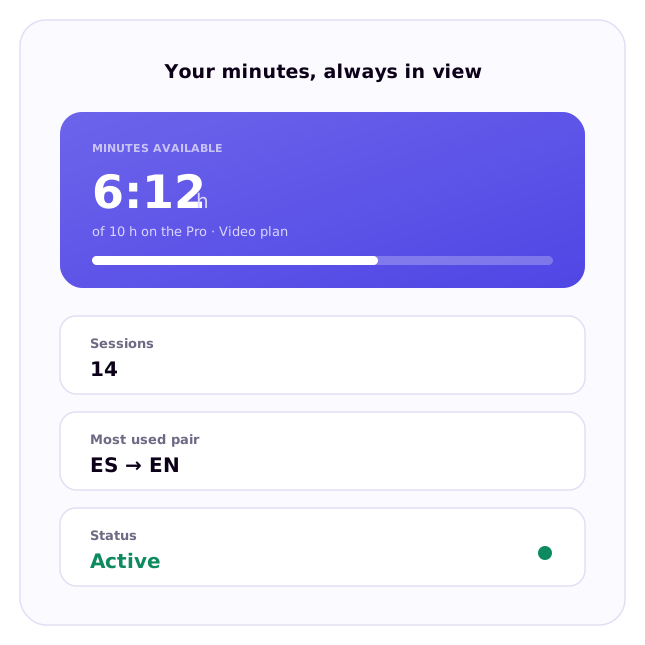
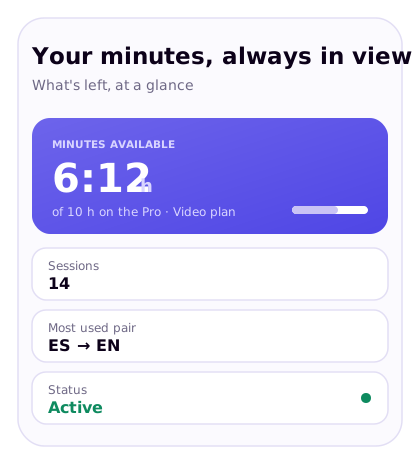
The panel shows 6 hours 12 minutes left of the plan's 10, 14 sessions, English to Spanish as the most used pair, and the account active.

Try it on your next meeting

How it works

From nothing to translating in three steps

1
Sign up free
15 minutes a day of translation with no card, in under a minute.
2
Choose your language
And the application or device you want translated.
3
Press start
Subtitles and translated speech, while the other person carries on talking.

Start understanding everything today

Why Traducore

Less friction, more understanding

A translator is little use if it arrives late or sounds bad. Traducore is built around those two things: that the voice is clear, and that it doesn’t leave you behind.

78 languages

With automatic detection of the source language. Translated voice in all of them on a paid plan; on the free plan, voice in 6 and subtitles in the rest.

2 modes

Talk in turns, or listen to continuous speech.

0 setup

To listen: open the application, pick a language, and that's it.

15 min free

Try it before you pay. We don't ask for a card.
Plans

Choose your hours each month

Start with 15 free minutes a day, no card required. Then pick a plan: a monthly subscription you can cancel whenever you like, with no lock-in.

  • Video
  • Conversation

Starter

For the odd video and for trying it out.

€7.95
/ month · 2 hours
Translate videos, classes and talks with the full sentence and natural speech.
  • 2 h of video translation

Pro

For regular use, week in week out.

€36.95
/ month · 10 hours
The sweet spot for anyone who regularly follows training or videos in another language.
  • 10 h of video translation

VIP

For heavy use.

€108.95
/ month · 30 hours

Built for people translating content every day who want the lowest price per hour.

  • 30 h of video translation

Starter

For the occasional meeting.

€10.45
/ month · 2 hours
Video calls translated with the lowest delay, so you can answer there and then.
  • 2 h of live conversation

Pro

For meetings every week.

€49.95
/ month · 10 hours
For anyone working with clients or teams in another language day after day.
  • 10 h of live conversation

VIP

For teams and daily use.

€146.95
/ month · 30 hours

The plan for people who live in international meetings and need room to spare.

  • 30 h of live conversation

Two ways of solving the same thing

Not all live translators work the same way. These are the decisions we took, and why.

The usual wayHow Traducore does it
How it reaches youSubtitles on screen. You have to read them while trying to follow the meeting.Translated speech in your ear, while the other person is still talking. Your eyes and hands stay free.
The other personReads your subtitles on a separate link, or misses everything.Hears you in their language, with your voice going into the call. They install nothing.
What gets capturedEvery sound on the computer: music, notifications and whatever else you have open.Only the application you choose (on Windows 11). Everything else is neither captured nor charged to your minutes.
What’s left afterwardsTranscript and recording kept on their server so they can offer you summaries.Nothing. No audio, no text. Not even we can recover it. How we do it.
Get it

Three ways to get it running

Recommended

Microsoft Store

The full desktop app for Windows 10 and 11. Installs in one click and updates itself.

  • Per-application capture, voice and subtitles
  • Both modes: watch and converse
  • Sign in with your free account
Get it on Microsoft Store
Coming soon

Chrome and Edge extension

For meetings in Google Meet, Zoom or Teams in the browser: the other person hears you translated, with no virtual microphone to install.

  • Meet, Zoom web and Teams web
  • No VB-CABLE, no audio drivers
  • Works together with the desktop app
Available very soon
Portable

Direct download

The same program as a single .exe file. No installer and no admin rights, for computers where you can't use the Store.

  • Double-click and start translating
  • Keep it wherever you like
  • The same features as the Store version
Download (.exe)
78target languages
6with voice on the free plan
0bots in your call
0words of your meetings stored
Privacy

What you say doesn't stay anywhere

Traducore is designed not to keep the content of your conversations. The technical logs hold only durations and performance figures, never what was said.

  • No content logging
Neither the text nor the audio of your sessions is stored
  • Credentials kept safe

The keys live on the server,
never on your computer

  • Try it without a card

15 free minutes a day to see for yourself

Traducore keeps neither the audio nor the text of your sessions
FAQ

What people ask us most

Does Traducore join my meeting as a bot?

No. Traducore listens to the audio on your own computer, so no new participant shows up in the meeting and nobody has to accept anything. It works with Zoom, Teams, Meet, Discord, the browser or any program that plays sound.

Do I need to install a virtual audio cable?

Not to hear the translation. You only need one if you want the other person to hear you translated: you use VB-CABLE, which is free. Coming soon: in browser meetings (Meet, Zoom web or Teams web), the Chrome and Edge extension will do it without a cable.

How much does it cost?

You get 15 free minutes every day, no card required. Paid plans are a monthly subscription from €7.95 (2 hours) with no commitment; if you run short one month, you can buy a 5-hour pack without changing plan.

What changes between the free plan and a paid one?

Mainly the voice. On the free plan the translation is spoken by a synthetic voice in Spanish, English, French, German, Italian and Portuguese, and in other languages it arrives as subtitles. On a paid plan it comes out in the voice of whoever is speaking, in every language.

Is what's said in my meetings stored?

No. Neither the text nor the audio of your sessions is stored, not on your computer and not on our servers. The logs only keep durations and errors, never content.

What happens if the translation cuts out?

If a session is cut short by a fault on our side, we refund that time automatically (up to 60 minutes per session and 2 hours per day). You don't have to ask.

What do I need to get started?

Windows 10 or 11, an internet connection and a free account. Install it from the Microsoft Store or with the portable file, sign in with your email and choose which application you want to translate.

See all questions →