Your own glossary
Mark the names and terms of your field and the glossary replaces or hides them. On paid plans it corrects the subtitles only, not the voice. On the free plan it corrects subtitles and voice.

Mark the names and terms of your field and the glossary replaces or hides them. On paid plans it corrects the subtitles only, not the voice. On the free plan it corrects subtitles and voice.
Answers your questions about the program, your plan and your hours at any time, from the website and from your customer area.
If a session is cut short by a fault on our side, we refund that time automatically: up to 60 minutes per session and 2 hours per day.
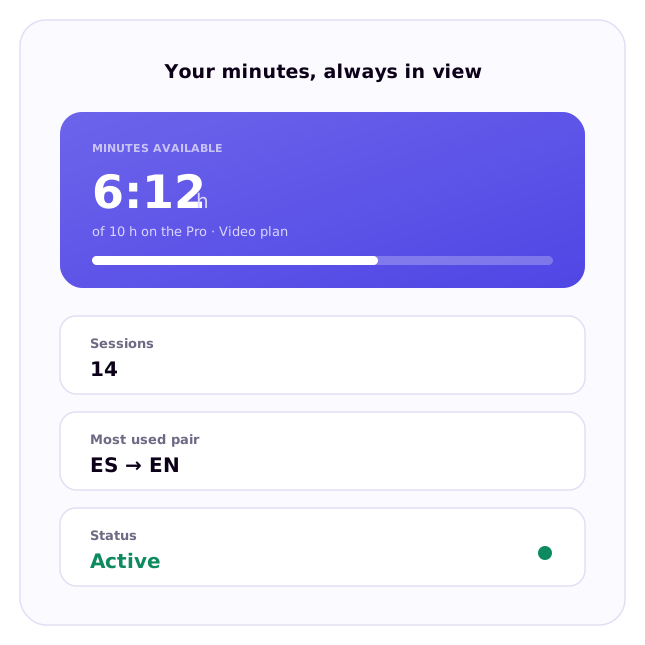
Your balance, your plan, your invoices and your glossary in one place. Change plan or cancel whenever you like.
If you run short one month, buy a one-off 5-hour pack without changing plan.
Share your link: when they sign up for a plan, you both get 30 minutes free.
«Save transcript» writes what was translated as TXT, SRT or VTT, with the time of each line and who said it. It is saved on your computer and only when you click it: it never goes through any server.
Game mode: text with no background over the match, clicks passing straight through and Ctrl+Alt+S to go in and out. OBS mode: a plain green background to key it out on a live stream.
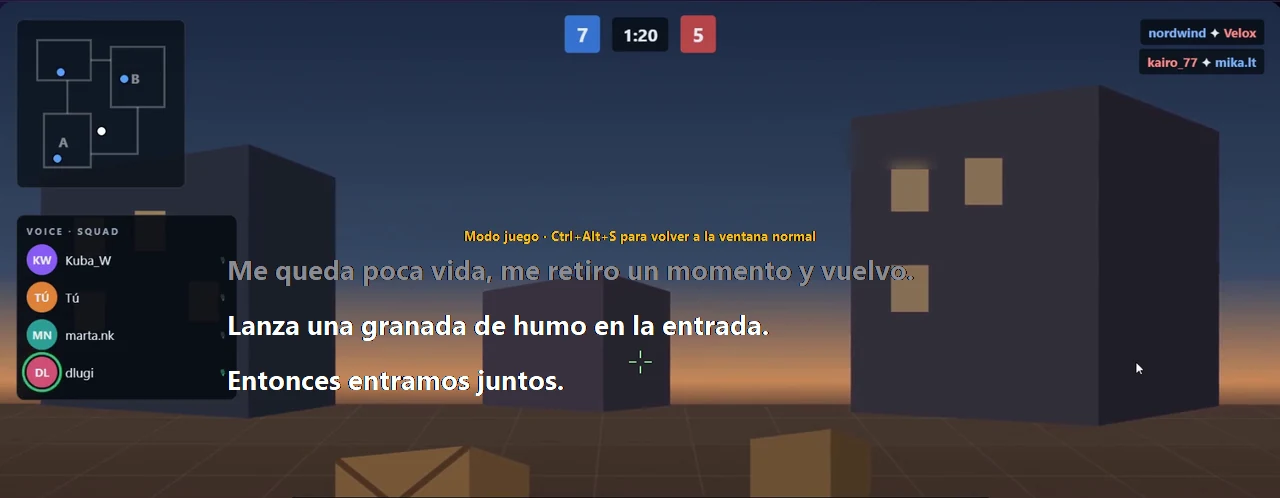
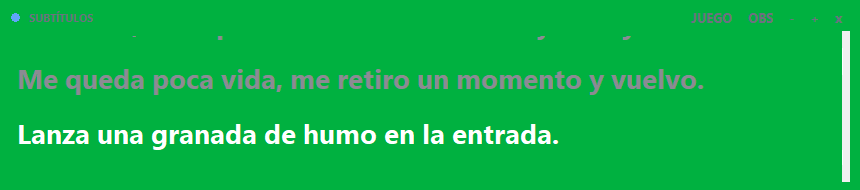



One meeting, all four modes. Recordings with no editing and no touch-ups. The meeting is in English and the translation into Spanish. With sound: press play.
Bilingual subtitles
You can check the translation instead of trusting it. You see the sentence in both languages at once, so a name, a figure or a technical term can be checked there and then, without stopping the meeting.
Clean subtitles
Less reading, more meeting. Just the translation, with the latest sentence highlighted and the earlier ones dimmed: you know where to look at a glance and get straight back to the camera.
Voice only
There's nothing to show on screen:
this is what you hear.
You understand it with your eyes free. Almost every live translator gives you subtitles and makes you choose between reading and looking at the camera. Here the original voice is turned down and the translation comes in over it: you listen and you answer.
Voice and subtitles
You hear it first and confirm if in doubt. The voice arrives first so you can answer in time, and the subtitle stays as a backup for acronyms, figures and names. This is the mode for meetings that get decided live.
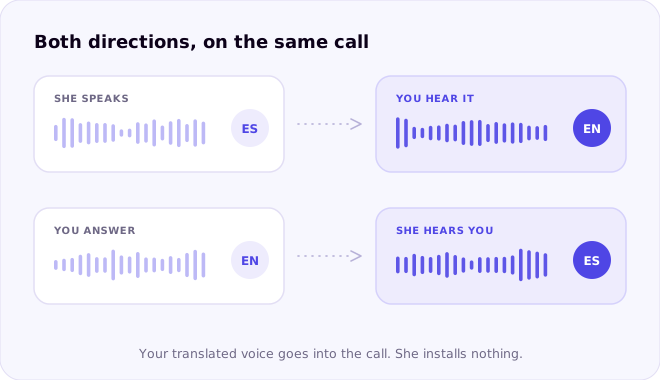
Conversation in both directions
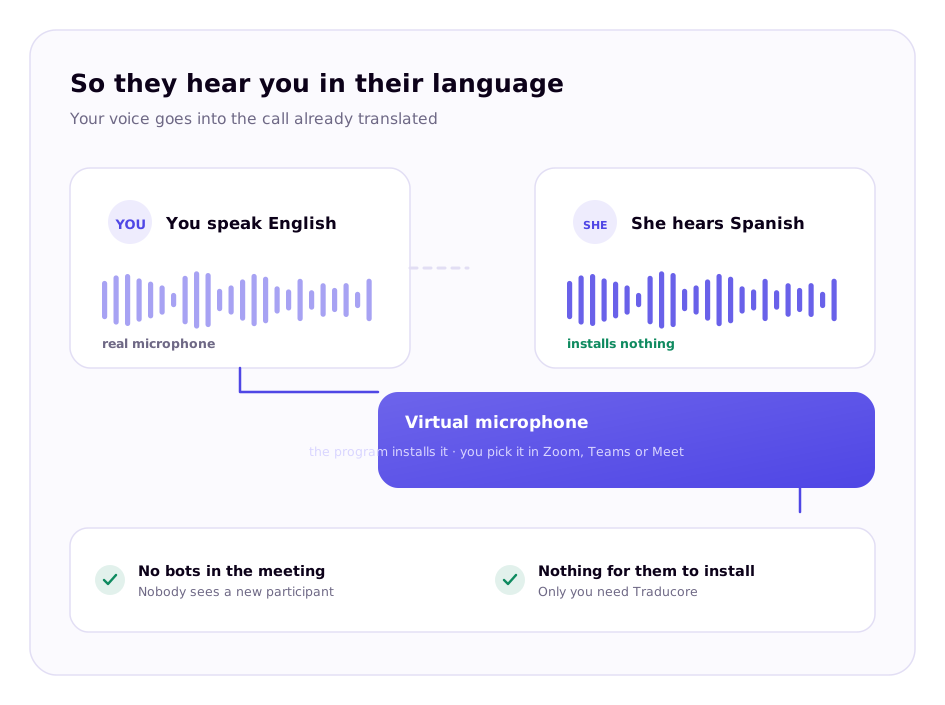
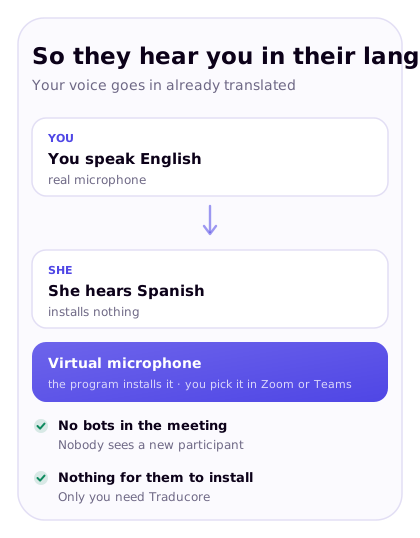
When you speak, your translated voice goes into the call: the other person installs nothing and opens no separate link. It's the only thing on this list that can't be shown in a screen recording, because it needs someone on the other end.
Try it free →Not a word of the four recordings was written by hand: it's what the translator produced in those sessions. The example voices are synthetic; what's being shown is the translation.