There are four ways to translate a video call in real time, and only one doesn’t depend on the platform: Google Meet’s voice translation, which requires a paid Workspace or Google AI plan; Meet’s own translated captions, which only provide text; Chrome’s live captions, which work for any call happening in the browser; and a voice translator installed on your computer, which listens to the window’s audio and gives you the translation without asking anyone for permission.
WhatsApp deserves a separate warning because it’s the most repeated question and the answer is uncomfortable: WhatsApp doesn’t document any translation for calls or video calls. What they launched in September 2025 was the translation of written messages. In this guide, we review each option with the requirements, steps, and limits exactly as Google and WhatsApp publish them in their official help pages, checked in September 2026, and we clearly state where the source confirms nothing.
In short
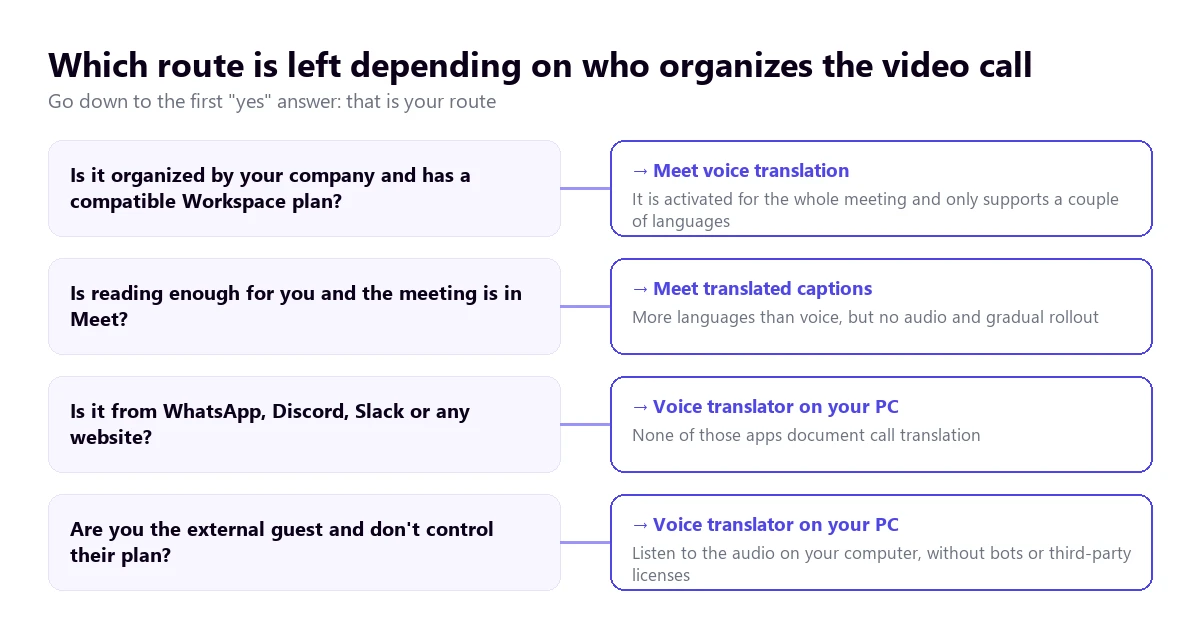
- Your company has Workspace Business or Enterprise → Meet’s voice translation, with a voice similar to yours.
- Reading is enough for you and the meeting is on Meet → translated captions, with many more languages.
- The call happens in a browser tab → Chrome’s live captions, free and text only.
- It’s WhatsApp, Discord, Slack, or you are the external guest → a voice translator on your PC, which doesn’t depend on anyone’s plan.
In this article
- Why translating a video call is the hardest thing
- The four ways to translate a video call
- Google Meet: voice translation
- Google Meet: translated captions
- WhatsApp: what it actually translates and what it doesn’t
- Translating the video call from your own computer
- What is always lost in a translated video call
- How to translate a video call with fewer errors
- More questions about how to translate a video call
- So, which one do we use?
Why translating a video call is the hardest thing
It helps to understand what happens inside before choosing a tool to translate a video call, because it explains almost all the disappointments. A live translation isn’t a single operation: it’s three linked layers, and each one adds its own error and delay.
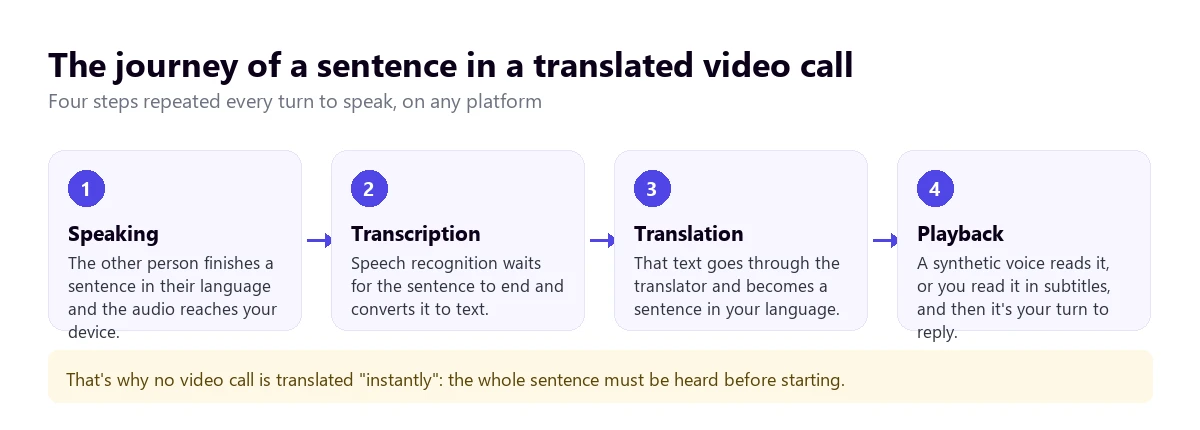
The delay isn’t a bug, it’s the price of understanding the sentence
Speech recognition needs to hear the whole sentence to get it right. In English, negations and phrasal verbs can change the meaning at the very end; the same happens in Spanish with verb endings. That’s why no system starts translating on the first word: it waits for a silence, closes the sentence, and then works. Google’s own help page says it bluntly when describing its voice feature: “translations will have a delay of a few seconds to ensure they are complete”.
That delay of a few seconds is what breaks the turn to speak. In a recorded video, it doesn’t matter; in a conversation, it does, because while you listen to the translation of the previous sentence, the other person has already started the next one. This is why almost all platforms recommend speaking in turns and waiting, and why meetings with many interruptions turn out worse than a single-voice presentation.
A call’s audio already comes clipped
There is a second factor almost no one talks about. A video call’s audio is compressed to save bandwidth: frequencies are cut, noise is suppressed, and when the network falters, chunks are lost. A human ear fills in those gaps without noticing; a speech recognizer doesn’t. That’s why the same tool that transcribes a podcast wonderfully makes more mistakes in a call with poor coverage.
Add to that echo cancellation, which sometimes eats the beginning of sentences, and laptop microphones, which pick up both the voice and the fan. Before blaming the translator, it’s worth looking at the source: a call that sounds mediocre will translate poorly with any system.
The four ways to translate a video call
In the table, we added a fifth row for WhatsApp, because it’s the most repeated question and deserves to be seen next to the others even if it doesn’t translate calls. The data for each platform comes from their official help pages; the data for Traducore, which is our program, comes from testing and the website.
| Way | What it gives you | What you need | Languages | Where it works |
|---|---|---|---|---|
| Translator on your PC | Voice and subtitles, and they hear you translated | A program on Windows; no platform permission | 78 (Traducore) | Any call, no matter who organizes it |
| Meet’s voice translation | Translated voice similar to yours | Workspace Business/Enterprise, Google AI Pro or Ultra | 6, always to or from English | Meet meetings, 90 min per meeting |
| Meet’s translated captions | Text only, each in their own language | Specific Workspace editions | List of 69, not all combinations | Meet meetings |
| Chrome’s live captions | Text only, in a browser banner | Chrome on Windows, Mac, Linux, or ChromeOS | Over 100 target languages | Whatever plays in a browser tab |
| Translation of written messages | Compatible Android or iPhone | 6 on Android, “19+” on iPhone | Chats and channels; not on calls |
Google Meet: voice translation
This is the most ambitious feature of the group. Google describes it like this: “as you speak, the voice translation will automatically interpret what you say in real time with a voice similar to yours”. It has been generally available for businesses since the announcement on February 4, 2026, and reached mobile in April of that same year.
Who can turn it on
The user help page lists Google AI Pro, Google AI Ultra, Workspace Business Standard and Plus, Enterprise Standard and Plus, Frontline Plus, AI Pro for Education, and AI Expanded Access. The administrator guide gives a similar but not identical list: it adds Education Plus and doesn’t mention the Google AI plans. It’s an inconsistency in Google’s own documentation, so you should check your console before promising anything.
The practical detail matters more than the list: the feature is enabled by one person for the whole meeting, not everyone on their own. When someone with a compatible edition organizes it, the rest of the participants can use it even if their account doesn’t have it. And the administrator has the final say: it comes on by default in all plans, but it only works if the Gemini for Workspace setting is turned on.
The steps, one by one
According to Google’s help, on a computer, the process has three parts. First, someone with a compatible plan turns it on:
- Inside the meeting, at the bottom right, click Meeting tools → Voice translation.
- Choose the language combination that will apply to all participants.
- Click Enable translation for everyone. A badge will appear at the top right.
Then, each participant adjusts their own settings: click the badge, set Language you speak and Language you prefer to hear, and, the first time, grant permission under Allow translation → Translate me. To remove it later: More options → Settings → General → Don’t translate me. To turn it off completely, the person who turned it on uses Meeting tools → Turn off translation for everyone.
The limits Google acknowledges
- Only one language pair per meeting. If you change it, you change it for everyone. With three languages in the room, someone is left out.
- Always with English on one end. It translates between English and French, German, Hindi, Italian, Portuguese, or Spanish. A French speaker and a Spanish speaker cannot understand each other this way.
- Ninety minutes per meeting, a limit reached in any training day.
- It doesn’t work in live streams or recordings. Whatever is recorded will have the original audio.
- Those joining from room hardware hear the translations, but what they say isn’t translated.
- Google warns of possible errors in grammar, unexpected accents, wrong gender, and changes in voice style.
- There are more unintuitive reasons for blocking: territories without the feature, users under 18 years old, or the combined audio setting turned on.
What is reassuring is the fine print about data: “no audio is saved. No models are trained with your voice”. Where exactly that audio is processed, in the cloud or on the device, the help page doesn’t say.
Google Meet: translated captions
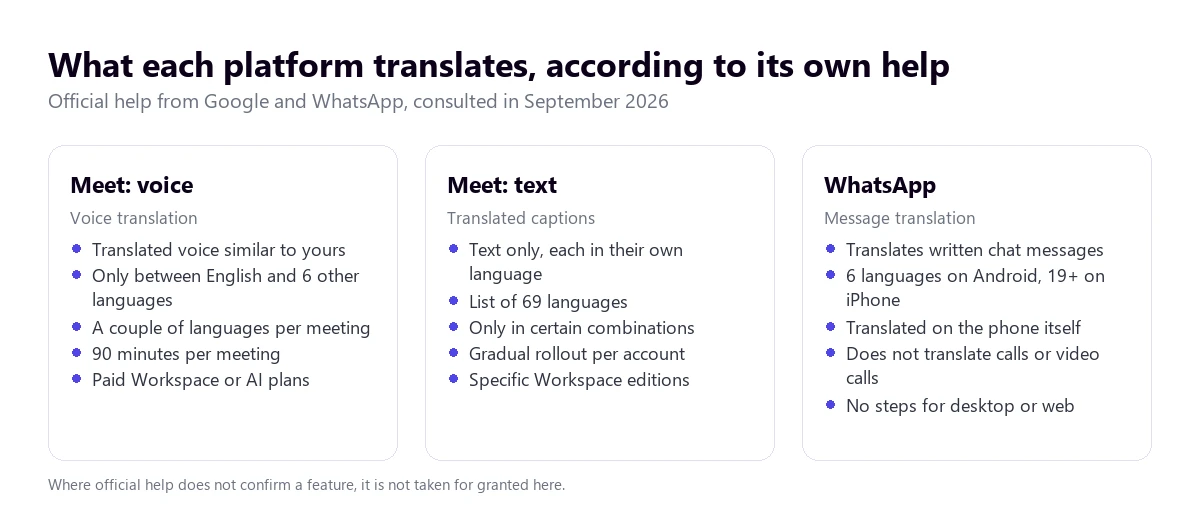
If reading is enough for you, this way is much more accessible in terms of languages. The path is short: inside the meeting, More options → Settings → Captions, choose the meeting language, turn on Translated captions, and pick the target language.
The help page lists 69 languages you can translate between, including Spanish from Spain and English. However, on the same page, there is a sentence worth reading twice: they are available “in certain language combinations”, and Google doesn’t detail which ones. That is, a language being on the list doesn’t guarantee your specific pair will work.
The compatible editions aren’t all of them either: Business Standard and Plus, Enterprise Standard and Plus, Google AI Pro for Education, and Enterprise Starter for those who already had it. Personal Gmail accounts aren’t mentioned, so we don’t assume they have it. And there are two fine details: the feature is rolling out gradually, so it might not appear for you yet, and in a recording, the captions only remain if you explicitly choose Record captions.
A free way almost no one tries
If the video call happens in a browser tab—Meet, a Jitsi room, an embedded webinar, or WhatsApp Web—Chrome can caption it without an enterprise plan. Under Settings → Accessibility, you turn on Live Caption and Live Translate, with over 100 target languages. Two nuances from Google’s help: speech recognition is done on your device, but the captions are sent to Google to be translated, and the feature is always described as something “from the Chrome browser”: it doesn’t reach the audio of a desktop application.
WhatsApp: what it actually translates and what it doesn’t
Here lies the biggest misunderstanding on the subject, fueled by headlines that confuse features. Let’s take it step by step, with WhatsApp’s help page and official blog in front of us.
Message translation, announced in September 2025
WhatsApp allows you to translate messages you’ve sent or received in an individual or group chat, as well as channel updates. On Android, you press and hold the message, go to the three dots, choose Translate, and download the language; on iPhone, the path is More… → Translate. On Android, there is also the option to automatically translate all new messages in a chat.
The good part: the translation happens on the phone itself, so, in the blog’s words, “WhatsApp cannot see them”. The less good part: on Android, the list is six languages (English, Spanish, Hindi, Portuguese, Russian, and Arabic), on iPhone they mention “19+”, the feature isn’t in WhatsApp Business, and it doesn’t reach all devices. It also doesn’t translate locations, documents, contacts, stickers, or GIFs.
Voice notes are transcribed, not translated
This is the most common confusion. Since November 2024, WhatsApp can turn a voice note into text, but in the same language: the Android help page only cites English, Portuguese, Spanish, and Russian, the option comes turned off by default, and the transcript is only seen by the person receiving the message. Transcribing is not translating, and no official source documents the translation of voice notes.
And what about video calls?
The honest answer is that there is nothing official. Neither WhatsApp’s help page nor its blog describe translation for calls or video calls, and in the Web, Windows, and Mac tabs of their help center, the steps for message translation don’t even appear: just an availability notice. Anyone looking to translate a WhatsApp video call from their desktop has to solve it outside the application, with the browser’s captions if they use WhatsApp Web, or with a program that listens to the computer’s audio.
Translating the video call from your own computer
This is the way that doesn’t depend on the platform, and that’s why it solves the two cases the previous ones leave out: applications that don’t translate anything, and meetings organized by another company, where you control neither the plan nor the administrator’s permissions. A Windows program like Traducore listens to the audio of the window you tell it to—Meet in Chrome, WhatsApp Desktop, Discord, Slack—and returns the translation in voice and floating subtitles, without bots joining the room.
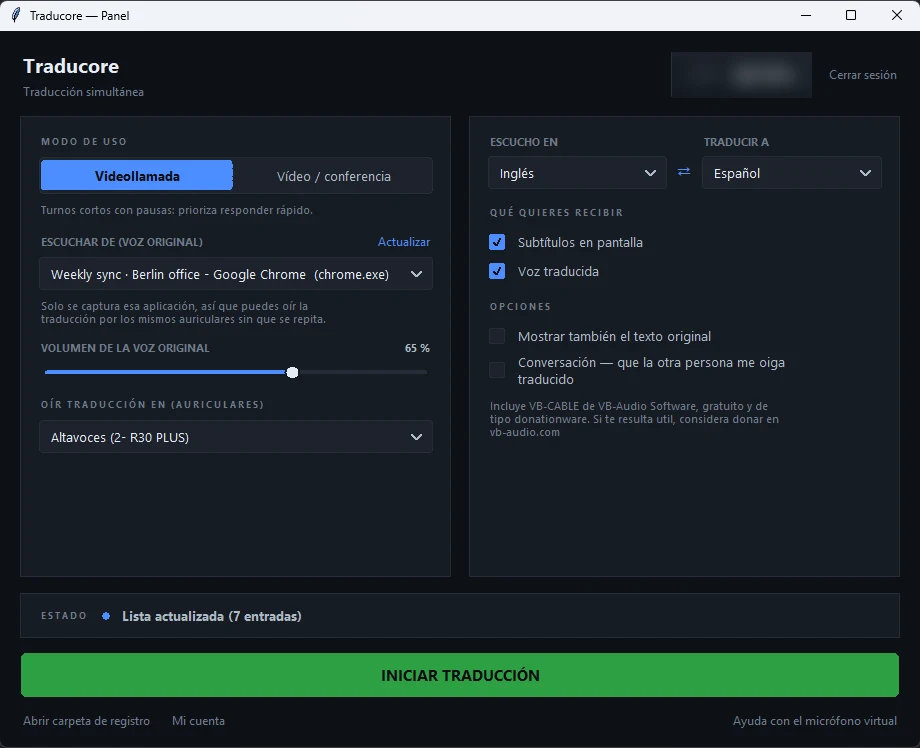
- Join the video call as usual, on Meet, WhatsApp, or wherever.
- Open the program, choose the Video call mode, and select the application or tab you want to listen to from the list.
- Indicate the other person’s language and yours, and click START TRANSLATION.
- So they can understand you too, turn on the two-way conversation and set the virtual microphone CABLE Output as the microphone in the calling app, also in Meet from the browser (the first time, the program installs it and Windows asks for administrator permission), leaving the output on your headphones.
In terms of languages, there is no possible comparison with what the platforms offer: the list reaches 78 and doesn’t force you to go through English, so a French speaker and a Spanish speaker can understand each other without triangulating.
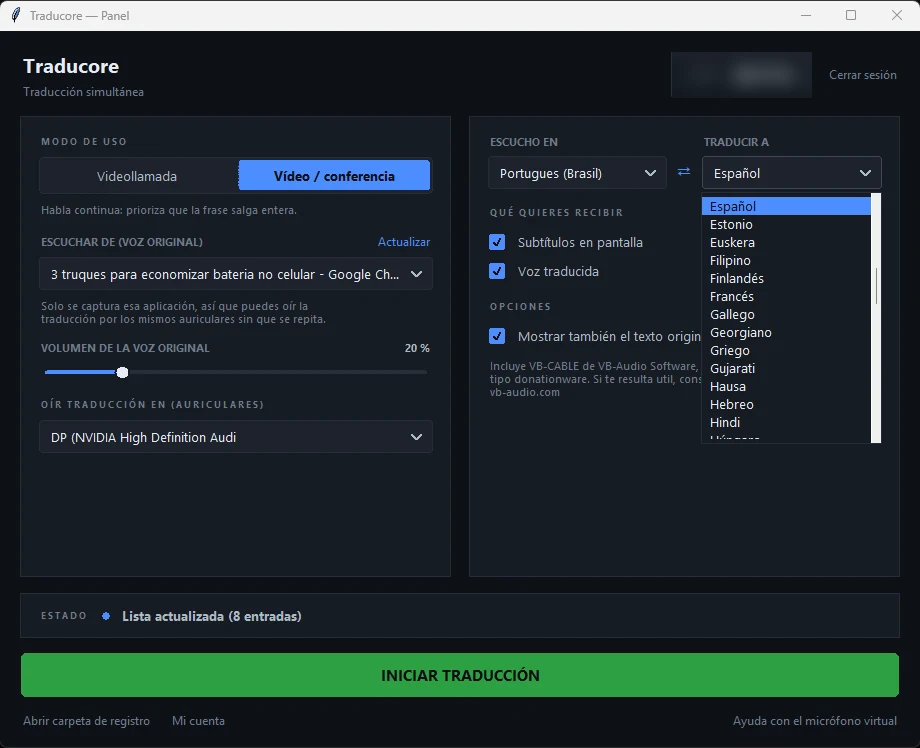
The limits, stated clearly: Traducore only works on PCs with Windows 10 and 11, there is no mobile or Mac version; the translation arrives between three and six seconds after each sentence; and the Free plan gives 15 minutes a day; for more time, it’s pay-per-hour. On Windows 11, only the chosen application is captured, which prevents the translation from hearing itself.
When someone else sets up the meeting
Translate the call from your computer, without depending on the organizing company’s plan or whether the app translates anything. 15 free minutes a day, no card required.
What is always lost in a translated video call
When translating a video call, no tool escapes this list, and knowing it beforehand avoids absurd arguments about which one is “the good one”.
- Proper names. The recognizer turns them into the closest common word, and the translator translates it without a second thought. A German surname might come out as a noun.
- Acronyms and product names, for the same reason. It’s the first place to look if a sentence doesn’t make sense.
- Numbers with units. “Fifteen” and “fifty” sound very similar in a compressed call, and the difference between 15 and 50 can cost money.
- Irony and indirect politeness. A British person’s “interesting” isn’t translated by what it means, but by what it says.
- Overlapping voices. When two people speak at once, the system mixes the sentences or skips one entirely.
- Language changes mid-sentence, so common in international teams, throw off the recognizer, which expects a fixed language.
How to translate a video call with fewer errors
- Announce it at the start. “I’m using machine translation, give me two seconds before replying” changes the pace of the whole meeting and improves the result more than any setting.
- One turn per person. It’s the advice all platforms repeat, and the only one that always works.
- Headphones, not speakers. You prevent the microphone from picking up the translated voice and translating it again in a loop.
- Check the spoken language before starting: if it’s set wrong, the translation comes out unintelligible and looks like a system failure.
- Numbers go in the chat. Dates, prices, and references are written down; that way they stay there and no one depends on a machine’s ear.
- Take care of the connection. Cable over Wi-Fi, and the call window open: if the audio arrives choppy, no translator can save it.
More questions about how to translate a video call
How to translate a Spanish video call into English?
If the meeting is on Meet and someone has a compatible plan, with voice translation: it’s one of the six supported pairs. If not, with Meet’s translated captions, with Chrome’s live captions when the call is in the browser, or with a program on your Windows PC that listens to the window and gives you voice and subtitles in English.
How to translate a WhatsApp video call?
There is no built-in feature: WhatsApp only documents the translation of written messages, and on the phone. For a call, there are two paths left: if you use WhatsApp Web, turn on Chrome’s live captions and live translate; if you use the desktop app, a voice translator that captures its audio on the PC.
How to turn on the Google Meet translator?
For voice: Meeting tools → Voice translation, choose the language combination, and click “Enable translation for everyone”; then, each person adjusts their languages on the badge. For text: More options → Settings → Captions and turn on “Translated captions”. If you don’t see either, your Workspace edition doesn’t include them or the administrator has turned them off.
How can I translate video calls in real time?
By deciding first who is in charge of the room. Inside Meet, with its features. Inside other meeting platforms, with theirs: we cover this in the Microsoft Teams guide and the Zoom guide. And when there is no feature or you don’t have a license, with a program on your computer.
So, which one do we use?
Translating a video call depends on the room, and that is the practical answer. In an internal meeting of a company with Workspace, Meet’s voice translation is the most convenient, as long as the language pair involves English and the session doesn’t go over ninety minutes. To read without installing anything, translated captions win in languages. For a WhatsApp call, the feature simply doesn’t exist, so we translate from the computer; and we do the same when we are the external guest, which is half of our meetings. If you want to see the alternatives head-to-head, you have our comparison of voice translators for PC and an explanation of how simultaneous translation works.
Understand any call, wherever it is
Voice and subtitles in English while the other person speaks, on Meet, WhatsApp Desktop, or any other Windows program. 15 free minutes a day.