The best real-time voice translator for PC depends on what you want to translate. To understand and speak in meetings, videos, and calls from any program without putting a bot in the meeting, Traducore. If you want the same on Mac or Linux, VoxisLive. If your company uses Teams, Zoom, or Meet and wants subtitles for everyone, DeepL Voice. For events with hundreds of attendees, Wordly. And if you just need to read the browser’s audio, Chrome does it for free.
We compared 10 options that work on the computer, and not just by price: how they access the audio, what their language numbers hide, how much an hour of use really costs, and what happens to your data. The data for each one comes from their official website, checked on September 19, 2026; VoxisLive and Whisperr, added on November 17, 2026, were checked that day. Prices may change.
Before we start: Traducore is ours
That’s why we put it first and know it better than the rest. To make the comparison useful, the data for the others is taken from their official websites, and we also mention where they beat us.
In this article
- How we compared
- Quick comparison
- The first thing to look at: how each one accesses the audio
- What the language numbers hide
- The real price per hour
- The 10 voice translators for PC, one by one
- The ones that don’t work (for this) on PC
- Privacy: what to ask before bringing it into a work meeting
- How to choose yours
- More questions about the best voice translator for PC
- So, which one do we use?
How we compared
Four rules, so you can redo the comparison on your own:
- The same four questions for all of them. Whether it listens to the PC audio without putting a bot in the meeting, whether it gives the translation as voice, whether the other person hears you translated, and how much an hour of use costs. The table answers all four for the ten tools. The order of the list is ours, with Traducore first: judge by the table, not by the position.
- Only data published by each company. No third-party figures or reviews. If a website doesn’t state something, the table shows “—” instead of a guess.
- Prices converted to the same unit. Each one charges in its own way (by minutes, by hours, per user and month), so we converted everything to euros per hour of use using the cheapest plan for each.
- Visible date. Everything was checked on September 19, 2026, except VoxisLive and Whisperr (November 17, 2026). In this industry, plans change every few months; check the price before paying.
Quick comparison
| Tool | How it listens | Translated voice | They hear you translated | Languages | Free | From |
|---|---|---|---|---|---|---|
| Traducore | Audio from the app you choose, no bot | Yes | Yes (Free plan and Conversation plans) | 78 | 15 min a day | €7.95 / 2 h |
| DeepL Voice | A bot that joins Teams, Zoom, or Meet | Yes, with the app and listener license | No | 40+ in subtitles, 30 in voice | 14-day trial | €12 / user / month (annual) |
| JotMe | Computer audio, no bot | Yes | — | 200+ (13 target in fast mode) | 20 min / month | $10 / month (annual) |
| TransyncAI | Microphone and computer audio | Yes | Yes, with virtual microphone | 60 | 40 min upon sign-up | $8.99 / month (10 h) |
| Maestra Live | Browser; Chrome extension for PC audio | Yes (paid) | — | 125+ | Subtitles only | $49 / month |
| Palabra | A bot in the meeting | Yes | Yes, conversation mode | 60+ | Free trial | $60 / month (3 h) |
| Wordly | Speaker app and integrations; listeners via browser | Yes | — | 60 for speaker | Demo | ~$1,500 / 10 h |
| VoxisLive | All PC audio, no bot | Yes | Yes, with a virtual microphone and a paid plan | 79 | 10 min a day (no meeting mode) | $9.99 / month (3 h) |
| Whisperr | PC audio (Windows and Mac), microphone or a bot in the meeting | Yes, reads the translation aloud | — | 100+ per its website (40+ on the App Store) | To get started | $79.99 / year (App Store) |
| Chrome (subtitles + translation) | Only browser audio | No | No | About 20 source | Yes | Free |
“—” means the official website doesn’t say. Prices in dollars are those published by each company, before taxes.
The first thing to look at: how each one accesses the audio
It’s the technical difference with the most consequences, and it almost never appears in comparisons. There are three ways for a program to hear the conversation, and each imposes its own conditions.
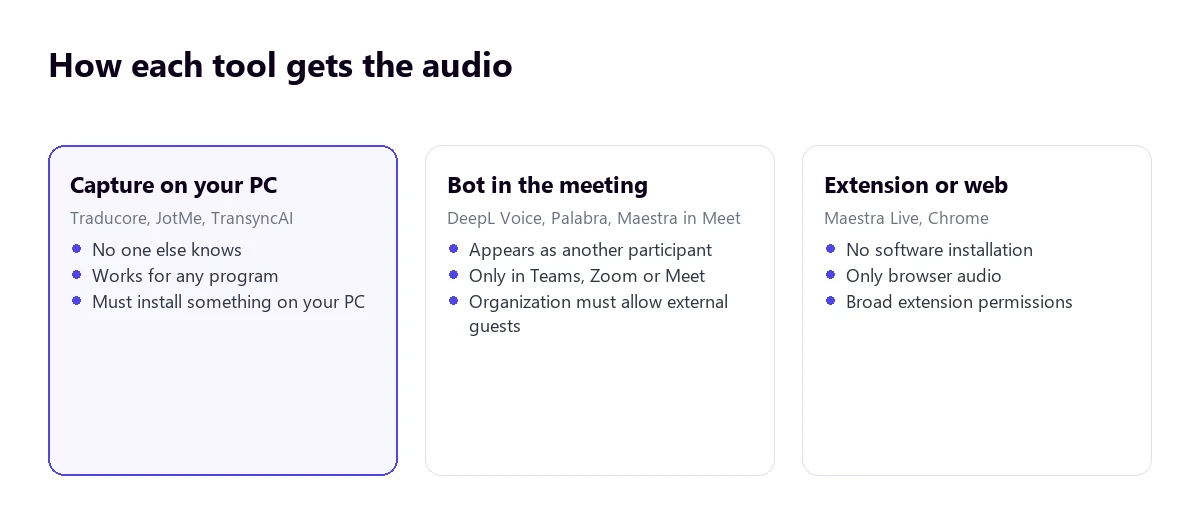
Capture on your computer
The program listens to the sound coming out of the computer, or from a specific application. No one else finds out: no extra participant appears, and you don’t need to ask permission from the other party’s organization. It works just as well for a meeting, a YouTube video, or a recorded course. In return, you have to install a program and, almost always, be on Windows.
A bot that joins the meeting
The tool connects as just another participant and transcribes from the inside. The advantage is that everyone sees the subtitles without installing anything. The drawbacks are serious in corporate environments: the organization has to allow external guests, the bot is registered on the attendee list, and in many companies, that means asking for authorization. Also, it only works in Teams, Zoom, and Meet: there is no bot that can join a video or a WhatsApp call.
Extension or web
No programs to install, but it only reaches the browser’s audio. It’s worth checking the permissions the extension asks for: reading and modifying data on the sites you visit is a very broad permission for a tool that should only hear sound.
What the language numbers hide
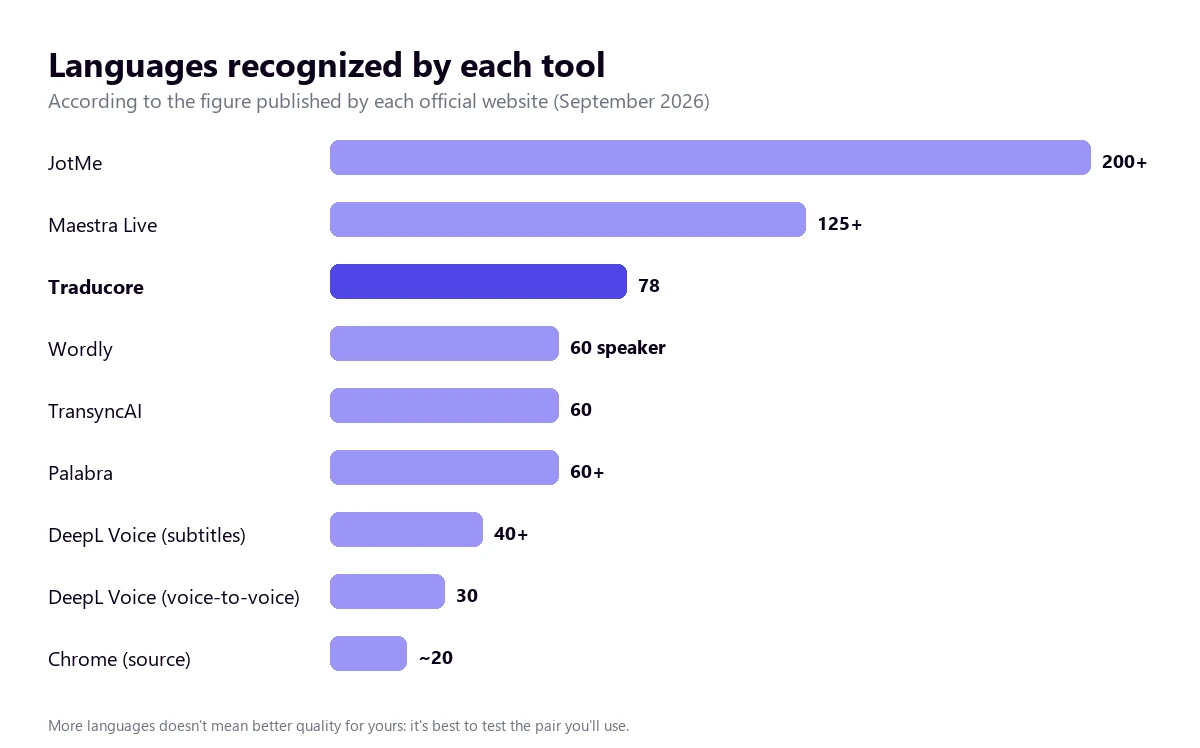
“200+ languages” on a homepage is impressive, but it rarely means what it seems. Before deciding based on that number, check three things:
- Source or target. Recognizing a spoken language isn’t the same as being able to translate into it. The big number is usually the target, which is the easy part: translating text into a language is much cheaper than understanding it spoken.
- Text or voice. Many tools have a long list for subtitles and a much shorter one for translated voice. DeepL Voice, for example, publishes 40+ for subtitles and 30 for voice-to-voice.
- Fast mode or normal mode. Some cut the list exactly in real-time mode, which is the one you care about: JotMe advertises over 200 languages, but its fast mode drops to 13 target languages.
And the underlying warning: more languages doesn’t mean better quality in yours. They all perform well in English to Spanish and worse in rare pairs. The only valid test is to try your combination with your type of audio.
The real price per hour
Comparing “€12 a month” with “$60 a month” says nothing until you know how many hours each plan includes. With all the cheapest plans converted to euros per hour, the order changes quite a bit:
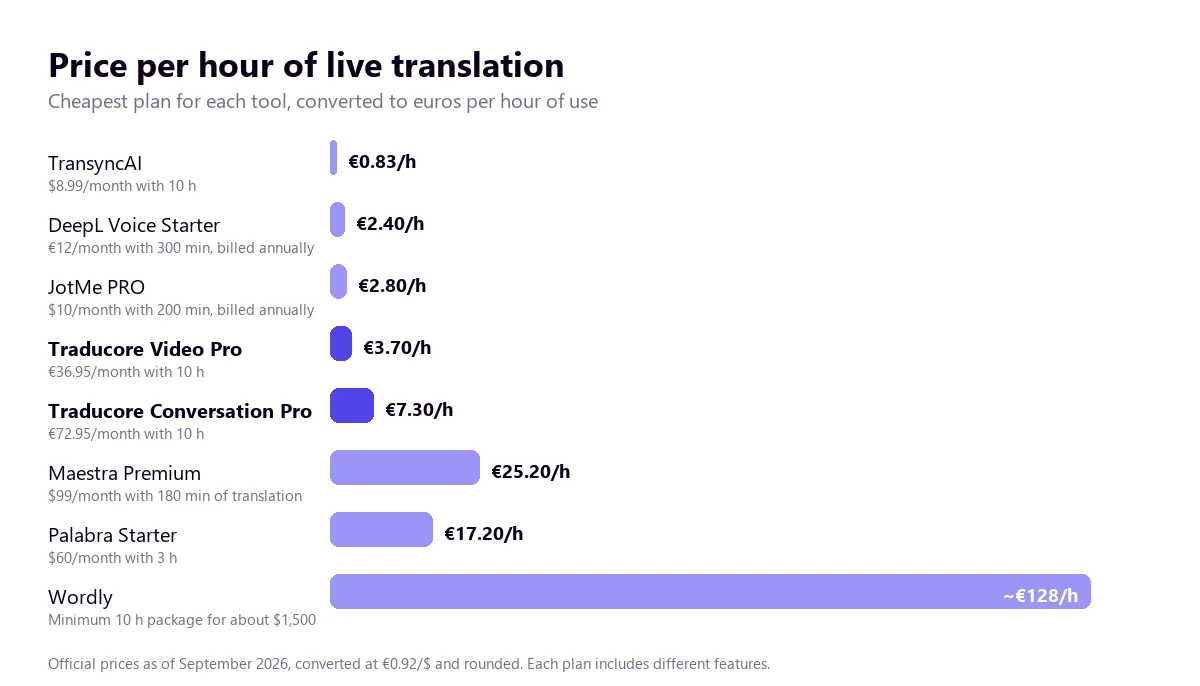
The two we added in November are not in the chart. VoxisLive comes to about $3.30 an hour on its Plus plan (180 minutes for $9.99, tax included), below our cheapest Video plan (€3.98 an hour) if you use all the minutes. Whisperr doesn’t publish hours for its subscriptions, so it can’t be worked out.
Three common traps in the billing of these tools:
- Minutes are counted per language. If you translate a meeting into two languages at once, some charge double the minutes. With a multilingual audience, the bill skyrockets without you having spoken more.
- The license might be per listener. In meeting tools, the person who connects the bot pays, but hearing the translated voice might require a license for each person listening.
- The advertised price is usually the annual one. Paying month to month is normally 20-40% more. Always compare the same billing cycle.
The 10 voice translators for PC, one by one
1. Traducore
A program for Windows 10 and 11 that listens to the audio of the application you choose (on Windows 11; on Windows 10, an audio device): Teams, Zoom, Meet, WhatsApp desktop, the browser, or a media player. It provides the translation in voice and on-screen subtitles. On Windows 11, it captures only that application, so the rest of the PC sounds don’t mix in. No bot joins the meeting, and the others don’t have to install anything.
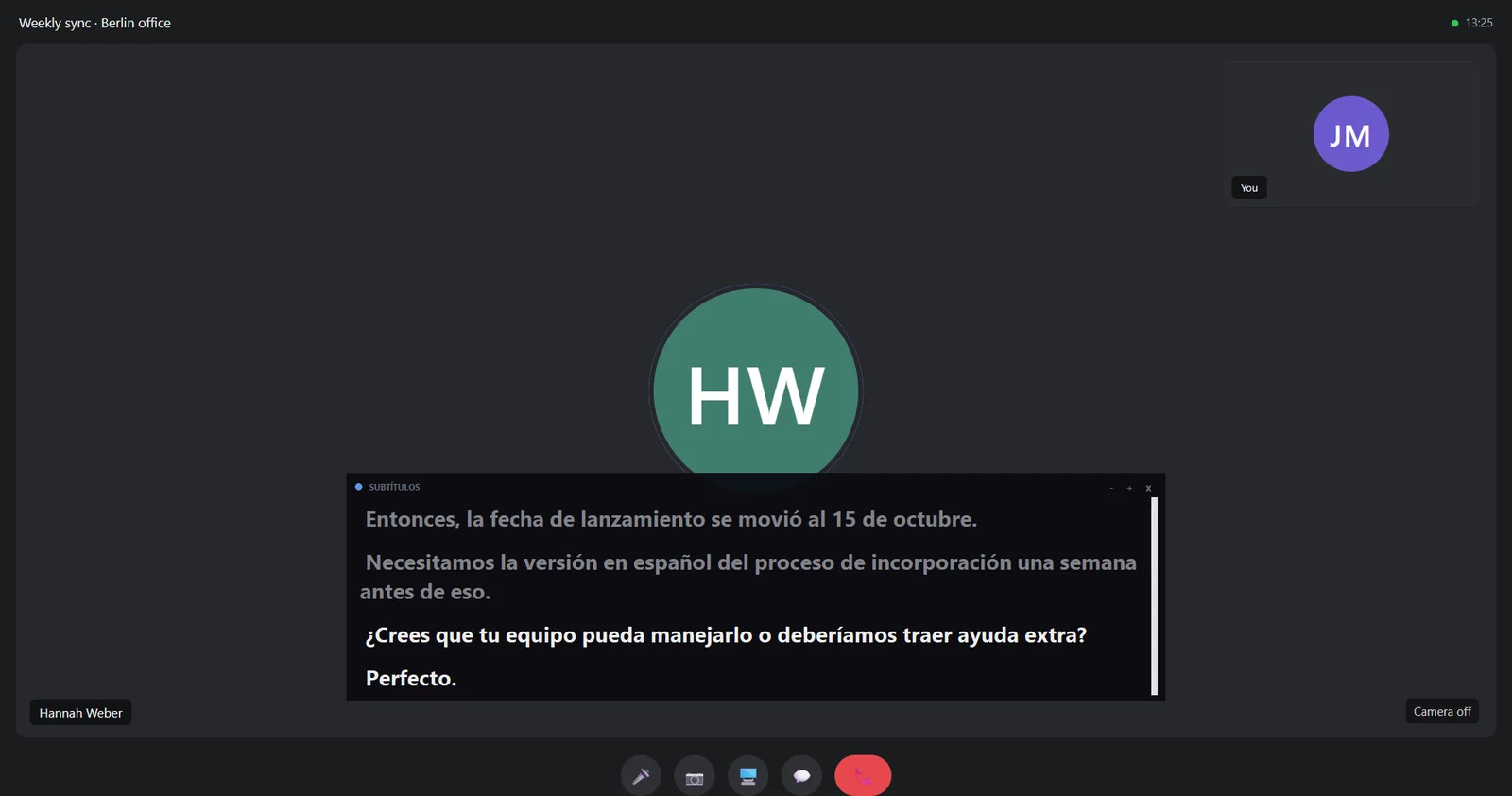
- The best: it works for any program, not just meetings. It has two-way conversation (the other person hears you translated) and doesn’t save audio or text.
- The worst: Windows only, 78 languages with uneven quality, and a 3 to 6-second delay per sentence.
- Price: 15 free minutes a day, no card required. Video plans from €7.95 and Conversation from €10.45 for 2 hours a month.
Try it before you decide
15 free minutes a day, no card required, with your own meetings or videos.
2. DeepL Voice
The voice version of the DeepL translator. For meetings, a bot joins the call in Teams, Zoom, or Meet, and participants read the translated subtitles in the browser, without installing anything. It has a desktop app for Windows and Mac to hear the voice translation.
- Where they beat us: participants see the subtitles without a license (the one from the person connecting the meeting is enough), it has company glossaries. In voice, both keep the speaker’s tone: DeepL in 14 languages and Traducore with its paid plans.
- Limits: Teams, Zoom, and Meet only; the organization has to allow external participants; hearing the voice requires a per-listener license; capped at 300 or 600 minutes a month.
- Price: Voice Starter, €12/user/month billed annually (€14 monthly), 300 minutes. We compare it in depth in Traducore vs DeepL Voice.
3. JotMe
Desktop app for Windows and Mac that captures computer audio without a bot and shows translated subtitles, plus AI transcripts and meeting minutes.
- Where they beat us: over 200 languages, Mac version, and automatic meeting minutes.
- Limits: its fast mode, the real-time one, has 13 target languages; it saves transcripts and recordings in its cloud; few minutes on the lower plans.
- Price: 20 free minutes a month; PRO, $10/month billed annually ($20 monthly), 200 minutes.
4. TransyncAI
App for Windows, Mac, mobile, and web that listens to the microphone and computer audio without a bot, with on-screen subtitles, read-aloud, and a virtual microphone so others can hear the translation.
- Where they beat us: multiplatform and the lowest entry price on the list.
- Limits: 60 languages; translating into multiple languages multiplies consumption; its own website contradicts itself regarding ISO 27001 certification.
- Price: 40 free minutes upon sign-up; Personal Premium, $8.99/month with 10 hours.
5. Maestra Live
Live voice translator that works in the browser, with a Chrome extension to capture computer audio and integrations with Zoom, Teams, and Meet. Maestra also subtitles and dubs files.
- Where they beat us: over 125 languages, sessions shareable via link or QR, and streaming output.
- Limits: the free mode only provides subtitles; translation minutes are counted per language; no confirmed desktop app.
- Price: real-time plans from $49/month ($39 billed annually). More details in Traducore vs Maestra.
6. Palabra
Voice-to-voice translation with a bot that joins Zoom, Meet, or Teams, featuring voice cloning and two-way conversation mode. Also for events and streaming.
- Where they beat us: latency of less than a second according to their website, and zero data retention.
- Limits: expensive for personal use; depends on the bot; unconfirmed desktop app.
- Price: Starter, $60/month for 3 hours ($45 billed annually).
7. Wordly
Platform for meeting and event organizers: the speaker uses their app and attendees follow the voice or text translation from their mobile or browser, without downloading anything.
- Where they beat us: scales to thousands of attendees per session and has SOC 2 and ISO 27001 certifications.
- Limits: not designed for a single person who wants to understand their call; minimum package of 10 hours.
- Price: about $1,500 for the 10-hour package, valid for 12 months.
8. VoxisLive
The closest rival to Traducore: a desktop program for Windows, Mac and Linux, with a Chrome and Edge extension, that listens to all of the computer’s audio without putting a bot in the meeting and gives the translation as voice and subtitles. For the other person to hear you translated it uses, like us, the free VB-CABLE virtual microphone.
- Where it beats us: it also works on Mac and Linux, its hour is cheaper (the Plus plan gives 180 minutes for $9.99, about $3.30 an hour with tax included), unused minutes roll over and it sells packs that never expire.
- Limits: its free plan gives 10 minutes a day in video and game mode only; meeting mode, the two-way one, is paid. It listens to the mix of the whole PC, not one specific application.
- Price: Plus, $9.99/month (180 min); Premium, $24.99 (480 min); Ultra, $49.99 (1,000 min). Packs of 80 to 2,600 minutes, from $6.99. 79 languages. Data from voxislive.com, checked on November 17, 2026.
9. Whisperr
It started as an iPhone app and now has a Windows 10 and Mac version that captures the computer’s audio, plus Android, a web app and a bot that joins Zoom, Teams or Meet. It shows floating subtitles and can read the translation aloud; with its broadcast mode, each attendee reads the translation on their own device.
- Where it beats us: it is on every platform with a single account, including the phone for face-to-face conversations, and its website advertises more than 100 languages.
- Limits: its website doesn’t say the other person can hear you translated inside the call; what it offers is that the others read on their screen. The language count depends on where you look: 100+ on its website, 40+ on the App Store.
- Price: free to start; on the App Store, a weekly subscription from $7.99 or a yearly one at $79.99, with no hours stated, so it can’t be turned into a price per hour. Data from whisperr.co and its App Store listing, checked on November 17, 2026.
10. Chrome: automatic subtitles and instant translation
Free and built into Chrome for desktop: it generates subtitles for the audio playing in the browser and translates them into over 100 target languages. It’s the option most people should try before paying for anything, because for reading a video or podcast from the browser, it’s more than enough.
Its two limits are clear: text only, never voice, and only inside Chrome. And a privacy nuance explained in its help section: subtitles are generated on your device, but when translating, the text travels to Google.
The ones that don’t work (for this) on PC
- Google Translate web: its help section says you can’t speak and translate at the same time on the web; continuous mode only exists in the mobile app.
- Microsoft Translator: it no longer has a Windows app, only for Android and iOS.
- Windows 11 Live Captions: they translate any PC audio, but only on Copilot+ PCs and only into English or Chinese. For someone who wants other languages, they don’t work.
- Teams, Zoom, and Meet features: they work well, but only within their platform and with licenses decided by the company, not you.
Privacy: what to ask before bringing it into a work meeting
If you’re going to use it with clients or internal data, these four questions matter more than the price:
- Does anyone find out? A bot appears on the participant list and stays in the meeting log. A local capture doesn’t. In many companies, that changes the procedure to follow.
- Does it save audio or transcripts? Tools with automatic minutes necessarily store what was said. Those that only translate might save nothing.
- Where is it processed? Audio usually travels to a server. Check the region and what the contract says about sub-processors.
- Is transcribing recording? In practice, a stored transcript of a meeting is a record of what identifiable people said. Let others know; it’s the right thing to do and avoids problems.
How to choose yours
There is no single best voice translator for everyone: it depends on where you speak, with whom, and whether you also need to be understood. These questions help you decide:
- Only Teams, Zoom, or Meet meetings and with a team? DeepL Voice or your platform’s features.
- Also videos, courses, and other programs? One that listens to the PC audio: Traducore, VoxisLive, JotMe, Whisperr, or TransyncAI.
- Do you need them to understand you? Look for two-way translation: Traducore, VoxisLive, TransyncAI, or Palabra.
- Are you on a Mac? The list shrinks: VoxisLive, Whisperr, JotMe, TransyncAI, or the browser options.
- Event with an audience? Wordly or interpreters.
- Occasional use? Look at the hourly price, not the monthly one: with two hours a month, a €12 plan is expensive.
If you’re still not sure what kind of tool you need, the full picture is in what a simultaneous translator is and which one to choose.
More questions about the best voice translator for PC
What is the best translator for PC?
For real-time voice, one that listens to the audio of any program without bots. For text and documents, the DeepL or Google web translator. It’s not the same tool: you should know what you’re going to translate before choosing.
How can I translate audio in real time on my PC?
Install a translator that captures system or application audio, choose the languages, and click start. The specific steps with Spanish audio are in how to translate audio from Spanish to English.
What is the best free real-time voice translator?
Completely free and with no time limit, there are only partial options: Chrome (text, browser only) or Google Translate on mobile (taking turns). PC programs have free tiers: Traducore gives 15 minutes every day, JotMe 20 a month, and TransyncAI 40 upon sign-up.
Which translator listens and translates in real time?
All the ones on this list listen and translate at the same time; the difference is what they listen to: a specific PC app (Traducore), all computer audio (JotMe, TransyncAI), a bot inside the meeting (DeepL Voice, Palabra), or just the browser (Chrome).
So, which one do we use?
For us, the best voice translator is Traducore, of course: we made it because we wanted a tool that worked just as well for a Teams meeting, a YouTube course, or a WhatsApp call, without adding bots or asking anyone for licenses. But if you work in a company that already pays for DeepL, if you’re on a Mac, or if you organize events with an audience, the other options on this list might fit you better. What we don’t recommend to anyone is deciding based on the language number on the homepage.
See for yourself
Traducore, 15 free minutes a day and no card required, with your own meetings or videos.