Zoom translates meetings in three different ways, and they all depend on the host’s plan: translated captions (text only) require Business Plus or higher, or an add-on; the Voice Translator, launched in July 2026, translates voice-to-voice but asks for another paid add-on and only speaks five languages; and language interpretation needs flesh-and-blood interpreters. When you don’t have any of the three, you can translate the audio from your own computer.
To translate a Zoom meeting, it’s best to know beforehand what each option requires, because the company itself doesn’t publish the price of the add-ons and its help section can be confusing. Here are the requirements, steps, and limits according to their official documentation, checked in September 2026, with the menu names exactly as they appear.
In short
- The host has Business Plus or Enterprise → translated captions, 36 languages, text only.
- You have the Live Translation or ZoomMate add-on → Voice Translator, voice-to-voice in 5 languages.
- Webinar or public event → interpretation with interpreters and language channels.
- None of the above → a translator on your PC that listens to the Zoom audio.
In this article
- The four ways to translate a Zoom meeting
- What Zoom plan you need for each feature
- Translated captions, step by step
- Voice Translator: what to expect
- Interpretation with human interpreters
- If you don’t have a plan or add-ons: translating Zoom from your PC
- Why there is a delay (and how to live with it)
- How to choose based on your situation
- More questions about translating Zoom
- So, which one do we use?
The four ways to translate a Zoom meeting
| Option | What you get | What you need | Languages | Who turns it on |
|---|---|---|---|---|
| Translated captions | Text in each participant’s language | Host with Business Plus, Enterprise, or the Translated Captions add-on | 36 with full support | Administrator and then each participant |
| Voice Translator | Translated voice in the meeting | Live Translation or ZoomMate add-on; app 7.0.0 or higher | 5: English, Chinese, French, Japanese, and Spanish | Administrator and each participant |
| Language interpretation | Audio channels with interpreters | Pro, Business, Education, or Enterprise account | 9 by default, plus custom ones | The host, when scheduling |
| Translator on your PC | Voice and subtitles for you, and being heard translated | A program on your Windows; no Zoom plan | 78 (Traducore) | You, without anyone’s permission |
What Zoom plan you need for each feature
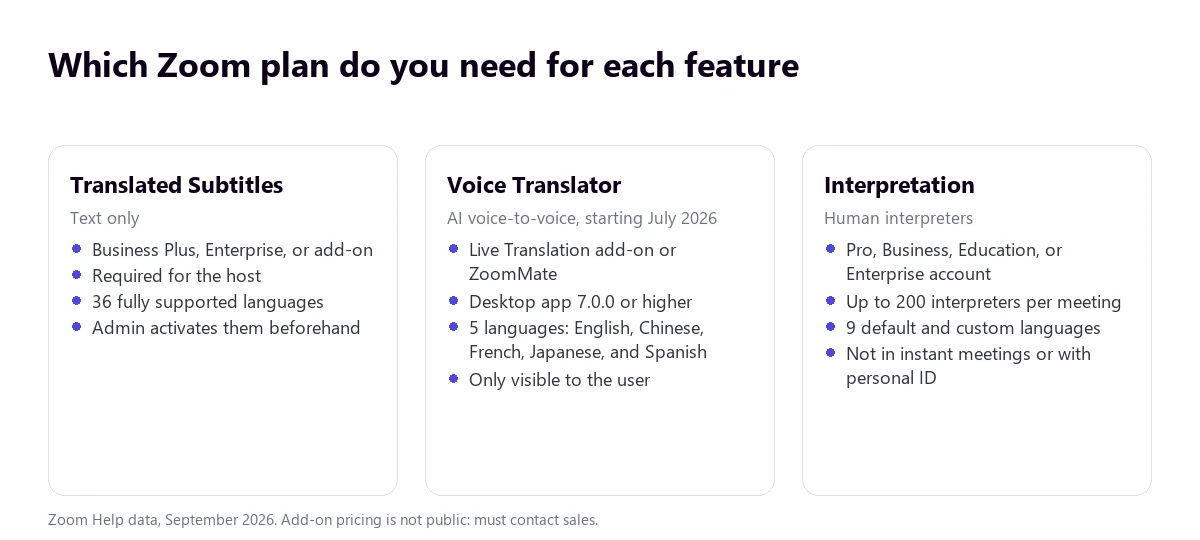
The translated captions are paid for by the host: they require Zoom Workplace Business Plus, Enterprise Essentials, Enterprise Plus, or Enterprise Premier accounts, or the Zoom Translated Captions add-on. The price of that add-on isn’t published: the help section redirects to sales. Before anyone can use them, an administrator has to turn on Automated captions and then translated captions, and they can limit which language pairs are allowed.
The Voice Translator is the newest feature: Zoom announced it on July 22, 2026. It translates voice-to-voice inside the meeting, and each participant chooses which language they speak and which one they want to hear, with a balance control between the original and translated audio. There are two important warnings: it’s only in the desktop app 7.0.0 or higher for Windows and Mac, and it requires the Live Translation or ZoomMate add-on, whose advanced features consume AI credits. The help section says a Basic account is enough; the Zoom blog mentions Pro, Business, and Enterprise. This is another contradiction you should clarify with sales before buying.
Language interpretation with people is the oldest option and the one with the fewest surprises: Pro account or higher, the host assigns interpreters when scheduling the meeting, and each attendee chooses their channel.
Translated captions, step by step
First, the administrator (or you, on your own account):
- Go to the Zoom web portal and go to Settings → Meeting.
- Under In Meeting (Advanced), turn on Automated captions and then Translated captions.
- If you want, use Edit translation languages to define the allowed language pairs.
And then, once in the meeting, each participant:
- Click Show Captions (or More → Captions).
- With the arrow next to Show Captions, check the spoken language under Caption language.
- Turn on Translation, choose the target language, and click Save.
They work in the Windows and Mac desktop app and the web app. The mobile app doesn’t appear in the requirements, so it’s best not to take it for granted. Zoom also warns about two things: it doesn’t translate between variants of the same language (for example, French from France and Canada) and “translated captions may not be accurate”. Some accounts in regulated sectors, like healthcare or higher education, might not have access.
There is a discrepancy regarding the number of languages: the help section lists 36 with full support (plus Catalan, Welsh, Bengali, and Greek with limited support), while the commercial website mentions “captions in 46 languages”. For planning purposes, the help section list is the reliable one.
Voice Translator: what to expect
Once the administrator enables it in Account Settings → Meeting → In Meeting (Advanced) → Voice translator, the participant turns it on inside the meeting under More → Voice Translator, chooses the language they speak and the one they want to hear, and adjusts the balance and voice style.
The limits, exactly as Zoom publishes them:
- Five languages for now: English, Chinese, French, Japanese, and Spanish. The blog promises Portuguese, Arabic, German, and Italian “later in 2026”.
- Settings can only be changed during the meeting, not before.
- “Translation quality may vary” depending on the language pair, audio quality, and speaking clarity.
- Only the person using it sees it: the icon doesn’t appear for the rest of the participants.
- Regarding privacy, Zoom states that it doesn’t store the meeting audio, create voiceprints, or build persistent profiles from the translation.
Interpretation with human interpreters
For a webinar, a board meeting, or a press conference, it’s still the most reliable option. The host sets it up like this:
- In the web portal, Meetings → Schedule a Meeting.
- Next to Meeting ID, choose Generate Automatically (it doesn’t work with the Personal Meeting ID).
- Check Enable language interpretation and enter the details for each interpreter and their languages.
- Once in the meeting, click Interpretation → Start.
Each attendee chooses their language under Interpretation and, if they want, turns on Mute Original Audio. Zoom allows up to 200 interpreters per meeting and nine default languages (English, Chinese, Japanese, German, French, Russian, Portuguese, Spanish, and Korean), expandable with custom languages, up to a maximum of five custom ones per meeting.
Its limits are well known and you should keep them in mind when planning: it doesn’t work with a Personal Meeting ID or in instant meetings, it doesn’t reach breakout rooms, it can’t be started or managed from mobile or the web (you can only listen from there), anyone joining by phone won’t hear the interpretation, and the local recording only captures what the person recording hears, not all channels.
If you don’t have a plan or add-ons: translating Zoom from your PC
This is the usual situation when you’re invited to a meeting: someone else provides the plan. A voice translator for Windows like Traducore listens to the Zoom audio on your computer and gives you the translation in voice and subtitles, without bots or host permissions.
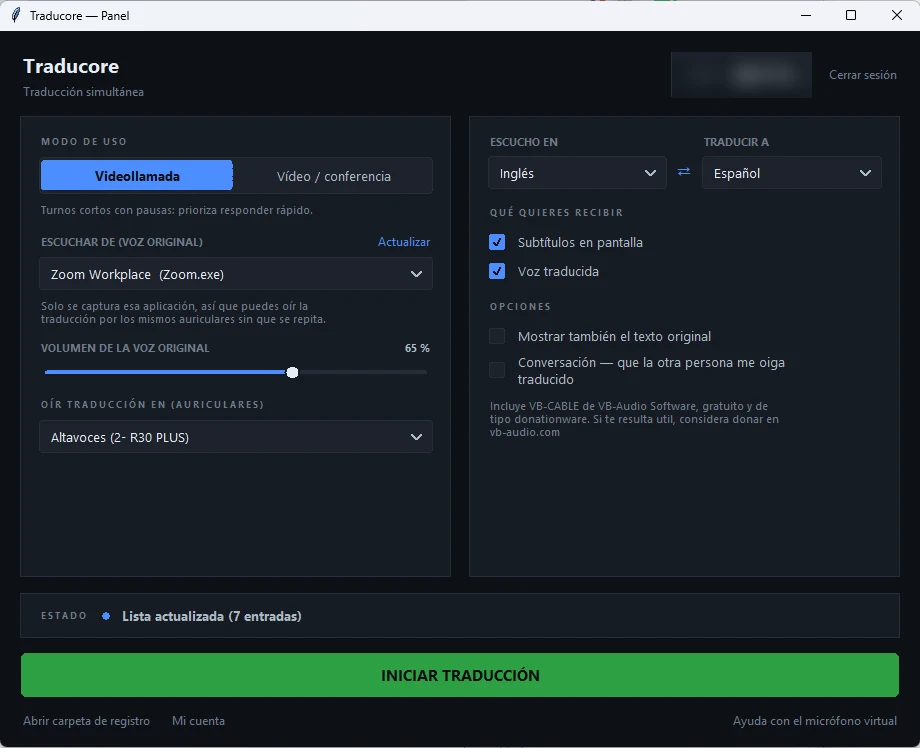
- Join the meeting in the Zoom desktop app.
- Open the translator, choose the Video call mode, and select Zoom Workplace as the source.
- Set the meeting language and your own, and click start.
- To be heard translated, turn on two-way conversation and set CABLE Output as your microphone in the Zoom audio settings. The first time, the program installs this free virtual microphone and Windows asks for administrator permission.
With the 15 free minutes every day, you can check if the language pair for your meetings works well; for more time, it’s paid by the hour. It’s only available for Windows 10 and 11, and the translation arrives a few seconds after each sentence.
When someone else provides the Zoom plan
Translate the meeting from your computer, without add-ons or host permissions. 15 free minutes a day, no credit card required.
Why there is a delay (and how to live with it)
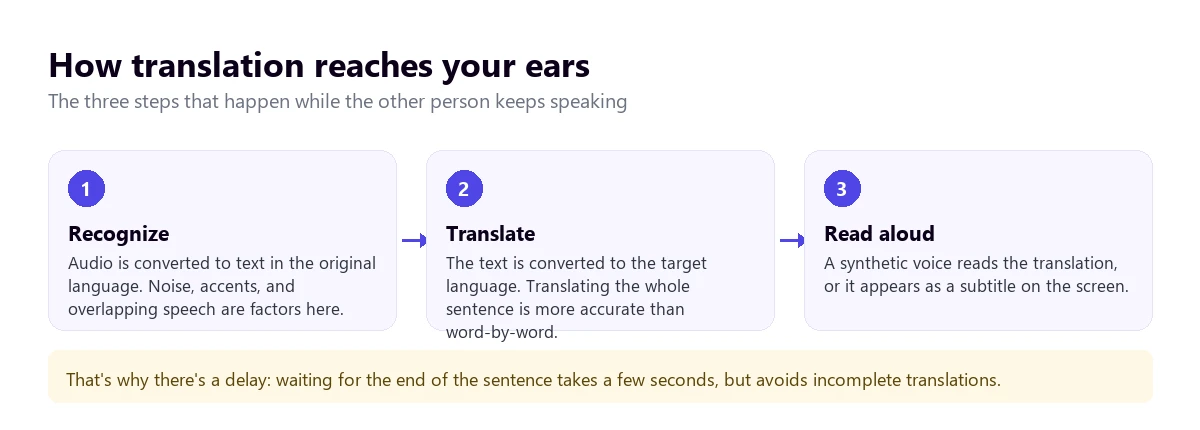
Any machine translation chains three processes together, and none of them are instantaneous. Translating word for word would be faster, but in English, the meaning is often decided at the end of the sentence, so almost all tools wait for it to finish. That’s where the seconds of delay come from, and that’s also why Zoom warns that the quality “may vary” with bad audio or people talking over each other.
Five habits that greatly improve the result
- Better with headphones. With speakers, Traducore doesn’t send your microphone while something is playing through them, so the translation doesn’t loop back in, and the conversation goes in turns.
- Give a heads-up at the start that you’re using translation and ask for a couple of seconds before replying.
- One turn at a time. Interruptions are what destroy translation the most, whether machine or human.
- Check the spoken language in the subtitles: if it’s wrong, everything comes out wrong.
- Names, numbers, and references go in the chat. They are what survive the transition to voice the worst.
How to choose based on your situation
- Your company already pays for Business Plus: translated captions for everyone, and the meeting stays just as fast.
- Business meetings in Spanish or English: the Voice Translator fits, if you accept the cost of the add-on.
- External guest with no plan: translator on your PC.
- Webinar with an audience: interpreters, and announce the language channels at the beginning.
- Language not on the lists: check the 36 for captions before ruling out Zoom; if it’s not there either, an external translator with more languages.
More questions about translating Zoom
How to turn on the translator in Zoom?
It depends on the feature. Translated captions are enabled in Settings → Meeting → In Meeting (Advanced) → Translated captions and then turned on in the meeting from Show Captions. The Voice Translator is in the same settings section and is turned on under More → Voice Translator. If you don’t see either option, your account doesn’t have the plan or the add-on.
How can I translate Zoom into English?
If you mean the application, the interface language is changed in the Zoom settings. If what you want is to understand the meeting in English, you need translated captions, the Voice Translator, or an external translator that listens to the meeting on your computer.
How to turn on subtitles in Zoom?
In the meeting, click Show Captions (or More → Captions). For them to appear, an administrator must have previously turned on automated captions in the account settings.
How to translate a conversation in Zoom?
For it to be a real conversation, your voice also has to arrive translated: Zoom’s Voice Translator or a translator with a virtual microphone on your PC can do that. Translated captions only solve half the problem, understanding. In the simultaneous translator in Teams, we explain the same approach for Microsoft.
So, which one do we use?
When the meeting is ours and it’s about work, we rely on translated captions if the plan includes them: they don’t change the pace of the conversation and nobody has to install anything. When we’re invited by someone else, which is the most frequent scenario, we translate from our computer, because we don’t depend on their plan or their administrator. And if there’s an audience or the topic is sensitive, interpreters. If you’re comparing programs, check out our comparison of real-time voice translators for PC; and if you also work with videos, how to translate audio from Spanish to English.
Zoom in your language, without changing plans
Voice and subtitles in English in any meeting. 15 free minutes a day, no credit card required.