Maestra AI and Traducore translate voice in real time, but with different approaches. Maestra AI is a subtitling, dubbing and translation platform that works in the browser, with a Chrome extension and integrations with Zoom, Teams and Meet; it also works on uploaded files. Traducore is a Windows PC program that listens to the audio of any application and translates it into voice and subtitles, with two-way conversation.
In short: if you want to subtitle or dub files, or share a live session with an audience, Maestra. If you want to understand—and be understood—in your PC meetings, videos and calls, Traducore. Below is the full comparison, including two Maestra billing traps you should look at before paying. The data comes from their official website, checked on September 19, 2026.
Traducore is our product
We are saying this before we start. We compared it using the data Maestra publishes and we also explain where they are better than us.
In this article
- What Maestra AI exactly is
- Traducore and Maestra AI, head to head
- How each one listens
- What each one delivers
- Languages
- Pricing: two traps you should see before paying
- Privacy
- Where each one wins
- Who each one is for
- How to test them without spending a dime
- More questions about Maestra AI
- So, which one do we use?
What Maestra AI exactly is
Before comparing, you should know that Maestra is two things with two different websites, and many people end up paying for the one they didn’t need:
- The file platform. You upload a video or audio and it gives you a transcript, subtitles, voiceover, dubbing and even lip-sync, the latter billed separately by the minute. It is a post-production product: it is used to publish content in several languages.
- The live translator. A separate website that subtitles and translates what is playing right now, with translated voice, speaker identification, custom dictionary, summaries and sessions shared by link or QR code.
Traducore only plays in the second field, and not even in all of it: it doesn’t work with files, it doesn’t dub videos to publish them and it doesn’t distribute the translation to an audience. It does one thing: translate live what is playing on your computer, for you, into voice and text.
Traducore and Maestra AI, head to head
| Tool | How it listens | Where it works | Translated voice | They hear you translated | Languages | Starting price |
|---|---|---|---|---|---|---|
| Traducore | The audio of the application you choose | Program for Windows 10 and 11 | Yes | Yes (Free plan and Conversation plans) | 78 | €7.95 / 2 h (Video); €10.45 / 2 h (Conversation) |
| Maestra AI (Live) | Microphone on the web; PC audio with its Chrome extension; meeting integrations | Browser and Chrome extension | Yes, on paid plans | Not confirmed | 125+ | $49 / month ($39 with annual payment) |
How each one listens
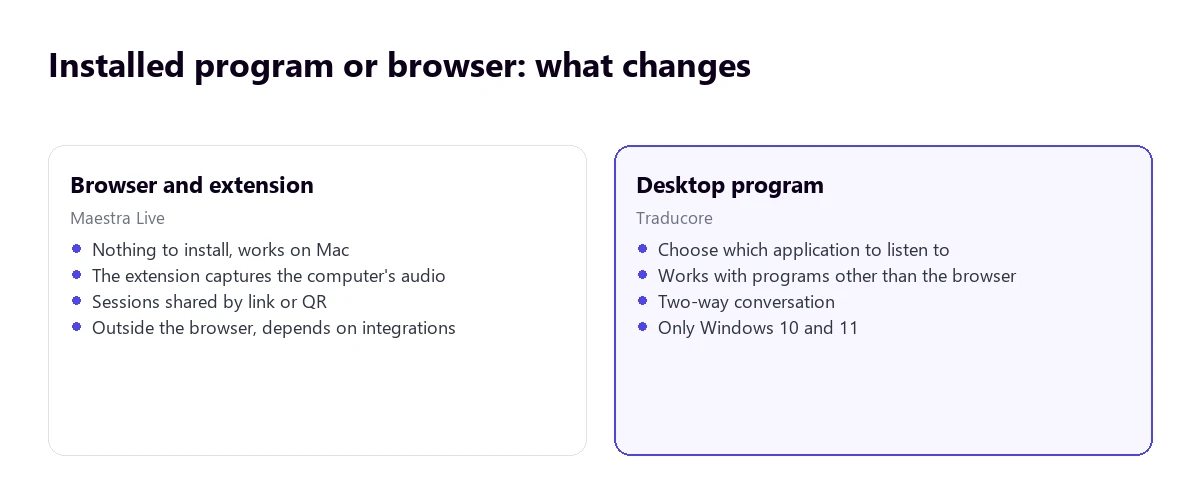
Maestra has four different paths to the audio, and not all of them do the same thing:
- The web microphone. You open the page, speak and it translates. Perfect for an in-person talk, useless for a video playing on the PC.
- The Chrome extension. When you click “Start Capture” it picks up the computer’s audio. It is the way to translate videos or courses, and it only exists for Chrome.
- A bot in Google Meet. It is sent to the call, just like other meeting tools do.
- Linked account in Zoom to activate live subtitles, and an integration with Teams whose exact mechanism their website does not detail.
An important note: the meeting integrations require a subscription, they are not included in the free mode.
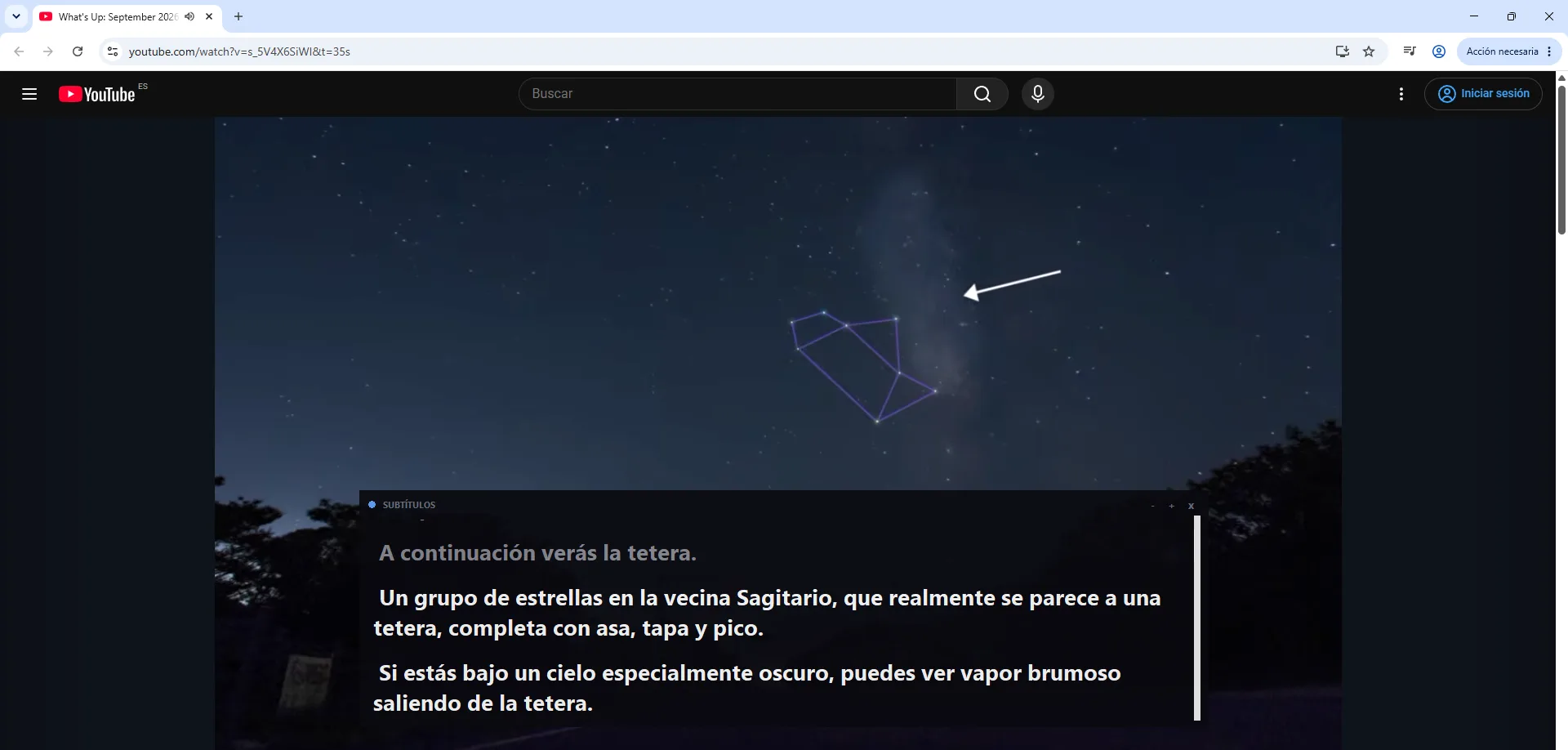
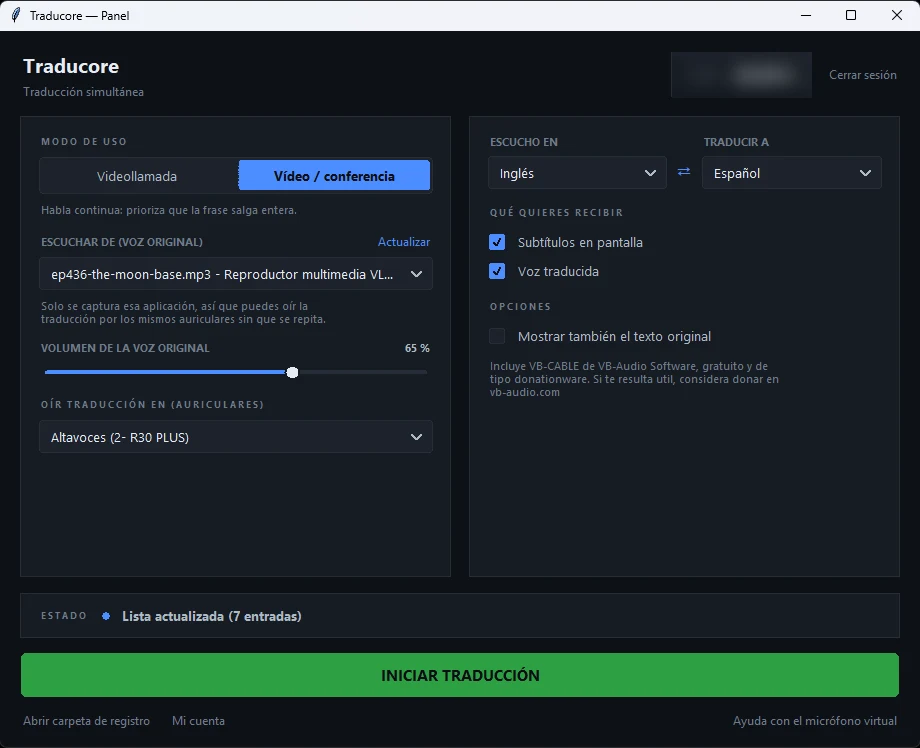
Traducore is a desktop program and has only one path: you choose the application—Teams, Zoom, the browser, a media player, WhatsApp desktop—and on Windows 11 it captures only the audio of that application. No bots, no extensions and no depending on the platform being integrated.
What each one delivers
This is where they separate the most, and you should read it like a shopping list: almost no one needs everything.
Maestra, live: subtitles, translation, translated voice with voice cloning, speaker identification, dictionary for proper nouns, session recording, AI summaries, sessions you can share via link or QR code and output for OBS and vMix. It is designed for long sessions and for other people to follow the translation.
Maestra, on files: transcription, subtitles, voiceover, dubbing and lip-sync. It is what you need if you publish videos in several languages.
Traducore: translated voice and floating subtitles for you and, in Video call mode, two-way conversation using a virtual microphone, so the other person hears you in their language. It doesn’t record, it doesn’t summarize and it doesn’t share.
The question that solves the choice is not which one has more features, but who the translation is for. If it is for you, you don’t need most of the above. If it is for a room, Maestra has what you need.
Languages
Maestra advertises over 125 languages for transcription and voice translation, quite a few more than Traducore’s 78, which also recognizes them with uneven quality among them. If you work with uncommon languages, this is a clear point in favor of Maestra.
However, the usual warning: long lists are filled with languages with little training material, and no number guarantees that your pair will work well. In English to Spanish, both are more than capable; in exotic pairs, you have to test.
Pricing: two traps you should see before paying
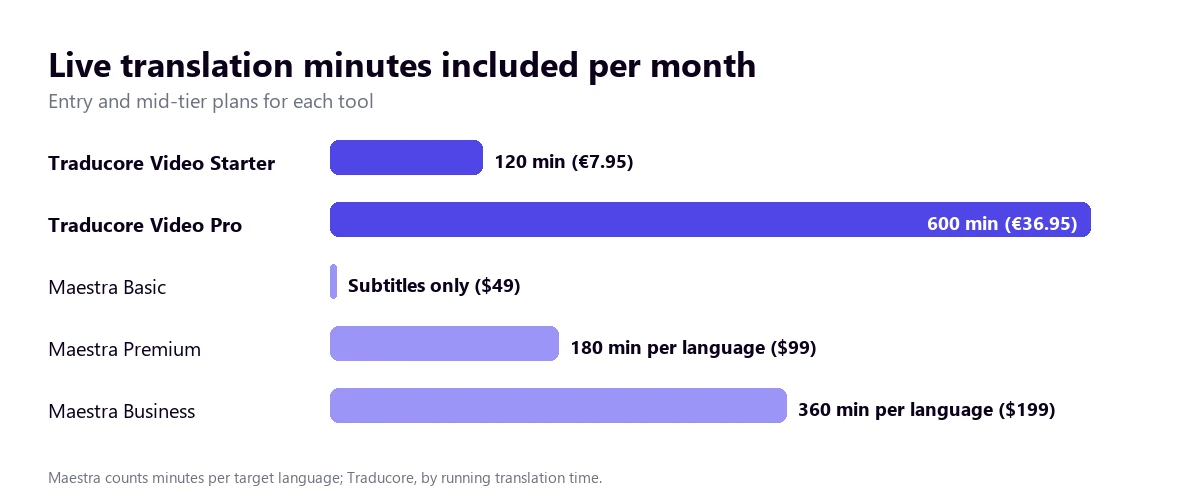
Maestra has a free mode that only provides subtitles, without translation, and real-time plans starting at $49 a month ($39 with annual payment). From there, two details change the bill:
- Translation minutes are counted per language. If you translate a session into three languages at once, each minute counts as three. With a multilingual audience—exactly the case it is designed for—the 180 minutes of the Premium plan run out very quickly.
- Their two pricing pages do not match. On one, the $49 Basic plan includes subtitles and some translation minutes; on the other, only subtitles. Before signing up, look at the page for the specific product you are going to use.
And if you go to the files section, the model is different: pay-as-you-go with credits ($12 for 60 credits) or monthly plans, with lip-sync billed separately by the minute.
Traducore costs from €7.95 for 2 hours a month (Video plan) or €10.45 with two-way conversation, and €36.95 or €49.95 for 10 hours. Minutes are counted by running translation time, not by target language. There are 15 free minutes a day, no card required; full details on pricing.
To be fair: for subtitling many hours a month, Maestra’s plans give you a lot of volume. For translating live for a few hours, we are cheaper.
Privacy
Maestra says your sessions are private unless you share them, allows you to save recordings and deletes data when you delete the file or account; they do not publish a retention period. Traducore does not save the audio or the text of what you translate: when you close the session, nothing is left.
As with any tool of this type, what decides is not the slogan but the specific question: can someone recover what was said later? In Maestra, yes, if you enabled saving—and that is an advantage when you want the minutes. In Traducore, no, not even you.
Where each one wins
- Maestra wins in languages (125+), working on files (subtitles, dubbing, lip-sync), sharing sessions with an audience via link or QR code, voice cloning, working on Mac as well and not having to install anything.
- Traducore wins in listening to any Windows program without extensions or bots, two-way conversation, pricing for personal live use, counting minutes without multiplying them by language and not saving anything you translate.
Test the difference
Traducore, 15 free minutes a day and no card required, with your own meetings or videos.
Who each one is for
- You have meetings with clients or suppliers in another language and you need to reply: Traducore, because of the two-way conversation.
- You follow courses, webinars or videos in another language from your PC: either of the two; Traducore if you also use programs that are not the browser.
- You give a talk or a live stream and want the audience to read the translation on their phone: Maestra, with its sessions shared by QR code.
- You publish videos and want to subtitle or dub them into other languages: Maestra, which works on files.
- You need the meeting minutes in addition to the translation: Maestra, which records and summarizes.
- You use a Mac: Maestra, because Traducore only works on Windows.
If neither of the two fits perfectly, there are more options in the comparison of voice translators for PC, and the big picture is in what a simultaneous translator is.
How to test them without spending a dime
Both have a free tier, so there is no need to decide blindly. For the test to be useful, do it with the same material on both:
- Choose a real and difficult audio. Don’t use a video with perfect voiceover: pick a recorded meeting or an interview with two people and some noise. That is where the tools separate.
- Use the same language pair and the same fragment, about five minutes long, on both.
- Time the delay. Count the seconds between the end of a sentence and its translation. Less than six is normal; more than ten, uncomfortable.
- Watch out for three specific things: proper nouns, numbers and what happens when two people talk over each other. That is where everyone fails, and the degree of failure is what you will suffer every day.
- Test the scenario you repeat the most. If 80% of your use is Teams, don’t test with a YouTube video.
With Maestra’s free mode you will have subtitles without translation, so to compare the live translation you will need their paid trial or stick with what the free version offers. In Traducore the free plan gives 15 minutes a day with subtitles, conversation and translated voice (voice in English, Spanish, French, German, Italian and Portuguese; in the other languages, subtitles).
More questions about Maestra AI
Is Maestra AI free?
It has a free subtitles-only mode in its live translator and a free web subtitler for up to 10 minutes. Real-time translation, translated voice, saving and meeting integrations are paid.
Does Maestra AI have an app to download?
It works in the browser, without installation, and has a Chrome extension. Their website does not mention a desktop app for Windows or Mac. If you prefer an installed program that listens to any application, that is exactly Traducore’s proposal.
What does the Maestra AI extension do?
It allows you to capture the computer’s audio (“Start Capture”) to subtitle and translate it live, instead of using only the web microphone. It is only available for Chrome.
Does Maestra AI work for YouTube videos?
Yes: you can translate what is playing in the browser with its extension or upload the video to subtitle or dub it. You have all the options for YouTube in how to translate a YouTube video.
So, which one do we use?
For our needs—meetings with people from abroad, training sessions and videos on the PC—Traducore: we choose the program, hear it translated and can reply. If one day we needed to subtitle or dub a video to publish it, or broadcast a talk with translation for an audience reading it on their phone, Maestra would be the tool to look at. They are not direct rivals: one translates for you, the other produces translated content for others.
Live translation for any program
Voice and subtitles translated on your PC. 15 free minutes a day, no card required.