A real-time translator is a tool that translates what someone is saying while they are saying it, into voice, text, or both, with a few seconds of delay. The concept comes from conference interpreting booths; what’s new is that today a program, a phone, or an earbud does it.
There are five types and they don’t compete with each other: they solve different situations. Below you have what each one does, how this technology works under the hood (and why the delay is inevitable), how it differs from a professional interpreter, and what to look for before paying for any of them. The platform data was checked in their official help sections in September 2026.
In short
- Meetings, videos, or calls on the computer? → a PC program.
- Talking in person with someone while traveling? → a mobile app or translator earbuds.
- Does your company already pay for Teams, Zoom, or Workspace with AI? → check their built-in features first.
- An event, a trial, or a delicate negotiation? → human interpreters, hands down.
In this article
- Where simultaneous translation comes from
- The four interpretation modes (and which one each machine resembles)
- How an automatic real-time translator works
- The five types of real-time translators
- What to look for before choosing a real-time translator
- How to get the most out of a real-time translator
- What a real-time translator does not do
- More questions about real-time translators
- So, which one do we use?
Where simultaneous translation comes from
Simultaneous interpretation using technical equipment became popular at the Nuremberg trials after World War II: a process had to be followed in four languages without stopping every two sentences. Until then, consecutive interpretation was the norm, which doubled the length of any event because the speaker had to stop and wait.
That invention—microphones, booths, and headphones—is what programs copy today. And it carries the same physical limitation: you have to wait to understand the sentence before you can translate it. Professional interpreters call it “décalage”, the lag of a few seconds where they trail behind the speaker. A program does exactly the same thing, for the same reason.
Another industry fact that explains a lot: booth interpreters work in pairs and take turns every twenty or thirty minutes, because listening, understanding, translating, and speaking at the same time is exhausting. This is the best clue as to why automating this is hard, and why people still pay for humans at important events.
The four interpretation modes (and which one each machine resembles)
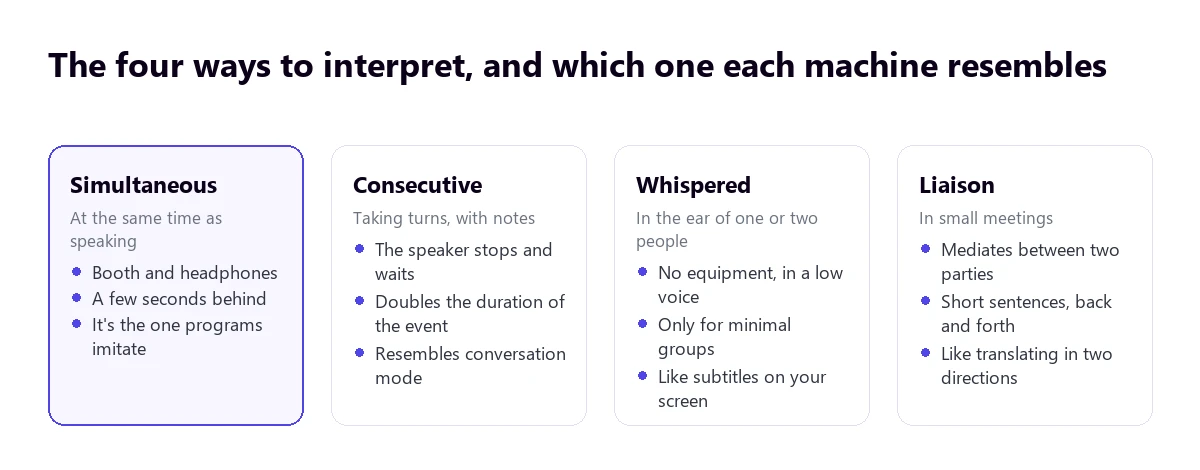
Knowing which one you need helps you choose a tool, because each type of program imitates one:
- Simultaneous. The translation arrives while the speaker is talking. This is what PC programs and the voice translation in meeting platforms do.
- Consecutive. The speaker says a block, pauses, and then it is translated. This is the conversation mode in mobile apps: taking turns.
- Whispered. The interpreter translates into the ear of one or two people, without equipment. This is equivalent to you having subtitles on your screen while the rest of the meeting continues in the original language.
- Liaison. Short back-and-forth sentences between two parties. This is what two-way translation solves.
How an automatic real-time translator works
It chains three steps in a loop: it recognizes the voice and turns it into text, translates that text, and, if it provides voice, reads it out loud in the other language. Each step adds its own error and its own delay, and the first one carries the most weight: if the recognition mishears a word, the translation works on something nobody said.
The difference between tools lies in when they decide to translate:
- Translating as soon as something is heard gives a sense of immediacy, but produces sentences that later have to be rewritten, because in many languages the meaning is finalized at the end.
- Waiting for the sentence to finish is much more accurate in exchange for a few seconds. This is what most do. Google Meet states this bluntly in its help section: its translations have “a delay of a few seconds to ensure they are complete”.
That is why you should distrust anyone promising “instant” translation: between someone finishing a sentence and you hearing it translated, seconds always pass. A reasonable time, today, is between three and six.
With voice or subtitles only
Not all tools do the same thing with the result, and the difference is more important than it seems:
- Text only. You read the translated subtitles. It goes faster (it skips the voice generation step), allows you to reread, and doesn’t interfere with the original audio, but it forces you to look at the screen.
- Translated voice. You hear the translation over the original, usually with the original volume lowered. It leaves your hands and eyes free, but it overlaps with what the speaker continues to say.
- Both. The most common setup in desktop programs: you listen and, if in doubt, you look at the subtitle.
The five types of real-time translators
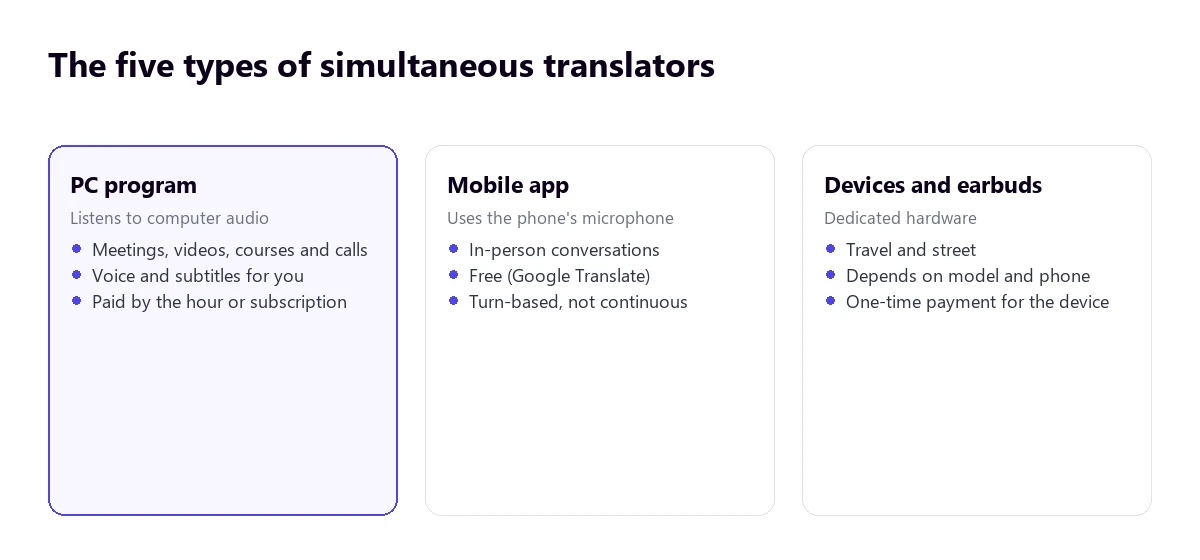
| Type | What it’s for | What it listens to | They hear you translated | Cost |
|---|---|---|---|---|
| PC program | Meetings, calls, videos, and classes on the computer | The audio of the app you choose | Yes, in conversation mode | 15 free mins a day; more time, paid |
| Mobile app | In-person conversations, single sentences | The phone’s microphone | By turns, through the speaker | Free |
| Earbuds and devices | Travel and in-person conversations | Their own microphone | Depends on the model | Device purchase |
| Teams, Zoom, and Meet features | Meetings within that platform | The meeting | Depends on the feature | Licenses or add-ons |
| Human interpreters | Events, official acts, negotiations | Everything | Yes | Per service |
1. PC programs
A desktop real-time translator listens to the audio of the app you choose—a meeting platform, the browser, a media player—and returns the translation in voice and floating subtitles while the other person keeps talking. Its advantage over everything else is that it does not depend on the platform: the same tool works for a work meeting, a recorded course, or a video.
Traducore works like this on Windows 10 and 11 (on Windows 11 it listens only to the chosen app), without putting any bot in the meeting or installing anything on other people’s computers.
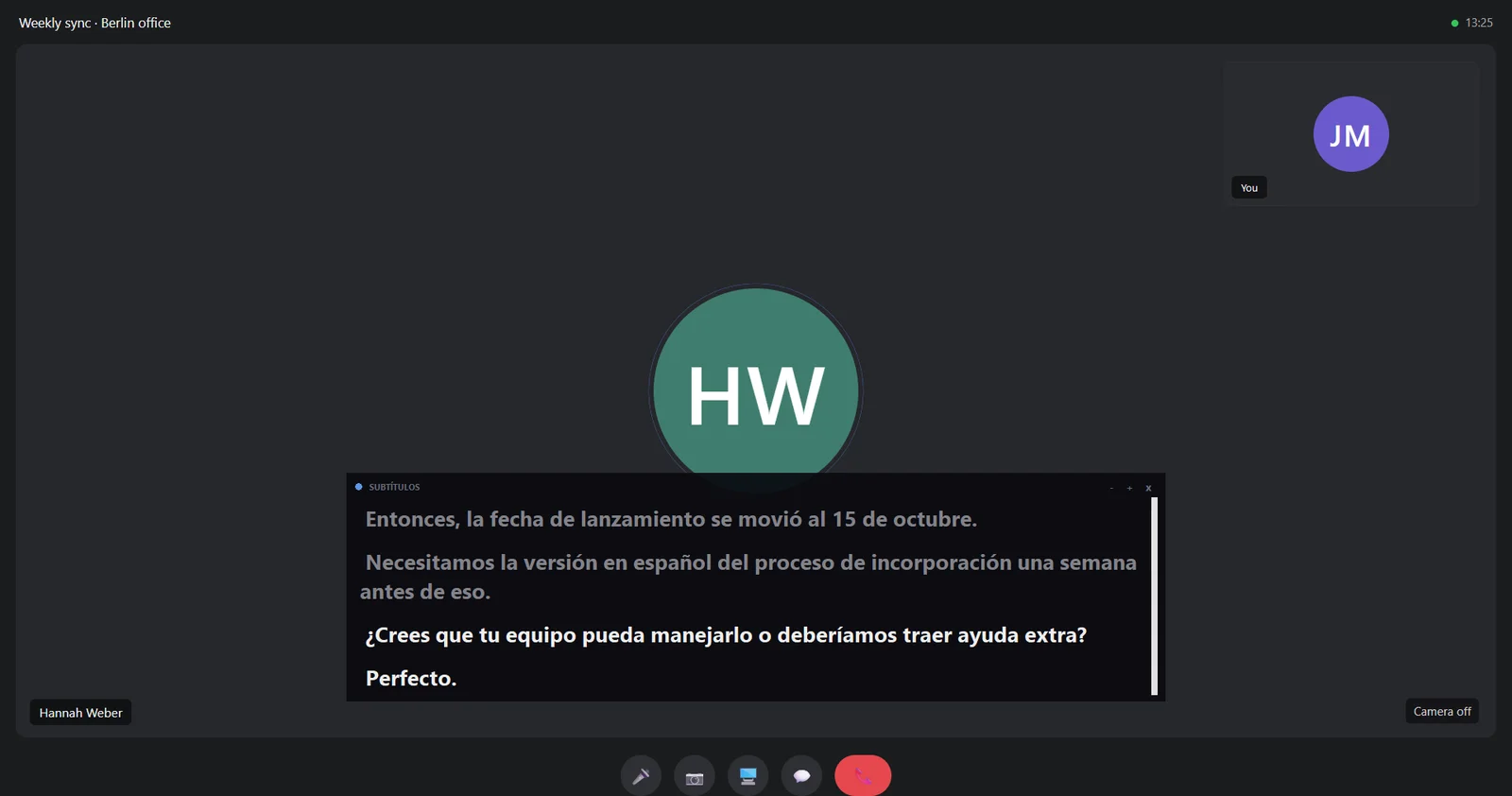
It has two modes: Video call, which closes turns earlier to allow for quick replies, and Video / talk, which waits for the sentence to finish and works better with someone who speaks without pauses. In video call mode, you can activate two-way conversation: what you say reaches the other person translated through a virtual microphone.
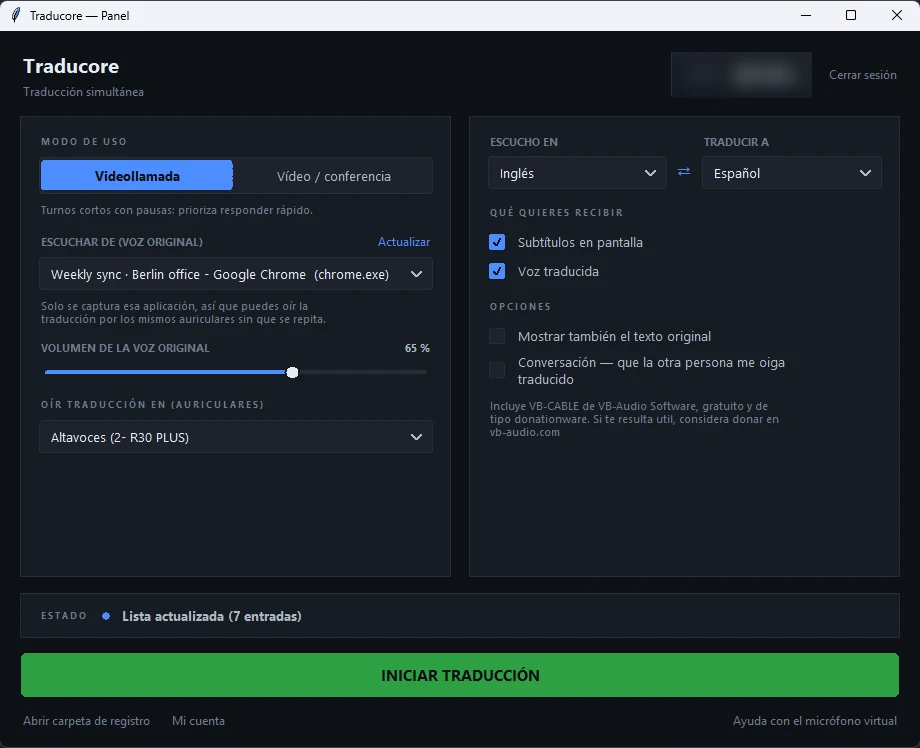
Its limits: Windows only, not suitable for talking in person. It has 15 free minutes a day and, for more time, paid plans. It translates into 78 languages, without the same quality in all of them, and does not save the audio or the text.
Try a real-time translator on your PC
In your next meeting or video in another language. 15 free minutes a day, no credit card required.
2. Mobile apps
The Google Translate app for Android and iPhone has modes designed for talking in person: Listening (translates what it hears), Conversation (two people take turns and the translation plays through the speaker), and Face-to-face, with a split screen. It is free and detects when the language changes. According to its help section, the computer web version does not allow continuous speaking and translating.
It is the best option for a trip, running an errand in a store, or a conversation with someone in front of you. For a PC meeting, it is impractical: the phone would have to listen to the computer speaker, with the echo and room noise in the way.
A detail that saves trouble: download the languages before traveling. Offline, it keeps working with the downloaded packs, although with less accuracy, and abroad that is worth more than any feature.
3. Translator earbuds and devices
These are physical devices—earbuds with translation or pocket gadgets—designed for face-to-face conversations: each person speaks in their language and the device translates. Before buying one, you should check three things:
- If it needs a phone. Many are, in practice, just a pretty microphone for an app: without a phone, they do nothing.
- If it needs the internet. Most process in the cloud, which is exactly what fails on a trip.
- How many real languages. The numbers on the box include languages that only work via text.
They make sense if you travel a lot or work on the street. For what happens on a screen, they add nothing compared to a program.
4. Built-in translation in Teams, Zoom, and Meet
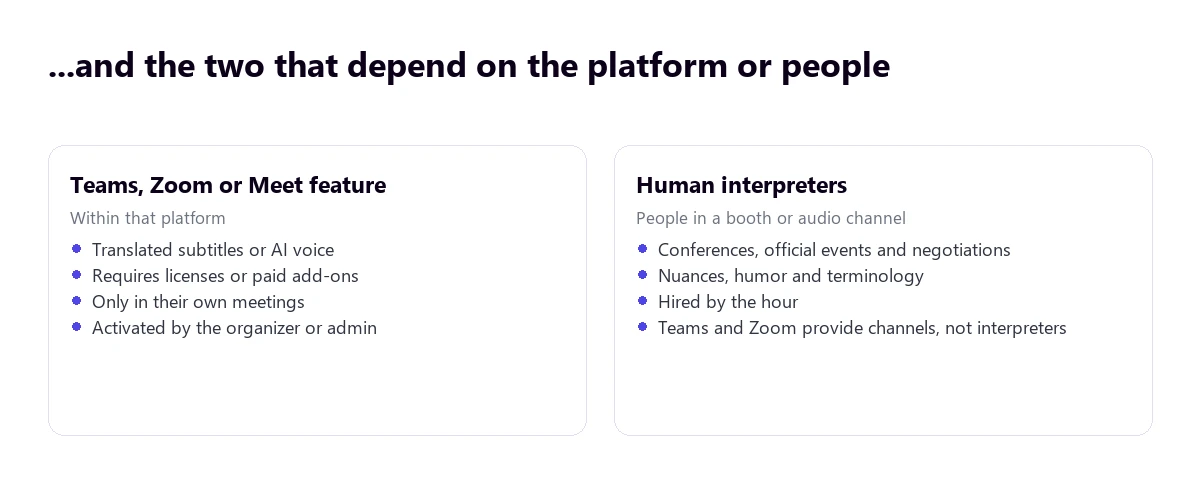
The three major platforms already translate, but always with paid licenses and only within their own meeting:
- Microsoft Teams has the Interpreter agent, which translates voice-to-voice with a Microsoft Copilot license (20 hours per person per month), and translated subtitles with Teams Premium or Copilot. We explain this in how to translate a Teams meeting.
- Zoom offers translated subtitles on Business Plus plans and higher (or with an add-on) and a Voice Translator announced in July 2026, currently in five languages and with a paid add-on. More in how to translate a Zoom meeting.
- Google Meet has voice translation in paid Workspace editions, between English and six other languages, a single language pair per meeting, and a 90-minute limit.
The pattern repeats across all three and you should be clear about it before relying on them: the organization pays for and activates it, not the attendee; English is usually mandatory on one of the two sides; and outside that platform, they are useless.
5. Human interpreters
When there is a lot at stake—a conference, an official event, a negotiation, a trial—professional simultaneous interpretation is still the most reliable. An interpreter understands the context, resolves irony, adapts the register, and knows when something cannot be translated literally. Plus, they are accountable for their work: a machine is not.
Teams and Zoom allow language channels so interpreters can work inside the meeting, but the organization provides and pays the interpreters. The platform only provides the plumbing.
What to look for before choosing a real-time translator
- Where the conversation happens. On screen, a PC program or your platform’s feature. In person, a phone or earbuds. This is the criteria that rules out the most options.
- If you also need to be understood. Hearing the translation is something almost all of them do; having the other person hear you in English requires two-way translation, and that is not available everywhere.
- Which programs it works with. Built-in features only work within their platform; a program that listens to the system audio works with all of them, including the ones you don’t use yet.
- Delay and quality. Translating the full sentence takes a few seconds longer and makes fewer mistakes. Test it with your language pair: no tool performs equally well in all of them.
- Privacy. Check three things: if it saves audio or transcripts, where it is processed, and if it puts a visible bot in the meeting. In environments with client data, this decides more than the price.
- How it charges. By hours of use, by monthly subscription, or by company license. Calculate your actual hours per month: the difference between models is huge.
How to get the most out of a real-time translator
- Short sentences and pauses. If you are the one speaking to be translated, finish your sentences. Systems translate in blocks.
- A decent microphone. It improves the result more than changing tools: voice recognition is the layer that introduces the most errors.
- Don’t talk over each other. When two people speak at the same time, the recognition merges them into a single sentence and outputs something nobody said.
- Warn about proper nouns. Brands, last names, and acronyms are the first things to break. If they are critical, type them in the chat.
- Headphones if there is translated voice. The conversation flows better. With speakers, Traducore does not send your microphone while something is playing through them, so the translation doesn’t feed back in, which means you have to take turns speaking.
What a real-time translator does not do
It is best to set clear limits, because the temptation to stretch it is big:
- It does not replace a certified translation. No contract, record, or official document is solved with this.
- It does not guarantee confidentiality on its own. It depends on where the audio is processed and what is saved.
- It does not translate on-screen text. Slides, banners, and shared documents stay in their language.
- It does not catch the subtext. An ironic “interesting” is translated as a compliment.
More questions about real-time translators
What is the app that translates in real time called?
There isn’t just one: it depends on the device. On the phone, Google Translate with its conversation mode. On the computer, real-time translation programs that listen to the system audio. And inside a meeting, the platform’s own feature (Interpreter in Teams, Voice Translator in Zoom, voice translation in Meet). Specific options for Windows are compared in the best real-time voice translators for PC.
How do you activate real-time translation?
It depends on the tool. In a PC program, you choose the app you want to listen to, the two languages, and press start. In Teams, the Interpreter is under “More options” → “Language and speech” → “Interpreter”, if your organization has the license.
How do you activate Google’s real-time translator?
In the Google Translate mobile app, enter the conversation or listening mode and choose the two languages. On the computer web version, you can only dictate with the microphone sentence by sentence, not translate continuously.
Is there a free online real-time voice translator?
For single sentences, Google Translate is free. For browser audio, Chrome’s live captions with instant translation are too. For continuous use with voice, almost all of them have a limited free tier before moving to paid plans.
So, which one do we use?
For everything that happens on the computer—calls with clients, training sessions, videos—we use a PC program, because it works equally well for Teams, Zoom, or YouTube and doesn’t depend on anyone’s license. When we have to talk to someone in person, the phone. And if it were an event with an audience, press, or a contract involved, we would hire interpreters without a second thought: there, the difference is not speed, it’s accountability. If you are looking for specific options for Windows, we compare them in the best real-time voice translators for PC.
Your real-time translator for PC
Meetings, calls, and videos translated live. 15 free minutes a day, no credit card required.