Microsoft Teams has three ways to translate a meeting, and none come as standard: the Interpreter, which translates voice-to-voice with AI, needs a Microsoft Copilot license; live translated captions depend on Teams Premium or Copilot; and language interpretation with human interpreters requires hiring the interpreters. If you don’t have any of these, or if another company organizes the meeting, there is a fourth way: translating the audio from your own computer.
This guide on Teams real-time translation covers the requirements, steps, and limits of each option exactly as Microsoft publishes them in its help documentation, consulted in September 2026, including the contradictions between its own pages. We start with what almost no one explains before beginning: who pays for what.
In short
- Your organization has Microsoft Copilot → the Interpreter, voice-to-voice, 20 hours per person a month.
- The organizer has Teams Premium or Copilot → translated captions for everyone, text only.
- Major event or official act → human interpreters in language channels.
- No licenses, or you are an external guest → a translator on your PC that listens to the Teams audio.
In this article
- The four ways to translate a Teams meeting
- Which license you need for each feature
- How to activate the Interpreter step by step
- Live translated captions
- Interpretation with human interpreters
- If you don’t have a license: translate Teams from your own PC
- What fails in practice (and how to reduce it)
- How to choose your Teams meeting translator
- More questions about Teams real-time translation
- So, which one do we use?
The four ways to translate a Teams meeting
| Option | What you get | What you need | Languages | Where it works |
|---|---|---|---|---|
| Interpreter (AI agent) | Translated voice over the original audio | Microsoft Copilot license | About 10 | Scheduled meetings; in calls, depending on the type |
| Live translated captions | Text only, each in their own language | Teams Premium or Copilot (the organizer is enough) | About 30 target languages | Meetings, town halls, and webinars |
| Language interpretation | Voice of a professional interpreter | Hire interpreters; Teams desktop app | Up to 16 pairs | Scheduled meetings and webinars |
| Translator on your PC | Voice and subtitles for you, and being heard translated | A program on your Windows; no Teams license | 78 (Traducore) | Any meeting, regardless of who organizes it |
Which license you need for each feature
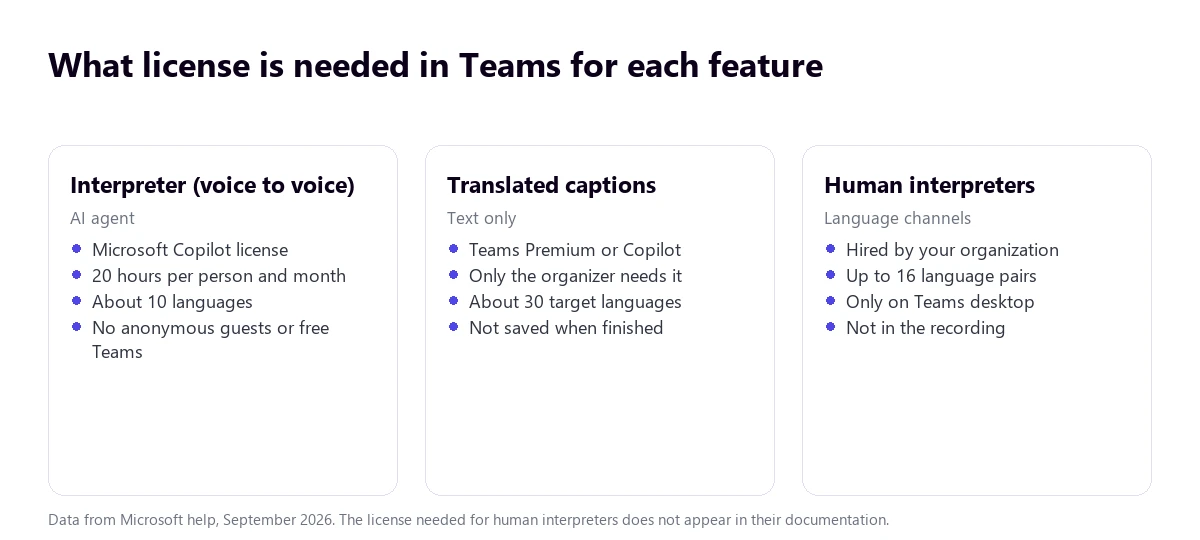
The Interpreter is the flagship feature and the most demanding: the help documentation states that 20 hours of interpretation per person a month are included with a Microsoft Copilot license, and that beyond that time, access is “subject to available capacity”. For administration, a qualifying Microsoft 365 base license and the Teams license are also required. Participants from other organizations can use it if they join with verified accounts and their own license; anonymous guests cannot.
Translated captions work differently, and here is the good news: if the organizer has Teams Premium or Microsoft Copilot, the rest of the participants can use them without their own license. If only some have it, only they will see the “Translate to” option. In town halls and webinars, the organizer preselects the languages: six, or ten with Premium.
Watch out for the April 2026 change
Since April 1, 2026, the town hall and webinar features that were previously exclusive to Teams Premium moved to Teams Enterprise. The licensing page, as of that same date, still shows translated meeting captions as a Premium feature. If your organization just changed plans, it is a good idea to check this before planning a multilingual event.
For interpretation with people, Microsoft is blunt: “Microsoft does not provide interpreters. Organizations must hire their own interpreters.” Curiously, none of its official pages state which license is needed to activate the feature, although forums repeatedly mention it is Teams Premium. If this is your case, ask about it before committing to a meeting with interpreters.
What the administrator can block
The Interpreter is controlled by policy: Set-CsTeamsMeetingPolicy -AIInterpreter (enabled by default) and -VoiceSimulationInInterpreter, which decides if the speaker’s voice can be simulated. Live captions depend on the “Live captions” policy, which must be set to “Not enabled, but users can enable”, its default value. In other words: you might have the license and still not see the option, because your organization has disabled it.
How to activate the Interpreter step by step
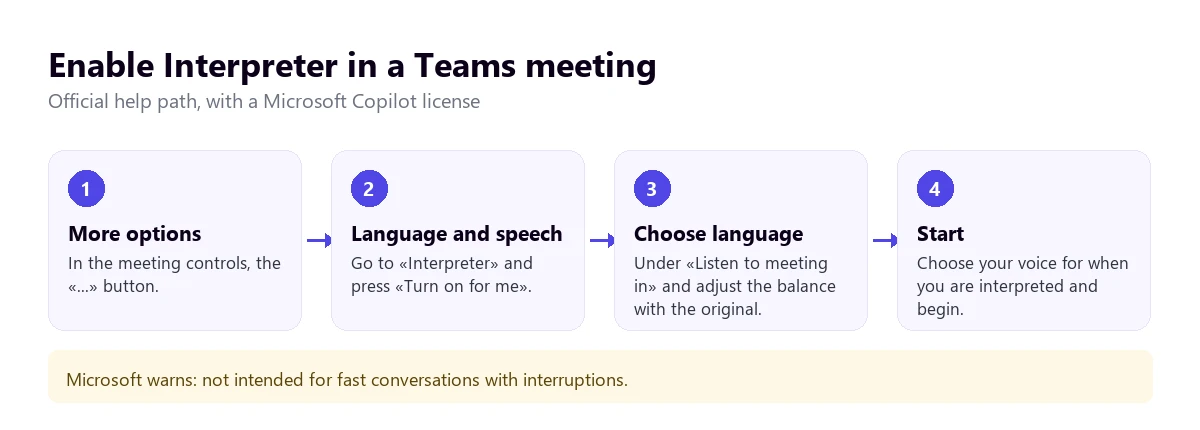
In the desktop app, inside the meeting:
- Click More options (…) in the meeting controls.
- Go to Language and speech → Interpreter → Turn on for me.
- Under Listen to meeting in, choose the language you want it to translate into.
- Move the Balance slider to decide how much original audio and how much interpreted audio you want to hear.
- Under Choose your voice when interpreted, pick between Simulate my voice (imitates your tone) or Automated voice.
- Click Start. To change it later: “Interpreter” indicator → “Manage settings” or “Turn off for me”.
On mobile: More options → Turn on interpreter, choose the language under “Interpretation language”, and adjust the balance and voice before tapping “Turn on interpreter”. In calls, the path is More actions (…) → Language and speech → Turn on interpreter for me, although a warning is needed here: the administrator guide says it is not supported in unscheduled 1:1 calls, neither via VoIP nor phone, while the user help does provide steps for calls. The two Microsoft pages contradict each other.
Which languages it supports (and why the number varies)
The user help lists English, Spanish, Portuguese, Japanese, Simplified Chinese, Italian, German, French, Korean, and Taiwanese. The administrator guide cites the same ones except Taiwanese. Whichever list is correct, the practical conclusion is the same: if your meeting is in Polish, Dutch, or Arabic, the Interpreter won’t work for you yet.
The limits Microsoft acknowledges
- Recordings only have the original audio: the interpretation is not recorded.
- Translated transcripts only exist live. When finished, only the original language transcript remains.
- It is not optimized for fast conversations with interruptions or people speaking at the same time: the translation can take longer than the original speech, and there is an indicator asking to wait for others to finish hearing it.
- “Interpretation of people’s names, genders, or technical terms may be inaccurate.”
- None of this works in ad-hoc meetings, free Teams, town halls, or webinars.
- Turning on the Interpreter also turns on multilingual speech recognition, which affects captions and transcription.
Live translated captions
If reading is enough for you, this is the easiest option to get, because it is enough for the organizer to have the license. In the desktop app:
- More actions → Language and speech → Turn on live captions.
- To the right of the captions, Caption settings → Language settings.
- Check that the spoken language of the meeting is correct. If it is not, Teams will ask to change it and the translation will come out wrong.
- Turn on Translate to and choose English.
In town halls and webinars, the organizer sets them up beforehand from Meeting options → Engagement → Translate attendee captions, where they choose the list of available languages.
Regarding languages, there is another inconsistency in the documentation: the Spanish help lists 30 target languages, the English one adds Arabic (31), and the licensing page mentions “40 languages”. The recognized spoken languages are indeed many more: 57 variants, with Spanish from Spain and Mexico separated.
Two practical details: Teams does not save the captions when finished (if you want a record, turn on transcription), and processing is done with Azure speech services “in the geographic region where your organization is located”, deleting the caption data when the meeting ends.
Interpretation with human interpreters
It is still the go-to option for a board meeting, a works council, or a press conference. The organizer enables it before the meeting:
- Create the meeting and invite the interpreters as well.
- Under Options → Roles, turn on Enable language interpretation.
- Search for each interpreter and assign them the spoken language and the target language.
- Add more interpreters if more channels are needed and click Apply.
Each attendee then chooses their channel under Choose interpretation language and adjusts the balance. It supports up to 16 language pairs and as many interpreters as needed, but it has strict conditions: only in the Teams desktop app (you cannot choose a language on the web or mobile), it does not work with end-to-end encryption, it is interrupted in breakout rooms, the recording only captures the main channel, and an interpreter cannot be an organizer or co-organizer.
If you don’t have a license: translate Teams from your own PC
This is the most common case when a client or supplier sets up the meeting: you don’t control their plan or permissions. A voice translator for Windows like Traducore solves this another way: it listens to the Teams audio on your computer and gives you the translation in voice and floating subtitles, without bots and without the organizer turning anything on.
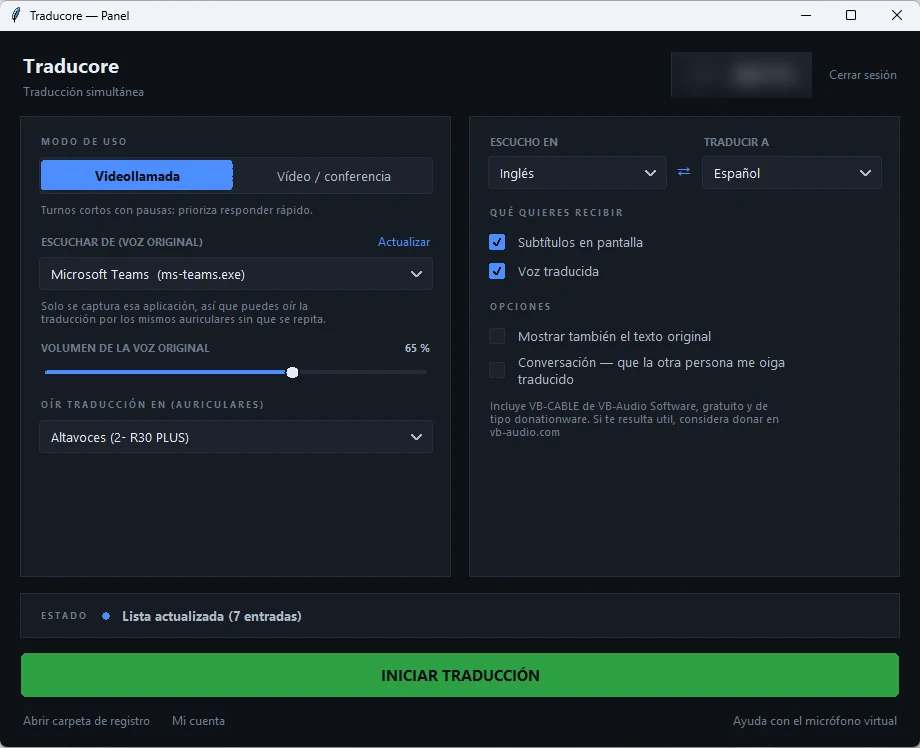
- Join the Teams meeting as usual.
- Open the program, choose the Video call mode, and select Microsoft Teams from the application list.
- Set the meeting language and your own, and click START TRANSLATION.
- So they can understand you too, turn on two-way conversation and set CABLE Output as the microphone in the Teams audio settings (the first time, the program installs this free virtual microphone and Windows asks for administrator permission), leaving the speakers on your headphones.
The good part: it works for any meeting, as well as videos or courses. The less good part: it only works on Windows 10 or 11 PCs, the translation arrives a few seconds after each sentence, and the free plan gives 15 minutes a day; for more time, it is paid by the hour.
When someone else holds the license
Translate the meeting from your computer, without depending on the plan of the company organizing it. 15 free minutes a day, no credit card.
What fails in practice (and how to reduce it)
- The delay changes turn-taking. Any automatic translation arrives a few seconds late. Let people know at the start of the meeting and ask for a couple of seconds before replying.
- Interruptions break the translation. This is the weak point Microsoft itself acknowledges. One person per turn improves the result more than any setting.
- Proper names and numbers. These are what come out worst in voice. Write them in the chat when they matter.
- A poorly configured spoken language ruins the captions: check it before starting.
- Do not count on the recording to recover the translation: neither the Interpreter nor human interpreters are recorded.
- With speakers, you speak in turns. Traducore does not send your microphone while something is playing through them, so the translation does not loop back in. With headphones, the conversation is smoother.
How to choose your Teams meeting translator
- Company with Microsoft Copilot and internal meetings: the Interpreter, and translated captions as backup.
- You organize and attendees are external: translated captions, because they do not need a license.
- You are the external guest: a translator on your PC; you do not depend on their plan or their administrator.
- Event with an audience or sensitive matter: human interpreters, with their language channels.
- Language outside the Interpreter’s list: translated captions (more languages) or an external translator.
Why you won’t see screenshots of the Interpreter here
Teams translation features only appear with Microsoft Copilot or Teams Premium licenses, which we do not have. We prefer to say this rather than showing screens from another website: the steps and requirements in this article come from the official Microsoft help, and the screenshots you will see are from the part we have tested.
More questions about Teams real-time translation
How to turn on real-time translation in Teams?
With a Microsoft Copilot license: More options → Language and speech → Interpreter → Turn on for me. If you only want captions and the organizer has Premium or Copilot: More actions → Language and speech → Turn on live captions and then “Translate to”. If neither appears, there is no license or the administrator has blocked it.
How to translate a Teams conversation in real time?
To hear it in your language, the Interpreter. To read it, translated captions. And if you also need the other person to hear you in theirs without Teams supporting it on your plan, a translator on your PC with a virtual microphone: the same method works for Google Meet and WhatsApp and for Zoom.
Can you translate captions in Teams?
Yes: these are the “live translated captions”, available with Teams Premium or Microsoft Copilot. It is enough for the organizer to have them so all attendees can choose a language. They are not saved when the meeting ends.
So, which one do we use?
With a Teams meeting translator, it is like with almost everything: it depends on who pays. If the company already has Copilot, the Interpreter is the most convenient for internal day-to-day use, and translated captions are the best gift for guests. The problem appears when someone else sets up the meeting: no license will help you there, and that is why we translate from our own computer. And if the meeting is a public event, we still think there is no AI that replaces a professional interpreter. If you want to compare PC programs, you have our voice translator comparison.
Translate any meeting, with or without a license
Voice and English subtitles while they speak, in Teams and any other program. 15 free minutes a day.