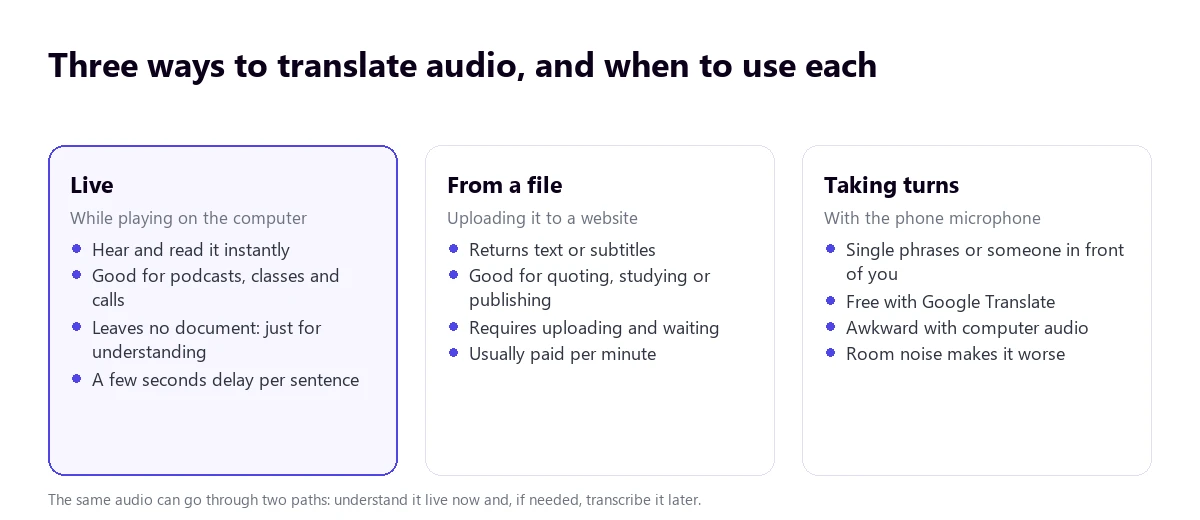
Translating Spanish audio to English is done in three different ways, and choosing the wrong one wastes time: live, while the audio plays on the computer; from a file, by uploading it to a website that returns the translated text; or taking turns, using a phone microphone. None of them works for everything.
Below are the five real paths that exist today, with their documented requirements and limits, what each layer of machine translation does (and why it fails), and a test with an English episode of NASA’s Houston We Have a Podcast played in VLC (here it translates into Spanish; you would pick English).
In short
- Hear the audio in English while it plays (podcast, class, video, call) → a voice translator on the PC.
- The audio is in a browser tab → Chrome’s Live Caption + Live Translate, free.
- Short phrases or someone speaking in front of you → Google Translate on the phone.
- You need the text from a file to quote, study, or subtitle → transcription website.
- WhatsApp voice note → transcribe it on the phone and translate the text later.
In this article
- Before choosing: what happens inside when translating audio
- Which method to choose
- 1. Translate the audio live on the PC
- 2. Chrome: free translated subtitles, if the audio is in the browser
- 3. Google Translate: for short phrases, not for long audio
- 4. Websites that transcribe and translate a file
- 5. WhatsApp voice notes in Spanish
- What is always lost when translating audio
- How to get a cleaner translation
- More questions about translating Spanish audio to English
- So, which one do we use?
Before choosing: what happens inside when translating audio
All the tools in this guide, as different as they may seem, do the same thing in three chained steps. Understanding this saves a lot of frustration, because it explains where the errors come from and why the translation always arrives with a delay.
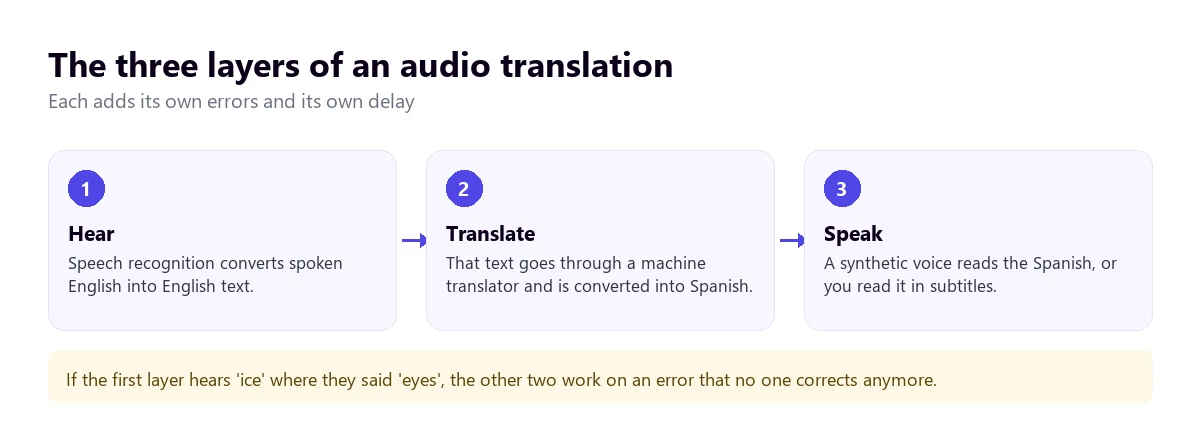
The first layer, speech recognition, decides the result. If it mishears a word, the other two work on that error without knowing it: the translator receives a phrase nobody said and translates it perfectly. That is why a bad recording cannot be fixed with a better translation tool.
The second layer, translation, needs finished sentences. Translating word for word as it is spoken would result in gibberish, because sentence order changes between languages. Hence the delay: the system waits for the sentence to close, translates it, and only then shows it. The longer the sentence, the longer the wait.
The third layer only exists if you want to hear the translation: a synthetic voice reads the English. If reading it is enough, this layer is skipped and everything goes a bit faster.
Two practical consequences of this: true instant translation does not exist (there are always seconds in between), and clean audio is worth more than an expensive tool.
Which method to choose
| Method | Live | Files | You hear it in English | Where | Price |
|---|---|---|---|---|---|
| Voice translator on PC | Yes | Yes, by playing it | Yes, voice and subtitles | Windows 10 or 11 | 15 free min a day; more time, paid |
| Chrome (subtitles + translation) | Yes | Only in the browser | No, text only | Chrome on Windows, Mac, or Linux | Free |
| Google Translate | Taking turns | No | Yes, sentence by sentence | Web and mobile app | Free |
| Transcription websites | No | Yes, by uploading it | Depends on the website | Browser | Usually paid |
| WhatsApp + translator | No | Voice notes only | No | Mobile | Free |
1. Translate the audio live on the PC
This is the only way that works for any sound coming out of the computer: a player like VLC, a website, a podcast app, a video call, or a live class. The program listens to what is playing and returns the spoken and written translation, without uploading anything to any website or waiting for a file to be processed.
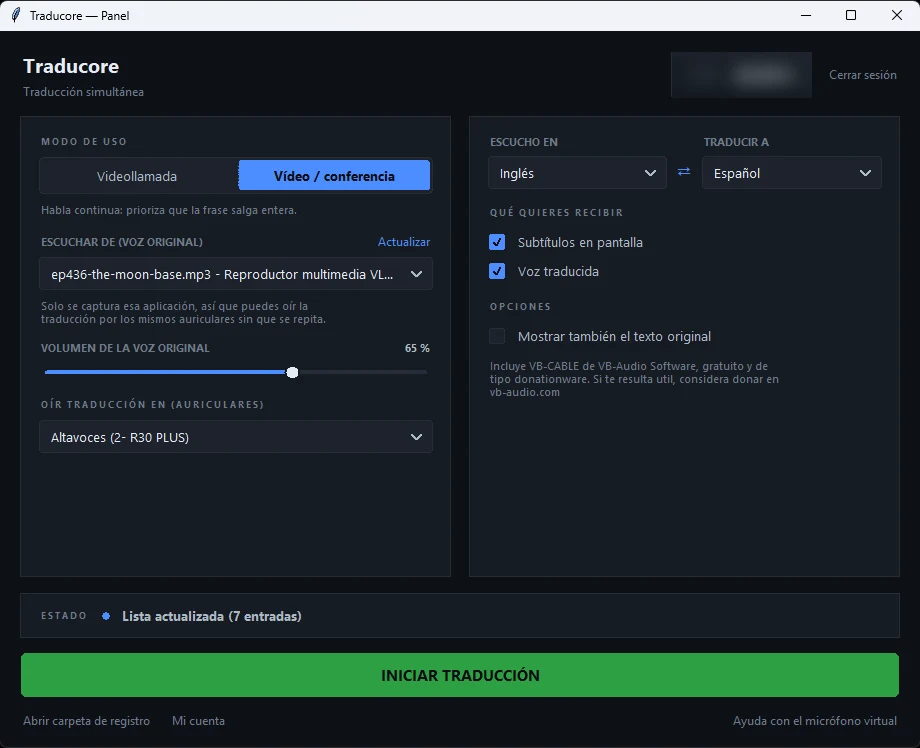
Traducore works like this on Windows. We tested it with episode 436 of the NASA podcast, in English, played in VLC (here it is translating into Spanish; you would pick English):
Step by step
- Open the audio in your usual player (VLC, Windows Media Player, or the browser).
- Open the program and sign in with your account, or create it for free here.
- Choose the Video / talk mode, which waits for each sentence to finish before translating it.
- Under LISTEN FROM (ORIGINAL VOICE), select the player. In Windows 11, it captures only the audio from that application, not everything playing on the computer.
- Set Spanish under I HEAR and English under TRANSLATE TO.
- Tick Translated voice and On-screen subtitles, click START TRANSLATION, and hit play.
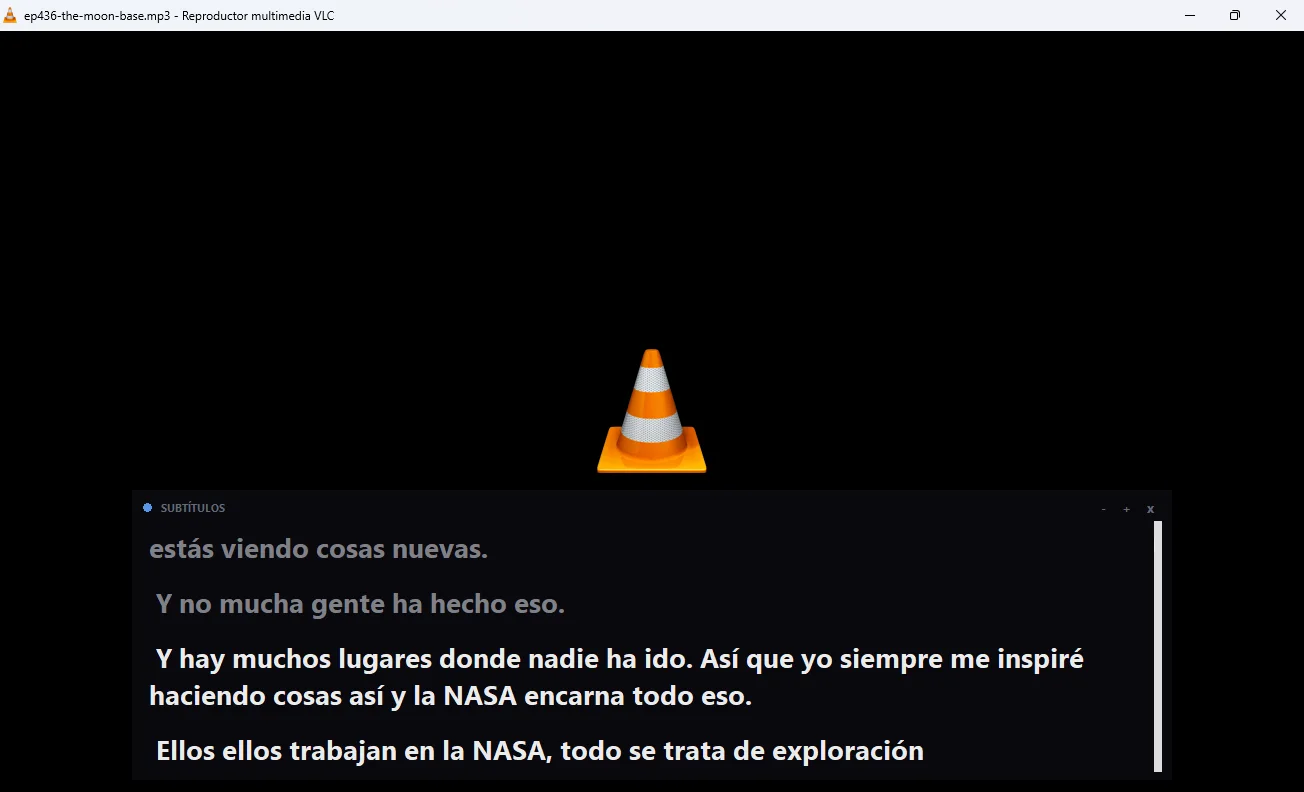
What we saw in the test
- With prepared speech (narration, classes, news), the translation comes out clean and is easy to follow.
- With spontaneous speech, like an interview, the translation also picks up hesitations: repetitions like “they, they work” and the occasional meaningless loose phrase came up. Everything is understood, but it is not a polished text.
- The translation arrives between 3 and 6 seconds after each sentence. With a podcast, it is not annoying; if you want to write something down, pause the player.
- The original voice stays in the background, at 65% by default, and you can lower it.
It works only on PCs with Windows 10 or 11, it does not save the audio or the text, and it has 15 free minutes a day, no credit card required; for more time, hourly plans. If the audio is from a specific video, the steps are in how to translate a YouTube video into English.
Hear your next audio in English
Podcast, class, or recorded meeting: hit play and hear it translated within seconds. 15 free minutes a day, no credit card required.
2. Chrome: free translated subtitles, if the audio is in the browser
Few people know this, but Chrome has two features that, when combined, translate live audio without installing anything: Live Caption and Live Translate. The official help describes them for “videos, podcasts, games, live streams, video calls, or other audio files from the Chrome browser”.
That last detail is the big limit: they only reach the sound coming out of a tab. If the audio is in a desktop program, a local player, or the Teams app, Chrome does not hear it.
How to enable them
- Open Chrome and go to More → Settings → Accessibility.
- Turn on Live Caption.
- To caption in a language other than English, go to Manage languages → Add languages and choose it under Preferred caption language: a language pack will download.
- On the same screen, turn on Live Translate and choose English under Translate to.
The source languages Chrome can caption are about twenty (the help gives them as examples, and the Spanish and English lists do not match), but the destination reaches over 100 languages. For Spanish to English, which is the case for this guide, there is no problem.
The privacy detail you should know
The two features do not behave the same way. According to Chrome’s help, in Live Caption “all audio and captions are processed locally and never leave your device”. However, Live Translate warns that you can “send captions to Google to be translated”. That is: the speech recognition is done on your computer, but the text travels to Google to be translated. Not the audio, just the text. If the content is confidential, keep this in mind.
Other practical limitations: the subtitles appear in a floating box that covers part of the screen, you cannot hear the translation (it is text only), and in autoplay videos, you have to turn on the volume for them to appear.
3. Google Translate: for short phrases, not for long audio
On the Google Translate website, you can click the microphone, let it listen, and click stop: it gives you the translated text and you can hear it out loud. According to its help, the website does not allow continuous speaking and translating: that is what the mobile app is for, with listening and conversation modes.
Where it really fits:
- Someone speaks Spanish in front of you. The conversation mode takes turns and works well for short phrases.
- A phrase from a video you do not understand. You rewind, tap the microphone, and that is it.
- Offline. With the language packs downloaded, it still works, although with less accuracy.
Where it does not fit: a long audio playing on the computer. You would have to hold the laptop microphone close to the speaker, go in sections, and accept that room noise and speaker echo worsen the recognition. Plus, each cut splits a sentence in half, and the translation suffers.
4. Websites that transcribe and translate a file
If what you want is the text—to study, quote in a paper, or subtitle a video—the way to go is uploading the file to a transcription website like HappyScribe, Maestra, Clideo, or ElevenLabs. They all follow the same pattern: you upload, wait, and download.
What to look for before choosing one:
- What it returns. Running text is not the same as timed subtitles. If you are going to subtitle a video, you need SRT or VTT; if it is just for reading, a document is enough.
- If it separates speakers. In interviews and meetings, a transcription that does not distinguish who is speaking is almost useless. The feature is usually called “speaker identification” or diarization.
- How it charges. The standard is per audio minute, with a very short free plan. Calculate the actual minutes of your file before signing up.
- If dubbing is what you are looking for. Some generate a new audio in English, even imitating the original voice. It is the slowest and most expensive option.
- Where your file ends up. You are uploading the audio to a third-party server. For a public class, it does not matter; for an internal meeting or a medical interview, it does.
The advantage over translating live is that you can review and correct: the text stays, you reread it, fix proper nouns, and keep it. The disadvantage is the downtime between uploading and receiving. If you want to compare programs and websites in more detail, check out the best real-time voice translators for PC.
5. WhatsApp voice notes in Spanish
There is a widespread confusion here that should be cleared up: WhatsApp translates text messages, but not voice notes. Its official help details message translation and clarifies that locations, documents, contacts, stickers, and GIFs cannot be translated; about voice notes, it simply says nothing.
What does exist is transcription, which is something else: it turns the voice note into text in its own language. That is, a note in Spanish is transcribed in Spanish, and you have to take the step to English yourself. The details that make the difference:
- It is generated on the phone itself, not on WhatsApp’s servers.
- It comes disabled by default: you have to enable it in Settings → Chats → Voice message transcripts and download the language.
- On Android, it is limited, according to the help, to English, Portuguese, Spanish, and Russian.
- Only the person receiving the message sees it, never the sender.
The complete workflow looks like this: you enable transcription, press and hold the voice note, transcribe it, copy the text, and paste it into a translator. It works and it is free, but it is four steps for something that lasts twenty seconds. For long or frequent notes, playing the note on the speaker and translating it live is more worthwhile.
What is always lost when translating audio
No tool, free or paid, completely saves these four things. It is good to know so you do not over-rely on them:
- Proper nouns. They are the first to break: surnames, brands, and product names come out converted into ordinary words that sound similar. YouTube’s own documentation admits this for its automatic dubbing.
- Acronyms and technical jargon. “EVA”, “API”, or “ISS” are read as words and translated as such. In specialized content, always cross-check with the written documentation.
- Figures and units. Kilometers, kilograms, Celsius degrees, or date formats are translated literally, without conversion. A “veintiún grados” stays as twenty-one degrees, which being Celsius is actually seventy Fahrenheit.
- Tone, irony, and puns. They are translated literally and lose their humor or, worse, change their meaning. An automatically translated joke usually sounds like an error.
And a fifth, specific to audio: when two people talk over each other, the recognition merges the two voices into a single sentence and something comes out that neither of them said.
How to get a cleaner translation
It does not matter which tool: the result depends heavily on the source audio. This is what is most noticeable:
- Choose the source language well. If the audio is in Spanish, indicate it instead of leaving automatic detection: it prevents the first sentences from coming out wrong while the system decides.
- The cleaner the audio, the better. Background music, echo, or several people speaking at once are what cause the most errors, in any translator.
- One person speaking at a time. In interviews with interruptions, the translation tends to merge sentences from two people.
- Use headphones if you are going to hear the translation out loud: this way the laptop microphone does not pick up the translated voice and it does not mix with the original.
- Do not increase the playback speed. At 1.5x or 2x, speech recognition loses words; if you want to go faster, read the subtitles.
- Turn up the player volume, not the system volume. If the program capturing the audio receives it too low, it swallows the ends of sentences.
- If the audio comes from a video, there is no need to extract it: play it as is and capture the sound from the player.
More questions about translating Spanish audio to English
How to translate a Spanish audio into an English audio?
With a voice translator that speaks the translation out loud while the original plays. On the PC, this is done live with any program; if the audio is a file and you do not mind waiting, some dubbing websites generate a new audio in English.
How can I listen to a Spanish audio translated into English?
Play it on the computer with a simultaneous translator enabled and the translated voice turned on: you will hear the translation over it and the original lowered in the background, at the volume you prefer.
How can I translate an audio file from Spanish to English?
You have two paths: play it on the PC and hear it translated live, or upload it to a transcription website to get the text in English. The first is live, with a few seconds of delay; the second leaves you with a document to save and correct.
How can I translate Spanish audio to English in real time?
You need something that listens and translates at the same time. On the phone, Google Translate’s conversation mode, taking turns. In the browser, Chrome’s Live Caption with Live Translate. On the PC and with voice, a simultaneous translator: the translation arrives a few seconds after each sentence.
So, which one do we use?
To listen, a translator on the PC: we open the podcast or recording, choose the player, and hear it in English while doing something else. If the audio is in a tab and we only want to read it, Chrome is free and more than enough. If what is needed is the text—some notes, an exact quote—we upload the file to a transcription website and wait. And for a random phrase someone says to us in Spanish, the Google Translate microphone on the phone.
Translate Spanish audio live
Works with any program on your PC. 15 free minutes a day, no credit card required.