Translating YouTube subtitles to English is done right from the player: you choose a subtitle track, go back to the menu, and click Auto-translate → English. The problem is that this option hides, disappears on many videos, and sometimes returns nonsensical sentences. It is almost never the translation’s fault, but rather the original subtitles.
Here are the steps on computer and mobile, the four reasons why the option doesn’t appear, how YouTube’s automatic subtitles work under the hood, and what alternatives are left when the video simply has nothing to translate.
In short
- The video has subtitles → Settings → Subtitles/CC → choose track → Auto-translate → English.
- The option doesn’t appear → you almost certainly haven’t chosen a track first, or the video has no subtitles.
- It has no subtitles or dubbing → Chrome’s live captions or a desktop voice translator.
- They come out with errors → they are from the original: the translation inherits them.
In this article
- How to translate subtitles on a computer
- How to translate them on mobile
- Why “Auto-translate” doesn’t appear
- How automatic subtitles work under the hood
- Which languages you can translate (and which ones struggle)
- Adjusting how subtitles look
- Browser extensions: what they bring and what they ask for
- When YouTube can’t: Chrome’s live captions
- When you need to hear it, not read it
- Tricks that improve reading
- More questions about translating YouTube subtitles
- So, which one do we use?
How to translate subtitles on a computer
- Open the video and click the Settings gear in the player.
- Go to Subtitles/CC. You will see the available tracks: the creator’s, the “auto-generated” ones, or both.
- Choose a track, for example “Spanish”. This step is mandatory even if it doesn’t seem like it.
- Go back to Settings → Subtitles/CC: now Auto-translate does appear.
- Find English in the list and select it.
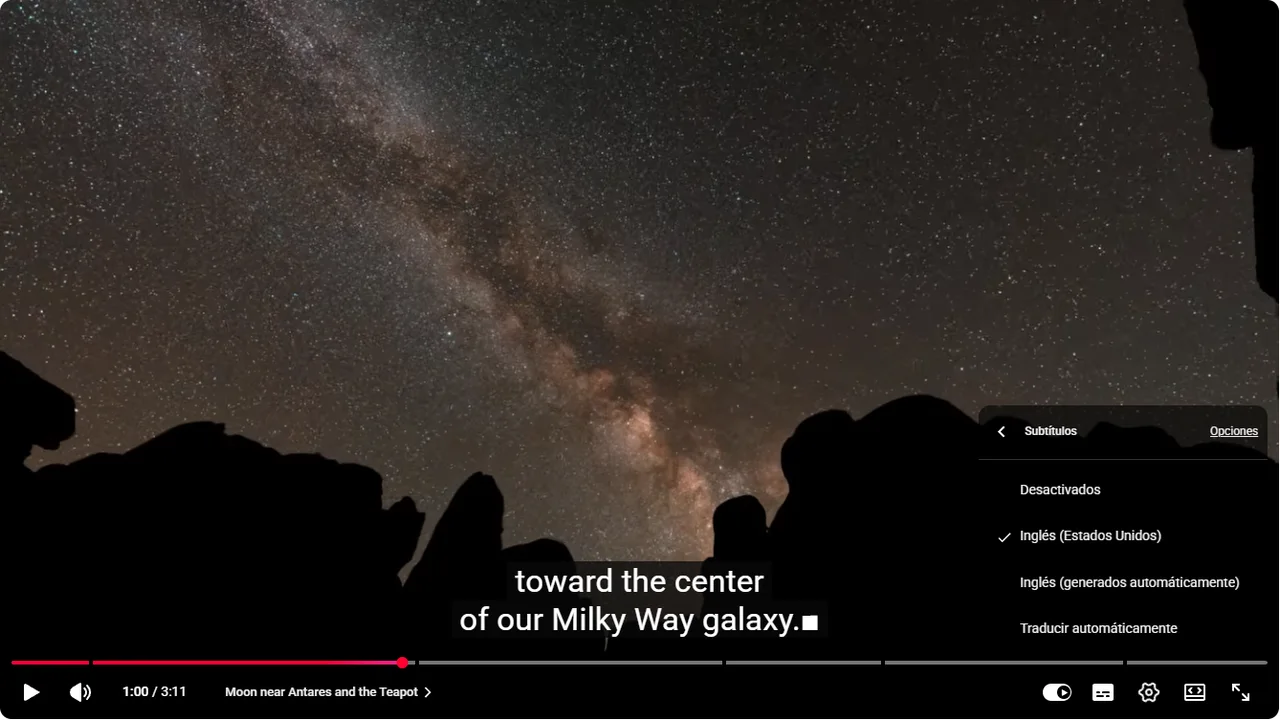
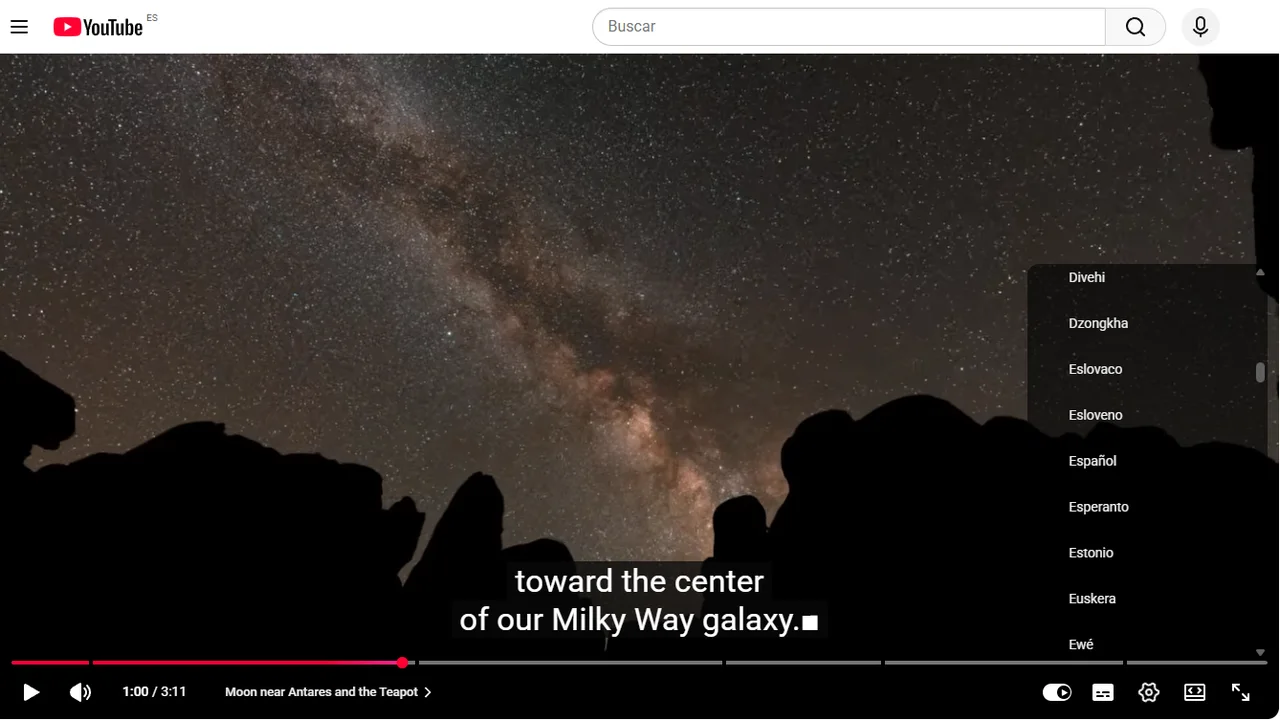
A surprising detail: YouTube’s official help no longer documents these steps for computers. Their article on subtitle settings only explains how to turn them on and change their style, leaving auto-translate documented only for mobile. The steps above are the ones we verified on the web version in September 2026.
How to translate them on mobile
- Tap the video and tap More (top right of the player).
- Select Captions.
- Choose a language. If English doesn’t appear, tap Auto-translate and choose it there.
It’s the same path on Android and on iPhone or iPad. If you don’t see the Captions option, the video doesn’t have any track: it’s not a bug on your phone.
Why “Auto-translate” doesn’t appear
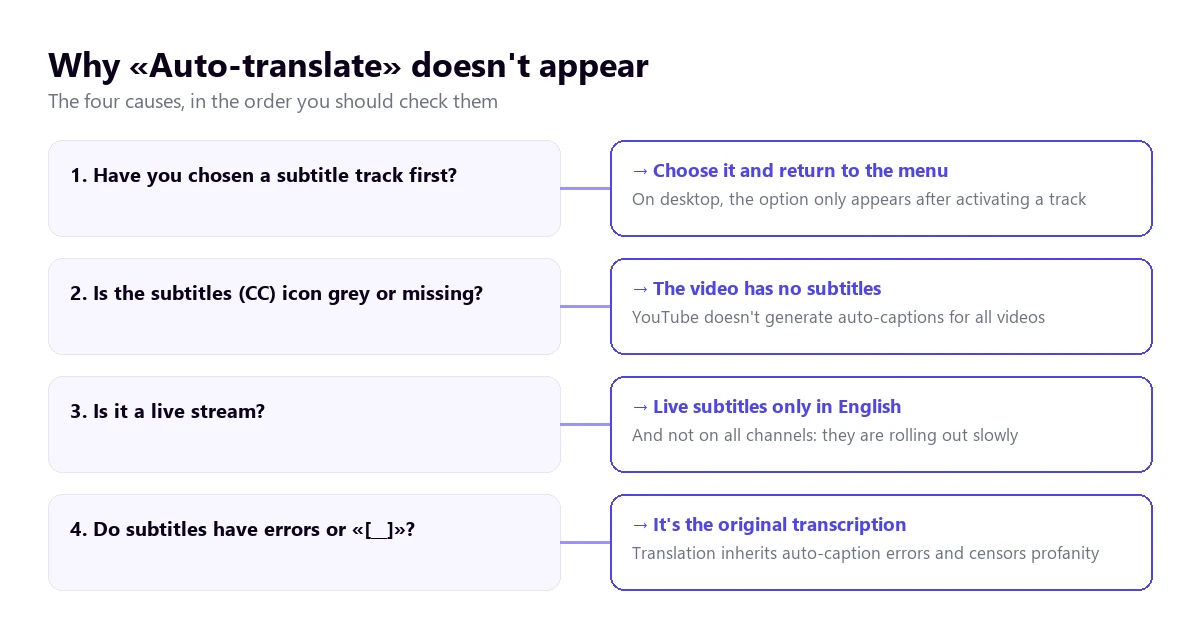
1. You haven’t chosen a subtitle track
This is the most common cause on a computer. The “Auto-translate” menu only shows up when there is already an active track. Turn it on, go back in, and it will be there.
2. The video has no subtitles
YouTube doesn’t generate automatic subtitles on all videos. Their own help section lists the reasons: the audio is still processing, the video’s language isn’t among the ones it recognizes, the video is too long, the sound quality is poor, it starts with a long silence, or there are multiple people speaking at once or mixing languages. Without subtitles, no translation is possible: that’s where tools that work with audio come in.
3. It’s a live stream
Live automatic subtitles are only available in English and have been gradually rolling out to channels with over 1,000 subscribers. On a live stream in another language, no matter how hard you look, there won’t be a track to translate.
4. They appear, but they are wrong
Here the problem isn’t the option, but the raw material. The translation is based on the automatic subtitle, so it drags along its errors: invented proper nouns, cut-off sentences, or words covered with “[__]”, the filter YouTube uses by default to replace what it considers inappropriate, even in translated languages.
How automatic subtitles work under the hood
Understanding where they come from helps you know when to trust them. YouTube runs the audio through speech recognition in 68 languages and generates a transcript; when you ask to translate, that transcript is translated into another language. That is: there are two layers that can make mistakes, the listening one and the translating one.
That explains things that seem random:
- A video with clear voiceover comes out almost perfect; an interview with background noise, poorly.
- Heavy accents and technical jargon lower precision a lot, something their own help admits (“mispronunciation, accents, dialects, or background noise”).
- The creator’s subtitles are always better than the automatic ones, because someone wrote or reviewed them. If the video offers both tracks, choose the creator’s before translating.
- Punctuation matters: without commas or periods, the translator gets lost and chains together sentences that don’t belong together.
Which languages you can translate (and which ones struggle)
It’s worth separating two lists that are often confused. On one hand, the languages YouTube knows how to transcribe with speech recognition: there are 68, and they include Spanish, English, Portuguese, German, Japanese, or Arabic. On the other, the languages it can translate those subtitles into: the menu list exceeds 150, including rare ones.
The practical consequence is that the bottleneck is almost never at the destination, but at the source. If the video is in a language YouTube doesn’t transcribe, there will be no automatic subtitles and, therefore, no translation, no matter how much English appears on the list.
And even if the language is supported, not all combinations turn out equally well:
- Spanish or Portuguese to English: the result is usually very readable, because they are pairs with a massive amount of data behind them.
- Japanese, Korean, or Arabic to English: the sentence structure changes so much that recognition errors are amplified when translating.
- Languages with many variants (Arabic, Chinese) can be transcribed in one variant and translated strangely when passing into English.
- Technical content or acronyms: the translation tends to “normalize” terms and change product names. If you are following a tutorial, cross-check it with the documentation.
A useful trick when the language pair struggles: open the video’s transcript, copy it, and translate it in a text translator. It’s not comfortable for watching the video, but for studying or quoting it gives better results than reading the subtitles on the fly, because the translator sees the full text and not sentence by sentence.
Adjusting how subtitles look
If the subtitles cover the image or are hard to read, in the same Subtitles/CC menu you have Options, where you can change the font size, color, font family, and background. These are YouTube settings and apply to all videos, so it’s worth spending a minute on them if you watch a lot of subtitled content: a slightly larger size and an opaque background reduce fatigue quite a bit.
Browser extensions: what they bring and what they ask for
In the Chrome store there are extensions that promise bilingual subtitles, subtitle translation, or dubbing. It’s good to know two things before installing one:
- Most work on the subtitles the video already has. If YouTube doesn’t have them, the extension won’t either.
- Many ask for permission to read and change all your data on the websites you visit. For a feature you only use on YouTube, that’s a very broad permission: check it on the extension’s page before accepting.
The native alternative with no extra permissions is the browser’s own, which also works on videos without subtitles.
When YouTube can’t: Chrome’s live captions
Chrome generates its own captions from the audio playing in the browser and can translate them on the fly. You turn it on in Settings → Accessibility → Live Caption and, below that, Live Translate.
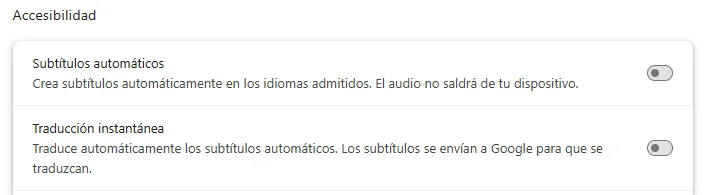
Advantages: it doesn’t depend on the video having subtitles and works for live streams and any website. Limits: it recognizes about twenty source languages, shows the text in a small box outside the video, and, according to the warning on Chrome’s own screen, sends the captions to Google to translate them even though the speech recognition is done on your device.
When you need to hear it, not read it
Reading subtitles while watching a demo, a tutorial, or a whiteboard is exhausting. For those cases there is the other way: a desktop voice translator, like Traducore, which listens to the browser’s audio and speaks it to you in English, as well as showing its own subtitles. It works even if the video doesn’t have any, because it starts from the sound and not the text.
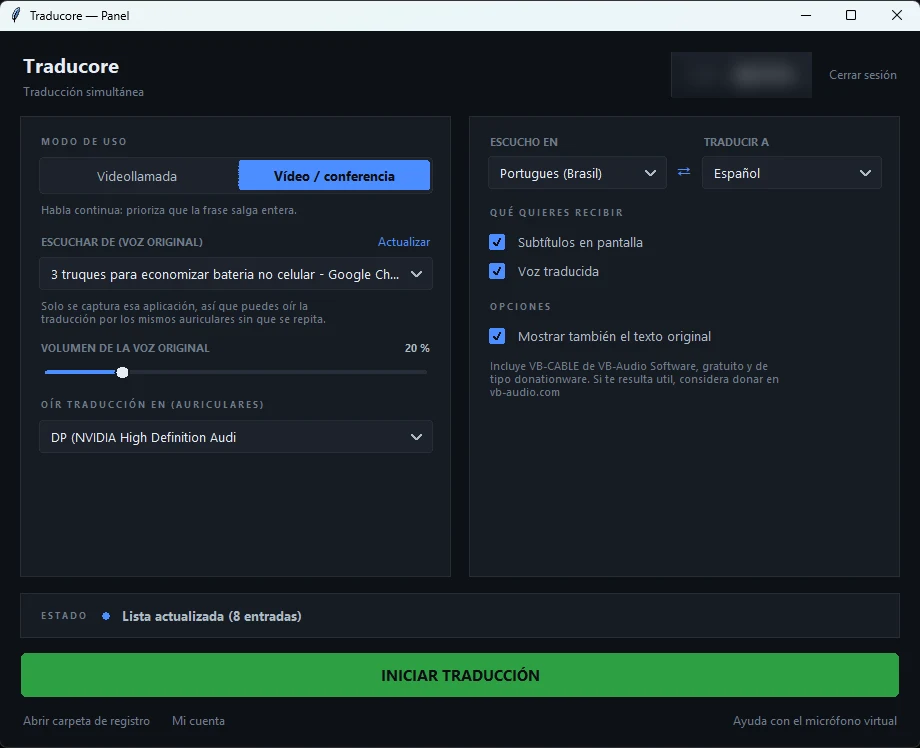
It has its trade-offs: it only works on PCs with Windows 10 or 11, the translation arrives a few seconds after each sentence, and the free plan gives 15 minutes a day; for more time, it’s paid. In return, it solves exactly the cases where YouTube falls short. We explain it in depth in the guide on how to translate a YouTube video.
English subtitles even if the video has none
They are generated from the audio, live, and you can hear the translation at the same time. 15 minutes free a day, no card required.
Tricks that improve reading
- Prefer the creator’s track over the automatic one whenever it exists.
- Lower the speed to 0.75x in dense videos: automatic subtitles are more accurate with slower speech.
- Use the transcript (“…” menu → “Show transcript”) to read the full text and search for a specific moment. You can translate it by copying it into a text translator.
- If the video is yours, upload your own subtitles: YouTube will use them as a base to translate and everyone will notice.
More questions about translating YouTube subtitles
How do I put YouTube subtitles in English?
If the video has an English track, select it in Settings → Subtitles/CC. If it doesn’t, choose the track in the original language and then Auto-translate → English.
How can I translate subtitles in real time?
YouTube’s translation is already instant, but it needs subtitles to exist. To translate any audio in real time, including live streams and videos without subtitles, you need tools that listen to the sound: Chrome’s live captions or a desktop voice translator.
Is there an extension to translate YouTube subtitles?
Yes, several in the Chrome store, with features like bilingual subtitles. Almost all of them depend on the video’s subtitles and usually ask for broad permissions over your browsing: it’s a good idea to check them before installing.
Can you translate YouTube subtitles on mobile?
Yes, from the app: More → Captions → Auto-translate. What you can’t do on mobile is hear the video in English if the creator hasn’t dubbed it.
So, which one do we use?
Our routine is fixed: the creator’s track if it exists, and if not, the translated automatic one. When the video is a tutorial with screen sharing, we change strategy and listen to it translated, because reading and watching at the same time becomes impossible. And if it’s a live stream, we don’t even try with YouTube’s subtitles: we go straight to the options that work with the audio. For standalone audio files, the guide we use is translating audio from Spanish to English.
Video has no subtitles?
Watch it with English subtitles generated from the audio, live (they aren’t saved as a file). 15 minutes free a day, no card required.