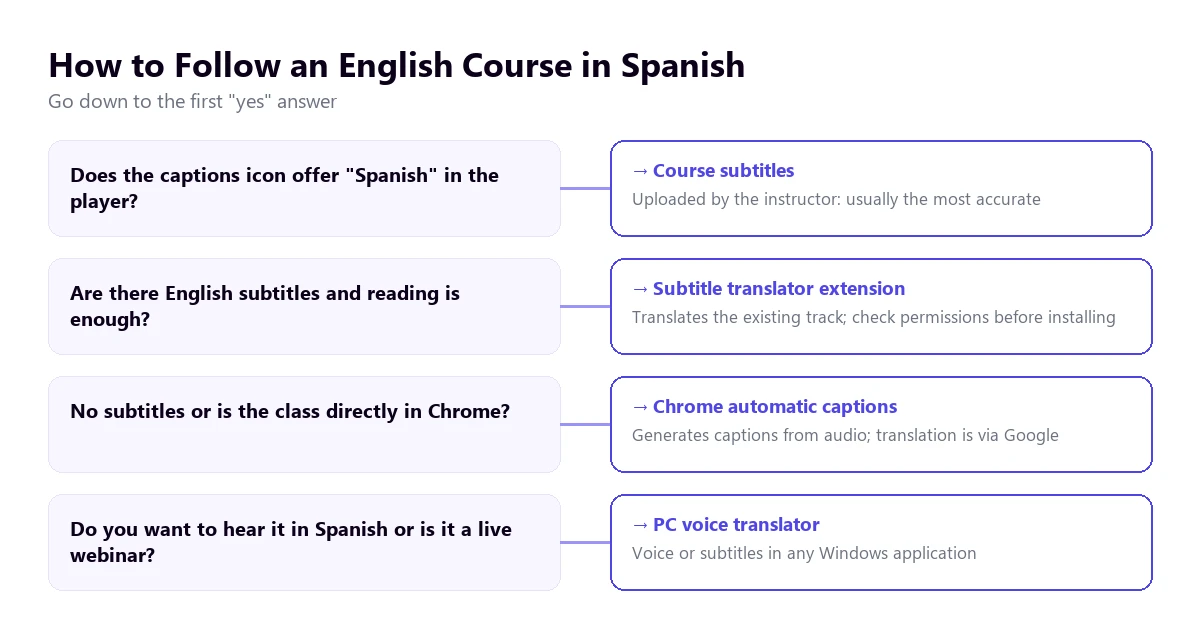
There is no built-in button to translate Udemy videos into English: its automatic subtitles appear in the course’s language, so a course in Spanish comes with Spanish subtitles. From there, you have four options: look for courses with English subtitles uploaded by the instructor, install an extension that translates those subtitles, turn on Chrome’s Live Caption, or use a desktop voice translator that lets you hear the class in English.
This guide covers Udemy in detail, as well as Coursera and live webinars, which work differently. We explain where each platform’s subtitles come from, what you lose when studying with machine translation, and how to make the most of a course in another language. The Udemy data comes from its help center and Coursera’s from its official blog, checked in October 2026; we describe the extensions based on their Chrome Web Store listings, without having installed them.
In short
- You want to hear the class in English, or the course has no subtitles: a desktop voice translator listens to the browser and gives you voice or subtitles (method 1).
- The course has subtitles in its original language and reading is enough for you: a Chrome extension translates them and usually shows them in two languages (method 2).
- Without installing anything: Chrome’s Live Caption generates and translates text from any browser video (method 3).
- To review: the class transcript, which Udemy shows next to the video, can be read at your own pace and translated (method 4).
In this article
- What subtitles come standard with a Udemy course
- The four ways to handle a course that is only in another language
- 1. Hear the class in English with a desktop voice translator
- 2. Extensions that translate Udemy subtitles
- 3. Chrome’s Live Caption and Live Translate
- 4. The class transcript, to read and review
- Coursera and webinars: different rules
- What you lose when studying with machine translation
- How to make the most of a course in another language
- More questions about translating Udemy videos
- So, which one do we use?
What subtitles come standard with a Udemy course
Udemy is a course marketplace: each instructor records their own and decides which subtitles to upload. That’s why two courses on the same topic can be very different in this regard. Udemy’s help center distinguishes between two types of subtitles, and it’s worth understanding them before looking for outside solutions.
The first are those uploaded by the instructor. They can be in any language, and if they exist, they override the automatic ones. Some instructors with students in the US or the UK upload an English translation, and these are usually the most accurate, because someone has reviewed them.
The second are those automatically generated by speech recognition. According to the instructor help center, they are created in English, French, German, Italian, Japanese, Spanish, and Portuguese, only for non-language courses that are “taught in these languages”. That is: a course recorded in Spanish gets Spanish subtitles, not English ones. And they don’t appear right away, but when the course reaches 20 enrollments in the marketplace.
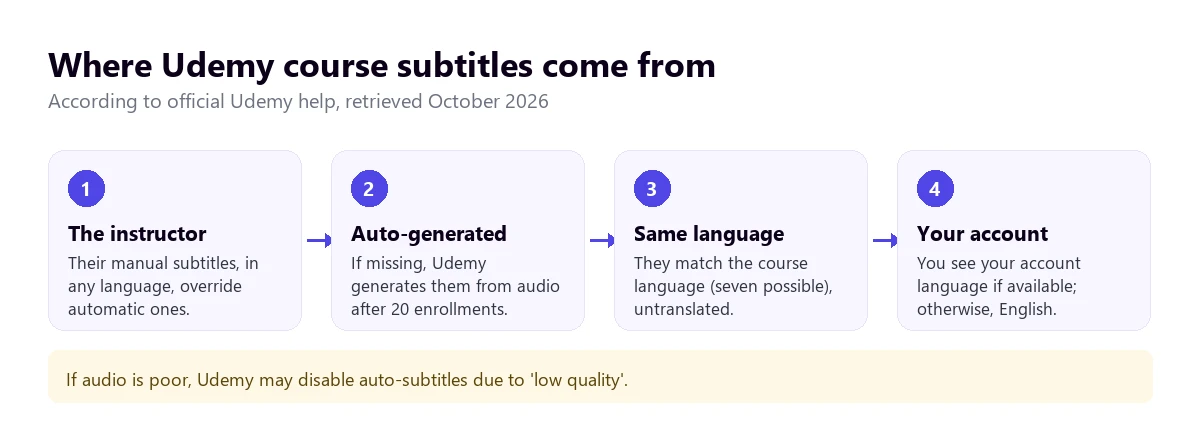
There is more useful fine print. On the course page, next to the subtitles icon, “Auto-generated” appears when they are, so you can know before you buy. If a class’s audio is bad, Udemy can disable the automatic ones due to “low quality”: background noise, low volume, or words it doesn’t recognize. And in Udemy Business, subtitles are mandatory for courses in English, Spanish, Portuguese, French, and Italian in their collection.
The language you see is decided by your account. According to the help center, if your account is in a language other than English, the subtitles appear in that language when the course has them; otherwise, they appear in English. So, first of all, check that your account is set to English: the course might already have what you’re looking for.
How to find courses that already have English subtitles
In the Udemy marketplace, do a search or go into a category and use the subtitles filter in the left column. Inside each course’s page, look at the languages listed next to the subtitles icon. If it says English and doesn’t say “Auto-generated”, it’s a translation uploaded by the instructor. It is the best option of all and costs nothing more than choosing the right course.
The four ways to handle a course that is only in another language
| Method | What it needs | What you get | Works on | Cost |
|---|---|---|---|---|
| Desktop voice translator | Windows 10 or 11 | Voice and subtitles in English | Any platform and live webinars | 15 free min a day; paid plans |
| Subtitle extension | Chrome and subtitles in the course | Translated subtitles, often in two languages | The platform it’s made for | Depends on the extension |
| Chrome Live Caption | Chrome | Translated subtitles | Any browser video | Free |
| Udemy transcript | The course must have subtitles | Text to read and translate | Udemy | Free |
1. Hear the class in English with a desktop voice translator
Reading subtitles while looking at code, a spreadsheet, or a design on screen is tiring: your eyes dart back and forth. That’s why many people prefer to hear the explanation in English and keep their eyes on what the instructor is showing. That’s what a program that listens to the browser and reads the translation out loud as the class progresses does.
Traducore works like this on Windows 10 and 11. It listens to the application you choose, in this case the browser with Udemy open, and gives you voice in English, subtitles, or both, with the original voice in the background so you can still hear the instructor. Since it doesn’t rely on the course’s subtitles, it also works with classes that don’t have them, with Coursera, with a course on an academy’s website, and with a live webinar.
Step by step
- Open the class in the browser and pause it.
- In the program, choose the Video / talk mode and the browser under “LISTEN FROM (ORIGINAL VOICE)”.
- Set the course language as the source and English as the target, and tick voice, subtitles, or both.
- Click start and resume the class.
What you should know
On Windows 11, the program captures the entire application, not just a tab: if you have another tab with sound, it also comes through. Close or mute everything else. The translation arrives with a three to six-second delay per sentence, so in programming classes with a lot of “now we write this”, it’s a good idea to pause from time to time so the screen and the explanation sync up again.
It doesn’t save the audio or the text. The Free plan gives you 15 minutes a day, without a card and without expiring, which is enough for one or two short classes; for a whole course there are paid plans on the pricing page. It is only available for Windows.
Try it with your next course class
Hear what the instructor is explaining in English, on Udemy, Coursera, or a webinar. 15 free minutes every day, no credit card required.
2. Extensions that translate Udemy subtitles
This is the first thing that appears on Google when searching for “translate Udemy videos”. There are Chrome extensions made specifically for Udemy: “Udemy Subtitle Translator” by Yakuu is described in its listing as a way for subtitles to “be translated and displayed in dual language mode”, and “Udemy Dual Subtitles” claims to translate them and show two languages at once. There are also general services, like Immersive Translate, with a dedicated page for Udemy courses.
They all start from the same thing: they read the existing subtitle track and run it through a machine translator. That has two consequences. The good one: the source text is the subtitle, not the audio, so there are no added speech recognition errors, and if the instructor uploaded their own subtitles, the translation starts from clean text. The bad one: if the class has no subtitles, or Udemy disabled them due to low quality, the extension has nothing to translate.
The dual-language mode is interesting for studying: you see the technical term in the original language and its translation below, which helps you learn the vocabulary you’ll find in the documentation. Before installing any, look at what permissions it asks for: an extension that “reads and changes data” on the websites you visit can see much more than your courses. Also check who publishes it, the date of the last update, and if the free plan has a usage limit.
3. Chrome’s Live Caption and Live Translate
If you don’t want to install anything, Chrome has two features that work for any video playing in the browser, Udemy included. Live Caption generates text from the audio, and Live Translate switches it to the language of your choice. They are turned on in “Settings” › “Accessibility”, and English must be added under “Manage languages”.
According to Google’s help checked in September 2026, speech recognition is done on the device, but to translate, Chrome sends the subtitle text to Google. Its big advantage over extensions is that it doesn’t need existing subtitles: it works with a class without subtitles, with a Vimeo video embedded on an academy’s website, or with a webinar in the browser. Its limits: text only, a small box that covers part of the video, and a quality that depends on how clearly the instructor is heard.
4. The class transcript, to read and review
Udemy has a feature that many people don’t use: Transcripts. They are opened with the button of the same name, below the player, and show everything the instructor says on the right, with the current sentence highlighted and scrolling on its own. They appear in the same language you chose for the subtitles, and only exist if the class has them.
For studying, the transcript is gold. You can read at your own pace, go back without rewinding the video, and search for a word to find the exact minute something was explained. If you are better at the written original language than spoken, sometimes reading it is enough. And if you need a paragraph in English, the browser can translate the page or you can copy a fragment into your preferred translator for your personal study.
A practical detail: if the instructor disables the subtitles for their course, the transcripts disappear too, according to Udemy’s help for instructors. They are the same piece viewed in a different way.
Coursera and webinars: different rules
Coursera
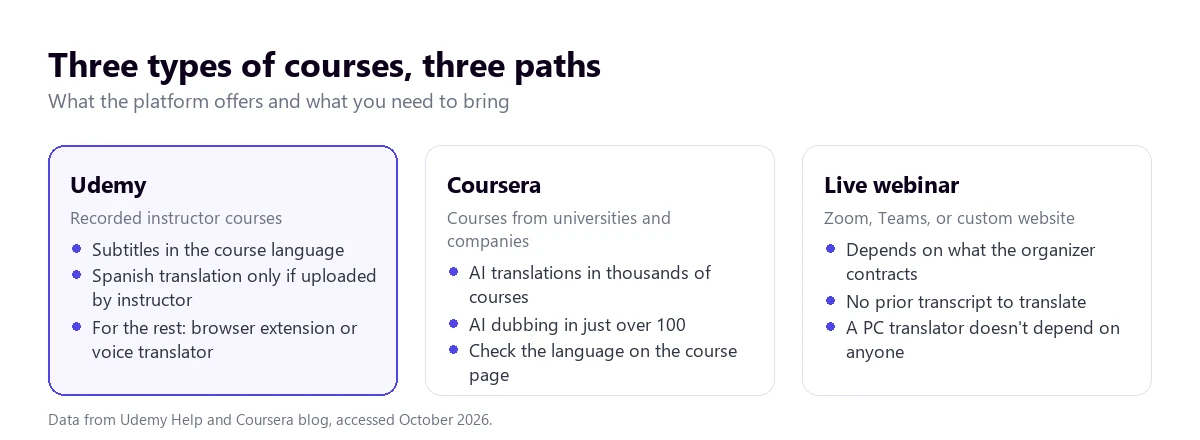
Coursera has gone further than Udemy in translating its catalog. According to its official blog in April 2025, since 2023 it has offered AI text translations that almost 3 million students have used across more than 5,000 courses and 25 languages. That same month, it announced courses dubbed with AI into Spanish, French, German, and Brazilian Portuguese: over 100 popular courses from institutions like IBM, Microsoft, or DeepLearning.AI, with a voice that mimics the professor’s.
The blog adds a fact that gives an idea of the demand: courses translated into Spanish exceed one million enrollments, more than any other language on the platform. In practice, look at the languages on the course page before enrolling: if English appears, you might not need anything else. If not, the same methods as in Udemy apply: extension, Chrome, or voice translator.
Live webinars
A webinar is a different story, because there is nothing pre-recorded to translate beforehand. Everything depends on the host. In Zoom, translated captions require the host to have Business Plus or higher, or an add-on whose price Zoom doesn’t publish; their help describes them for meetings and we couldn’t confirm they work the same in webinars. In Teams, the Interpreter agent is not available in town halls or webinars, according to their help. We explain this in the guides for Zoom and the Teams interpreter.
If the host hasn’t enabled anything, what’s left is what you bring yourself: Chrome’s Live Caption if the webinar is viewed in the browser, or a desktop translator if it’s viewed in the Zoom or Teams app. And if the webinar is recorded and published on YouTube, you have the guide to translate a YouTube video.
What you lose when studying with machine translation
Technical terminology gets over-translated. A machine translator doesn’t know that in a programming course, certain technical terms should be left in their original language. It might convert a standard term into a literal translation that doesn’t make sense in English. If the course is technical, the bilingual mode of some extensions or the option to see the original text helps a lot.
What’s on the screen isn’t translated. Slides, code, menus of the software being taught, and labels remain in the original language. None of the methods in this guide touch them, because they all work with the audio or the subtitles.
Quizzes and readings are separate. Udemy’s exercises, supporting texts, and downloadable resources don’t go through the subtitles. For that, the browser’s page translator works, being careful not to translate the code.
Accents and speed. Courses are recorded by instructors from all over the world, many with non-native accents and a home microphone. If speech recognition fails, the translation fails right behind it. With subtitles uploaded by the instructor, the problem disappears; with automatic ones, it depends on how clearly they speak.
Humor and cultural examples. References to local TV shows, sports, or specific measurements are translated literally. They don’t stop you from understanding the lesson, but it’s good to know that a specific phrase was probably a metaphor.
How to make the most of a course in another language
- Choose well before buying. Look at the subtitle languages on the course page and listen to the sample class: an instructor who enunciates well is translated much better.
- Adjust the speed. If the player allows it, dropping to 0.75× gives room for the translation delay and your notes.
- Build your glossary. Write down repeating terms with their English equivalent. By the third class, you won’t need the translation for them.
- Combine methods. English voice to follow the explanation and the transcript in the original language to review is a mix that works well.
- Pause at key moments. When the instructor writes code or does a demonstration, the screen rules: let the translation catch up to you.
More questions about translating Udemy videos
How can I translate Udemy into English?
First, set your account to English: if the course has English subtitles, they will show up on their own. If it doesn’t, use an extension that translates the existing subtitles, Chrome’s Live Caption, or a desktop voice translator to hear the class in English. The Udemy interface is already translated; what doesn’t translate itself is the content of each course.
Is there a translator for Udemy?
Udemy doesn’t have its own translator for courses: its automatic subtitles transcribe in the course’s language. The “Udemy translators” that appear on Google are third-party extensions that translate those subtitles. They work if the class has subtitles and have no official relationship with Udemy.
How can I translate videos in real time?
With a tool that works while the video plays: Chrome’s Live Caption inside the browser, or a voice translator for Windows in any application. Both have a few seconds of delay. If the video is a file on your drive, in the guide to translate a video without uploading it we look at the options in detail.
How to translate a tutorial into English?
It depends on where it is. If it’s a YouTube video, the platform itself translates the subtitles; if it’s a course, look at the subtitles and the transcript first; if it’s a written tutorial, the browser’s page translator solves it. In programming tutorials, don’t translate the code: copy the commands from the original.
So, which one do we use?
When we take a course in another language, the first thing is to see if the instructor uploaded English subtitles; if there are any, nothing else is needed. If not, we follow the class with our program, with voice in English and the original in the background, because that way our eyes stay on the screen, which is where the lesson is. To review, we open the transcript in the original language and look for what interests us. And in live webinars, where there is no prior transcript and we don’t know what the host has set up, the desktop translator is the only thing that doesn’t depend on anyone else.
Your foreign language courses, in English
Voice and subtitles in English for Udemy, Coursera, webinars, and any Windows application. Create your account and use 15 free minutes every day.