There are four ways to translate a YouTube video into English, and they serve different purposes. If the video has subtitles, YouTube translates them for free in two clicks. If the creator has dubbed it, you can change the audio track and hear it in English. If it has neither, you’re left with Chrome’s live captions (text only, browser only) or a desktop voice translator, which listens to the audio and translates it even if the video has nothing.
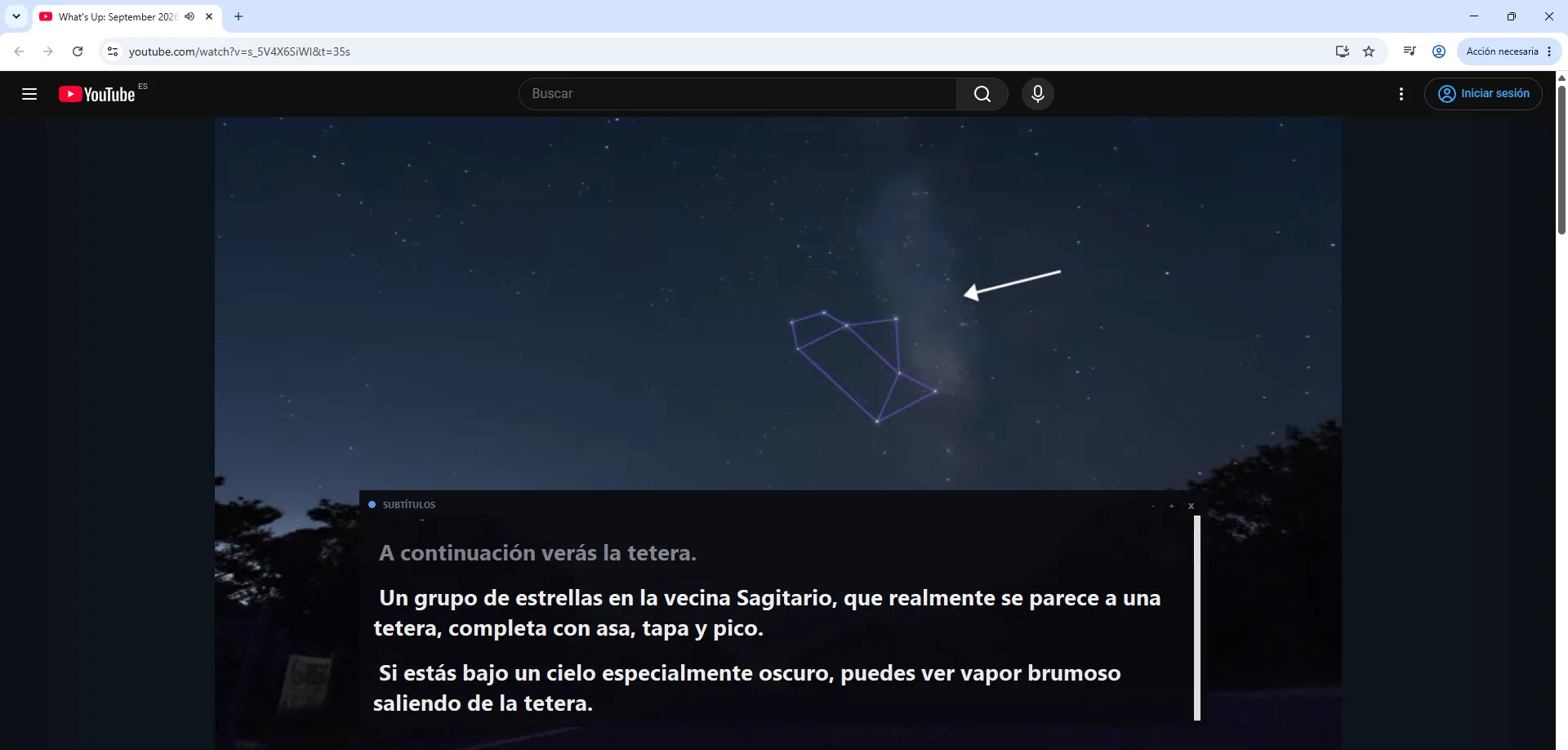
We tested all four with real videos: an episode of What’s Up, the NASA series, and a documentary with auto-dubbing enabled. Below is what each method does, what gets lost along the way, and how to enable it, step by step.
In short
- Does the video have the CC icon? → automatic subtitle translation, free.
- Does it say “Dubbed” next to the title? → change the audio track and hear it in English.
- No subtitles and you don’t mind reading? → Chrome’s live captions.
- Want to hear it, is it a live stream, or is it in a rare language? → desktop voice translator.
In this article
- Which method to use depending on the video
- 1. Automatic subtitle translation
- 2. Change the audio track (auto-dubbing)
- 3. Chrome live captions and live translate
- 4. Translate the audio with a program on your PC
- What you lose with each method
- What about on mobile?
- What about websites that “translate” YouTube videos?
- More questions about translating YouTube videos
- So, which one do we use?
Which method to use depending on the video
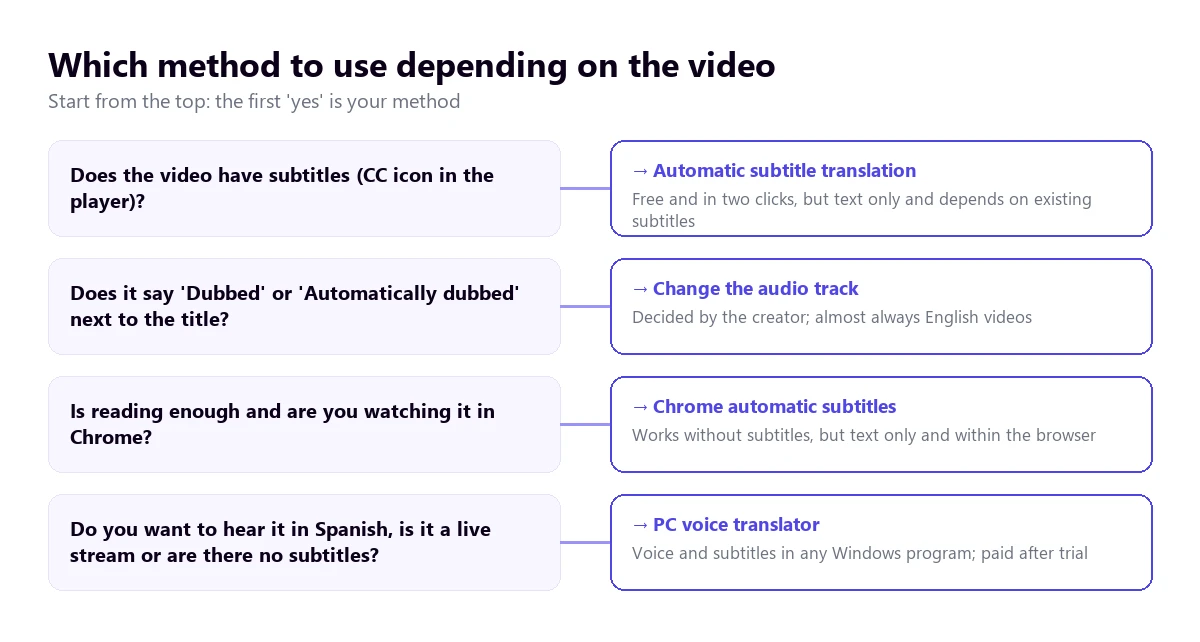
| Method | What you get | Works without subtitles | Live streams | Languages | Price |
|---|---|---|---|---|---|
| YouTube translated subtitles | On-screen text | No | Very limited | Whatever the video has; 68 source languages for auto-captions | Free |
| Dubbed audio track | English voice | Yes, if the creator generated it | No | From English to about 20, and others to English | Free |
| Chrome live captions | Text in a browser box | Yes | Yes | About 20 source, 100+ target | Free |
| Desktop voice translator | Voice and subtitles, in any program | Yes | Yes | 78 (Traducore) | 15 min free per day; more time, paid |
1. Automatic subtitle translation
This is the first thing to try because it costs nothing and is built into the player. On a computer: open Settings (the gear icon), go to Subtitles/CC, choose a track first—for example, “Spanish”—and go back in: now Auto-translate appears, with a huge list of languages where you choose English.
That intermediate step causes the most confusion because YouTube’s official help no longer documents the desktop path: it only explains the mobile one, where you tap More → Captions and, if the language isn’t on the list, Auto-translate.
It doesn’t translate the video, but the existing subtitles. These can be the ones uploaded by the creator or the ones YouTube generates with speech recognition, available in 68 source languages, although “ASR is not available on all videos.” If there are no subtitles, there is nothing to translate: that’s why the CC icon sometimes appears grayed out.
You should know its weak points before relying on it:
- The translation inherits the original’s mistakes. If the auto-captions misheard a proper noun, the English version will repeat the mistake.
- Profanity is masked with “[__]” by default, including in the translation.
- On live streams, auto-captions only exist in English and are slowly rolling out to channels with over 1,000 subscribers.
- None of this translates text embedded in the image: lower thirds, graphics, and signs remain in the original language.
If the option doesn’t appear or the subtitles are wrong, we have a specific guide on why YouTube subtitle translation fails.
2. Change the audio track (auto-dubbing)
Since February 2026, auto-dubbing has been available to all creators, and many have it on without knowing because it’s enabled by default for those who meet the requirements. When a video has it, the description shows the “Auto-dubbed” tag, and the viewer can choose the language.
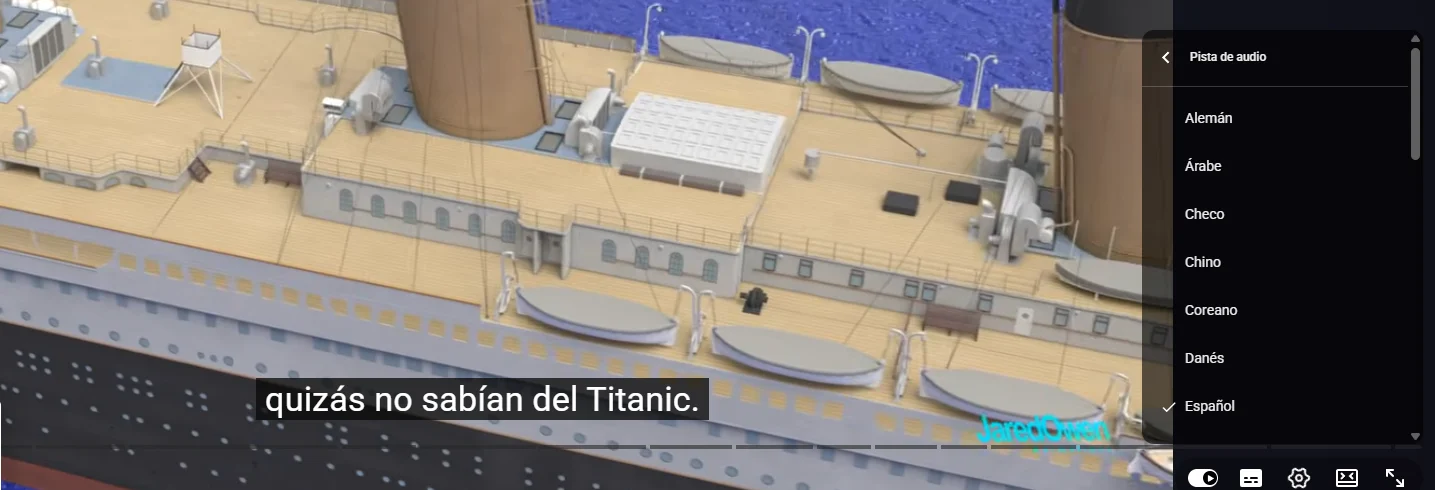
You change it like this: Settings → Audio track → English. It’s the only method that gives you an English voice without installing anything and at no cost, and the quality has improved: YouTube uses expressive voices that replicate tone and intonation in eight languages, including English.
Now for the fine print, of which there is a lot:
- The creator decides, not you. If they haven’t enabled it, there’s no track to choose.
- Direction matters. YouTube’s language table dubs from English into about twenty languages, but from almost all other languages only into English. This is great news if you’re translating into English, as videos in German or Japanese will likely have an English track.
- Some videos aren’t eligible: over 120 minutes, no conversation or very little voice, speaking too fast, undetected source language, or copyright claims.
- The creator can’t edit the dubbing, so mistakes in names or slang stay.
- You can set your preferred languages in Settings → Playback and performance: content whose original audio is already in one of them won’t be translated.
A stat to gauge how much it’s used: YouTube counted six million daily viewers of auto-dubbed content in December 2025.
3. Chrome live captions and live translate
Chrome for desktop generates subtitles for any audio playing in the browser and translates them, so it works with videos without subtitles, live streams, and outside of YouTube. You enable it in Settings → Accessibility → Live Caption and then Live Translate, choosing the target language.
Two important nuances found in Chrome’s own help:
- Speech recognition is local (“audio and captions are processed locally”), but when you enable translation, the caption text is sent to Google. It’s not a 100% offline feature.
- The list of source languages is short: about twenty (German, Spanish, French, English, Italian, Japanese, Dutch, Portuguese, Turkish…), and it doesn’t match between the Spanish and English help pages. The target languages do exceed a hundred.
For languages outside that list, you have to download packs from Manage languages, and on autoplaying videos, you have to turn up the volume for the captions to appear.
4. Translate the audio with a program on your PC
When the video has no subtitles, is a live stream, or you want to hear it while looking at the screen, the remaining option is a desktop voice translator. Traducore listens to the audio of the application you choose—the browser, in this case—and returns the translation as voice and floating subtitles.
- Open the video in the browser.
- Open the program, choose the Video / talk mode, and select the video window as the source.
- Set the video’s language and English as the target, and click start.
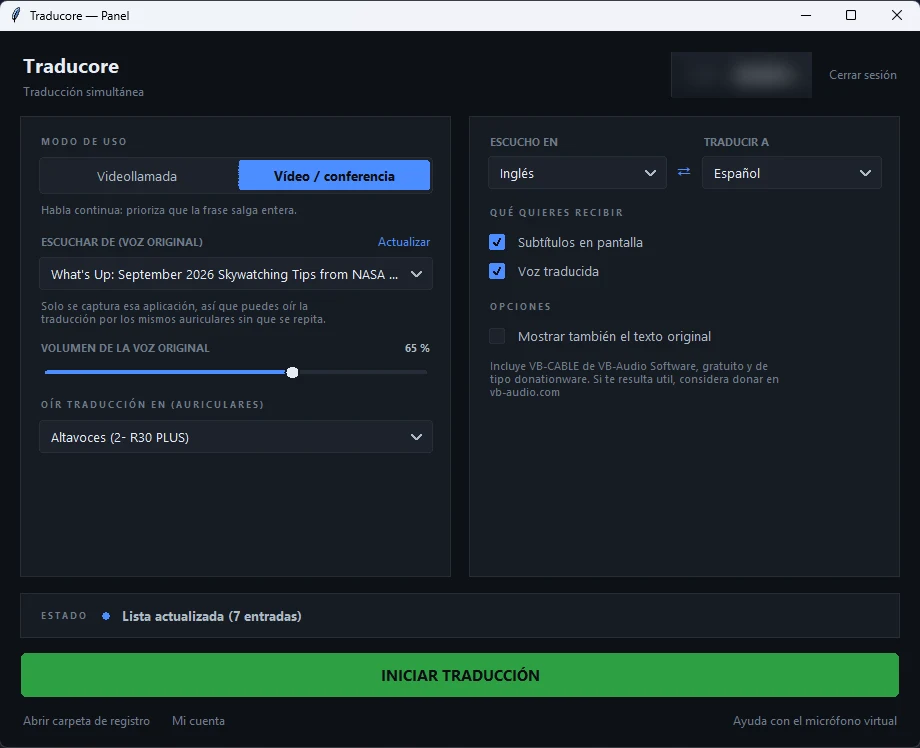
In our test, the translation arrived between 3 and 6 seconds after each sentence, the original voice stayed in the background at 65%, and the subtitles kept the session history to reread what you missed (nothing is saved when you close). The limits: Windows 10 and 11 only, 15 minutes free per day, and hourly plans for more time. Like all the others, it doesn’t translate text written inside the image.
For videos that come with nothing
No subtitles, no dubbing, or live: hear it in English while it plays. 15 minutes free per day, no card required.
What you lose with each method
No method is neutral: each sacrifices something. Here is what we saw when comparing the same material across all four.
- Translated subtitles: you read and watch at the same time, so you miss details in the image. It’s uncomfortable in videos with lots of graphics.
- Auto-dubbing: it’s the most comfortable, but the synthetic voice steps on the original intonation, and you can’t check exactly what was said.
- Chrome: practical and free, though the caption box is small and sits outside the video, and it doesn’t distinguish variants like Brazilian and European Portuguese.
- Desktop translator: gives you voice and text at the same time, but introduces a few seconds of delay and, with spontaneous speech (interviews, hesitations), carries over the original’s repetitions.
What about on mobile?
The YouTube app covers the two native options: choosing a subtitle track and translating it, and changing the dubbed audio track from the player’s own settings menu. On Android and iPhone, the path is identical: tap More in the top right of the player, then Captions, and if English doesn’t appear, Auto-translate.
It’s also worth setting your preferred languages from your profile picture: on Android, Settings → Languages → Preferred languages. With that, YouTube stops dubbing videos whose original audio is already in a language you understand, which you’ll appreciate if you watch content in Spanish and English equally.
What you won’t find on mobile is a way to hear an undubbed video in English: desktop programs and Chrome’s translation are for computers. And auto-dubbing, when it exists, sounds the same on mobile as on PC, because YouTube itself serves it.
What about websites that “translate” YouTube videos?
They are another category: you paste the link, and they return the subtitled or dubbed video for you to publish. They make sense if you’re a creator and want a version in another language; to watch a video right now, they’re a detour, because you have to upload, wait, and download, and the free version usually limits the length.
More questions about translating YouTube videos
How do I get the audio of a YouTube video in English?
If the video is dubbed, go to Settings → Audio track → English. If it isn’t, YouTube doesn’t offer English audio for that video: the only way to hear it translated is a program that translates the audio on your computer while it plays.
Why isn’t YouTube’s auto-translate working?
The most common causes, in order: you haven’t chosen a subtitle track first; the video has no subtitles (neither creator-made nor automatic); it’s a live stream; or the subtitles exist but are full of errors that the translation carries over.
Can you translate a YouTube video that has no subtitles?
Yes, but not with YouTube’s options, which rely on subtitles existing. You need something that works on the audio: Chrome’s live captions or a desktop voice translator.
Is it free to translate YouTube videos?
YouTube’s translated subtitles and dubbing are free, just like Chrome’s translation. Desktop programs usually have a limited trial; Traducore gives you 15 free minutes every day, no card required, and there are hourly plans for more time.
So, which one do we use?
It depends on the video, and in that order: if it has dubbing, we change the track and we’re off; if it has subtitles and it’s a calm talk, we translate them and that’s it. The method we actually use the most is the fourth one, because almost everything we watch in another language are tutorials and demos without decent subtitles, and there we prefer to hear it while looking at the screen. If you want to see how this applies to other cases, we have guides on how to translate audio from Spanish to English and Portuguese videos.
Translate the next video you don’t understand
With or without subtitles, on YouTube or any other website. 15 minutes free per day, no card required.