You don’t need to install anything unusual to get real-time captions: Android, Chrome and Windows 11 already have them built in, and Teams, Zoom, Meet and YouTube have their own. The hard part isn’t switching them on, it’s getting them in your language when the audio is in another one, because each option translates into different languages, with different requirements, and some don’t translate at all.
In this guide we go through where real-time captions live on your phone, in the browser, in Windows and in meeting platforms, how to turn them on, which languages they recognize and which they translate into, where the audio is processed and why they fail. The facts come from the official help pages of Google, Microsoft and Zoom, checked in November 2026 unless another date is given. At the end we tell you what we use when the audio is playing in a Windows program and we want it in our own language.
In short
- On Android: “Live Caption”, from the volume button. It works offline; translation only exists on Pixel 6 or later.
- In Chrome: “Settings” → “Accessibility” → “Live Caption”, plus “Live Translate” to put them into another language. Only for what plays in the browser.
- In Windows 11: “Live captions” with Windows + Ctrl + L. They transcribe any audio on the PC, but only translate into English or Chinese, and only on a Copilot+ PC.
- In meetings: Teams, Zoom and Meet caption for free, but translated captions depend on the plan.
- To read any Windows program in a language other than English or Chinese, you need a voice translator on your PC.
In this article
- What they are, and how they differ from regular subtitles
- How they’re made: from sound to a line of text
- On your phone: Android Live Caption
- In the browser: Chrome’s captions
- In Windows 11: live captions
- In meetings: Teams, Zoom and Meet
- On YouTube and on TV
- The options, compared
- Why they fail and how to make them more accurate
- What translated captions cost
- More questions about real-time captions
- So, which one do we use?
What they are, and how they differ from regular subtitles
A film’s subtitles are written before you watch it: someone transcribes, translates, cuts the sentences and times each line to the picture. Real-time captions, on the other hand, are written while the audio plays, with no script, which is why they arrive with a small delay and the odd mistake. They are also called live captions, instant captions or automatic captions, depending on who offers them.
English distinguishes between “captions” and “subtitles”. A caption is text in the same language as the audio, designed mainly for deaf and hard-of-hearing people, and it sometimes includes sounds such as “[applause]” or “[music]”. A subtitle is usually the translation for someone who doesn’t understand the language. Many languages, Spanish among them, use a single word for both, and that’s where much of the confusion comes from: many features sold as live captions don’t translate, they only transcribe.
That difference decides which tool works for you. If you can hear the audio but don’t understand it, you need translated captions. If you understand the language but can’t hear it well, or you’re somewhere you can’t turn the volume up, a transcription is enough, and almost any modern device includes something free for that.
How they’re made: from sound to a line of text
Behind every automatic caption there are at least two pieces: speech recognition that turns audio into text, and a display that shows it. If there’s translation as well, a third step sits between the two. Each step takes a little time and makes its own kind of mistake.
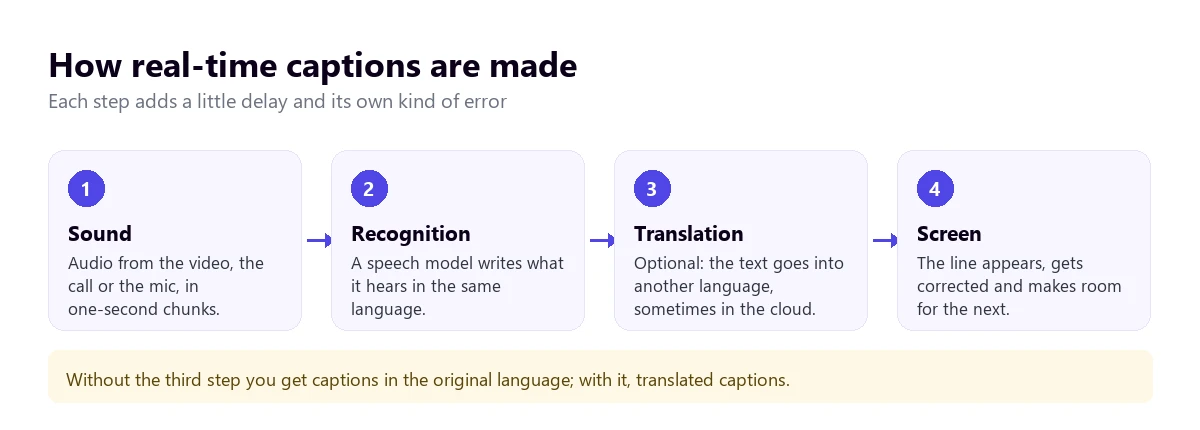
Recognition works on short chunks of audio and keeps writing guesses. That’s why you sometimes see a word change a second after it appears: the model has heard the rest of the sentence and corrected itself. Translation is trickier, because translating word by word produces nonsense. The system waits until it has a meaningful piece of the sentence, and that adds delay, especially in languages where the verb comes at the end.
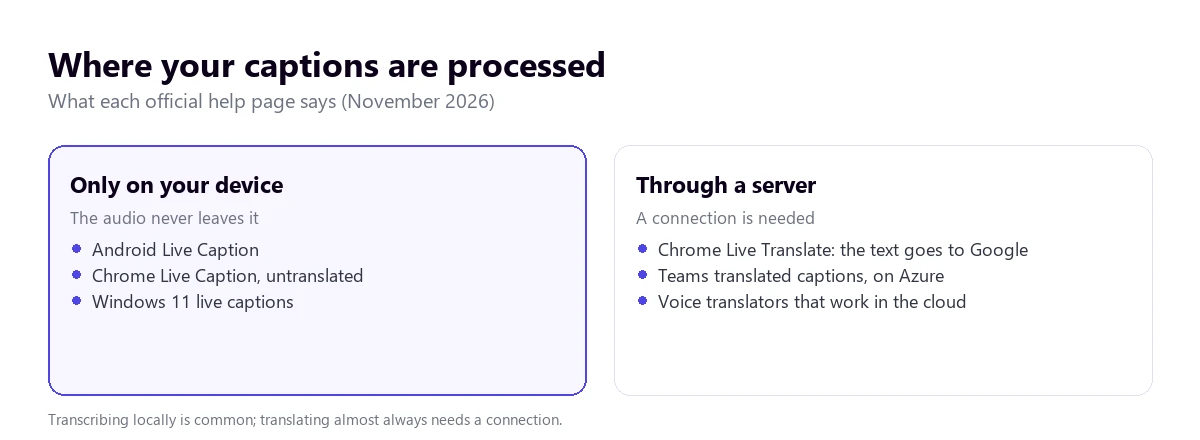
There’s another technical choice that matters to the user: where the work happens. Speech recognition models now fit on a phone or a laptop, so many features transcribe offline. Translating well into dozens of languages usually needs a server, and then the text, or the audio, leaves your device.
On your phone: Android Live Caption
Android has a feature called “Live Caption” that puts on screen what’s said in videos, podcasts, voice messages and phone or video calls. It works with almost any app on the phone, not just Google’s, because it listens to the system sound.
How to turn it on
- Press a volume button.
- In the volume controls, tap “More” and then “Live Caption”.
- Tap “Done”. You can also search for “Live Caption” in Settings and turn it on there.
The first time, it needs Wi-Fi to download the language pack. From then on, according to Google’s help, everything is processed on the device, captions are never stored or sent anywhere and the feature uses no mobile data or internet connection.
Which languages it understands, by phone
Here’s the fine print. On the Pixel 2 and 3, English only. On the Pixel 4 and 5 and some Android phones, German, Spanish, French, Hindi, English, Italian and Japanese. On the Pixel 6 and later, and on some phones running Android 16 or later, Korean, Simplified and Traditional Chinese, Polish, Portuguese, Russian and Turkish are added. If the option doesn’t show up on your phone, Google’s help refers you to the manufacturer, and on other brands the name or the menu may differ.
To translate captions, the help only mentions “Live Translate” on the Pixel 6 and later, set up in the captions’ translation options. On every other phone, the feature transcribes in the original language. It isn’t designed for calls with more than two people either.
In the browser: Chrome’s captions
Chrome on desktop follows the same idea as Android: a “Live Caption” feature that writes out what plays in the browser, whether it’s a video, a podcast or a video call in a tab, and a “Live Translate” feature that puts it into another language. They’re on Windows, Mac and Linux, and on Chromebook.
How to turn them on in Windows or Mac
- Open “More” (the three dots) → “Settings” → “Accessibility”.
- Turn on “Live Caption”. Under “Manage languages” you can add the languages you want recognized.
- To translate, turn on “Live Translate” and pick the language in the “Translate to” drop-down.
Chrome’s help lists German, Arabic, Spanish, English, French, Japanese and Portuguese among the caption languages, but presents it as a list of examples, so the exact list for Windows and Mac isn’t confirmed. On privacy it’s clear: audio and captions are processed locally and don’t leave the device, unless you turn on translation, because then the captions are sent to Google to be translated.
The main limit is obvious: it only works with what plays inside Chrome. A film in VLC, a call in the Teams app or a game are left out. That’s why so many people search for a real-time captions extension. Before installing one, check the permissions it asks for and whether it says where it processes the audio: an extension that transcribes in the cloud receives everything that plays in your tabs.
In Windows 11: live captions
Windows 11 has its own feature, called “Live captions”, since version 22H2. Unlike Chrome, it listens to any audio that goes through the PC, whichever program it comes from, and can include your microphone too.
How to turn them on
- Press Windows + Ctrl + L. The first time, it will ask you to download the language.
- In the window’s settings button you can place them at the top, at the bottom or floating on screen, and switch language with “Change language”.
- Under “Preferences” you can turn on “Include microphone audio” and “Filter profanity”.
According to Microsoft’s help, audio, voice data and captions never leave the device, and they work offline. The languages it recognizes are Chinese, Danish, German, several varieties of English, French, Italian, Japanese, Korean, Brazilian and European Portuguese, and Mexican and European Spanish.
The catch with translation
Windows 11 also translates, but with two conditions that hardly anyone mentions. First: you need a Copilot+ PC with Windows 11 24H2 or later, that is, a recent laptop with a dedicated AI processor. Second: it only translates into two languages, into English from more than 40 languages and into Simplified Chinese from 27. If English is what you need, that’s good news, but only on that hardware. If you want a German film in French or an English meeting in Spanish, Windows captions won’t help, even on the right machine.
A voice translator on your PC, for everything else
That gap is what voice translators for Windows fill. Traducore, the program we make, listens to the app you choose in Windows 11, or an audio device in Windows 10, and gives you captions in your language in a window on top of whatever you’re watching, with translated voice if you want it. It translates into 78 languages and detects the source language on its own, so it works in either direction.
Here are its limits before you try it. Captions arrive with a delay of about three to six seconds, because it waits for sentences that make sense; it works in the cloud, so it needs a connection; and it’s Windows only, not for phones or Mac. The free plan gives you 15 minutes a day, with no card and no expiry, enough for a short episode or to check whether it suits you. For daily use, the plans are on the pricing page.
Captions in your language from any program
It listens to the app you choose in Windows and captions it in your language. 15 free minutes a day, no card.
In meetings: Teams, Zoom and Meet
All three platforms caption in the spoken language at no extra cost, but translated captions are another story. Here’s a summary of their official help:
- Teams: captions are turned on from “More actions” → “Language and speech” → “Show live captions”. To translate them, under “Captions settings” → “Language settings” → “Translate to”, you or the organizer need Teams Premium or Microsoft Copilot. The Spanish-language help lists 30 target languages, English among them. We cover it in the guide to the Teams interpreter.
- Zoom: automatic captions are under “Show Captions”. Translated ones require a Business Plus account or higher, or the translated captions add-on, and the help itself warns they may not be accurate. More detail in how to translate a Zoom meeting.
- Meet: translated captions are turned on from “More options” → “Settings” → “Captions” and come with paid Google Workspace editions. Personal accounts aren’t mentioned in the help, so we can’t confirm they include them.
On all three, if the organizer doesn’t have the plan, an attendee can’t turn them on alone. It’s the most common complaint from people looking for real-time captions in Teams: the option exists, but it doesn’t appear.
On YouTube and on TV
YouTube generates automatic captions in 68 languages for uploaded videos and lets you translate them from the gear icon, although they aren’t always available. For live streams, however, YouTube’s help says automatic captions only exist in English. If a live stream is in another language, YouTube won’t give you text. The steps for regular videos are in the guide to translating YouTube subtitles.
On television, captions for a live broadcast, such as the news, are normally produced by the channel, with people who rewrite what’s being said or with automatic systems, and the TV just displays them. You turn them on in the subtitles or accessibility menu of the remote, which differs for each brand. If the programme doesn’t broadcast them, the TV can’t make them up.
The options, compared
| Option | What it captions | Translates into your language? | Requirements | Where it’s processed |
|---|---|---|---|---|
| Voice translator on your PC | The Windows app you choose | Yes, into 78 languages | Windows 10 or 11; a connection | In the cloud |
| Android Live Caption | Everything that plays on the phone, calls too | Only on Pixel 6 or later | Languages depend on the model | On the phone |
| Chrome Live Caption | What plays in the browser | Yes, with Live Translate | Chrome on desktop | On the device; translation, at Google |
| Windows 11 live captions | All PC audio and, if you want, the microphone | Only into English or Chinese | Windows 11 22H2; to translate, a Copilot+ PC | On the device |
| Teams, Zoom and Meet | The meeting | Yes, with a paid licence | The organizer’s plan | On their servers |
| YouTube | YouTube videos | Yes for uploaded videos; not for live streams | The video must have automatic captions | On their servers |
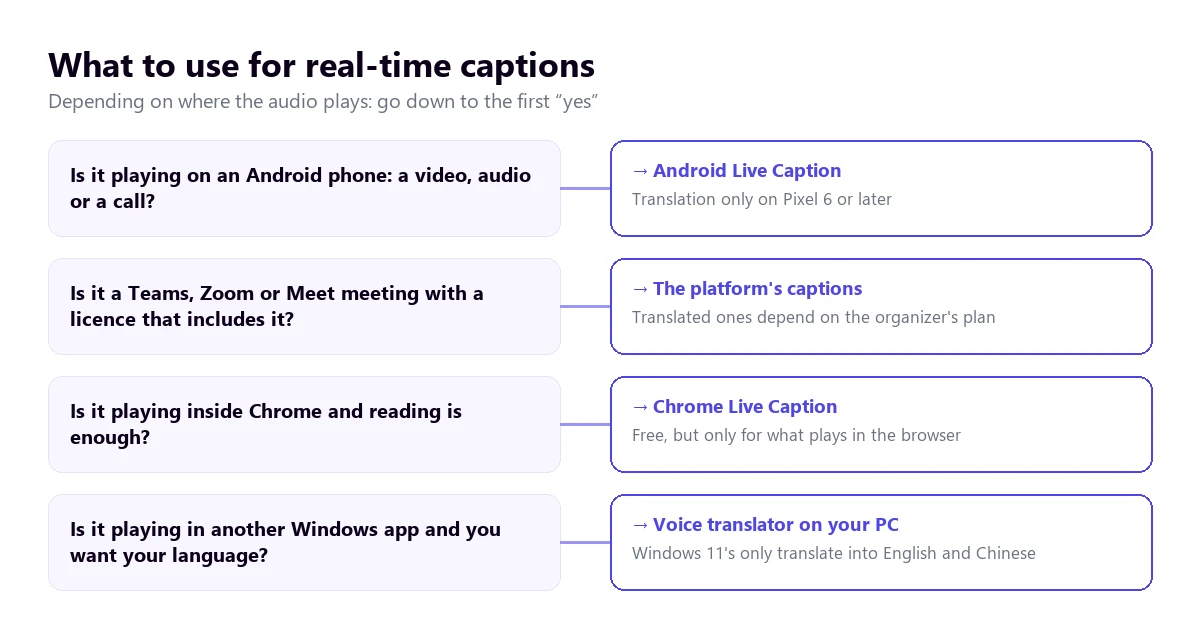
If you’re not sure where to start, the tree sorts it out by where the audio is playing:
Why they fail and how to make them more accurate
All these tools fail in the same situations, because they all depend on speech recognition. Knowing this saves frustration and, often, it can be fixed:
- The source language doesn’t match. If Chrome or Windows expect English and the video is in Italian, they’ll write meaningless English words. Check the configured language before blaming the tool.
- Several people talk at once. Recognition sticks to the loudest voice or mixes sentences. In meetings, ask people to take turns.
- Music or background noise. A loud soundtrack or a distant microphone lowers accuracy a lot. YouTube explicitly names background noise and accents as causes of errors.
- Proper names, acronyms and jargon. The model writes the common word that sounds closest. Keep the original handy to check them.
- Very low volume. Some features listen to the system mix; if the video is almost silent, it’s silent for them too.
- Long, fast sentences. With translation, the text is always a few seconds behind. Pausing doesn’t break anything: the tool finishes the sentence and carries on.
What translated captions cost
Transcribing is already free almost everywhere: Android, Chrome, Windows 11 and the meeting platforms include it at no charge. What you pay for is translation, and each vendor limits it in its own way: Google, to recent Pixels on mobile and to the browser on desktop; Microsoft, to Copilot+ PCs and two target languages; Teams, Zoom and Meet, to their business plans.
So when someone looks for free real-time captions, the answer depends on what they need. To read what’s said in the same language, there’s plenty to choose from without spending anything. To read in your language audio in another language that plays outside the browser, the free options shrink to limited allowances, such as the 15 daily minutes of our free plan, or to trying Chrome if the content can be opened in a tab. If you’re mainly looking for PC programs, see the voice translator comparison.
More questions about real-time captions
What does instant captioning mean?
It’s text that appears on screen at the same time as people speak, generated by speech recognition or by a person transcribing live, without preparation. It differs from traditional subtitling in that there’s no script or review, so it arrives with a small delay and the odd mistake. It can be in the same language as the audio or translated into another.
How do you turn on Google’s real-time captions?
It depends where. On an Android phone, press a volume button, tap “More” and then “Live Caption”. In Chrome on desktop, go to “Settings” → “Accessibility” and turn on “Live Caption”, plus “Live Translate” if you want them translated. On YouTube, tap the player’s captions button and, in the gear menu, choose “Auto-translate”.
How do you get live captions in Windows?
In Windows 11, version 22H2 or later, press Windows + Ctrl + L and download the language the first time. From the window’s settings you choose where they appear and whether they include the microphone. Keep in mind they only translate into English or Simplified Chinese and only on a Copilot+ PC; for any other language you need a voice translator for Windows.
Are there free real-time captions?
Yes, for transcription: Android, Chrome, Windows 11, YouTube and the meeting platforms cost nothing. Free translation is more limited: Chrome translates what plays in the browser at no cost, and some voice translators for PC have free daily allowances. Translated captions in Teams, Zoom and Meet require paid plans.
So, which one do we use?
It depends where the sound is. On the phone, Android Live Caption for voice messages and videos, offline. On the computer, if it’s a video in a tab and reading is enough, Chrome’s. For everything else in another language that plays in Windows, a film, a call or a recorded class, we use our own voice translator with captions on top and the original voice in the background. And if the meeting has translated captions paid for, those first. If you’re curious how the technology works inside, it’s in the guide to real-time translation.
Read what plays on your PC in your language
Translated captions and voice from any Windows program. 15 free minutes every day, no card.