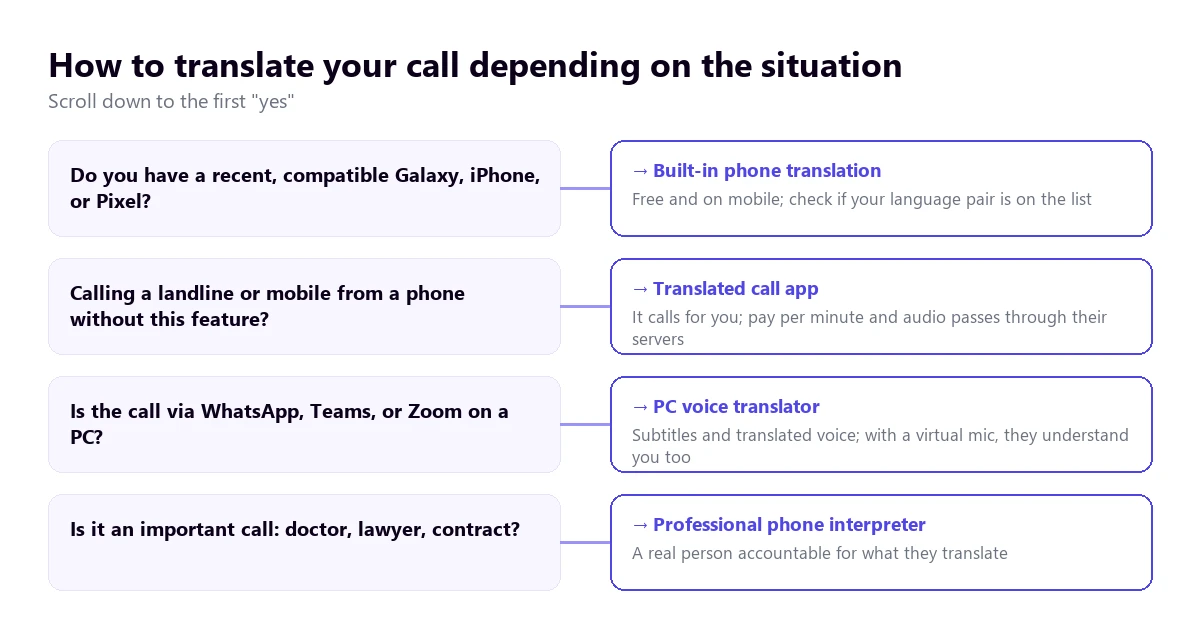
To translate a phone call in real time, there are currently three paths: the built-in feature on some recent phones (Samsung Galaxy, iPhone with Apple Intelligence, and Google Pixel 10 onwards), an app that makes the call for you and translates along the way, or a voice translator on your computer when the call rings on your PC. None of them are truly simultaneous: they all wait for each sentence to end, and the other person hears a synthetic voice.
In this guide, we explain what happens inside a translated call, how to activate it on each phone according to their official help pages, which languages each one supports and their fine print, and when it is worth moving the call to your computer or hiring a human directly. The data from Samsung, Apple, Google, and Microsoft comes from their help pages, checked in October 2026; where the help page omits something, we point it out.
In short
- The call is via WhatsApp, Teams, or Zoom on your computer: a voice translator on your PC gives you subtitles and voice, and with a virtual microphone, they can understand you too (method 1).
- You have a compatible Galaxy: Galaxy AI’s Live Translate works in the Phone app and on WhatsApp, Telegram, and others (method 2).
- You have an iPhone with Apple Intelligence: translation in the Phone app, with nine languages (note: Spanish is Spain-only) (method 3).
- You have a Pixel 10 or newer: translates calls as long as one of the two languages is English (method 4).
- Your phone doesn’t do any of this and you are calling a landline: a translated calling app, paying per minute (method 5).
In this article
- Why a phone call is the hardest thing to translate
- The existing options, at a glance
- 1. Translate the call from your PC
- 2. Samsung Galaxy: Galaxy AI’s Live Translate
- 3. iPhone: Apple Intelligence translation in the Phone app
- 4. Google Pixel: Call dubbing
- 5. Apps that make the call for you
- 6. A real telephone interpreter
- How to warn the other person, and why you should
- What is always lost in a translated call
- How to get a cleaner translated call
- More questions about translating a call
- So, which one do we use?
Why a phone call is the hardest thing to translate
Translating a video allows for pauses, rewinding, and subtitles you can read at your own pace. A phone call does not. It is a conversation without video, with two people interrupting each other, worse audio quality than any video, and no way to go back. That is why, when translating a phone call, the results are usually worse than in a video meeting using the same software.
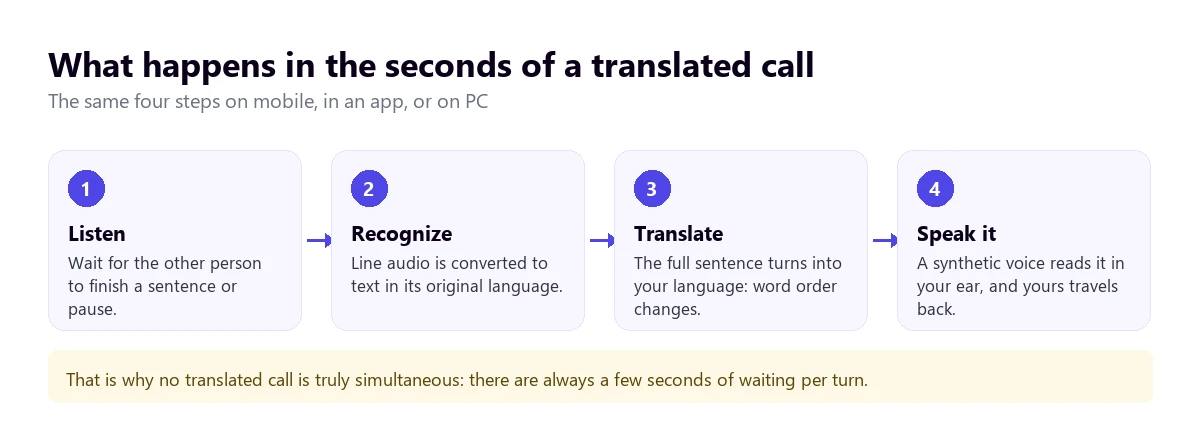
Any system capable of translating a call, whether on your phone, on a server, or on your PC, does the same four things in the same order. First, it listens until the sentence ends, because it cannot translate “I don’t think we should” without knowing how it finishes. Then it converts the voice to text, translates that entire text, and finally, a synthetic voice speaks it in the other language.
The phone audio arrives clipped
Classic narrowband telephony transmits, roughly, from 300 to 3,400 hertz. This is enough for one person to understand another, because the brain fills in what is missing, but a speech recognizer has a harder time. Consonants like “s”, “f”, or “z” live in higher frequencies and get lost. HD calls from carriers and those on WhatsApp or Teams use a wider band, and it shows in the result.
Add the environment to that: the car, the street, the phone’s speaker. If the speech recognition misspells a word, the translation translates that misspelled word, and the synthetic voice says it with complete confidence. The error from the first stage drags on to the end without anyone warning you.
Turns, not simultaneity
Between the other person finishing a sentence and you hearing the translation, a few seconds pass. If they keep talking, the translation falls behind; if you answer quickly, you step on their next sentence. Translating a call works much better when both accept speaking in turns and with short sentences, just like with an interpreter at a doctor’s appointment. We explain the origin of this delay in our guide on real-time translation.
The existing options, at a glance
| Option | Where it works | Languages | The other person | Cost |
|---|---|---|---|---|
| Voice translator on PC | Calls ringing on Windows: WhatsApp, Teams, Zoom, Meet | 78 target languages | Hears you translated with the virtual microphone | 15 free min/day; paid plans |
| Samsung Galaxy AI | Phone app and nine third-party apps | 20 | The help page doesn’t say if they need anything | Included with the phone |
| iPhone with Apple Intelligence | Phone app and FaceTime | 9 | Gets a warning at the start | Included with the phone |
| Google Pixel 10 or newer | Phone app | 11, always with English | Hears an announcement in their language | Included with the phone |
| Translated calling app | Calls to landlines and mobiles from the app | Depends on the app | Installs nothing | Per minute or subscription |
| Telephone interpreter | Any phone, with three-way calling | Those of the service | Speaks with a person | Per minute or per service |
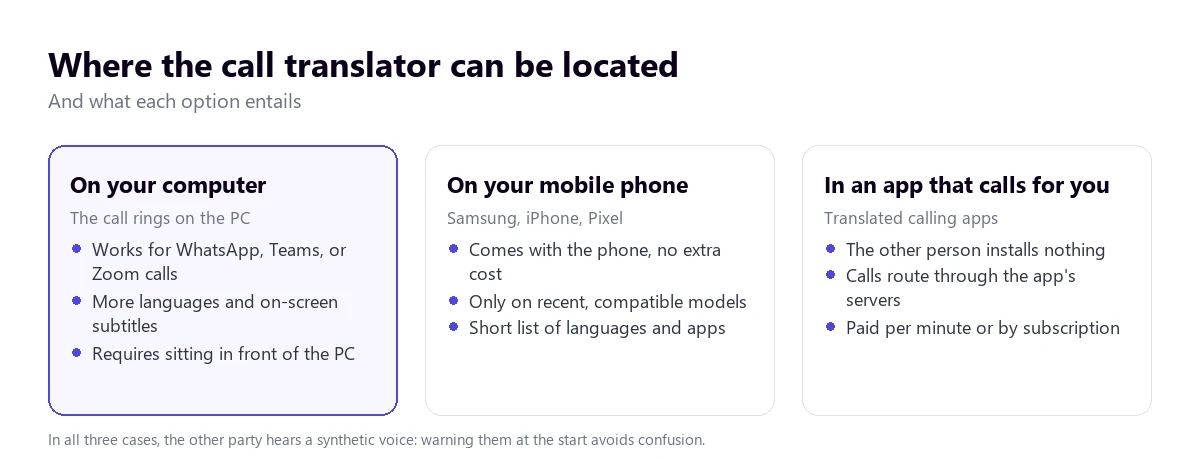
When translating a call, the most important difference is not the languages, but where the translator lives. If it is on your phone, the call does not leave your device to be translated, but you depend on the model you have. If it is in an app that makes the call for you, the other person does not have to do anything, but your conversation goes through their servers. If it is on your computer, you get more languages and a large screen, in exchange for sitting in front of it.
1. Translate the call from your PC
Many calls with clients, suppliers, or family no longer go through the phone line, but through WhatsApp, Teams, Zoom, or Meet. If you make them from your computer, the audio plays on Windows, and there a voice translator on your PC can listen to it without depending on the calling app translating anything or what phone you have.
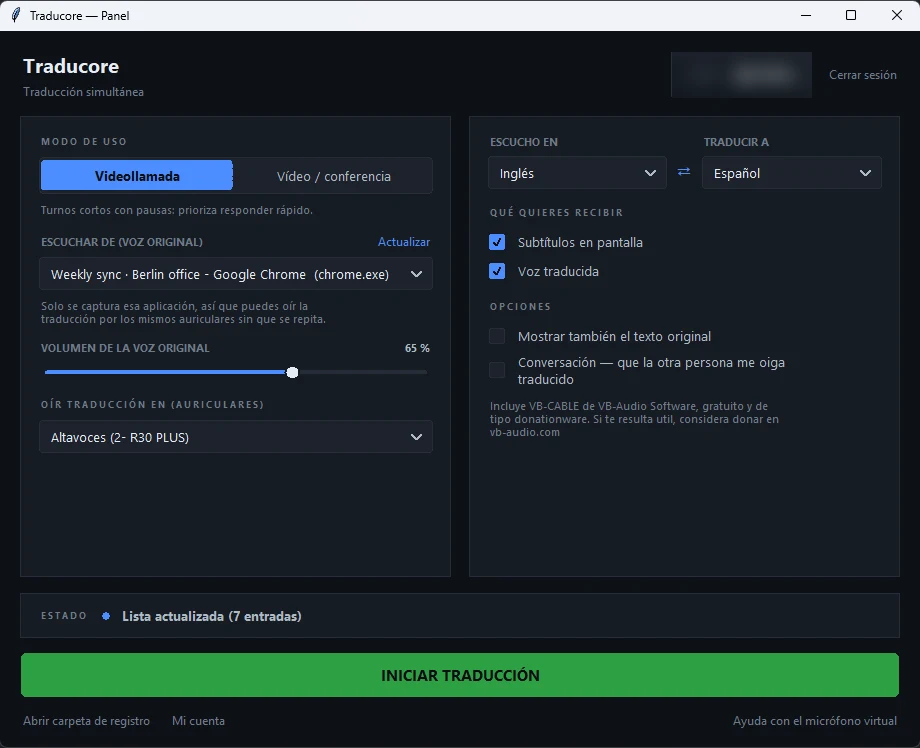
Traducore is the one we make. On Windows 11, it listens only to the application you choose, for example WhatsApp Desktop, and gives you the translation in floating subtitles, in voice, or both, with the original voice lowered in the background. On Windows 10, it listens to an audio device instead of an application.
Step by step
- Start the call from your computer, on WhatsApp Desktop, Teams, Zoom, or your browser.
- In the program, choose the Video call mode and, under “Listen from”, the calling application.
- Indicate the language you want to translate to; the other person’s language is detected automatically.
- So they can understand you too, activate the two-way conversation and set CABLE Output as the microphone in the calling app. The program installs this virtual microphone the first time, and Windows asks for administrator permission.
- Click start and speak in short sentences.
What you should know
The translation arrives between three and six seconds after each sentence. With headphones, the conversation is more fluid; with speakers, it goes in turns, because your microphone is not sent while the translation is playing. The free voice is available in English, Spanish, French, German, Italian, and Portuguese; for the rest of the languages, you get subtitles. It does not save the audio or the text.
And the main limitation, stated clearly: it only works on Windows. It does not translate the call you make with your phone in your hand, because there is no mobile or Mac version.
What about a normal phone call from the PC?
Windows has a way to make a mobile call ring on the computer: the Phone Link app. According to Microsoft’s help page, you open Phone Link, select “Calls”, search for the contact or dial the number, and press the call button. It requires Bluetooth to be on for both the PC and the phone, and the first call asks for permissions on the mobile. Microsoft warns that it does not replace your phone service and that it is not meant for emergency calls.
With Phone Link, we have not tested if a translator on the PC can listen to the call, so we do not promise it: the audio travels via Bluetooth as if the computer were a hands-free device, and it depends on how Windows delivers it. If you want to test it, the free plan gives you 15 minutes a day without a card, enough to clear up any doubts with a test call.
Your next call on WhatsApp or Teams, translated
Subtitles and voice in your language while you speak from your PC, and your translated voice for the other person. 15 free minutes every day, no card required.
2. Samsung Galaxy: Galaxy AI’s Live Translate
Samsung was one of the first to put call translation inside the Phone app itself. The feature is called Live Translate and is part of Galaxy AI. The help page that appears on Google is written for the Galaxy S24 and requires One UI 6.1.1 or later, a network connection, and being signed into a Samsung account. The exact list of compatible models is on another Samsung page, which it links to.
How to activate it
- Open Settings and tap Galaxy AI.
- Go to Phone and turn on the switch.
- Under “Me”, choose your language; under “Other person”, theirs. If a language is missing, tap the download icon next to it.
From there, you can also adjust other options: mute the original voice to hear only the translation, and assign a language and voice to specific contacts, so the call with your German supplier starts already configured.
Also on WhatsApp, Telegram, and other apps
This is the advantage the other phones do not have. Samsung’s help page lists nine third-party apps: Google Meet, Signal, WeChat, KakaoTalk, Facebook Messenger, Instagram, LINE, WhatsApp, and Telegram, with the warning that the list may change. They are activated one by one in Settings, Galaxy AI, Call assist, “Live Translate in other apps”. During the call, you open the Quick settings panel and tap Live Translate.
Languages and what the help page doesn’t say
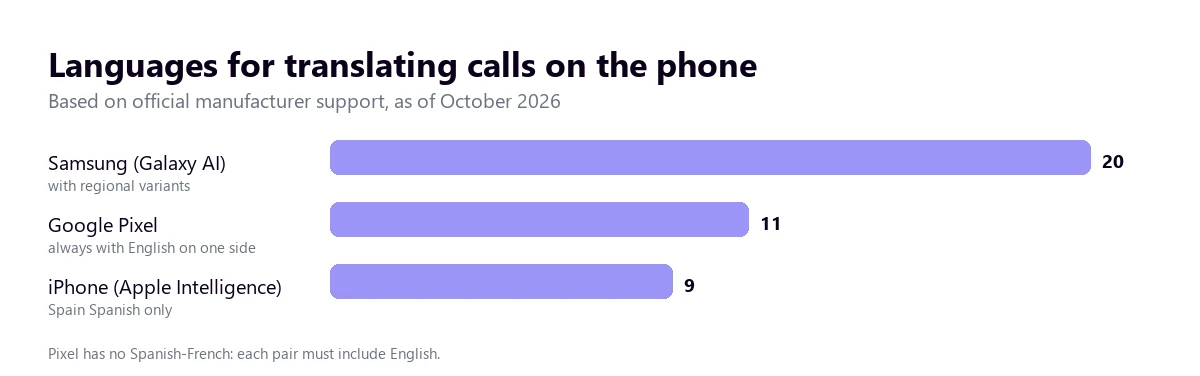
The list has 20 languages, several with variants: English from Australia, India, the UK, and the US; French from Canada and France; Portuguese from Brazil and Portugal; and Spanish from Mexico, Spain, and the US. It also includes Arabic, Chinese, Japanese, Korean, Russian, Polish, Turkish, or Vietnamese, among others.
The page does not clarify if the translation is done on the phone or on Samsung’s servers, nor if the other person needs anything on their end. It does warn that quality may vary with each use and that the interface changes depending on the application.
3. iPhone: Apple Intelligence translation in the Phone app
Apple added call translation to the Phone app as part of Apple Intelligence, so it only works on iPhones compatible with Apple Intelligence and with it activated in Settings. Apple’s help page links to another page to see which models those are, and warns that the feature is not available in all regions or languages.
How to use it during the call
- Call from the Phone app as usual.
- With the call active, tap the More button and then the translation option.
- If the other person’s language is not chosen, select it; it will download if necessary.
- Tap Start translation. Both of you receive a warning, the other person hears the translation of what you say, and you read a transcript on the screen.
Two practical details from the help page: if you are not using the speaker or headphones, the call switches to the speaker, and if you are on mobile data, your carrier may charge you for the download. Apple states that the translation is done entirely on the device, and in FaceTime, the same feature shows translated subtitles instead of voice.
The Spanish the iPhone understands is from Spain
Apple’s availability page lists nine languages for Phone and FaceTime calls: Mandarin Chinese, UK and US English, French, German, Italian, Japanese, Korean, Brazilian Portuguese, and Spanish from Spain. Mexican Spanish and other countries are not listed, which is worth checking if you are calling a Spanish speaker in Latin America, because a different accent might be recognized worse.
4. Google Pixel: Call dubbing
Google has its own version in the Phone app on Pixels. Its help page calls it “Instant call dubbing”; in the Pixel 10 series settings, it appears as Speech translation, and on the Pixel 11 as Live Translate. It works on Pixel 10 and newer models, including the Fold.
How to activate it
- On a Pixel 10, update your apps and go to the Phone app, More, Settings, Speech translation. Turn on “Use speech translation”, choose your language, and download the ones you need. On the Pixel 11, it is in Settings, System, Live Translate.
- During the call, tap Call assist and then the translation.
- Choose the other person’s language and tap Done.
Before starting, both of you hear a brief announcement in your language. According to Google, it can be used offline, the audio and transcript are not saved on the phone, and conversations are not sent to their servers. If it detects another language, it offers to switch.
The catch: always with English
It translates between English and ten languages: French, German, Hindi, Indonesian, Italian, Japanese, Portuguese, Russian, Spanish, and Swedish. That means English and Spanish yes; Spanish and French, no. And on the Pixel 10a, four of them are missing: Indonesian, Japanese, Russian, and Swedish.
5. Apps that make the call for you
If your phone does not have any of the above, or the other person is on a landline, the option to translate a call that appears most on Google are translated calling apps. Based on how they describe themselves on their Google Play listings and websites, there are two models.
In the first, the app makes the call: you choose your language and your interlocutor’s, dial a mobile or landline number, and the call goes out from the app’s servers, which translate in both directions. The other person picks up a normal phone and hears a synthetic voice in their language. They usually charge per minute, with the price visible before calling.
In the second, the app creates a link: you send it, the other person opens it in their mobile or PC browser without installing anything, and the conversation is translated there. It is more like a video call than a phone call.
Before paying, check three things these apps do not always put front and center: how much the minute costs depending on the country you are calling, if there is an auto-renewing subscription, and what they do with the audio of your calls, which passes entirely through their servers. We have not tested them and we do not provide their language figures, because we only know them from their advertising.
6. A real telephone interpreter
There are cases where translating a call with a machine is not a good idea: a medical appointment, dealing with a lawyer, price negotiations, a claim with money at stake. For that, there are telephone interpreting services, where a person joins a three-way call and translates in turns.
It costs more and you have to book or call a switchboard, but the interpreter asks when they do not understand, warns of a misunderstanding, and takes responsibility for what they translate. We explain how this profession works and when it pays off in our guide on the simultaneous interpreter.
How to warn the other person, and why you should
iPhone and Pixel already do it for you with their automatic announcement. In all other cases, it is worth saying it yourself. A synthetic voice answering with a few seconds of delay is confusing: some people think the line is bad, some repeat the sentence louder, or some hang up thinking it is a sales call.
Before translating a call, one sentence at the beginning is enough, in their language if you can: that you are using a translator, that there will be a slight delay, and that it is best to speak in short sentences and wait for the answer. With that, the call changes pace and turns are respected naturally.
If you are going to do something else besides translating, like saving the transcript or recording, say that too. In many companies and countries, it is a requirement, and in any case, it is a matter of trust with whoever is on the other end.
What is always lost in a translated call
No system for translating a call completely solves these four problems.
Numbers. “Fifteen” and “fifty” sound very similar over the phone, and a poorly recognized time, price, or order number gets translated with confidence. Anything with numbers should be confirmed in writing afterward, by email or message.
Names, addresses, and spelling. A last name, a street name, or an email pass through the recognition as common words and come out translated. Spelling over the phone with a translator in the middle is almost impossible.
Tone. Irony, politeness, and anger are flattened into a synthetic voice. A dry “sure” can become an enthusiastic “claro” in the translation. Without a face to look at, this carries more weight than in a video call.
Half-finished sentences and overlaps. When you both speak at the same time, the system mixes the voices or keeps just one. And sentences corrected on the fly, so normal on the phone, produce weird translations.
How to get a cleaner translated call
- Prepare the call beforehand. To translate a call without surprises, download the languages, activate the feature, and do a test with someone you trust. In the middle of a call is not the time to look for menus.
- Use headphones. They prevent the translator from hearing itself and the microphone from picking up the synthetic voice, and on the iPhone, they stop the call from jumping to the speaker.
- Look for silence and good reception. Wi-Fi or an HD call provide fuller audio than a line with a bad signal.
- One idea per sentence. Short sentences, without subordinate clauses, and a pause at the end. The translation takes less time and makes fewer mistakes.
- Keep important things handy in writing. Reference numbers, addresses, or names are better sent by message while you speak.
- Close with a summary. “So, Tuesday at ten, correct?” forces confirmation of what gets lost the most.
If the call is actually a video work meeting, you have more specific guides to translate a Meet or WhatsApp video call, for the Teams interpreter, and to translate a Zoom meeting.
More questions about translating a call
How to put the translator on a call?
It depends on the phone. On a Galaxy, it is activated beforehand in Settings, Galaxy AI, Phone, and during the call from Quick settings if it is on WhatsApp or another app. On a compatible iPhone, with the call active, you tap More and then the translation. On a Pixel 10 or newer, you tap Call assist. If the call is on the computer, you choose the calling app in the PC voice translator.
How to make my phone translate automatically?
On Samsung, you can assign a language and voice to specific contacts, so the translation starts already configured with them. On Pixel, the translation can be left on for future calls. On iPhone, it is started on each call from the More button. None of them magically detect that a call is in another language if you have not activated the feature beforehand.
How to translate during a call?
If the feature is already activated, it opens in the middle of the call without hanging up: Quick settings on Galaxy, the More button on iPhone, and Call assist on Pixel. If your phone does not have it, you can put the call on speaker and use the conversation mode of a translation app next to it, although it is slow and the other person does not hear anything translated.
How can I translate a phone call in real time?
With your phone’s built-in feature if it is a compatible Galaxy, an iPhone with Apple Intelligence, or a Pixel 10 or newer; with a translated calling app if you are calling a landline from another phone; or with a voice translator on your computer if the call is via WhatsApp, Teams, or Zoom on your PC. In all three cases, there is a few seconds wait per sentence, so it is best to speak in turns.
So, which one do we use?
For work calls, which in our case are almost all via Teams, Meet, or WhatsApp from the computer, we use our software, with headphones and the two-way conversation activated. For a call from a mobile phone, the best option is the one your phone already has, if your language pair is on its list: it costs nothing and you do not have to install another app. And for a call to the doctor or involving a contract, a human. Machine translation helps you understand each other; it does not take responsibility for what it says.
Calls in another language from your PC
Subtitles and translated voice on WhatsApp, Teams, Zoom, or Meet, and your translated voice for the other person. Create your account and use 15 free minutes every day.