A translator with a microphone can mean two very different things: your phone translating what you say to someone in front of you, or your voice reaching the other person translated inside a video call. Any translation app does the first. The second takes more: the translation has to enter Zoom, Teams or Meet as if it were your own microphone, and there the options narrow a lot.
In this guide we explain the difference between the two cases, how your voice travels to the other person, what the meeting platforms themselves offer today and what desktop programs do, and how to set it up step by step without the other person installing anything. The data on Teams, Zoom and Meet comes from their official help, checked between October and November 2026; where the help doesn’t make something clear, we say so.
In short
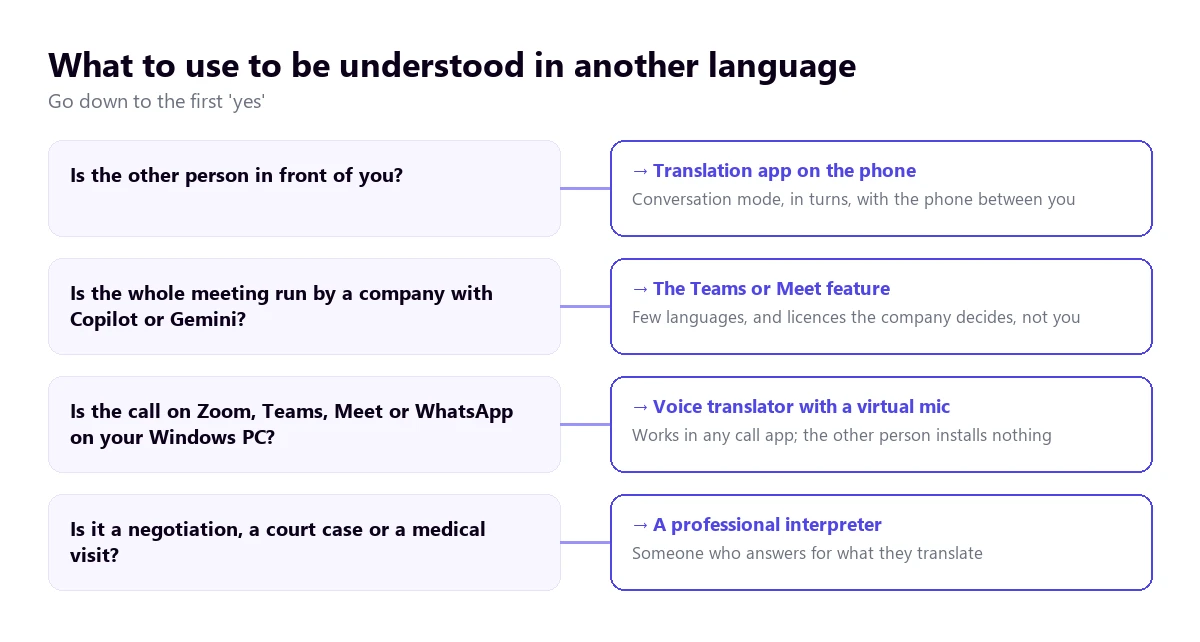
- Is the person in front of you? → the Google Translate app in conversation mode, with the phone between you.
- Is it a video call from your computer? → a voice translator for PC with a virtual microphone: the other person hears you translated and installs nothing.
- Is the whole meeting run by a company with Copilot or Gemini? → the Teams Interpreter or Meet’s speech translation, with their licences and few languages.
- Is it a sensitive conversation (doctor, court, contract)? → a professional interpreter.
In this article
- Two different microphones: face to face and the video call
- How your translated voice reaches the other person
- The options available today for being heard translated
- Step by step: being heard translated in Zoom, Teams or Meet
- Headphones or speakers: why it makes such a difference
- What the other person notices (and it’s worth telling them)
- When not to use a voice translator with microphone
- More questions about translating with a microphone
- So, which one do we use?
Two different microphones: face to face and the video call
When people look for a voice translator with a microphone, they almost always picture the phone: you tap the icon, speak, and the phone says the sentence in another language. That works because the other person is a metre away and hears the phone’s speaker. The microphone that matters is the phone’s, and the translator only has to listen and answer out loud.
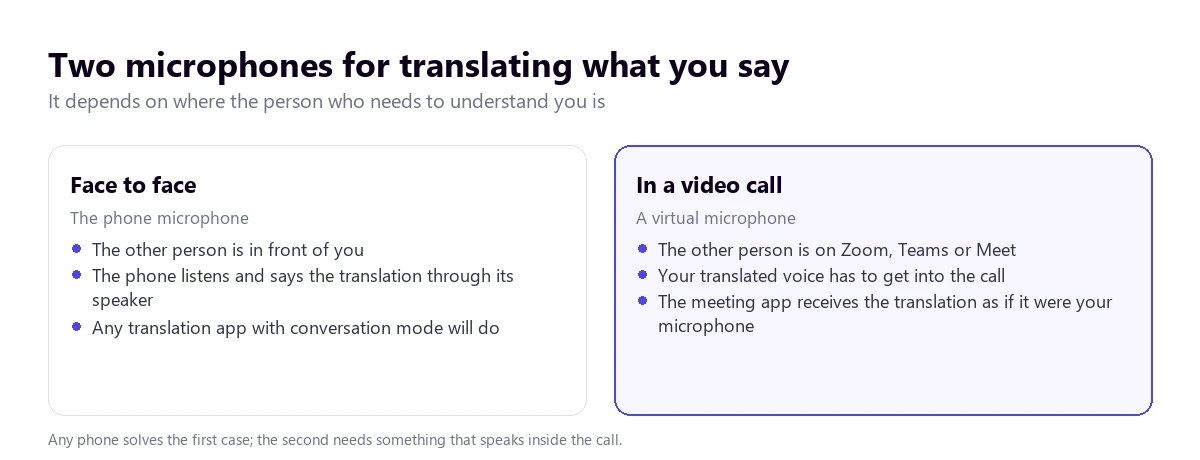
In a video call the problem changes completely. The other person doesn’t hear your room: they hear what Zoom, Teams or Meet send from your microphone. If you put your phone next to the computer to translate, the call picks up your original voice, the phone’s voice on top and the echo from the speakers. It’s hard to follow and the conversation falls apart within two minutes.
The solution a desktop voice translator with microphone uses is a virtual microphone: an audio device that doesn’t physically exist and that Windows treats as one more microphone. The translator sends the already translated voice there and the meeting app picks it up as if it were yours. For the person on the other side there’s nothing odd to configure: they simply hear someone speaking their language.
How your translated voice reaches the other person
Under the hood, every voice translator with microphone does the same thing in four steps, and understanding them helps you use it well:
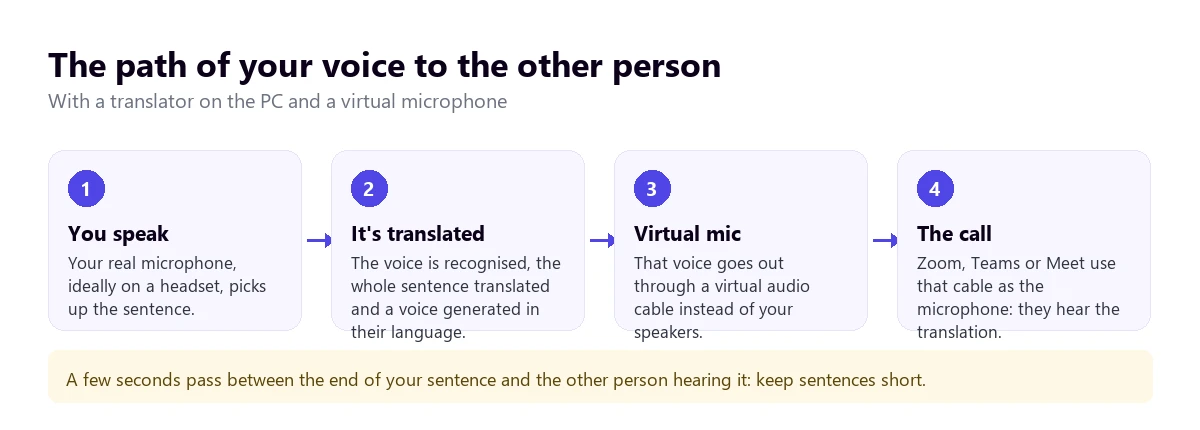
- Listen. Your real microphone picks up the sentence. The system waits for a pause to know you’ve finished it, because translating word by word produces sentences that make no sense.
- Recognise and translate. The voice becomes text and the whole sentence goes into the other language. That’s where the word order changes, which is exactly what forces the wait until the end of the sentence.
- Generate the voice. A synthetic voice reads the translation. Depending on the tool, it can be a standard voice or one that imitates the speaker’s tone.
- Enter the call. That voice goes out through the virtual microphone and the meeting app sends it to the other person.
Between the moment you finish a sentence and the other person hears it, a few seconds go by. With a voice translator for PC the usual is 3 to 6, depending on the language and the connection. It isn’t simultaneous like a booth interpreter, and it’s worth saying so at the start of the call so nobody is left waiting in silence without knowing why.
The options available today for being heard translated
There are several ways to use a voice translator with microphone in a call, and each one fits a different place:
| Option | Where it works | What the other person needs | Languages | Cost |
|---|---|---|---|---|
| Voice translator on the PC with a virtual microphone | Any call app on Windows: Zoom, Teams, Meet, WhatsApp | Nothing | 78 target languages | 15 free minutes a day; Conversation from €10.45 a month |
| Teams Interpreter | Scheduled Teams meetings | A Microsoft Copilot licence to hear the translation | 9 or 10, depending on the help page | Copilot licence, 20 h a month per person |
| Meet speech translation | Google Meet | Nothing, if the organiser has a compatible edition | English with French, German, Hindi, Italian, Portuguese or Spanish | Workspace or Google AI Pro |
| Zoom Voice Translator | Zoom desktop app (Windows and macOS) | That their account has the feature turned on | 5: English, Chinese, French, Japanese and Spanish | Paid add-on; price not published |
| Phone app (conversation mode) | Face to face | Being there | Dozens | Free |
1. A voice translator on the PC with a virtual microphone
It’s the only route that doesn’t depend on the platform or on the other person’s licences. The program listens to the call, gives you the translation as voice or subtitles, and in the other direction takes your voice, translates it and puts it into the call through the virtual microphone. It works the same in Zoom, Teams, Meet, WhatsApp desktop or Discord, because for all of them it’s just one more microphone.
Our voice translator for Windows works this way. The free plan includes two-way conversation for 15 minutes every day, with a synthetic voice in Spanish, English, French, German, Italian and Portuguese; if the other person speaks another language, on the free plan they get the translation as subtitles only. Conversation plans give voice in all 78 languages, with the speaker’s tone.
Try it on your next call
15 free minutes a day, no card, with two-way conversation included.
Other desktop programs follow the same idea. VoxisLive also uses a virtual microphone for its meeting mode, although that mode isn’t included in its free plan, and TransyncAI offers a virtual microphone in its plans. We compare them with official data in the best voice translators for PC.
2. Microsoft Teams Interpreter
Teams has an agent called Interpreter that translates voice to voice in meetings, with the option to simulate your voice. It works well inside a company that already pays for Copilot, but it has three limits: it needs a Microsoft Copilot licence, which includes 20 hours of interpretation per person a month; anonymous guests can’t use it, and the help lists only nine or ten languages, depending on the page you read. We cover it in depth in real-time translation in Teams.
3. Google Meet speech translation
Meet translates what you say in a voice similar to yours as you speak. When the meeting is organised by someone with a compatible edition (several Google Workspace editions or Google AI Pro), all participants can turn it on. In return, it only allows one language pair per meeting, always with English on one side, and has a 90-minute limit per meeting. If you speak Spanish with a German, for example, it won’t help you.
4. Zoom Voice Translator
Zoom announced its voice translation in July 2026. Each participant picks the language they speak and the one they want to hear, but the feature has to be turned on by the account administrator, it only works in the desktop app and for now it covers five languages. Zoom sells it as an add-on and doesn’t publish the price, so we can’t compare it on cost. More detail in how to translate a Zoom meeting.
Step by step: being heard translated in Zoom, Teams or Meet
With a voice translator with microphone on Windows, the setup is done once and afterwards you just open the call and start. These are the general steps; the exact names may vary slightly between versions of each app:
- Install the virtual microphone. The most used one is VB-CABLE, which is free. The portable version of our program installs it by itself and Windows asks for administrator permission; in the Microsoft Store version you have to install it by hand, because the Store doesn’t let a program install drivers.
- Pick the languages. Yours and the other person’s. If the other person mixes languages, leave automatic detection on for what you hear.
- Turn on two-way conversation in the translator and pick the call app as the source of what you hear.
- In the meeting app, switch the microphone to “CABLE Output”. In Zoom and Teams it’s in the audio settings; in Meet, in the meeting’s audio settings.
- Do a ten-second test before the important meeting: say a sentence and ask the other person to confirm they hear the translation and not your original voice.
If you use Meet or Teams in the browser
Chrome and Edge pick the microphone when the tab opens and don’t always notice a later change. If you switch microphones with the meeting already open and the other person still hears your original voice, leave and rejoin the meeting, or pick “CABLE Output” directly in Meet’s or Teams’ audio settings.
Headphones or speakers: why it makes such a difference
With speakers, the real microphone also hears the other person’s voice and the translation playing through them. If the translator sent all that to the call, the other person would hear their own sentence translated back. That’s why, with speakers the conversation goes in turns: while something is playing, your microphone isn’t sent. It works, but you have to wait for each turn to finish.
With headphones, the voice translator with microphone picks up no echo and the conversation flows much better: you can start speaking as soon as the other person finishes, without waiting for the translation to finish playing. If you’re going to use a voice translator with microphone often, a headset is the best investment, ahead of any paid plan.
What the other person notices (and it’s worth telling them)
When you use a voice translator with microphone, the other person hears a synthetic voice in their language, a few seconds late. Three things make the conversation much better:
- Say it at the start. One sentence is enough: “I’m using a voice translator, so there’s a short delay.” It stops the other person from interrupting you, thinking you didn’t hear them.
- Short, complete sentences. The system translates when it detects a pause. Long sentences with asides build up delay and come out worse.
- Careful with names, numbers and acronyms. They’re what goes wrong most. If a figure matters, repeat it or type it in the meeting chat.
What the other person doesn’t notice is anything technical: they see no bot in the participant list, they don’t have to accept anything and they don’t install any program. To them you’re one more participant who speaks their language, with a bit of a pause.
When not to use a voice translator with microphone
For a work meeting, a call with a supplier or a conversation with family, an automatic translator does the job. But there are situations where a mistake has consequences and nobody answers for what was translated: a medical appointment, a statement, signing a contract or a high-stakes negotiation. There, a professional interpreter is still the right choice, because they ask when they don’t understand and flag a misunderstanding.
Nor is it the tool for a normal phone call from your mobile, with no computer involved. For that case, in how to translate a phone call in real time we go through what Samsung, iPhone and Pixel offer.
More questions about translating with a microphone
How can I translate with a microphone?
If the person is in front of you, open the Google Translate app, tap the microphone icon or Conversation mode and speak in turns. If it’s a video call on your computer, you need a voice translator for PC that sends the translation into the call through a virtual microphone, and you pick that microphone in Zoom, Teams or Meet.
How do I turn on the Translate microphone?
In the phone app, the first time you tap the microphone the phone asks for permission: accept it. On the web, the browser shows a prompt to allow the microphone; if you declined it, you can turn it back on from the padlock icon next to the page address. In a translator for PC, the microphone is chosen in its audio settings.
How do I turn on voice translation?
In the Google Translate app, voice is turned on by tapping the speaker icon next to the translation, or by entering Conversation mode, which reads each sentence aloud. In a voice translator with microphone for the PC, the translated voice is an option in its settings: you choose whether you want to hear it yourself, through your headphones, or whether it should go out to the call through the virtual microphone. The options for each meeting platform are in our video call guide.
So, which one do we use?
To talk to someone in front of us, the phone app: it’s free and you don’t need more for that. For video calls with clients and suppliers who don’t speak our language we use our translator on Windows, with headphones and the virtual microphone, because we don’t depend on the other company having Copilot or Gemini, or on their language pair being on a short list. And when the conversation is sensitive, we call an interpreter.
Be understood in their language
15 free minutes a day, no card, with two-way conversation included.