To translate a conference live, first work out whether you are in the audience or running it, because the tools are different. If you are attending, you can use the interpreters or captions the organizer has switched on, Chrome’s Live Caption or a voice translator on your computer. If you are organizing, you choose between human interpreters, an event translation platform and the built-in features of Teams, Zoom or Meet, each with its own price and limits.
Almost everything that comes up when you search for how to translate a conference is a product for organizers or an interpreting agency. This guide tries to stay neutral: it explains what each side can do, what changes between an online conference, a livestream and a room, why the sound matters more than the translator and what always gets lost along the way. Details on Teams, Zoom, Meet, Chrome and the platforms we mention come from their official help or websites, reviewed in September 2026, unless another date is given.
In short
- If you are attending and the organizer offers interpreters or translated captions, use them. If not, Chrome’s Live Caption for what plays in the browser or a voice translator on your PC for any app.
- If you are attending in person, your phone struggles with room echo; ask the organizer for access to the audio feed or sit close to the speakers.
- If you are organizing: human interpreters for anything that cannot go wrong, an AI event platform for many languages and large audiences, or the Teams and Zoom features if you already pay for them.
- In every case, quality starts at the speaker’s microphone.
In this article
- Attending or organizing: two different problems
- Four conference formats and what changes in each
- If you are attending: what you can do on your own
- If you are organizing: three ways to offer translation
- Sound matters more than the translator
- What always gets lost when a talk is translated
- Spanish on stage: false friends that confuse
- Checklist for organizers and speakers
- More questions about translating a conference
- So, which one do we use?
Attending or organizing: two different problems
The person who types “how to translate a live conference into English” is hardly ever the one organizing it. Usually it is someone who signed up for an online summit, a supplier’s seminar or a talk by a foreign expert, and then finds out there will be no translation. Their problem in translating a conference is understanding what is said without being able to touch anything: not the platform, not the audio, not the settings.
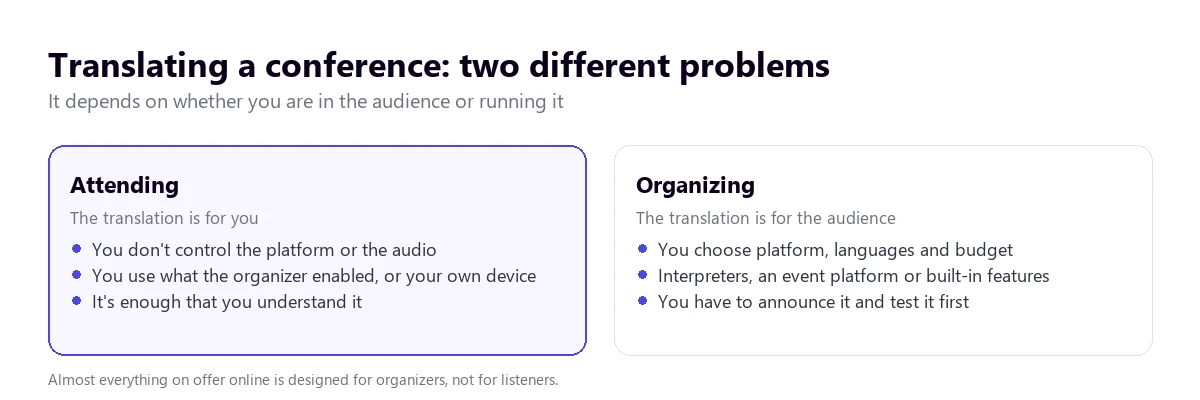
The organizer has the opposite problem: they control everything, but they have to serve dozens or thousands of people with different languages, tell them in advance how to reach the translation and answer for it if it fails. For them, translating a conference is a question of budget, number of languages and type of event. Mixing up the two perspectives is why so many answers online don’t help the person asking.
Four conference formats and what changes in each
The word “conference” covers very different situations. Some people use it for any work video call; here we mean a talk or an event with speakers and an audience.
On a meeting platform
A seminar on Teams or Zoom, with attendees connected from home. This is the case with the most options, because the platforms have their own translation features. But almost all of them depend on the organizer’s licence and on the organizer having switched them on, which the attendee cannot change.
As a livestream
A conference broadcast on YouTube, on the event’s website or on a conference platform. Here the attendee is not in a meeting but watching a live video, usually in the browser. Meeting features do not apply, and YouTube’s live automatic captions are only available in English, according to its help.
In a room
An in-person conference or summit. Translation depends on what the organizer has set up: interpreting booths with receivers, a platform you follow on your phone through a QR code, or nothing. If there is nothing, the attendee has only their phone, with the room acoustics working against them.
Recorded, after the event
Many conferences are published later as videos. Then it is no longer live, and you can use subtitles, dubbing or tools that work on the file. For that case, see our guide to translating a YouTube video.
If you are attending: what you can do on your own
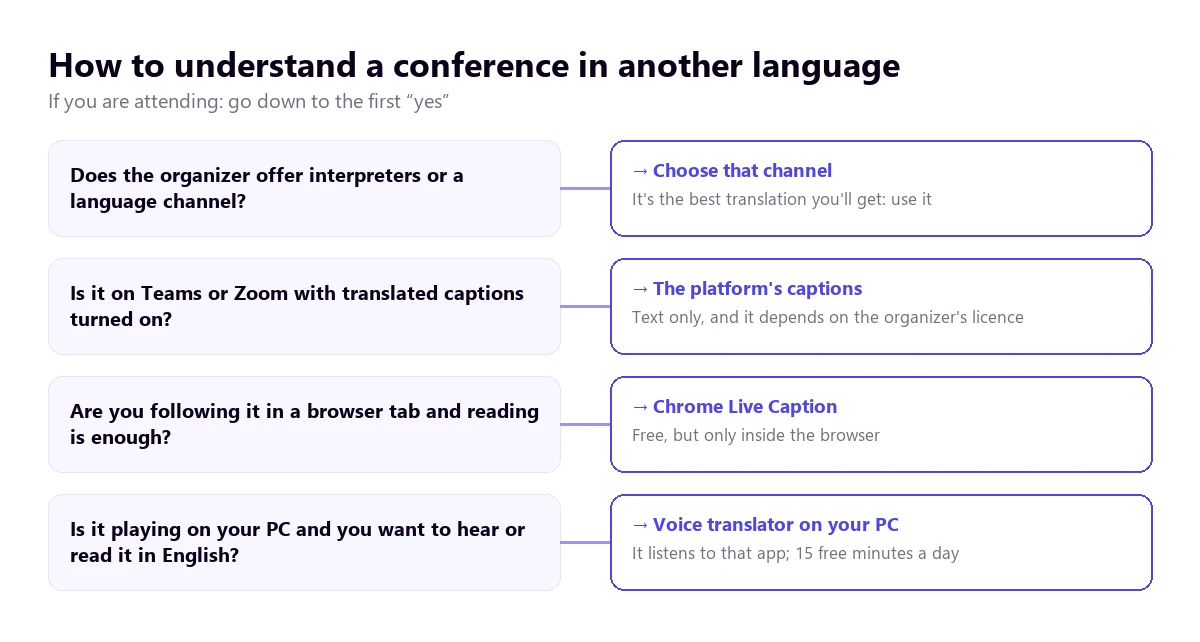
We start with the one option that always works without asking anyone’s permission, then move on to what the event itself may offer. If the organizer has provided interpreters, use them: the tree sums up the path.
A voice translator on your PC
When the conference plays in an app on your computer, whether Teams without a licence, Zoom, a conference platform or the browser, a Windows voice translator can listen to that app and give you English as subtitles, voice or both, without the organizer switching anything on. It is the only option that depends neither on the platform nor on the organizer.
Traducore, the program we make, works like this on Windows 10 and 11. On Windows 11 you pick the app you are going to listen to and other sounds stay out; on Windows 10 it listens to an audio device. The “Video / talk” mode is designed for exactly this: one speaker talking and you listening. The translation arrives about three to six seconds behind, the original voice stays in the background at 65% and nothing that is said is stored.
To be honest about it: the Free plan gives you 15 minutes a day, no card and no expiry, which covers a short talk or a first block to check whether it works for you. A full day of sessions needs a paid plan, which you will find on the pricing page. The program translates into 78 languages and detects the source language; Spanish, Portuguese or French from a speaker with a good microphone are the cases that come out best.
Try it with the next talk
English subtitles and voice for whatever plays in any Windows program. 15 free minutes a day, no card.
The organizer’s interpreter channel
If the event has interpreters, that is the best translation you will get. In Zoom you choose it with the “Interpretation” button and the language, and you can mute the original audio with “Mute Original Audio”. Note that people who dial in by phone cannot hear the interpretation. In Teams you choose it when joining with “Choose interpretation language”, but only in the desktop app: language selection is not available in Teams for web or mobile.
The platform’s translated captions
In a Teams meeting, translated captions appear under “Caption settings” → “Language settings” → “Translate to”, and only if the organizer or you have Teams Premium or Microsoft Copilot. In town halls the organizer picks six languages in advance, or ten with Premium, and attendees can only choose among those. In Zoom, the “Translation” option appears next to “Show Captions” if the host has Business Plus or higher or the translated captions add-on. Details in our guides to the Teams interpreter and to translating a Zoom meeting.
The platforms’ translated voices are of little use at a conference. The Teams Interpreter does not work in town halls or webinars, and Meet speech translation is not available in livestreams, has a 90-minute limit per meeting and always has English as one of its two languages.
Chrome’s Live Caption, if you follow it in the browser
If the conference streams in a tab, Chrome can caption the audio and translate it with Live Translate, under “Settings” → “Accessibility”. It is free and does not depend on the organizer. The limits: text only, only what plays inside the browser and a list of source languages that the help gives as examples, without confirming the one for Windows and Mac. To translate, Chrome sends the captions to Google.
In the room, with your phone
At an in-person event with no translation, your phone is the fallback. On Android, the Google Translate app has a “Transcribe” mode that translates in near real time while someone speaks, designed for a class, and a listening mode to use with headphones. Conversation mode, on the other hand, works in turns and does not suit a forty-minute monologue.
The problem is not the app but where the microphone is. From your seat, the phone picks up the sound of the speakers bouncing off the walls, plus coughs, applause and nearby conversations. Sit near a loudspeaker, away from foot traffic, and ask the organizer whether there is an audio feed to connect to, an online stream or a translation QR code. If there is a stream, it is sometimes better to follow it with headphones from inside the room.
If you are organizing: three ways to offer translation
If you have to translate a conference for the whole audience, each format has its place. The table sums it up, and below are the details that weigh most in the decision.
| Option | What the audience gets | Languages | Cost | What it requires |
|---|---|---|---|---|
| Human interpreters | Voice on one channel per language | The ones you hire | Per interpreter and day; two per booth | Booking them early and sending them the material |
| AI event platform | Voice or captions on phone or browser, via QR | Dozens, depending on the platform | Hour packages; often a custom quote | Connecting the audio feed from the room or the meeting |
| Teams captions | Translated text | In town halls, 6 chosen, or 10 with Premium | Microsoft licences | Choosing the languages before the event |
| Zoom captions | Translated text | 36 with full support | Business Plus or an add-on with no published price | Turning them on in the host’s account |
| Zoom or Teams interpretation channels | The interpreters’ voices | Zoom: 9 by default and 5 custom; Teams: 16 pairs | Paid Zoom plan; for Teams, licence not confirmed | Your own interpreters: the platform does not provide them |
Human interpreters
They are still the option for anything that cannot go wrong: a medical congress, a shareholders’ meeting, a negotiation. They work in pairs and take turns roughly every half hour, and remotely they plug into the platforms. Zoom lets you assign up to 200 interpreters and comes with nine languages by default, plus five custom ones per meeting; it does not work with a Personal Meeting ID or in instant meetings. Teams supports up to 16 language pairs and makes clear that Microsoft does not provide interpreters. How the profession is organized is covered in our guide to the simultaneous interpreter.
AI translation platforms for events
These services take the speaker’s audio and serve it translated to each attendee on their phone or browser, often through a QR code. Wordly, for example, advertises sessions with tens of thousands of listeners and packages from about $1,500 for 10 hours, valid for a year; in a venue it connects to the sound desk by cable with a converter. Palabra AI offers in-person events and streams on a custom quote, according to its website in November 2026. We compare the first one in more detail in Traducore vs Wordly.
The platform’s built-in features
If you already pay for Teams Premium or a higher Zoom plan, their translated captions are the cheapest option for a large audience, although they only give text. Know their limits in advance: in Teams, the voice Interpreter does not work in town halls or webinars; in Meet, translated voice does not reach livestreams; and in Zoom, the Voice Translator help does not mention webinars.
Sound matters more than the translator
When you translate a conference, it makes no difference whether a person or a machine does it: if the audio arrives badly, the translation comes out badly. At a conference the sound travels a path with several weak points, and almost all of them can be fixed before you start.
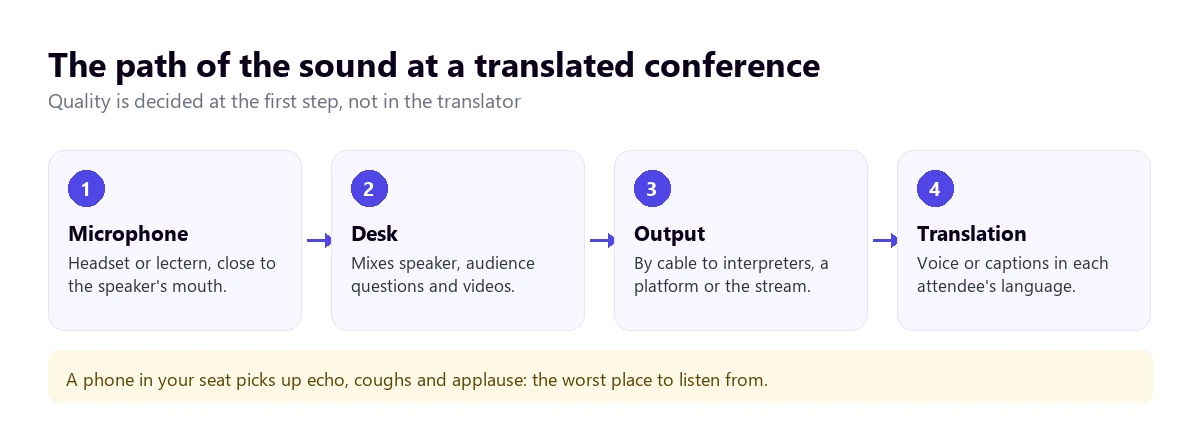
- The speaker’s microphone. A headset or lapel mic keeps the distance fixed; a lectern mic loses the voice as soon as the speaker turns to the screen.
- Questions from the audience. Without a handheld mic, they never reach any translation. If there isn’t one, the moderator should repeat every question.
- Videos in the presentation. In Zoom, if someone shares their screen with computer audio, everyone hears that audio at 100%, including people listening to an interpreter.
- The feed for the translation. Ideally a direct output from the mixing desk, not a microphone that “listens to the room”.
What always gets lost when a talk is translated
Even with good sound, there are things no machine translation solves, and the audience should know about them:
- Jokes and wordplay. They are translated literally and lose their point, or turn into a sentence that makes no sense.
- Acronyms and product names, which speech recognition writes as ordinary words if it doesn’t know them.
- Figures said quickly, especially percentages and years, which are worth checking against the slides.
- The slides. Neither captions nor voice translate what is written on screen.
- The pace of a read-out text. A speaker who reads fast leaves the translator, human or machine, several sentences behind.
Spanish on stage: false friends that confuse
Our blog was born in Spanish, and Spanish is one of the languages English speakers most often need to follow at conferences. Machine translation usually gets these right, but not always, and anyone following a Spanish talk through captions should recognise them:
- “Billón” is a trillion, a million millions, not a billion. It is the most expensive figure error in a results presentation.
- “Actualmente” means “currently”, and “eventualmente” means “possibly” or “occasionally”, not “actually” or “eventually”.
- “Conferencia” is often a single talk or lecture, while a whole conference is usually a “congreso”.
- “Mesa redonda” is a panel and “ponente” is the speaker, not a loudspeaker.
- “Asistir” means to attend; to help someone is “ayudar”.
Checklist for organizers and speakers
- Announce the translation in the invitation: which languages, how to access them and what is needed, such as the desktop app in the case of Teams channels.
- Send the slides and a glossary to the interpreters, or load the terms into the platform if it allows it.
- Do a sound check with the translation running, not just with the room speakers.
- Ask speakers to talk, not read, and to pause between ideas.
- Repeat audience questions into the microphone before answering them.
- Have a plan B: if the translation fails, publish the recording with subtitles as soon as possible.
If you want to understand how machine translation works under the hood and why there is always a delay of a few seconds, we explain it in our guide to real-time translation.
More questions about translating a conference
How do I translate a live conference into English?
If the organizer offers interpreters or translated captions, turn them on in the platform. If not, and you are following it in the browser, Chrome’s Live Caption with Live Translate gives you the text in English. If you want to hear it in English or it plays in another Windows app, a PC voice translator listens to that app and gives you subtitles or voice a few seconds behind.
Is there an app to translate a conference in real time?
Yes, of several kinds. For in-person attendees, the Google Translate app on Android has a transcription mode with translation designed for classes and talks. For people following on their computer, there are voice translators that listen to the event’s app. For organizers, there are platforms that serve the translation to each attendee through a QR code.
How do I translate a conference in Teams?
In a meeting, turn on captions under “More actions” → “Language and speech” and, in the language settings, switch on “Translate to”. It requires the organizer or you to have Teams Premium or Microsoft Copilot. In a town hall, you will only see the languages the organizer chose in advance. Without a licence, the alternative is a translator that listens to the Teams app on your PC.
How do I translate a conference in Zoom?
If there are interpreters, click “Interpretation” and choose the language. If the host has translated captions, click the arrow next to “Show Captions”, turn on “Translation” and choose English. Zoom’s translated voice, Voice Translator, works with five languages according to its help, which does not mention webinars. Without any of that, a voice translator on your PC can listen to Zoom for you.
So, which one do we use?
When we need to translate a conference we are attending, we start with whatever the organizer offers: if there are interpreters, nothing beats them. If there is nothing and the talk plays on the computer, we use our own Windows voice translator in “Video / talk” mode, with the original text visible for acronyms and figures. In a room, the phone near a loudspeaker and, if there is one, the stream with headphones. And when we organize, interpreters for what matters and captions for the rest. To compare PC programs, see our comparison of voice translators.
Understand the next conference in English
Listens to any Windows program and gives it to you as subtitles or voice. 15 free minutes every day, no card.