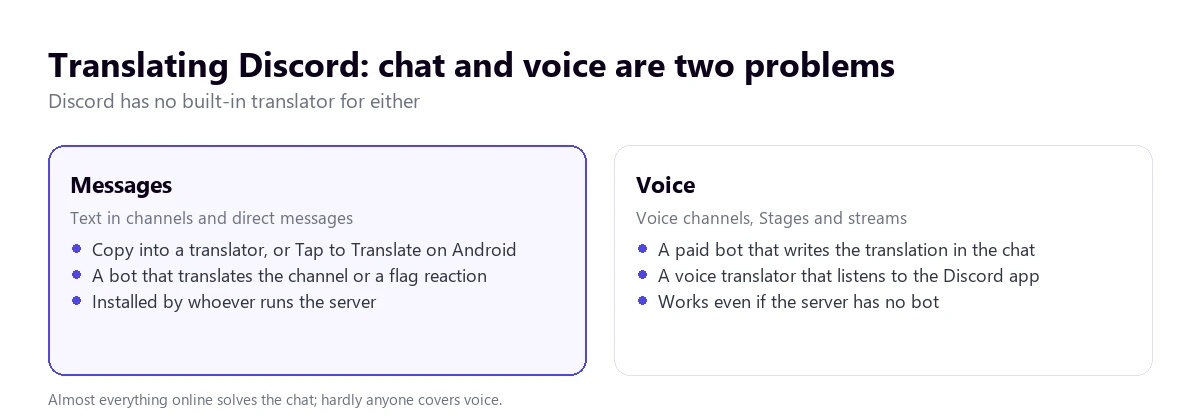
To translate Discord you have to separate chat from voice, because Discord has no built-in translator for either. Messages are translated by copying them into a translator, with “Tap to Translate” on Android or with a bot the admin adds to the server. Voice in channels, Stages and streams needs a paid bot that writes the translation in the chat, or a voice translator that listens to the app on your PC.
Almost everything you find when you search for how to translate Discord is about chat bots, and fairly so: that’s what people ask for most. Here we also cover voice, which is where understanding each other is hardest when you play or talk with people from another country. We checked Discord’s help and forum, the websites of two translation bots and Google Translate’s help in November 2026; where a source doesn’t confirm something, we say so.
In short
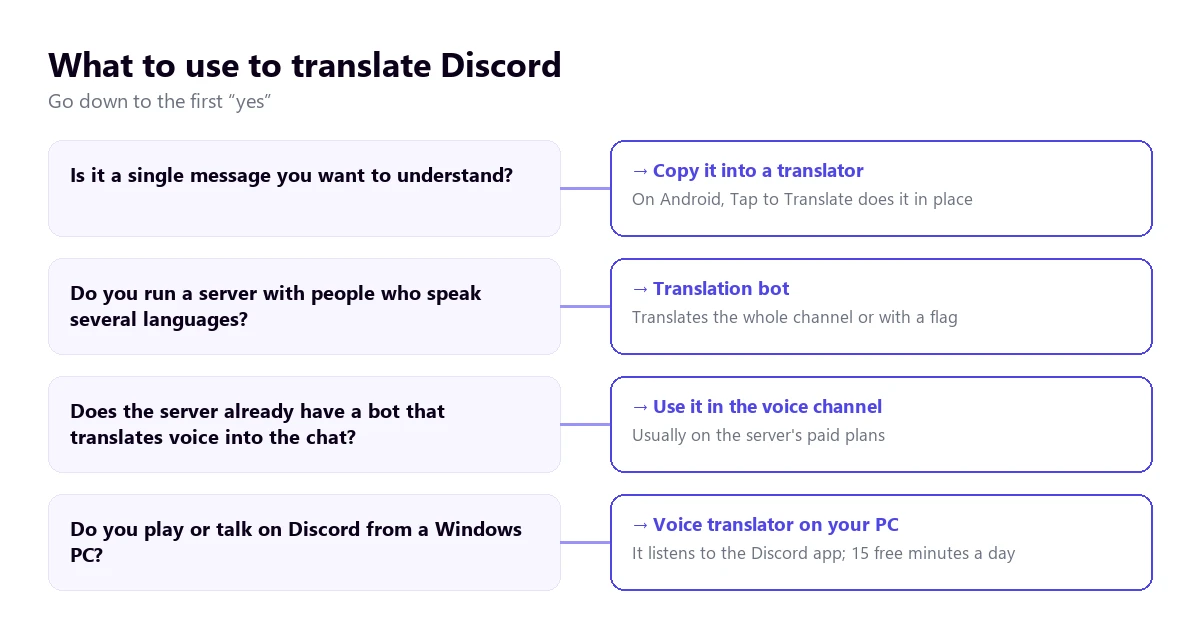
- A single message: copy it into a translator. On Android, Google Translate’s “Tap to Translate” does it without leaving Discord.
- A server with people who speak several languages: a translation bot, which has to be added by whoever runs the server. Free plans come with small quotas.
- Voice: some bots turn it into translated text on paid plans; a voice translator on your PC listens to the Discord app without touching the server.
- Gamer slang and abbreviations are what every tool translates worst.
In this article
What Discord has built in, and what it doesn’t
As of November 2026 we haven’t found any built-in feature in Discord’s official help to translate messages or voice. What its suggestions forum does have are user requests asking for a translate button going back years, with threads that point to third-party bots as the workaround. If Discord adds it, much of this guide will change; for now, everything goes through outside tools.
Before you translate Discord with any of them, it helps to be clear about where the conversation happens, because Discord mixes several formats in one app:
- Text channels on a server, where lots of people write at once.
- Direct messages between two people or in small groups, where there are no server bots.
- Voice channels, where people talk while they play or share their screen.
- Stages, voice channels with speakers and an audience, similar to a talk.
- Streams inside a voice channel, when someone broadcasts their screen or their game.
Translating Discord messages
To translate Discord in writing there are four routes, from simplest to most complete. You can use the first two yourself without asking anyone; the last two depend on the server or on where you open Discord.
Copy and paste into a translator
It’s the quickest way to translate Discord when it’s a single message, and it works in any channel, including direct messages. On a computer, select the text, copy it with Ctrl + C and paste it into whatever translator you use. It’s crude, but it has one advantage: you don’t need to install anything on the server or ask anyone’s permission, and you decide which text leaves Discord.
For long messages, such as a server’s rules or an announcement, copy the whole block rather than sentence by sentence. The translator understands the context better, and references like “this” or “what I said before” come out right.
On your phone, with “Tap to Translate”
On Android, the Google Translate app has a feature called “Tap to Translate” that translates text you copy in another app without leaving it. You turn it on in the Translate app, under “Menu” → “Settings” → “Tap to Translate” → “Enable”, and the first time it asks permission to display over other apps. After that, you copy a message in Discord, tap the Translate icon that appears on screen and choose the language.
According to Google’s help, the text is sent to Google only when you tap the icon, and the feature works with text, not images. If someone sends you a screenshot with text, you’ll need the camera or the image option in Translate.
With a translation bot on the server
Bots are the usual way to translate Discord when a server has members from several countries. A bot is an automated account that reads messages in the channels where it’s been given permission and posts the translation. Adding one requires permission to manage the server, so a regular member can’t install it: they have to ask the admins.
They work in three ways, which many bots combine:
- Automatic channel translation: every new message gets a reply with its translation into the chosen languages.
- Flag reaction: you react to a message with a country’s flag and the bot translates it into that language.
- Command or menu: you type a command with the language and the text, or right-click the message, “Apps” and the translate option, and only you see the result.
Two examples with their official figures, checked in November 2026. BabelBot says it covers more than 130 languages and has a free plan per server with 100 translations a month and 3 target languages; the Pro plan costs €9.99 a month with 10,000 translations and 5 languages, and Ultra €19.99 a month with 50,000 and 10 languages. The Translator bot from nvu.io advertises more than 100 languages, is used with the “-translate” command followed by the language and the text, and its free trial limits you to 2 target languages.
A hundred translations a month are gone in an afternoon on an active server, because every translated message counts. Before choosing, look at how many messages are written each day in the channels you want to translate.
With a browser extension
If you use Discord in the browser, there are extensions that add a translate button to each message. In the Chrome Web Store they’re listed as unofficial third-party tools. They only work on the web version, not in the desktop app or on mobile, and they can see everything you read on Discord. Check who publishes it and what permissions it asks for before installing it.
How to organize a server with several languages
If you run an international community, translating all of Discord automatically isn’t always the best idea. It doubles the number of messages, burns through the bot’s quota and turns quick conversations into a wall of text. What usually works better is a mix of ideas:
- Channels per language for everyday chat, where each community talks in its own without translation.
- Automatic translation only in shared channels: announcements, rules, help and events.
- Flag reactions everywhere else, so anyone who wants to understand a message can translate it on demand.
- Rules written in short sentences without slang, which translate much better than a text full of inside jokes.
- A privacy notice: if a bot reads messages and sends them to an outside service to translate them, members should know.
Discord slang that confuses translators
Discord chat is full of English abbreviations that machine translators leave untouched or get wrong. If you’re helping someone who reads your messages translated, or the translations you receive make no sense, this is usually why:
- “gg” is “good game”, and people write it at the end of a match, win or lose.
- “afk” is “away from keyboard”: the person isn’t at the computer.
- “brb” is “be right back”, and “idk”, “I don’t know”.
- “lfg” is “looking for group”: someone is looking for people to play with.
- “tbh”, “to be honest”, and “ngl”, “not gonna lie”, both soften an opinion.
- “ping” means mentioning someone so they get a notification, not a network term.
- “W” and “L” are win and loss, and they’re used for anything good or bad, not just in the game.
- “nerf” and “buff” mean weakening or strengthening something in a game update.
The same happens the other way round: if you write with abbreviations like “u”, “rn” or “tho”, the translator on the other side may not get them either. Write in full when you talk to someone who reads you translated.
Translating Discord voice
This is the gap hardly anyone covers when explaining how to translate Discord. In a voice channel people talk fast, several at once, with the game sound in the background, and no copy-and-paste trick helps. There are two routes, with different philosophies.
A bot that turns voice into translated text
Some bots join the voice channel, listen and post in the chat what each person says, already translated. BabelBot includes it in its Ultra plan, at €19.99 a month per server, and says it doesn’t keep the audio. It makes sense for a community that pays for it for everyone, but it depends on the server having it installed, and it forces you to read the chat while you play or talk.
A voice translator that listens to the Discord app
The other option doesn’t touch the server: a program on your computer listens to the sound of the Discord app and gives the translation to you. It works on any server, in voice DMs and on Stages, and nobody else has to install anything.
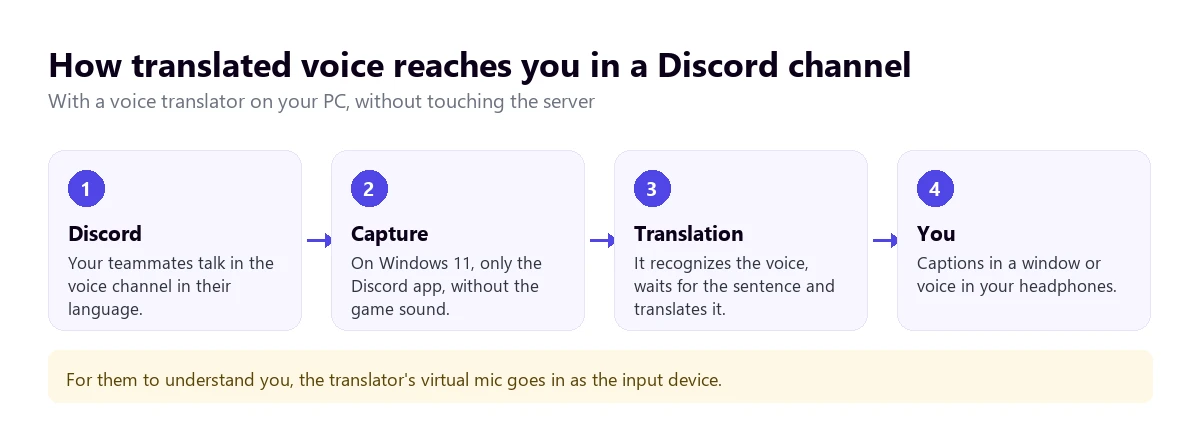
Our program, Traducore, follows this path on Windows 10 and 11. On Windows 11 you pick the Discord app as the source, so the game sound stays out and doesn’t confuse speech recognition; on Windows 10 it listens to a whole audio device. You get captions in a window, translated voice in your headphones or both, with the original voice in the background at 65%.
For others to understand you, the conversation mode installs a virtual microphone that turns your voice into the other person’s language. In Discord, you choose that microphone in the voice settings as the input device, just like in other calling apps; we have it tested on Teams, Zoom and Meet. With headphones the conversation flows better; with speakers it goes in turns.
The limits, plainly: translation arrives about three to six seconds late, which you notice in a fast match; voices talking over each other and shouting translate worse; and it only runs on Windows, not in the mobile app or on consoles. Translated voice is available in Spanish, English, French, German, Italian and Portuguese; in other languages you get captions. The free plan gives you 15 minutes a day, no card, with two-way conversation included, and the paid plans are on the pricing page.
Understand the voice channel in your language
It listens to the Discord app on Windows and gives you captions or translated voice. 15 free minutes a day, no card.
Tips to make voice easier to follow
- Wear headphones: if Discord’s sound comes out of speakers, your microphone picks it up and mixes it with your voice.
- Ask for turns at key moments: explaining a strategy translates well; five people shouting at once doesn’t.
- Turn down the channel’s music if there’s a music bot: it competes with the voices.
- Speak in full sentences when your voice is being translated: “go left” is understood; “left, left, there” isn’t.
The options, compared
| Option | Messages | Voice | Who turns it on | Cost |
|---|---|---|---|---|
| Voice translator on your PC | No | Yes, captions and voice for you | You, on your Windows PC | 15 free minutes a day; then paid plans |
| Copy into a translator | Yes, one at a time | No | You | Free |
| Tap to Translate | Yes, on Android | No | You, in the Translate app | Free |
| Translation bot | Yes, whole channels or on demand | Some, as text in the chat on paid plans | The server admins | Limited free plans; paid plans per server |
| Browser extension | Yes, on Discord web only | No | You | Depends on the extension |
Privacy: what each tool sees
Translating Discord always means someone processes the text or the voice. Copying into a translator sends only what you choose. Tap to Translate sends the copied text when you tap the icon. A bot reads every message in the channels where it has permission, from every member, and sends them to its translation service, so the server should mention it in its rules. A voice translator on your PC processes what plays in the app you choose; ours works in the cloud and doesn’t store what’s said. If something private is discussed in a channel, remember that translating it means sharing it with an outside service.
If what you want to translate isn’t Discord but a call in another app, see the guide to translating a phone call, and for work meetings, the one on translating a video call.
More questions about translating Discord
Can you translate Discord messages?
Yes, although Discord has no button of its own for it. You can copy the message into a translator, use Google Translate’s Tap to Translate on Android or ask the server admins to add a translation bot, which translates whole channels, on demand with a flag or with a command.
How do you translate on Discord mobile?
On Android, turn on Tap to Translate in the Google Translate app, under Settings. Then long-press a message in Discord, copy it and tap the Translate icon that appears on screen to choose the language. If the server has a translation bot, its flag reactions and commands work the same way in the mobile app.
How do you add a translator bot to Discord?
You need permission to manage the server. From the bot’s website or Discord’s app directory, press the button to add it, choose the server and review the permissions it asks for. Then set which channels it translates and into which languages, following the bot’s own instructions. If you don’t run the server, ask whoever does.
Can you translate Discord in real time?
Messages, yes, with a bot that translates each new message as it arrives. Voice too, in two ways: a paid bot that posts what’s said in the chat, already translated, or a voice translator on your PC that listens to the Discord app and gives you captions or voice in your language, a few seconds behind.
So, which one do we use?
For chat, copy and paste when it’s a single message, and Tap to Translate on the phone. If we ran an international server, channels per language and a bot only in announcements and rules, with a privacy notice. For voice, which is where understanding each other really gets hard, we use our own voice translator on Windows listening only to the Discord app, with captions and headphones. If you want to compare PC programs, see the voice translator comparison.
Talk to people from any country on Discord
Translated captions and voice from the Discord app on Windows, and your voice in their language. 15 free minutes every day, no card.