To translate an Instagram video, there is one way inside the app—dubbing with Meta AI—but it only exists if the creator enabled it when publishing. If they didn’t, neither Instagram, TikTok, nor X translate what is said in the video: you have to do it externally, on your computer or with another tool.
This guide explains what each network translates on its own and what it doesn’t, and how to solve it with the four methods that work when the app doesn’t help: a voice translator on your PC, Chrome’s translated subtitles, each app’s built-in features, and web services where you upload the video. The data from Meta, TikTok, X, and Google comes from their official help pages and announcements, checked in September 2026; where the source doesn’t confirm something, we say so.
In short
- Does the reel have the translated with Meta AI label? → you are already hearing it in your language; if not, the app won’t dub it later.
- Can you open it on your computer? → a voice translator for PC over the browser window, with subtitles or voice (method 1).
- Is reading enough and do you use Chrome? → the browser’s translated subtitles, free (method 2).
- Do you need the saved text or to subtitle the video? → download it, if allowed, and upload it to a web service (method 4).
In this article
- What Instagram, TikTok, and X translate on their own
- How an AI-dubbed reel reaches your screen
- What to do with a short video in another language
- 1. Watch it on your computer with a voice translator
- 2. Chrome’s translated subtitles
- 3. What each app already includes
- 4. Download the video and upload it to a web service
- Why a short video translates worse than a long one
- How to get a cleaner translation
- If the video is yours: publishing it in other languages
- More questions about Instagram and TikTok videos in another language
- So, which one do we use?
What Instagram, TikTok, and X translate on their own
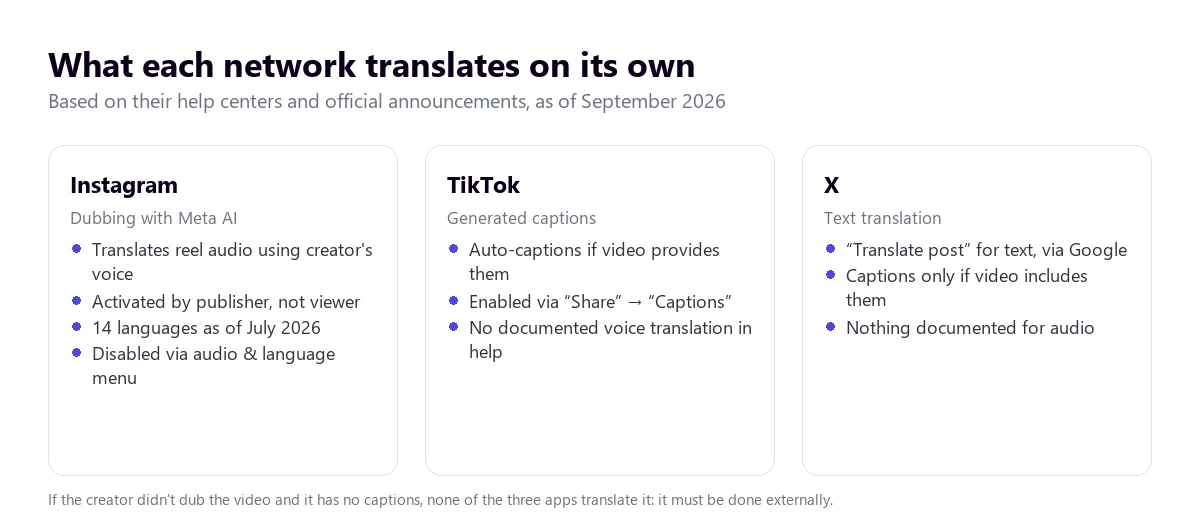
All three networks translate things, but not the same things. And almost everything they translate is written text: descriptions, posts, and comments. The voice in a video is another matter, and only one of the three has a documented feature for it.
Instagram: Meta AI dubbing
Meta announced reel translations with Meta AI in October 2025, and in July 2026 expanded the list to fourteen languages: English, Spanish, Hindi, Portuguese, Bengali, Tamil, Telugu, Marathi, Kannada, French, German, Italian, Japanese, and Korean. The feature translates the reel’s voice by imitating the sound and tone of the creator’s voice and, if they choose, syncs their lip movements with the translated audio.
The detail that changes everything is who enables it. According to Meta’s announcement, on Instagram it is available to all public accounts in countries where Meta AI exists, and on Facebook, for creators with at least a thousand followers. The creator is the one who turns it on before publishing. You, as a viewer, cannot request a reel to be dubbed: if it reaches you in another language, it is because its author didn’t enable the translation, or didn’t translate it into your language.
When a reel is translated, it carries a label indicating it was translated with Meta AI. If you prefer to hear it in the original language, Meta explains that you choose “Don’t translate” in the audio and language section of the three-dot menu. The Instagram help page on this topic didn’t load when we checked it, so the exact menu names might vary slightly.
TikTok: auto-generated subtitles
TikTok’s help documentation covers auto-generated subtitles: they are turned on or off from the video’s “Share” button, under the “Captions” option, using the “Show captions” toggle. The same help page clarifies that they can only be managed when the post includes them. It also documents how to change the app’s language under “Settings and privacy” → “Language”.
What we didn’t find in their official help is a feature to translate the voice of a video. Many tutorials talk about an automatic translation setting, but we couldn’t confirm it on the help pages we checked, so we won’t give you a path that might not exist in your version.
X: post text translation
X’s help describes the “Translate post” option, which appears below the text when a translation is available and uses Google’s translation service. It is on the web, iOS and Android apps, X Lite, X for Windows, and X Pro. It translates what is written, not what is said in the video. For videos, the help only talks about subtitles, which are viewed by enabling the system option or the “CC” button on the web, and warns that not all videos have them.
How an AI-dubbed reel reaches your screen
Understanding the journey of a dubbed reel explains why you almost never come across one. All the work happens before publishing, on the creator’s phone.
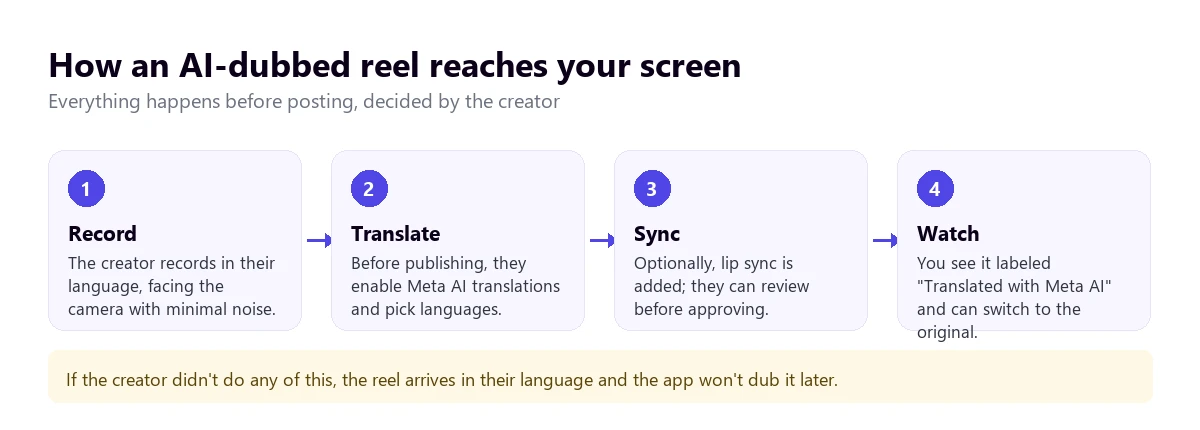
Meta’s creator blog describes the steps: before publishing, enable voice translation with Meta AI, enter the translation settings, choose the target languages, and, if desired, add lip syncing. The creator can review the translation before approving it and delete it later. Meta also gives three tips for it to turn out well: look at the camera, speak clearly without covering your mouth, and avoid background noise.
Those tips say a lot about the feature’s limits. A reel with loud music under the voice, with two people talking at once, or recorded from the side will result in a worse dub, and the creator knows this because they see it before publishing. Many simply do not enable it. And the feature is free for those who meet the requirements, so price isn’t what stops them.
What to do with a short video in another language
| Method | Where | What you get | Translates the voice | Cost |
|---|---|---|---|---|
| Voice translator on PC | Browser on Windows | Subtitles and voice in English | Yes, for any video | 15 free mins a day; more time, paid |
| Chrome subtitles | Chrome on the computer | Translated text on screen | Yes, into text | Free |
| Meta AI dubbing | Instagram and Facebook | Creator’s voice in your language | Only if the creator enabled it | Free |
| Text translation | All three apps | Translated description or post | No | Free |
| Web service with the file | Web, after downloading | Subtitles, text, or dubbing | Yes | Almost always per minute |
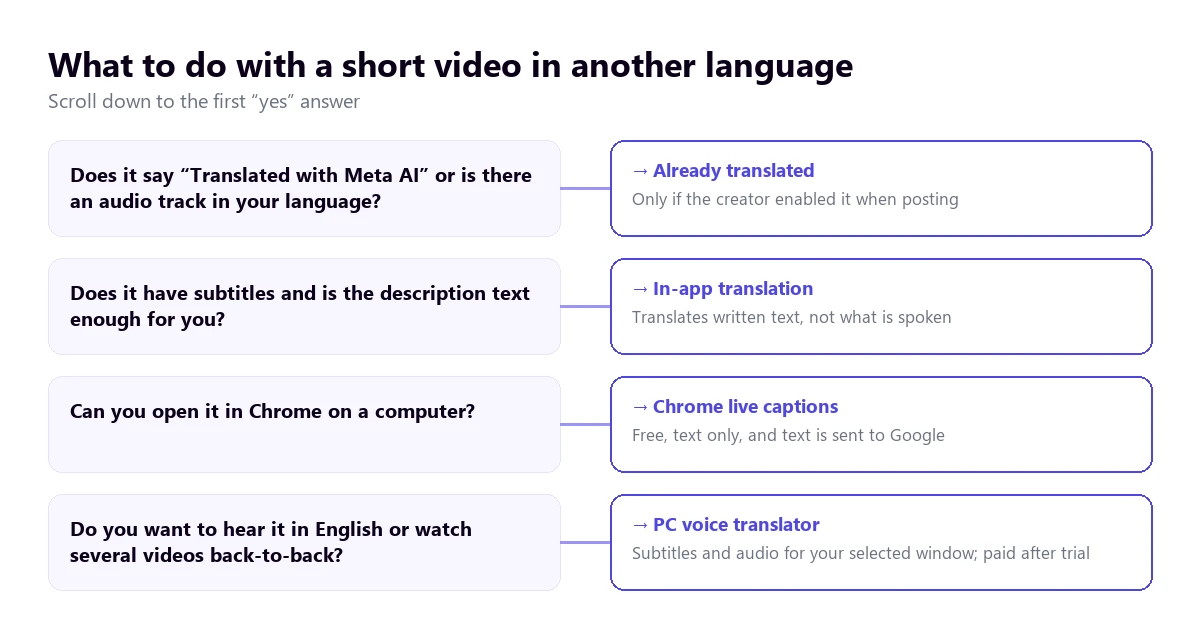
The important column is the fourth one. Anything that means “translating” inside the apps, except for Meta’s dubbing, works on written text. If the video has no text and the creator didn’t dub it, the only way to understand it is for something to listen to the audio.
1. Watch it on your computer with a voice translator
Instagram, TikTok, and X can be opened in your computer’s browser, and there the problem changes nature: you no longer depend on what the app decides, but on what you can do with the sound coming out of your computer. A voice translator for PC listens to the browser window and provides subtitles or voice in English while the video plays.
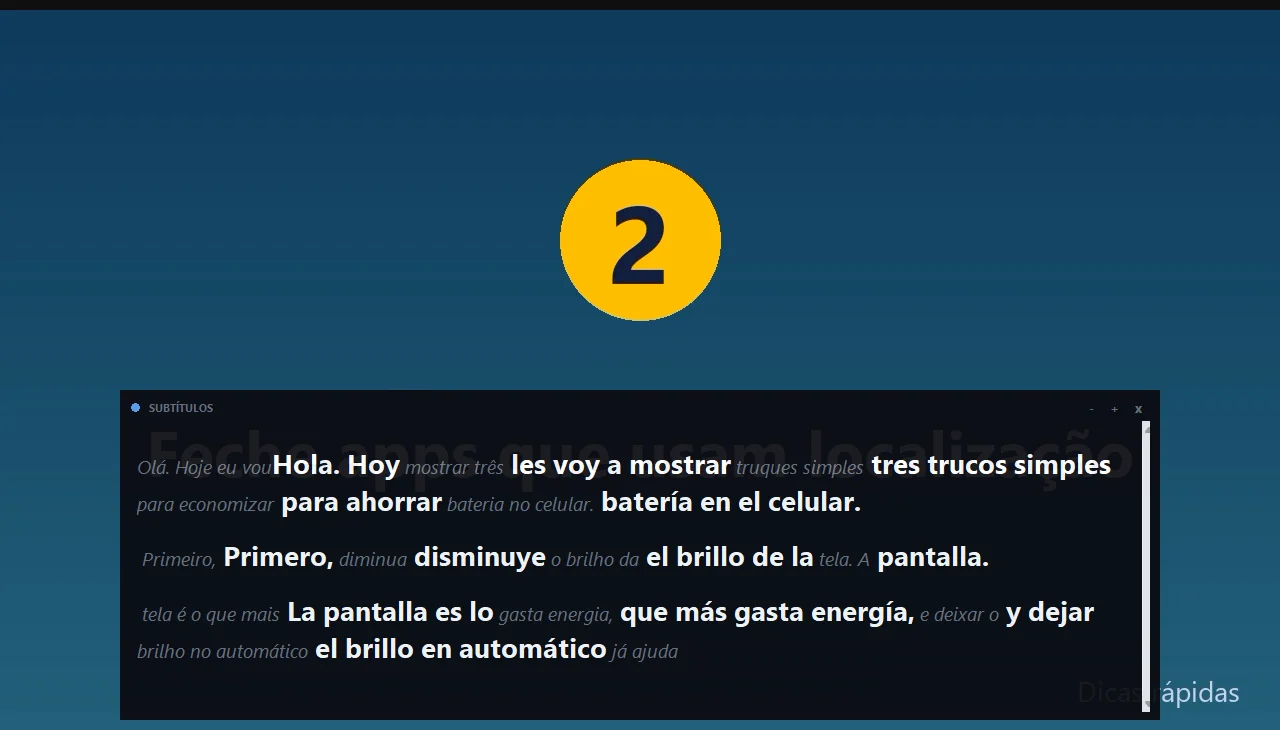
Traducore works like this on Windows 10 and 11. On Windows 11, it captures only the chosen application, so you can have Instagram in Chrome and music in another app without them mixing (the browser is captured entirely, with all tabs). It provides subtitles, translated voice, or both, and can show the original text alongside the translation.
Step by step
- Open Instagram, TikTok, or X in your computer’s browser and find the video.
- On the panel, choose the browser window under “LISTEN FROM (ORIGINAL VOICE)” and select the video’s language and yours.
- Tick subtitles, voice, or both, and click start.
- Play the video with sound. If the next one in the feed is in another language, change the source language or leave it on automatic detection.
What you should know
The translation arrives with a three to six-second delay. In a fifteen-second reel, this is noticeable: the practical approach is to watch it once with the translation and, if needed, one more time. Nothing is saved, neither the audio nor the text. It is only for Windows and has no phone version, so the video must be on your computer. The Free plan gives you 15 minutes a day, no card required, and for more time you pay by the hour according to the published plans. If you mostly watch long YouTube videos, we have a specific guide on how to translate a YouTube video into English.
Try it with the next reel you don’t understand
English subtitles or voice for whatever plays in your browser. 15 free minutes a day, no credit card required.
2. Chrome’s translated subtitles
If you open the networks in Chrome, the browser can generate subtitles for what is playing and translate them. You turn them on in “Settings” → “Accessibility”, using Live Caption and Live Translate, and choose the target language under “Translate to”. For it to understand a language other than English, you first have to add it under “Manage languages”.
There is a detail in Chrome’s help that fits this case perfectly: for videos that autoplay, you have to turn on the volume for the subtitles to appear. Instagram, TikTok, and X feeds often start muted, so if you don’t see anything, turn up the sound.
It is free, but it has its limits. It only provides text and only hears what plays inside Chrome. Speech recognition happens on your device, but the subtitles are sent to Google to be translated. And the exact list of source languages for Windows and Mac isn’t definitive in the help documentation: with less common languages, test it before relying on it.
3. What each app already includes
Even if they don’t translate the voice, each network’s features help more than it seems, because many short videos carry their message in the description or as text over the image.
- Instagram: if the reel is dubbed, you already hear it in your language. For the description and comments, many versions of the app offer to see the translation, but the help we could read doesn’t detail this, so it depends on your version.
- TikTok: turn on auto-generated subtitles from “Share” → “Captions” when the video includes them. Having the text in its original language already lets you copy it or, at least, slowly read what is being said quickly.
- X: click “Translate post” for the text and turn on the video’s subtitles if it has them. The post text usually summarizes what the video is about.
What none of these features do is translate the text that appears inside the video, the captions the creator adds when editing. That text is part of the image, and neither the app’s translator nor a voice translator can read it.
4. Download the video and upload it to a web service
If you need to keep the text—to quote it, study it, or subtitle a video—the way to go is working with the file. Web-based video translation services take the file or a link and return subtitles, a translated transcript, or even a dub. Maestra, for example, offers transcription, subtitles, and dubbing for files, with pay-as-you-go pricing starting at $12 for 60 credits according to their website.
Before downloading anything, do two checks. First: if the creator allows it. TikTok, for instance, lets each account decide if their videos can be downloaded, and their help section has a page on how to manage this. Second: the video still belongs to its author. Translating it to understand it is not the same as republishing it with your subtitles. How to choose a service and what to look for in their pricing is in our guide on how to convert audio to text.
Why a short video translates worse than a long one
Anyone who tests a tool with a reel and then with a half-hour talk is in for a surprise: the talk comes out much better. It isn’t the tool. It is how short videos are made.
- Music under the voice. Almost all reels and TikToks have a background song, and speech recognition has to separate it from what is being said. The louder it is, the more words are lost.
- Reused audio. Many videos use a trending sound that isn’t the voice of the person appearing: a movie clip, a meme, or another creator’s voice. The translation will be of that audio, not of what you see.
- Fast cuts. Editing that jumps every two seconds leaves sentences half-finished, and the translator needs full sentences to understand the meaning.
- Slang and wordplay. Social media humor thrives on double meanings, references, and made-up words. Translated literally, they lose their punchline or make no sense.
- Multiple voices. Street interviews, reactions, or duets with two people talking at once confuse any system.
Add time to that. A voice translator needs a few seconds to get context, and in a fifteen-second video, half the video is just the start. In a ten-minute one, that start barely matters.
How to get a cleaner translation
- Choose the video’s language yourself. Automatic detection needs a few seconds of voice, and in a reel, it doesn’t have them.
- Watch it twice. The first time to get your bearings, the second with the translation already running from the start.
- Read the description too. Many creators put the essentials there, and translating written text is more reliable than voice.
- Don’t trust on-screen text. The text appearing over the image isn’t translated by any voice tool; if it matters, copy it by hand into a translator.
- Watch out for trending audio. If the voice doesn’t match the lips, it is probably a reused sound, and its translation won’t tell you anything about the video.
- For several videos in a row, leave the translator running while you scroll through the feed on your computer, and only change the source language when it actually changes.
If the video is yours: publishing it in other languages
If you are the one publishing and want to reach people in other countries, the situation is reversed. On Instagram, Meta AI dubbing is free for public accounts in countries where Meta AI is available: you enable it before publishing, choose the languages, and review the result. It works better the closer your video is to what Meta recommends: looking at the camera, clear voice, and little noise.
Two things to keep in mind. There are fourteen languages, and outside of them there is no dubbing. And the dubbing imitates your voice: check that it doesn’t say something you wouldn’t say, especially in phrases with double meanings or proper nouns. For TikTok and X, what you can do is add subtitles and clear text in the post, which all three apps do translate.
More questions about Instagram and TikTok videos in another language
How to translate an Instagram video into English?
If the creator enabled Meta AI dubbing and English is among their languages, you will hear it already translated. If not, Instagram won’t dub it for you. Open it in your computer’s browser and use Chrome’s translated subtitles, for free, or a voice translator for PC if you want to hear it in English. To keep the text, download it if allowed and upload it to a transcription service.
How to turn on the translator on Instagram?
As a viewer, there is no toggle that translates the voice of any reel: voice translation is enabled by the creator when publishing. What you can manage is whether you want to hear a translated reel or the original, from the audio and language section of the three-dot menu. As a creator, the option to translate voices with Meta AI appears before publishing the reel.
How to turn on automatic translation on TikTok?
The official TikTok help we checked in September 2026 documents auto-generated subtitles, from “Share” → “Captions”, and the app language, under “Settings and privacy” → “Language”. It doesn’t document automatic voice translation. To understand a spoken video in another language, the practical thing is to open it on your computer and use Chrome’s translated subtitles or a voice translator.
Why doesn’t my TikTok translate into English?
Most likely, there is nothing to translate from the app: subtitles can only be shown when the post includes them, according to TikTok’s help, and the voice isn’t translated. If the video has no subtitles, no app option will give you the text in English. In that case, the translation has to come from outside, by listening to the audio.
So, which one do we use?
When we have to translate an Instagram or TikTok video that we really care about, we open it on the computer and watch it with English subtitles from our own voice translator, twice if it is very fast. To just take a quick look, Chrome’s translated subtitles are enough. On mobile, we read the translated description and, if the video matters, we save it to watch later on the PC. If you want to compare voice tools for the computer, you have our voice translator comparison.
Understand the videos the app won’t translate for you
English subtitles or voice for whatever plays in your PC’s browser. 15 free minutes a day, no credit card required.