To translate audio to text you have to do two consecutive tasks: first transcribe what is said and then translate that text. Almost all tools do both and don’t mention it, and that’s where the misunderstandings begin: the result that appears on screen isn’t as useful as a document, nor does it cost the same, nor is it achieved the same way.
Below are the six ways that work today to translate audio to text, with what each one offers and what it doesn’t: a program that subtitles on the computer, services that ask you to upload the file, browser subtitles, YouTube transcription, work meeting transcription, and phone voice notes. Third-party data comes from their official help pages, checked in September 2026, and where the source is silent, we state it here.
In short
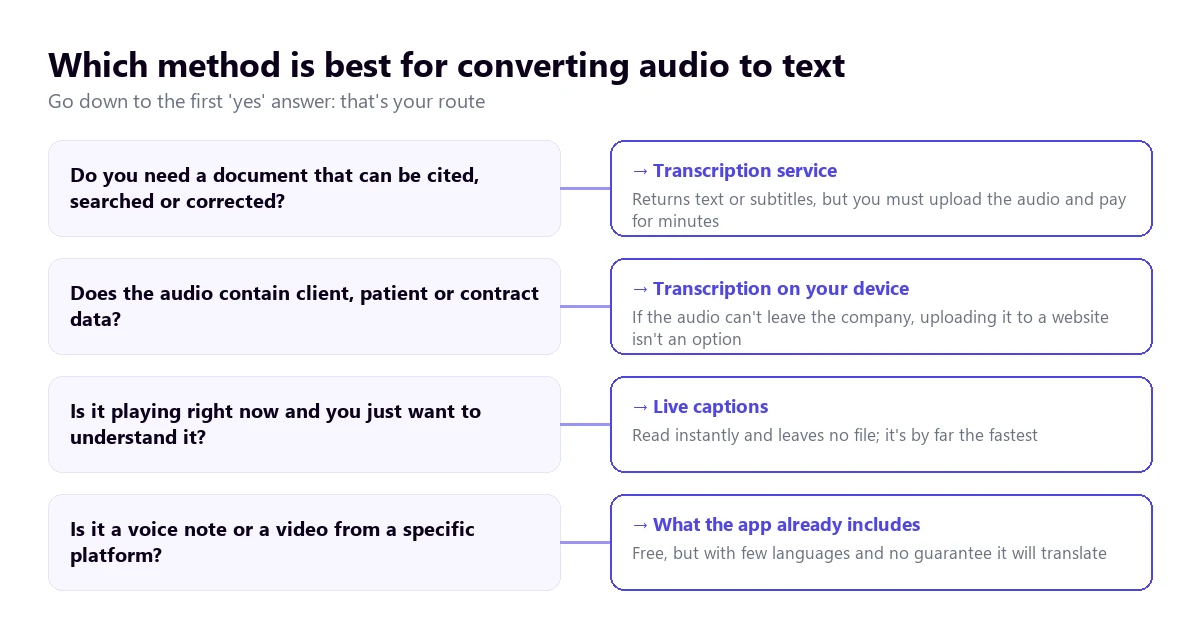
- Do you need a document to quote, search or correct? → a transcription service, uploading the file.
- Is it playing right now and you just want to understand it? → live subtitles on your computer.
- Is it a YouTube video? → its own transcription, which is free.
- Does the audio contain client data? → don’t upload it to a website: process it on your computer.
In this article
- Transcribing and translating are two different tasks
- Which way suits you depending on where the audio comes from
- Quick comparison of the six ways
- 1. Read it on screen while it plays, with a PC program
- 2. Upload the file to a transcription service
- 3. Chrome’s automatic subtitles
- 4. The transcription YouTube already has
- 5. The transcription of a work meeting
- 6. Phone voice notes
- What is lost when turning voice into text
- How to get a cleaner text
- Before uploading audio to a website
- More questions about how to translate audio to text
- So, which one do we use?
Transcribing and translating are two different tasks
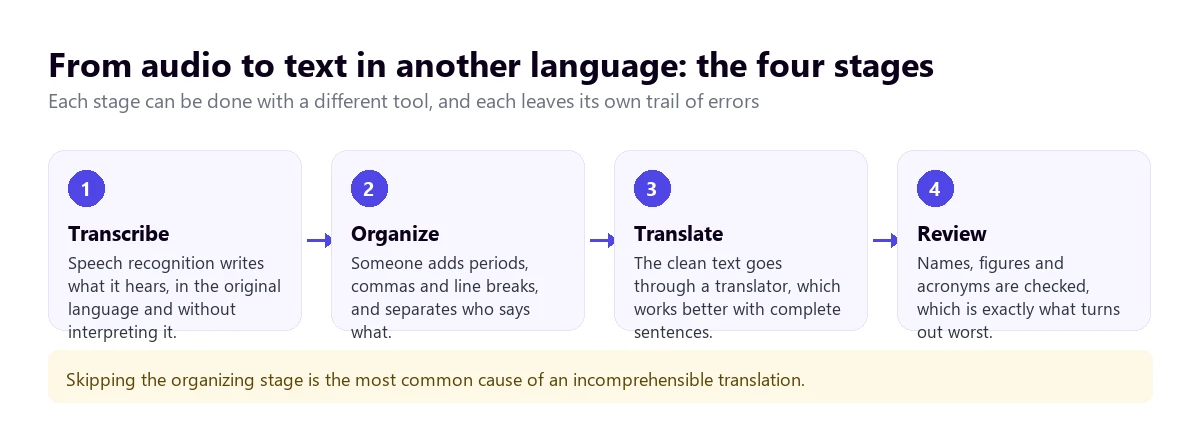
Transcription turns sound into words in the same language. Translation turns those words into another language. Between the two there is a third task that nobody advertises and that decides the final quality: formatting the text, that is, adding periods and commas, separating sentences and marking who is speaking.
It matters because an automatic translator works with closed sentences. If it receives a stream of words without punctuation—which is exactly what raw voice recognition returns—it groups subjects and verbs incorrectly and produces a text that is only half understood. Most translated transcripts that seem “poorly translated” are actually poorly punctuated before being translated.
That leads to the first practical decision: if you are going to review the result, always ask for the transcript in the original language as well as the translated one. Comparing the two takes little effort and is the only way to know if the error came from the listening or the translator.
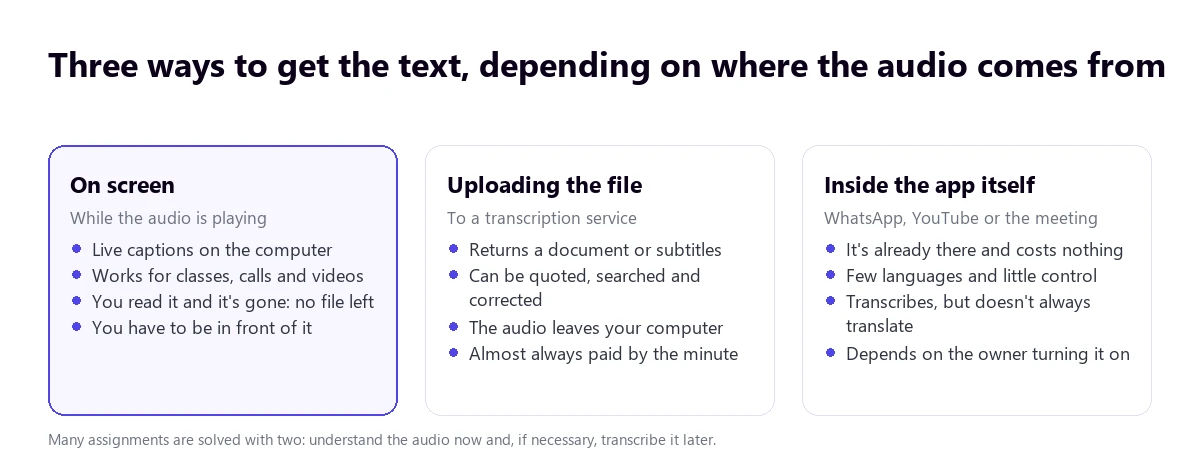
Which way suits you depending on where the audio comes from
Quick comparison of the six ways
| Way | What you get | Languages | Cost | What is left afterwards |
|---|---|---|---|---|
| PC program | On-screen text, original and translated, while it plays | Detects the source; translates to 78 | 15 free min a day; more time, paid | Nothing: it is not saved |
| Transcription service | Downloadable document and subtitles | 125+ (according to Maestra) | From $12 for 60 credits | The file, on their website |
| Chrome subtitles | On-screen text of whatever plays in the browser | Over 100 target | Free | Nothing |
| YouTube transcription | Text with timestamps and translatable subtitles | 68 source | Free | Stays in the video |
| Meeting transcription | Transcript in the spoken language | — | Platform license | In their cloud |
| WhatsApp voice notes | Text of the note, untranslated | 4 | Free | On your phone |
All six work to translate audio to text, but they don’t compete: some return a file and others just an on-screen reading. “—” means the official help doesn’t provide the data. Prices are in the currency published by each manufacturer.
1. Read it on screen while it plays, with a PC program
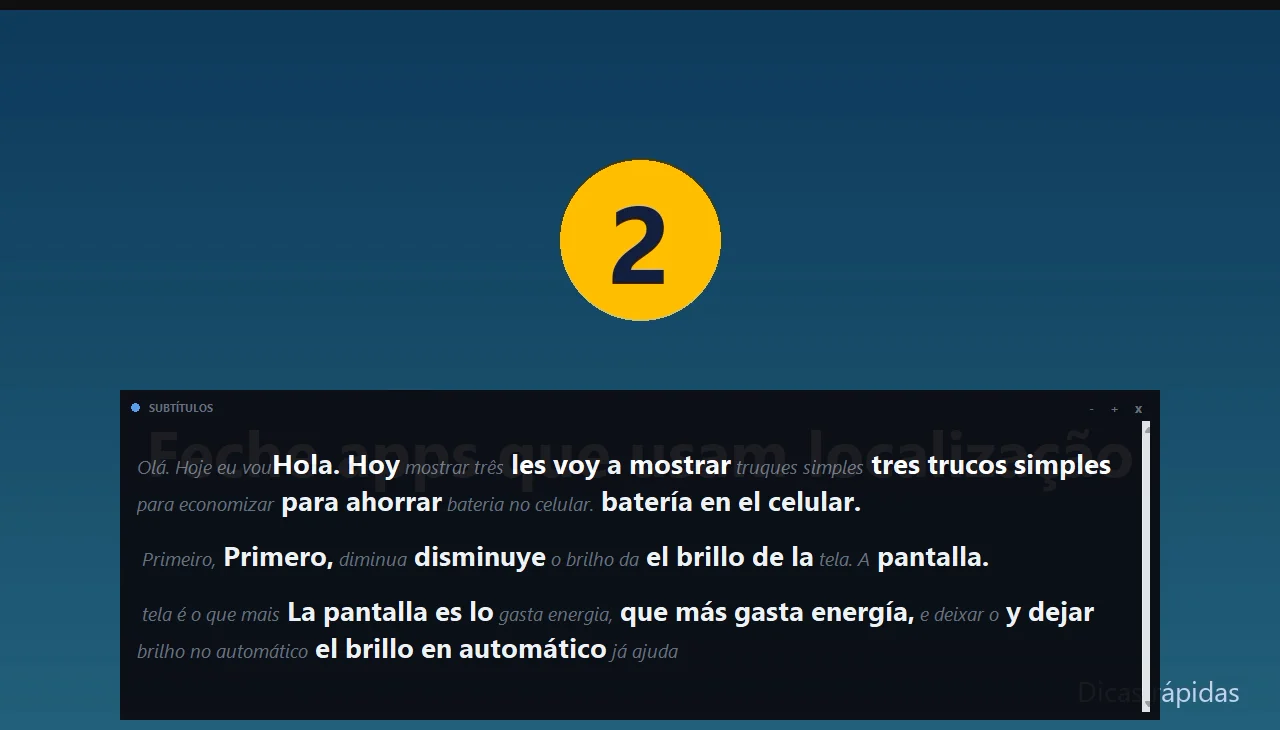
It is the fastest way when the audio is playing right now and what you want is to understand it, not archive it: a class, a call, a podcast, a video that cannot be downloaded. A desktop program listens to the application you tell it to and writes on screen what it hears, already translated.
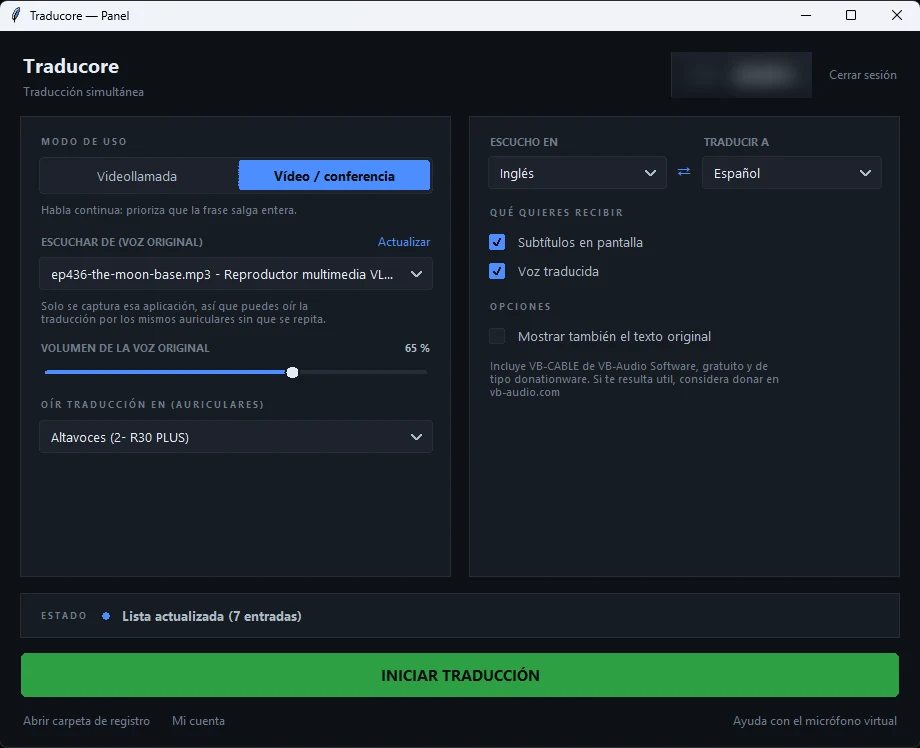
Traducore works like this in Windows 10 and 11 (in Windows 11 it listens only to the chosen application), and it has an option that is key here: Also show the original text next to the translated one. That turns the subtitles into a bilingual transcript that you can follow visually and check on the fly.
Step by step
- Open the program playing the audio: the player, the browser or the meeting app.
- On the panel, choose that application as the source. In Windows 11 only that one is captured, so system notifications don’t slip in.
- Select the source and target languages, and enable On-screen subtitles.
- Enable “Also show the original text” if you want the bilingual version.
- Press start and place the subtitle window where it doesn’t cover what you are looking at.
What you should know
The good part: you don’t have to upload anything anywhere, it works with any Windows program and the delay is three to six seconds. What it doesn’t do: it doesn’t leave a document. The text passes across the screen and is gone, because neither the audio nor the transcript is saved. If what you need is a file, this is not your way.
The other limits, without sugarcoating: it is only for Windows, translates to 78 languages without the same quality in all of them and has 15 free minutes a day, no card required; for more time, see the plans published here. To listen live in a specific language pair, the most common case is detailed in how to translate audio from Spanish to English.
See it with your own audio
Subtitles in English, with the original text next to it if you want. 15 free minutes a day, no card required.
2. Upload the file to a transcription service
It is the mandatory way when a document is needed: an interview to quote, a class to study, a video that needs subtitles. You upload the file, the service processes it and returns text, subtitles with timestamps or both, usually with the option to translate it into another language.
As a reference for prices and scope, Maestra advertises compatibility with “125+ languages” in both transcription and voice translation. Its pay-as-you-go model is $12 for 60 credits, and its transcription, subtitles and voiceover plans range from $23 to $359 a month billed annually; lip-sync dubbing is charged separately at $2 per minute. We compare it thoroughly in this comparison.
Three things you should check before choosing a service, because none of them appear on the front page:
- If the minute is counted per language. Translating the same file into three languages can consume three times the balance. In several plans, translation minutes are deducted “per language”.
- If it returns the original in addition to the translation. Without the starting transcript there is no way to audit an error.
- How long they keep the file. Many websites do not publish the retention period, and that silence is already an answer.
3. Chrome’s automatic subtitles
Chrome can generate subtitles for any audio playing inside the browser and, with Live Translate, change them to another language. They are enabled in “Settings” → “Accessibility”, and to subtitle in a language other than English you have to add the corresponding package in “Manage languages”. The list of target languages, according to the help, is over a hundred.
It is free and doesn’t ask for an account, but it has two conditions that decide if it works for you. The first: it only covers Chrome audio, so a file opened in a local player or a call in a desktop app are left out. The second is about privacy and deserves to be read slowly: according to the help itself, the subtitles are generated on your computer and do not leave it, but when you enable translation that text is sent to Google.
4. The transcription YouTube already has
If the audio is in a public video, the transcript probably already exists. YouTube generates automatic subtitles in 68 source languages, and from the subtitles menu you can request “Auto-translate” to another language, provided the video has starting subtitles: if the icon is gray, there is nothing to translate.
The warnings from the help itself are important here. The quality “may vary” and gets worse with bad pronunciation, accents, dialects or background noise. And there are videos that simply do not have automatic subtitles: very long ones, those with bad sound, those that start with a long silence or those where several people speak at once. In live streams, automatic subtitles “are only available in English”. The complete procedure, with the usual errors, is in this guide to YouTube videos.
5. The transcription of a work meeting
Teams transcribes the meeting, but you shouldn’t confuse the transcript with the translated subtitles, because they are not the same and don’t last the same. Microsoft’s help says it clearly: Teams does not save subtitles, and to keep a record you have to use the transcript. And it adds a nuance that catches many people out: translated transcripts are only available live; when the meeting ends, what is left is the original language.
The same happens with recordings: Teams captures “only the original audio” and does not include the interpretation audio. In Zoom, the help describes live translated subtitles and warns that they “may not be accurate”, but it does not document that this translation is saved when finished. That is, if you wanted a transcript in your language, the only way is to copy the translated text during the meeting, or run the original transcript through a text translator later. How to enable each thing is in the Teams guide, and the general overview of what each platform translates is in this guide on live translation.
6. Phone voice notes
WhatsApp transcribes voice notes, and the feature is generated on the device itself. It comes disabled by default and is only seen by the person receiving the message. Now, the part that needs to be said clearly: that transcript comes out in the same language as the note, and the Android help only recognizes four languages for it—English, Portuguese, Spanish and Russian. The help itself warns that it can take a few seconds and “may not be accurate”.
WhatsApp does translate written messages in a chat, also on the phone, with six languages on Android and more than nineteen on iPhone. So the workaround for a voice note in another language is to chain two steps: transcribe it and translate the text. Neither the help nor the blog document the direct translation of a voice note.
The Google Translate app also has a Transcribe mode on Android that writes what someone says “in near real-time” and saves the transcripts, which makes it useful for an in-person chat. On the other hand, the Microsoft Translator app warns that it does not support translating external sources or files, such as movies or video clips.
What is lost when turning voice into text
There are losses that do not depend on the service you choose, because they are in the nature of the work:
- Punctuation is an interpretation. Nobody pronounces commas. The system decides where they go, and the meaning of the sentence depends on that decision.
- Who says what. Separating speakers is a separate problem. Without that separation, an interview turns into an incoherent monologue.
- Names, acronyms and numbers. They are the first things to break, and the most expensive if the text ends up in a report.
- Overlaps. When two people speak at the same time, the transcript merges the two sentences into one that nobody said.
- Tone. A resigned “sure, sure” and an enthusiastic one are written the same way.
- Silences. A long pause before answering does not appear in the document, and in a negotiation it said as much as the words.
How to get a cleaner text
- Fix the audio before, not the text after. A file with less noise improves the result more than changing tools: recognition is the layer that adds the most errors.
- Select the language manually. Automatic detection fails with short sentences, strong accents and when someone throws in words in another language.
- Cut long files. Chunks of twenty or thirty minutes are processed better and allow you to review in parts.
- Review names and numbers first. Searching for three or four key terms detects 80% of the errors that matter.
- Correct the original before translating. Ten minutes of punctuation in the transcript save an hour of fixes in the translated version.
- Save the timestamps. They allow you to go back to the audio and check any doubtful sentence without listening to the whole file.
Before uploading audio to a website
This is the most skipped point and the one that causes the most problems in a professional environment. Uploading a file to a service means handing over the voices of the people in it, and that has consequences. Four questions before dragging the file:
- Do you have permission from the speaker? A recorded meeting with clients or patients is not yours to distribute.
- How long do they keep it? If the website does not publish a retention period, assume it stays.
- Is it used to train models? Some services rule it out in writing; others say nothing, which is not the same.
- Do you really need to upload it? If you just want to understand the content, a way that processes on your own computer avoids the whole problem.
More questions about how to translate audio to text
How to translate a voice audio?
If it is a file and you want a document, upload it to a transcription service and ask for the translation too. If it is playing and you just want to understand it, live subtitles on your computer. And if it is a phone voice note, transcribe it first with the chat’s own feature and translate that text later, because the direct translation of voice notes is not documented.
How to translate a recorded audio?
With a recording you have an advantage that doesn’t exist live: the system can hear it all before deciding, so the quality is better and you can review the result without rushing. The efficient way is to transcribe it first in its language, manually correct the names and punctuation, and then translate the clean text.
How can I transcribe audio from Spanish to English?
Be careful with the term, because two things are mixed up here. Transcribing is writing what is heard in the same language; changing it to English is already translating. What this question usually means is “transcribe it in Spanish and translate it into English”, and those are the two stages from the beginning. Almost all transcription services do it in a single step, but it is worth asking for both versions.
How to translate an audio that is in another language?
Before choosing a tool, check what language it is and if the one you are going to use supports it as a source, which is not the same as supporting it as a target. It is the most frequent error: many long lists of languages are target languages, and the list of spoken languages the system understands is significantly shorter.
So, which one do we use?
We don’t always use the same one: translating audio to text is solved differently depending on whether the result has to survive the session. To understand a class, a call or a video, subtitles on the computer with the original next to it, and nothing is saved, which is often what you want. For an interview that needs to be quoted, a transcription service, always asking for both versions and correcting the original before translating. And if the audio contains client data, it doesn’t go up to any website: it is solved on the computer, even if it takes a bit more work.
Read any audio in your language
Live subtitles for any Windows application, with the original text if you want it. 15 free minutes a day, no card required.