There is no button to translate WhatsApp audio: the app transcribes voice notes in four languages and translates written messages, but it doesn’t translate voice. What works is chaining steps together, or taking the note out of the phone and listening to it where there is a translator.
Here are the five ways that make sense, from the fastest to the most labor-intensive: playing the note on the computer with a voice translator, Chrome’s subtitles on WhatsApp Web, transcribing it and translating the text on your mobile, exporting the file to a transcription service, and the workaround of bringing another phone close. The data from WhatsApp and Google comes from their official help pages and blogs, checked in September 2026; where the source doesn’t confirm something, we say so.
In short
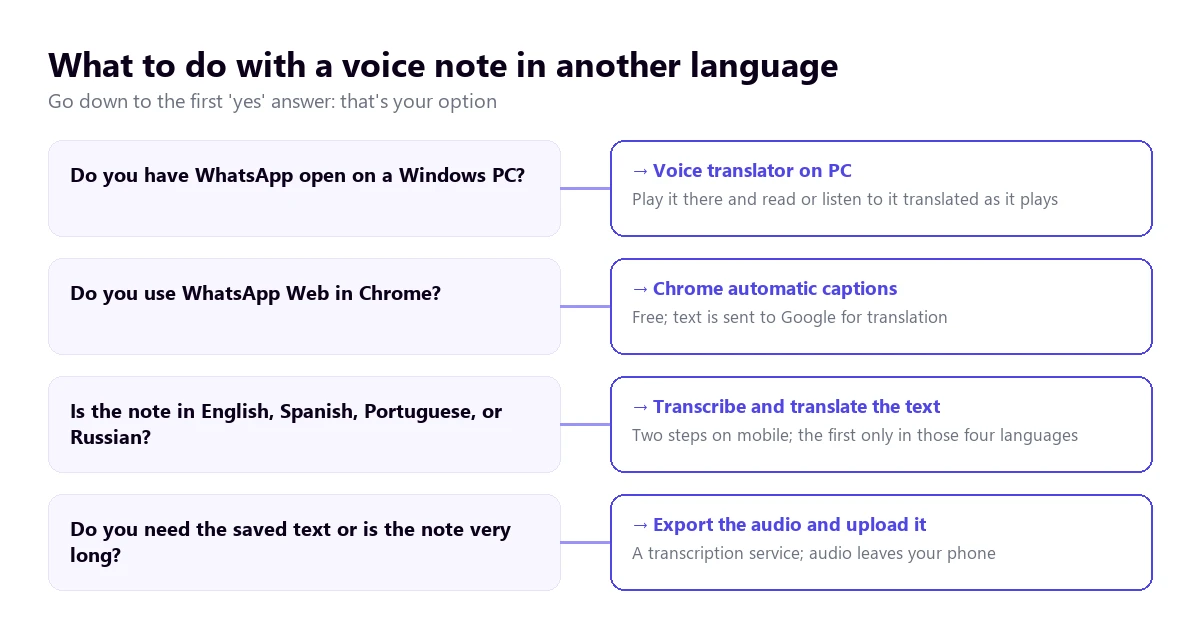
- Do you have WhatsApp on your computer? → play it there with a voice translator for PC and you read or hear it in English.
- Do you use WhatsApp Web in Chrome? → automatic subtitles with translation, for free.
- Do you only have your phone and the note is in Spanish, Portuguese or Russian? → transcribe it and translate the text.
- Do you need to save the text? → export the audio and upload it to a transcription service.
In this article
- What WhatsApp does with a voice note, and what it doesn’t
- Which path suits you depending on the case
- 1. Listen to it on the computer with a voice translator
- 2. Chrome’s subtitles on WhatsApp Web
- 3. Transcribe the note on your mobile and translate the text
- 4. Export the audio and upload it to a transcription service
- 5. The two-phone trick
- Why a voice note translates worse than a video
- How to get a more reliable translation
- Before taking an audio out of the chat
- More questions about translating WhatsApp audio
- So, which one do we use?
What WhatsApp does with a voice note, and what it doesn’t
The confusion comes from two features that came out months apart and that many headlines mixed up. In November 2024, WhatsApp announced voice message transcripts: the note is converted into text, but in the language it was recorded in. In September 2025 came message translation, which works on what is written in chats, groups, and channels.
Neither of the two converts a note in Spanish into a note in English. The translation help page lists what cannot be translated—locations, documents, contacts, stickers, and GIFs—and simply doesn’t mention voice notes. That absence is the answer: there is no documented audio translation, neither on the phone nor on the desktop.
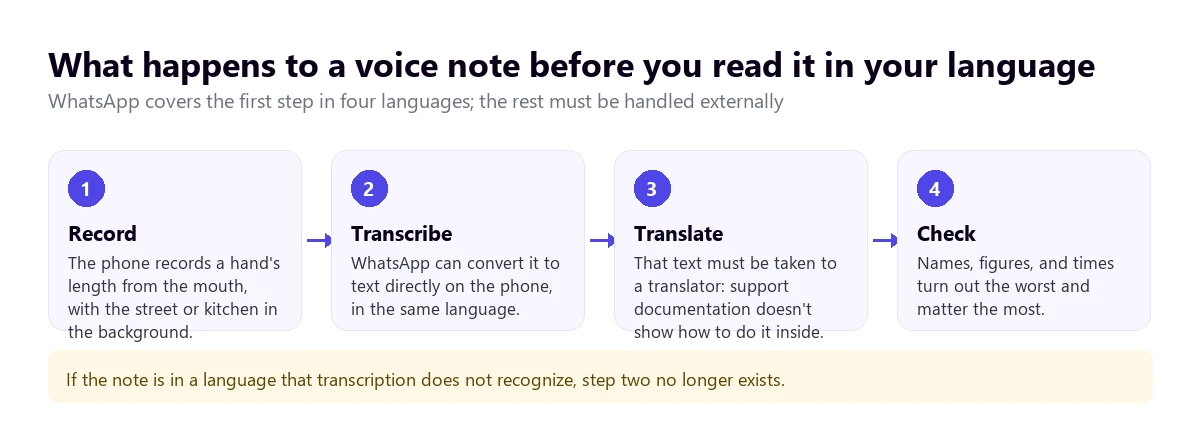
There are two details about the transcription that decide if it works for you. According to the Android help page, it only recognizes English, Portuguese, Spanish, and Russian, and the text is generated on the device itself, without going through WhatsApp’s servers. It comes disabled by default and is only seen by the person receiving the note, not the sender. If you get an audio in French, Arabic, or Chinese, this path is closed before you start.
Which path suits you depending on the case
| Path | Where | Note languages | What you get | Cost |
|---|---|---|---|---|
| Voice translator on PC | WhatsApp for Windows or Web | Automatic detection; translates into 78 | Subtitles and voice in English while it plays | 15 mins free per day; more time, paid |
| Chrome subtitles | WhatsApp Web | Depending on installed packages | Translated text on screen | Free |
| Transcribe and translate | Mobile | 4 (English, Portuguese, Spanish, Russian) | Text of the note, then translated outside | Free |
| Transcription service | Web, with the file | Depends on the service | Downloadable document or subtitles | Almost always per minute |
| Another phone nearby | Two devices | Those of Google Translate | Approximate translation, sentence by sentence | Free |
All five work to translate WhatsApp audio, but they don’t give the same result: some are read in the moment and lost, and others leave a text you can save. The list of languages for the note is the source language, which is what matters here: a hundred target languages are useless if the system doesn’t understand the one being spoken.
1. Listen to it on the computer with a voice translator
If you use WhatsApp on Windows, this is the most direct path. There is no need to export anything: you play the note in the desktop app or on WhatsApp Web, and a program that listens to the computer’s audio converts it into subtitles in your language, or into voice, as it plays. It works with any language the program recognizes, not just the four from the transcription feature.
Traducore works like this on Windows 10 and 11. On Windows 11 it captures only the application you choose, so a notification or another program doesn’t mix with the note (the browser is captured entirely, so mute the other tabs with sound). You can ask for subtitles, translated voice, or both, and lower the original voice to the background.
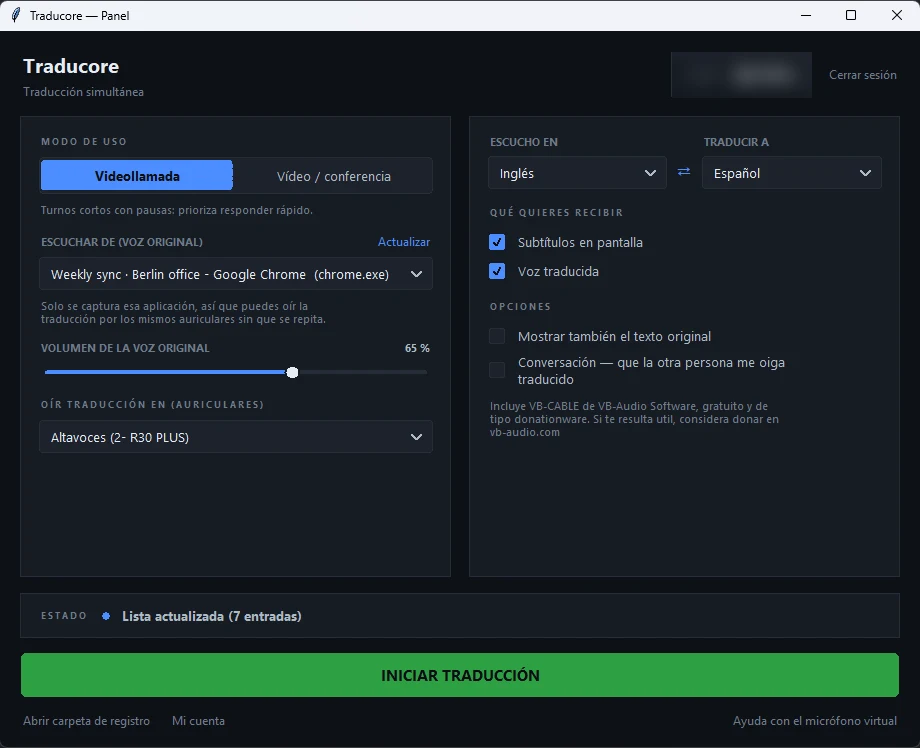
Step by step
- Open the chat in WhatsApp for Windows or WhatsApp Web.
- On the panel, choose that window under “LISTEN FROM (ORIGINAL VOICE)” and tick the language of the note and yours.
- Tick subtitles, translated voice, or both, and click start.
- Play the note. If it’s long, increase the playback speed only when you already have the thread: the higher the speed, the more recognition errors.
What you should know
The translation arrives with a three to six-second delay, which in a one-minute note is barely noticeable. Neither the audio nor the text is saved: you read it and it’s gone, so if you need to keep the translation, this is not your path: look at the fourth one. And it is only for Windows computers; the program doesn’t have a phone version. It has 15 free minutes a day, no card required; for more time, it’s paid according to the published plans. If what you get are long audios in Spanish, in this Spanish to English audio guide are the rest of the options for that pair.
Try it with the next note you get
Subtitles or voice in English of whatever plays on WhatsApp for Windows. 15 free minutes a day, no card required.
2. Chrome’s subtitles on WhatsApp Web
If you open WhatsApp in the browser, Chrome can subtitle whatever plays in the tab and translate it. It is activated in “Settings” → “Accessibility” with Live Caption and Live Translate. For it to understand a language other than English, you must first add its recognition package in the language management of that same section.
It is free and doesn’t ask for an account, with two conditions. It only covers the audio that plays inside Chrome: if you open the WhatsApp desktop app instead of the web version, it hears nothing. And the privacy part: according to Google’s help page, the recognition is done on your computer, but the subtitles are sent to Google to translate them. With a note from a relative you might not care; with one from a client, maybe you do.
3. Transcribe the note on your mobile and translate the text
It is the free path on the phone, and it works well as long as the note is in one of the four transcription languages. First you have to turn it on. The WhatsApp blog gives the path as Settings → Chats → Voice message transcripts; there you choose the language and download its package, over Wi-Fi or data.
Step by step
- Turn on transcripts and choose the language of the note, not yours. It is the most common mistake: with English chosen, a note in Spanish comes out as nonsense text.
- Press and hold the voice note and open the three-dot menu to request the transcription. The exact name of that option can vary depending on the version.
- Take the text to a translator. Neither the help page nor the blog document that the “Translate” feature for messages applies to a transcript, so the safe bet is to copy the text and paste it into Google Translate or the translator you use.
- If the note was long, check the original text before trusting the translation: hearing errors multiply when translating.
The help page warns that the transcription can take a few seconds and “may not be accurate”. And message translation, which would be the natural next step, has its own limits: on Android there are six languages—English, Spanish, Hindi, Portuguese, Russian, and Arabic—, on iPhone they mention over nineteen, and it is not in WhatsApp Business.
4. Export the audio and upload it to a transcription service
When the note is long, is in a language the phone doesn’t transcribe, or you need the text to save it, the practical thing is to take the file out of the chat. From the phone you can forward or share the note with another app, and on the computer you can download it. WhatsApp voice notes are saved in Opus format, and you should check that the service accepts it; if not, you have to convert it to MP3 first.
Once uploaded, the service returns the transcription in the original language and, almost always, the translation. How to choose one, what to look for in their prices, and what to ask for to be able to review the result is in our guide to converting audio to text.
Be careful with what this implies: another person’s voice leaves your phone and ends up on a third party’s servers. If the note is from a client, a patient, or talks about money, ask yourself first if you need to upload it or if just understanding it is enough.
5. The two-phone trick
There is one workaround left that works with any language and doesn’t require installing anything new: playing the note through the speaker and bringing another device close with the Google Translate app in conversation mode, or in Transcribe mode, which on Android writes what it hears almost in real time. The app detects the language change and can read the translation out loud.
It is a makeshift solution, and it shows. The audio goes from the speaker of one phone to the microphone of another, with the room in between, and loses quality at each step. It is useful to know what a short note is about, not to trust an address or a figure. The Microsoft Translator app doesn’t work either, as its help page makes it clear that it doesn’t translate external sources like videos or files.
Why a voice note translates worse than a video
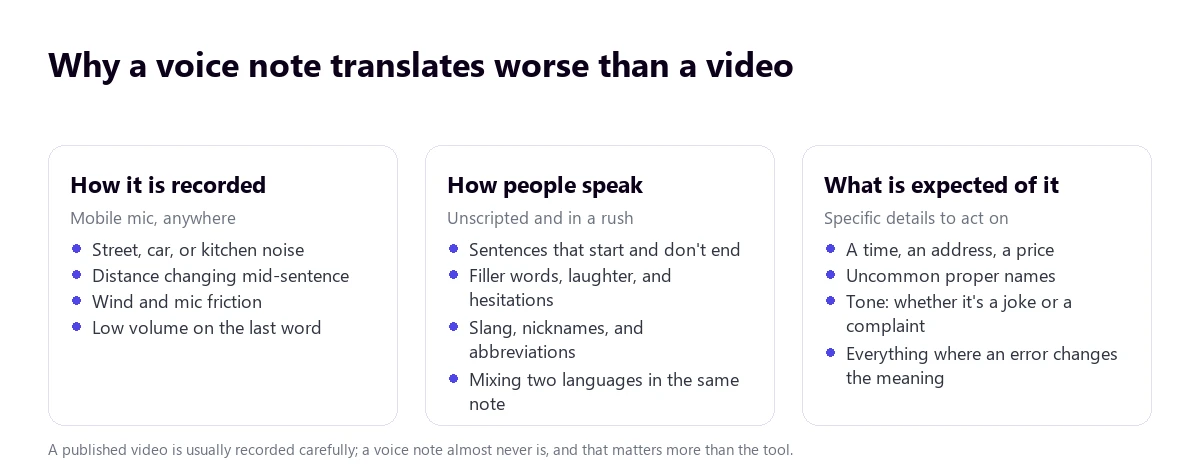
Anyone who tries several tools with the same note usually gets a surprise: they all fail in the same places. It is no coincidence. A published video is recorded with a decent microphone and spoken with the audience in mind. A voice note is recorded with the phone in hand, walking down the street, and spoken as one thinks.
That has concrete consequences for voice recognition. Sentences that start and don’t finish have no verb to hold onto, and the translator invents one. Filler words (“you know”, “like”, “right”) slip in as if they were content. Nicknames, street names, and brands are not in the system’s vocabulary and come out as similar words that do exist. And mixing languages—a note in English with three words in Spanish, or vice versa—confuses any automatic detector.
Then there is the sound. Wind in the microphone erases whole consonants, the distance changes when the person turns their head, and the last word of each sentence usually comes out quieter. In a video, none of that matters as much because there is image and context. In a note, the audio is all there is.
How to get a more reliable translation
- Choose the language of the note yourself. Automatic detection fails with short audios and strong accents. Setting it manually avoids half the disasters.
- Listen to it entirely once before translating. Knowing what it is about allows you to detect when the translation goes off-topic.
- Distrust numbers. Times, prices, and addresses are the first things to get messed up. If it matters, ask them to write it down.
- Do not speed up playback. At 1.5× or 2× the recognition loses syllables, and what you save in time you lose in errors.
- Split long notes. A five-minute audio with topic changes translates better in chunks, especially if you are going to review the text.
- If you are the one asking for audios, suggest the other person speak close to the microphone and in short sentences. It is the cheapest improvement of all.
Before taking an audio out of the chat
A voice note is another person’s voice, and that changes the rules compared to a public video. WhatsApp’s transcription and Chrome’s subtitles recognize the voice on your computer; web services do not. Before uploading it anywhere, three quick questions:
- Would the person who recorded it be okay with it? A private note forwarded to an external service is no longer so private.
- What does the service do with the file? If it doesn’t publish how long it keeps it, assume it stays.
- Do you need the text or just to understand it? To understand it, a path that saves nothing is enough.
More questions about translating WhatsApp audio
How to translate WhatsApp audios?
Inside the app you can’t: WhatsApp transcribes voice notes in four languages and translates text, but it doesn’t translate voice. The real options are playing the note on the computer with a voice translator, using Chrome’s translated subtitles on WhatsApp Web, or transcribing it on your mobile and translating the text outside.
How can I translate a WhatsApp audio from Spanish to English?
Spanish is the easiest case, because it falls into the four transcription languages. On your mobile, turn on transcripts with Spanish as the language, transcribe the note, and paste the text into a translator. On the computer, play it on WhatsApp Web with Chrome’s subtitles or in the desktop app with a voice translator.
How to make WhatsApp transcribe your audios?
You have to turn it on, because it comes disabled: in the chat settings there is the voice message transcripts option, where you choose the language and download it. Then you just press and hold the note. Remember that it only recognizes English, Portuguese, Spanish, and Russian, according to the Android help page, and that the text comes out in the language of the note.
How to translate an audio sent to me?
It depends on where you have it and what language it is in. If it is in one of the four transcription languages, the fastest way is to transcribe it and translate the text. If not, or if it is long, play it on the computer with a voice translator, or download it and upload it to a transcription service if you need to keep the text.
So, which one do we use?
Since most of our notes in another language reach us while we work on the computer, we listen to them on WhatsApp for Windows with English subtitles, without taking the file out of anywhere. On mobile, with a short note in Spanish or Portuguese, we transcribe and translate the text, which is free and enough. And we only upload an audio to a service when we need to save the text and the person who recorded it agrees. If you want to see how the different voice tools behave on the PC, you have our comparison of voice translators.
Understand voice notes in your language
Subtitles or translated voice of any Windows application, WhatsApp included. 15 free minutes a day, no card required.