Real-time translation is what arrives while the other person is still speaking, in subtitles or voice, with a few seconds of delay and without anyone having to stop and wait. It’s not magic and it’s not instantaneous: it’s a chain of three or four processes running very fast, and that nuance explains almost everything that disappoints the first time you try it.
The interesting part is that you no longer have to look for it: it’s built into Teams, Zoom, Meet, Chrome, YouTube, and even Windows. The problem is that each site offers it under different conditions, and some leave out exactly the people who needed it. Below is what the term means, what happens during those seconds, where it already works with names and fine print, and how to check if your case qualifies. The data for each platform comes from their official help pages, checked in September 2026.
In short
- Is the meeting from your company and pays for Copilot, Workspace, or a Zoom add-on? → use what the platform already translates.
- Are you the external guest, or do you switch platforms every week? → a program on your own PC.
- Do you just need to understand a video or podcast in the browser? → Chrome’s subtitles, which are free.
- Do you want a document with what was said? → that’s no longer live, that’s transcription.
In this article
- Where the term “real-time” comes from and why it doesn’t mean “instant”
- What exactly happens in those seconds
- Where real-time translation already works
- How many languages are behind each promise
- The pattern that repeats across almost all platforms
- What gets lost along the way, regardless of the tool
- How to check in twenty minutes if it works for you
- What is not real-time translation
- More questions about real-time translation
- So, which one do we use?
Where the term “real-time” comes from and why it doesn’t mean “instant”
The term wasn’t born in translation, but in control computing. There, a real-time system isn’t one that responds infinitely fast, but one that guarantees a response within a bounded timeframe: braking, an alarm, or an autopilot are valid if they arrive on time, not if they arrive right now. That’s the idea inherited when talking about voice: the result has to arrive while it’s still useful.
Applied to a conversation, the useful timeframe is short but it’s not zero. It has to fit between the end of a sentence and the moment you have to react. That’s why the reasonable standard is between three and six seconds, and why you should distrust anyone promising “instant translation”: either they’re counting wrong, or they’re cutting sentences before they finish.
The platforms themselves acknowledge this in their documentation. Google Meet’s help says its translations “will have a delay of a few seconds to ensure they are complete.” Microsoft Teams warns that its agent is not optimized for meetings “with rapid exchanges, interruptions, or overlapping dialogue,” because the translation can take longer than the speech itself. Those are their words, not ours.
What exactly happens in those seconds
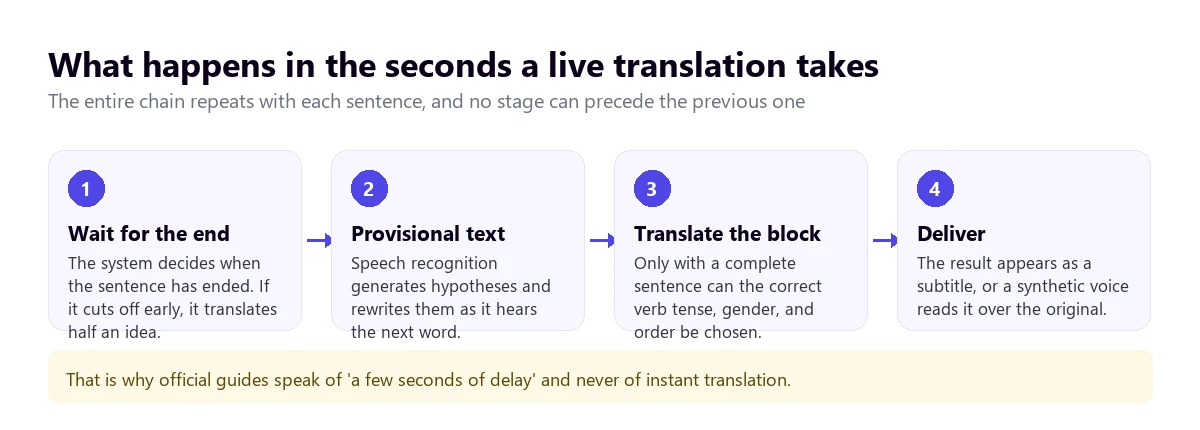
The part almost nobody talks about is the first one: deciding when the sentence has ended. The system is listening to a continuous stream of sound and has to bet on a full stop. If it waits too little, it translates half an idea and then contradicts itself. If it waits too long, you’re already staring at the ceiling. That calculation, and not the power of the translator, is what sets the feeling of fluency.
Meanwhile, speech recognition keeps throwing out provisional hypotheses and rewriting them. That’s why in many automatic subtitles you see a word change on its own a second later: the system heard what came next and corrected itself.
Then comes the translation, and there’s a fundamental difficulty there: some languages can’t be translated in chunks. In German, the verb of a subordinate clause goes at the end; in Japanese, the negation. Until that last word arrives, you don’t know if the sentence was affirming or denying. A system that translates on the fly ends up having to delete and redo, and that shows on screen.
And finally, if there’s voice, a synthesizer reads the result. That step adds its own time, because speaking takes as long as it takes: a long sentence can’t be read in half a second. Hence, tools that only provide subtitles will always be ahead of those that provide voice.
A detail that changes the experience
If the tool lets you lower the volume of the original audio instead of muting it, use it. Hearing the tone, laughs, and interruptions in the background while you read or listen to the translation provides half the context, and it costs nothing.
Where real-time translation already works
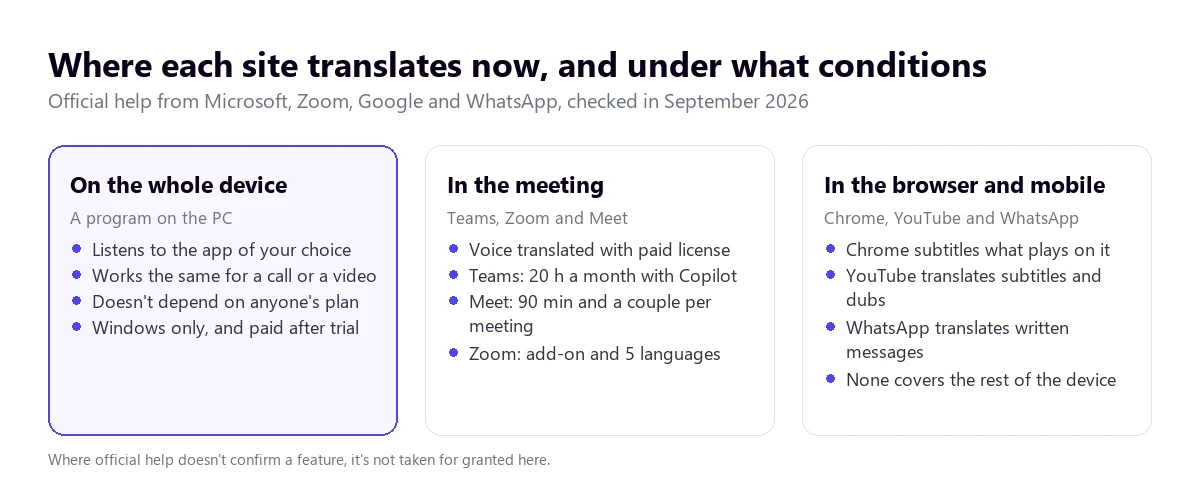
This is the picture as of September 2026, based on what each manufacturer documents in their help pages. Where the official source doesn’t confirm something, we state it here instead of filling it in by deduction.
| Where | What it delivers | Who pays for it | The limit that hurts the most |
|---|---|---|---|
| A program on your PC | Voice and subtitles from any application | You, on your own | Windows only |
| Microsoft Teams | Voice (Interpreter agent) and translated subtitles | The organization | 20 hours a month per person |
| Zoom | Voice (Voice Translator) and translated subtitles | The organization | Five languages for voice |
| Google Meet | Voice similar to yours and subtitles | The organization | 90 minutes and a couple of languages per meeting |
| Chrome | Subtitles for whatever plays in the browser | Nobody: it’s free | Only Chrome’s audio |
| YouTube | Translated subtitles and dubbed tracks | Nobody: it’s free | The video creator decides |
| Written chat messages | Nobody: it’s free | Doesn’t cover calls or voice notes | |
| Windows 11 | Subtitles for all computer audio | Included, with the right hardware | Translates into English or Chinese, but not into other languages like Spanish |
1. Across the whole computer, with a separate program
This is the route that doesn’t depend on anyone else. A desktop program listens to the audio of the application you point it to and returns the result in floating subtitles, in voice, or both, no matter what is playing: a call, a recorded course, a radio station, or a platform that doesn’t even exist yet.
Traducore works like this on Windows 10 and 11. On Windows 11 it captures only the chosen application, so the rest of the computer’s sounds don’t get into the mix.
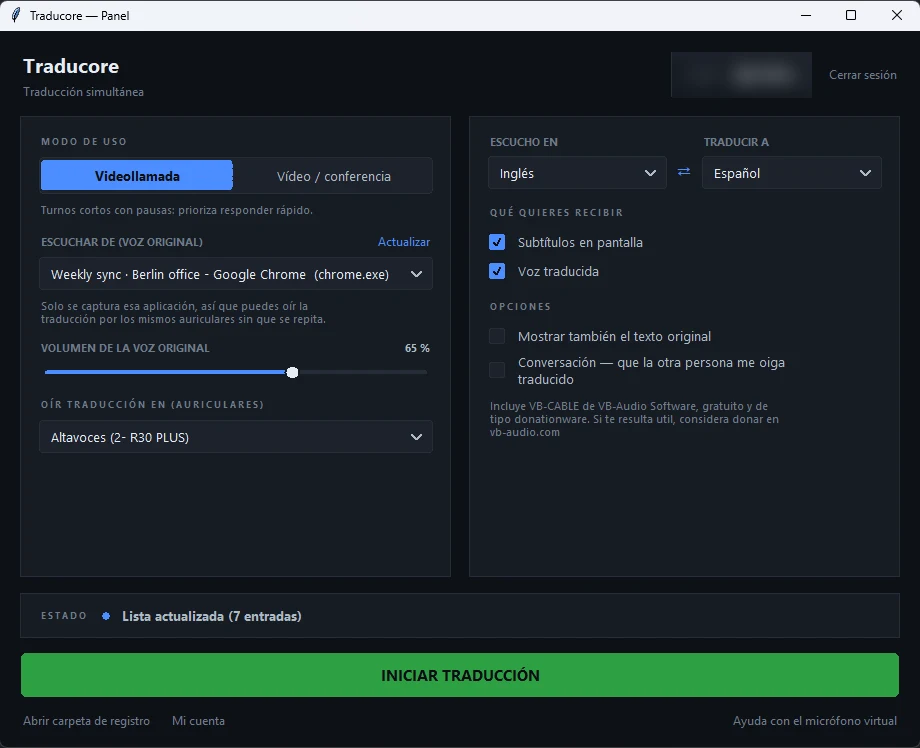
It has two modes depending on how the other party speaks: one closes turns earlier, to be able to answer quickly, and another waits for the sentence to finish, which works better with someone who speaks without pauses. It can also make the other person hear you translated through a virtual microphone, by selecting it as the input in the meeting platform.
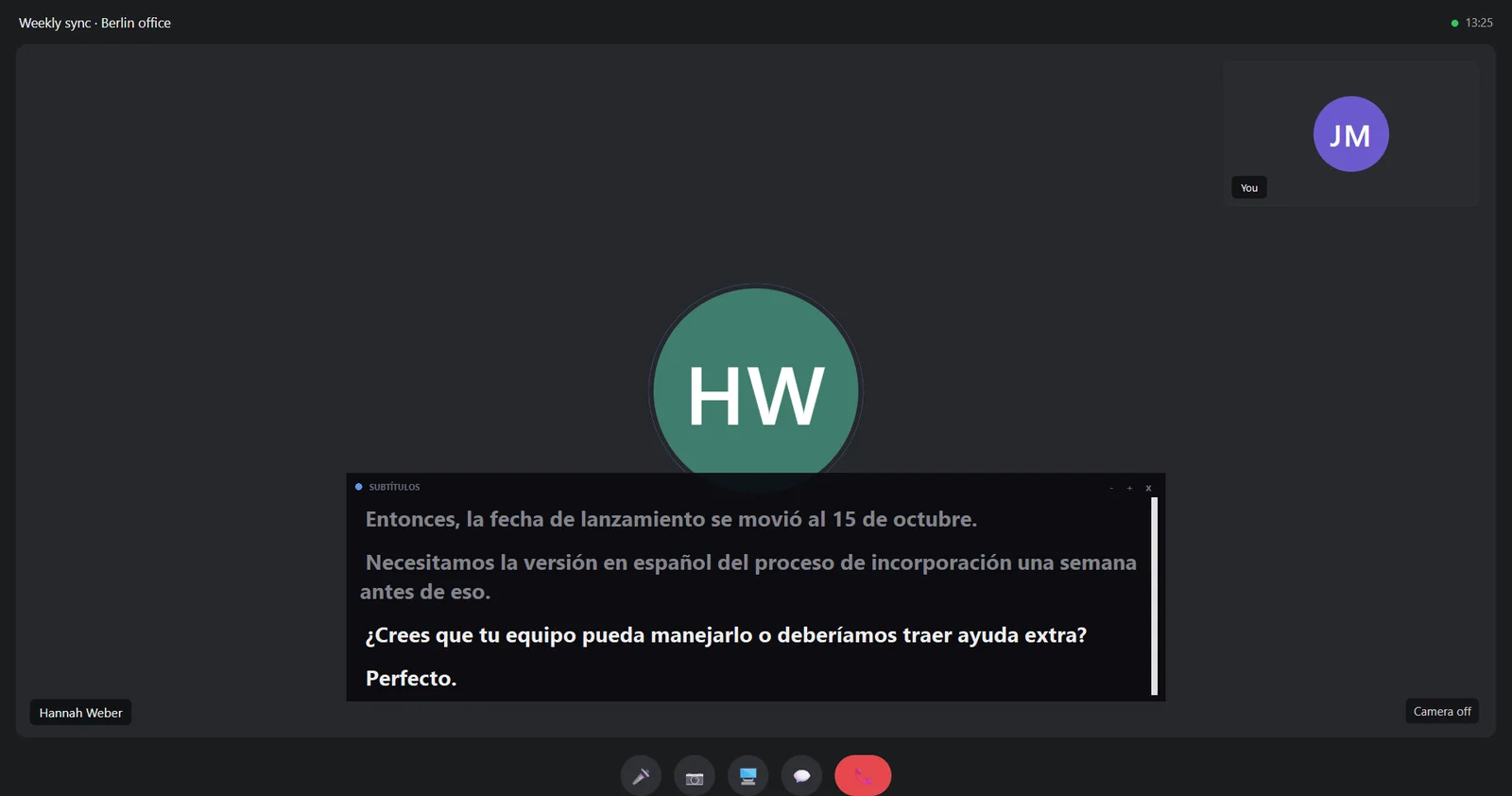
Its limits, stated clearly: Windows only, a delay of three to six seconds, uneven quality depending on the language pair, and 15 free minutes a day, no card required; for more time, the plans published here. In return, it doesn’t put any bot in the meeting, the others don’t need to install anything, and neither the audio nor the text is saved.
Try it on your next call
Live translation of any Windows application. 15 free minutes a day, no card required.
2. In Microsoft Teams
Teams has two different things. The Interpreter agent translates voice to voice and can “simulate” your voice; according to the help, it requires a Microsoft Copilot license and includes 20 hours of interpretation per person per month, and beyond that it is “subject to available capacity.” Translated subtitles go a different route: Teams Premium or Copilot, and it’s enough for the organizer to have them for everyone to see them.
The fine print is heavy. The Interpreter doesn’t work in ad-hoc meetings, town halls, webinars, or free Teams meetings, and participants from other organizations can only use it if they join “from verified M365 accounts” with their own Copilot license: anonymous guests are left out. Furthermore, recordings only capture the original audio, and translated transcripts exist solely during the meeting. The step-by-step is in how to translate a Teams meeting.
3. In Zoom
Zoom announced its Voice Translator in July 2026. It translates voice to voice within the meeting, everyone chooses which language they speak and listen in, and it’s only seen by whoever is using it. It requires the desktop app for Windows or Mac in version 7.0.0 or higher and a paid add-on, and currently covers five languages: English, Chinese, French, Japanese, and Spanish. The blog announces Portuguese, Arabic, German, and Italian for late 2026.
Translated subtitles are another feature and another price: they require Business Plus or Enterprise plans, or an add-on whose price the help page doesn’t publish, redirecting to Sales. Zoom also supports human interpreters through audio channels, with Pro plans or higher, but not in instant meetings or with the personal meeting ID. The details are in how to translate a Zoom meeting.
4. In Google Meet
Meet’s voice translation interprets what you say “with a voice similar to yours.” It’s in paid Workspace editions and Google’s AI plans, and whoever meets the requirements turns it on for the entire meeting. Its three limits are in the help itself: 90 minutes per meeting, a single language pair at a time, and always with English on one of the two sides, against French, German, Hindi, Italian, Portuguese, or Spanish.
Meet’s translated subtitles are a separate product, with a list of 69 languages but “in certain combinations” and rolling out gradually. Someone joining from hardware room equipment hears the translations, but what they say isn’t translated, and the feature isn’t available in live streams or recordings. We break down Meet and WhatsApp in this guide on video calls.
5. In Chrome, for whatever plays in the browser
Chrome’s Live Caption generates text from any audio playing in the browser—videos, podcasts, streams, video calls—and Live Translate turns them into another language. It’s free, doesn’t ask for an account, and is on Windows, Mac, Linux, and ChromeOS.
Two nuances worth knowing. The first is about scope: it only covers Chrome’s audio, so a call in the Teams desktop app or a local player is left out. The second is about privacy: according to the help, subtitles are generated on your computer and don’t leave it, but when you turn on translation, that text is sent to Google. It’s not the same thing, and with sensitive audio, the difference matters.
6. In YouTube
YouTube translates in two ways and you don’t fully control either. The “Auto-translate” option in the subtitles menu only appears if the video already has subtitles, and it inherits the original’s mistakes, including words covered by brackets. Auto-dubbing generates audio tracks in other languages, but the creator turns it on: the viewer can’t dub a video on their own, only switch tracks if one exists.
In live streams, automatic subtitles “are only available in English” and are being rolled out slowly. The whole procedure, with its typical flaws, is in this guide to YouTube videos.
7. In WhatsApp and on your phone
Here we have to separate the headline from reality. WhatsApp translates written messages in a chat, right on the phone, with six languages on Android and over nineteen on iPhone. It doesn’t translate locations, documents, contacts, stickers, or GIFs. And the important part for this topic: neither the help nor the blog document translation for calls or voice notes. Voice note transcription does exist, but it turns the note into text in its same language, and only in four of them.
The Google Translate app, on the other hand, does have conversation and listening modes designed for talking to someone in front of you. Its web version for computers, however, doesn’t allow continuous speaking and translating: its own help says so.
8. In Windows 11, if the computer is a Copilot+ PC
Windows 11 Live Captions translate “any audio that passes through your PC,” with all processing on the device and without saving anything. It sounds perfect until you read the condition: the translation comes out into English or Simplified Chinese, and requires a Copilot+ PC with Windows 11 24H2 or later. For those who want to understand in other languages like Spanish, it doesn’t solve the problem today.
How many languages are behind each promise
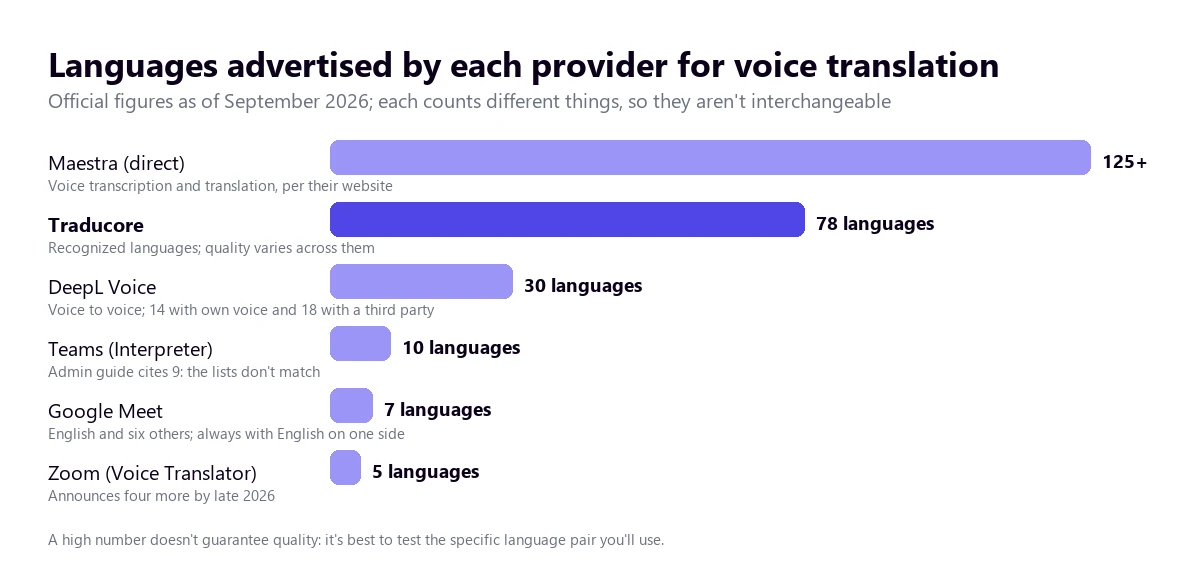
The number of languages is the most slippery data point in this market, and not because anyone is lying, but because everyone is counting something different. Three common traps:
- Source and destination are not the same list. A service might understand forty spoken languages and write in a hundred, or vice versa. What works for you is the specific pair, not the total.
- Text and voice aren’t either. DeepL, for example, announces subtitles in “over 40 languages” and voice-to-voice in thirty; of those thirty, fourteen use its own voice and the rest go through a third party. We detail this in this comparison.
- The lists don’t even agree with themselves. Teams’ help cites ten languages for the Interpreter on the user page and nine on the admin page. In Zoom, the commercial website talks about 46 languages in subtitles and the help gives another list.
The pattern that repeats across almost all platforms
Placed side by side, the built-in features look much more alike than their product pages suggest. Five constants:
- The organization pays for it and turns it on. The attendee can almost never turn it on by themselves, and the external guest is the first to be left out.
- English is usually mandatory on one side. Meet says it explicitly. In practice, a direct Italian-Portuguese translation is extremely rare.
- There is a counter. Twenty hours a month, ninety minutes per meeting, minutes per language. Nobody gives away unlimited time.
- The translation doesn’t stay in the recording. Teams warns about it: the recording captures the original audio. Meet doesn’t include it in streams or recordings.
- It only works inside its own house. None of these features touch what plays outside their own application.
From those five comes the rule of thumb: if your work always comes through the same platform and your company pays for the license, the built-in option is the most convenient. If you switch platforms, if you get invited from the outside, or if you also watch videos and courses, something that listens to the whole computer pays off more. The specific options for Windows are in this comparison of PC programs.
What gets lost along the way, regardless of the tool
There are mistakes that don’t depend on which one you choose, because they are born from the chain itself. It’s good to know them so you don’t discover them in the middle of an important meeting:
- Proper names and acronyms. It’s the first thing to break. Teams’ help admits it: the interpretation “of people’s names, genders, or technical terms may be inaccurate.”
- Numbers and units. A “fifteen” heard as “fifty” comes out translated completely naturally and nobody points it out. If budgets are involved, ask for the number in writing.
- Overlapping voices. When two people speak at once, the recognition merges them into a single sentence and produces something neither of them said.
- Gender and register. Meet’s help lists grammar, unexpected accents, and “wrong gender” among its possible failures.
- Irony and silence. A sarcastic “very interesting” arrives as a compliment, and awkward pauses, which say a lot in a negotiation, aren’t transcribed.
- What is written on screen. Slides, banners, and shared documents stay in their language: this works with sound, not images.
How to check in twenty minutes if it works for you
Almost all options have a free tier or trial, so the decision can be made with your own data instead of marketing screenshots. A protocol that works:
- Use difficult audio, not a demo. A real talk from your industry, with accents and jargon. Demos are always recorded in a studio.
- Test your exact language pair. No tool performs the same in all of them; an excellent English-Spanish tells you nothing about Dutch-English.
- Time the lag. Count from when the person stops talking until you understand. Under six seconds is usable; over that, a conversation becomes impossible.
- Watch for three specific things: a proper name, a number, and a moment when two people talk over each other. That’s where you see the real difference between tools.
- Repeat with a bad microphone. The day it matters, someone will be in the car or with their laptop a meter away. That’s the scenario you’re actually going to experience.
What is not real-time translation
It’s worth narrowing down the term, because it gets stretched too happily:
- It’s not subtitling a finished file. That is working on a file, with a different price and quality, because the system can hear the whole thing before deciding. If what you want is a document, look at how to turn audio into text.
- It’s not a certified translation or minutes. Nothing that comes out of here has legal value, and several platforms don’t even keep the translated text when finished.
- It doesn’t replace a professional interpreter. In a trial, a negotiation, or a press event, what you hire is judgment and responsibility, not speed.
- It doesn’t translate the screen. Texts on a slide or a website are solved with other tools.
- It doesn’t guarantee confidentiality. It depends on where the audio is processed and what is saved, and that has to be checked service by service.
The difference between this technology and booth interpretation, with its modalities and tool types, is expanded upon in this guide on automatic interpretation.
More questions about real-time translation
How to turn on real-time translation?
It depends on the site. In Teams, you go through “More options” → “Language and speech” → “Interpreter,” if your organization has the license. In Zoom, through “More” → “Voice Translator,” with the add-on enabled. In Meet, from “Meeting tools” → “Voice translation,” and a participant with a compatible edition turns it on for everyone. In Chrome, under “Settings” → “Accessibility.” And in a desktop program, by choosing the application you want to listen to and the two languages.
How can I translate in real time with artificial intelligence?
All the options described here already work with AI models: speech recognition, machine translation, and speech synthesis. The “AI” label doesn’t distinguish one from another, so it doesn’t work as a buying criterion. What does distinguish them is where they get the audio from (a bot in the meeting, a browser extension, or local capture from the computer), who needs a license, and how many minutes the plan includes.
How can I translate a conversation in real time?
If it goes through a screen, with the platform’s feature or with a program that listens to that application; for them to also hear you in the other language, you need two-way translation, which isn’t everywhere. If you have the person in front of you, the practical thing is the phone app with its conversation mode, which goes by turns.
How to use a real-time translator?
Three settings decide the result: properly choosing the audio source (the specific application, not the whole computer, so music and notifications don’t sneak in), putting on headphones if you’re going to listen to translated voice—otherwise, the microphone picks up the translation and translates it again—and leaving the original audio at a low volume instead of muting it, to preserve the tone and interruptions.
So, which one do we use?
For daily work, a program on the computer, because it works just as well for a meeting, a recorded course, or a video, and it doesn’t depend on anyone’s license. When the client organizes the meeting in Teams and already pays for Copilot, we use their Interpreter and save ourselves the explanations. For a random video in the browser, Chrome’s subtitles are enough and they’re free. And if there were a contract, a press conference, or a trial involved, we would hire interpreters: there, what you pay for isn’t seconds of delay, it’s having someone answer for what was said.
Live translation on your own PC
Meetings, videos, and classes in the other person’s language, without bots or third-party licenses. 15 free minutes a day, no card required.