A free audio translator is useful for understanding isolated phrases, video subtitles in your browser, or a few trial minutes with your own audio; for hours of listening or hearing the translation spoken out loud, the free part runs out quickly. The question isn’t whether it exists, but what kind of “free” each one offers you.
We tested nine options with their real conditions: the free features of Chrome, Google Translate, YouTube, Windows, and Microsoft, the free plans of JotMe, TransyncAI, and Maestra, and the free plan of our own program. The third-party data comes from their official websites and help pages, checked in September 2026. Where the source doesn’t confirm something, we say so, and where someone else beats us, we say that too.
In short
- Does the audio play in Chrome? → its Live Caption with translation, no time limit.
- Is it a YouTube video with subtitles? → its auto-translate, free.
- Is someone speaking in front of you? → the Google Translate app in conversation mode.
- Does it play in another PC app or do you want to hear it spoken? → here free means minute quotas: use them with your real audio.
In this article
- What “free” means in an audio translator
- Quick comparison
- 1. Traducore: 15 free minutes every day on your PC
- 2. Chrome’s Live Caption
- 3. Google Translate, on mobile and web
- 4. YouTube’s auto-translate
- 5. JotMe: a quota that renews every month
- 6. TransyncAI: the largest welcome balance
- 7. Maestra: free for subtitling, not for translating
- 8. Windows 11 Live Captions
- 9. Microsoft Translator
- Which free translator works for you depending on where the audio comes from
- What a free translator almost never gives you
- The price not listed on the pricing page
- How to make the most of trial minutes
- More questions about free audio translators
- So, which one do we use?
What “free” means in an audio translator
The word is used for four different models, and confusing them is the reason for almost all disappointments. The first is just free: features that come with a browser, a platform, or an app and that don’t count minutes. The price is elsewhere, in that each covers a single place and almost always only gives text.
The second is the monthly quota: minutes that renew every month, like JotMe’s. The third is the welcome balance: minutes given only once upon registration that don’t come back. And the fourth is the cut-down mode, where one part of the service is free and the part you care about isn’t.
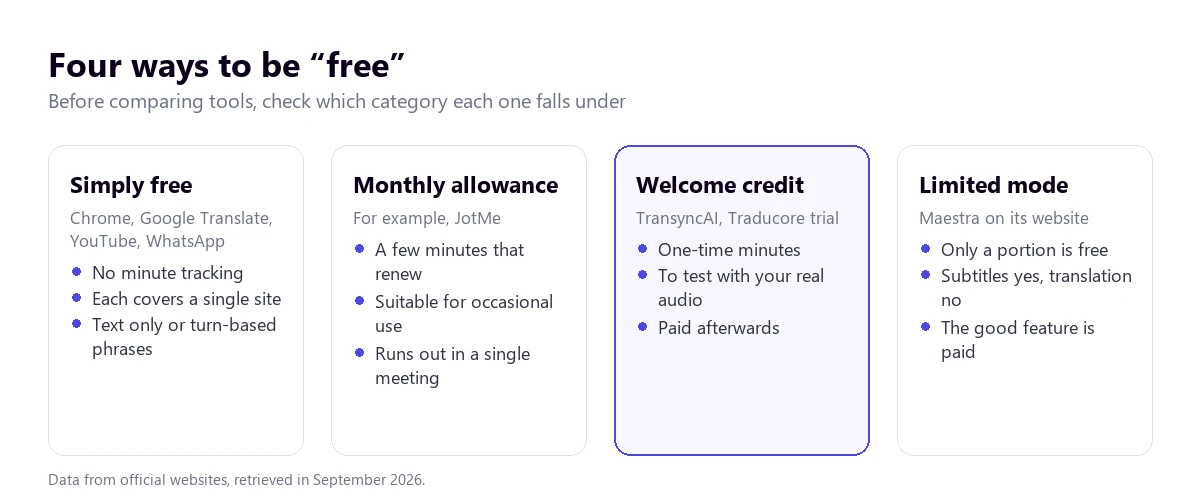
None of the four is a trick if understood, and all are advertised as a free audio translator. But the useful question changes: it’s no longer “which one is free?”, but “what does it give me for free, where, and for how long?”. And the answer depends mostly on where the audio plays.
Quick comparison
| Option | What is free | Where it works | What it delivers | The limit |
|---|---|---|---|---|
| Traducore | 15 min every day, no card | Any Windows app | Subtitles; voice in 6 languages | More time is paid; Windows only |
| Chrome Live Caption | Everything | Only inside Chrome | Translated text | Text is sent to Google |
| Google Translate | Everything | Mobile app and web | Text and voice, taking turns | No conversation on the web |
| YouTube | Everything | Videos with subtitles | Translated subtitles | No starting subtitles, nothing |
| JotMe | 20 min a month | Windows, Mac, and mobile | Subtitles and transcripts | Saves to its cloud |
| TransyncAI | 40 min once | Windows, Mac, mobile, and web | Subtitles and voice | 60 languages |
| Maestra | Subtitles on its web | Browser | Untranslated subtitles | Translating is paid |
| Windows 11 Live Captions | Everything | Copilot+ PCs only | Translated text | Only to English or Chinese |
| Microsoft Translator | Everything | Mobile app | Text and voice, taking turns | Doesn’t translate external audio |
“Everything” means the feature has no published quota, not that it has no limits. Prices and minutes are those published by each maker on their website, in their currency.
1. Traducore: 15 free minutes every day on your PC
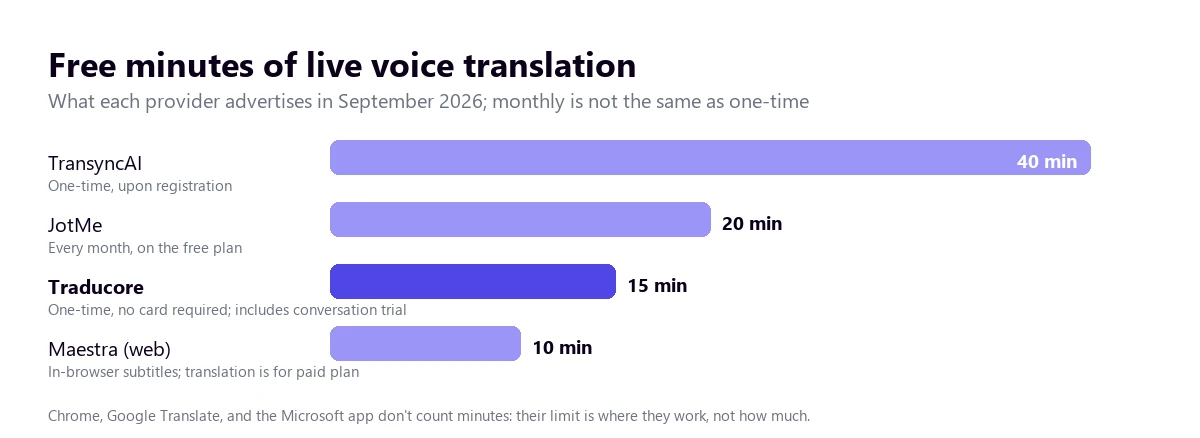
We start with ours to make it clear from the beginning: Traducore is not unlimited free. It is a program for Windows 10 and 11 with a permanent free plan of 15 minutes a day, no card required, with two-way conversation included; for more hours there are paid plans. We put it here because it fills the gap no free option covers: the audio of any computer application, with voice translation as well as text.
It listens to the application you choose—a player, a class, a WhatsApp or Discord call—and returns floating subtitles and translated voice, with the original voice in the background at 65%. The delay is three to six seconds and it doesn’t save the audio or the text. The limits: Windows only, 78 target languages without the same quality in all of them, free voice only in Spanish, English, French, German, Italian, and Portuguese, and, for more time, paid hourly plans.
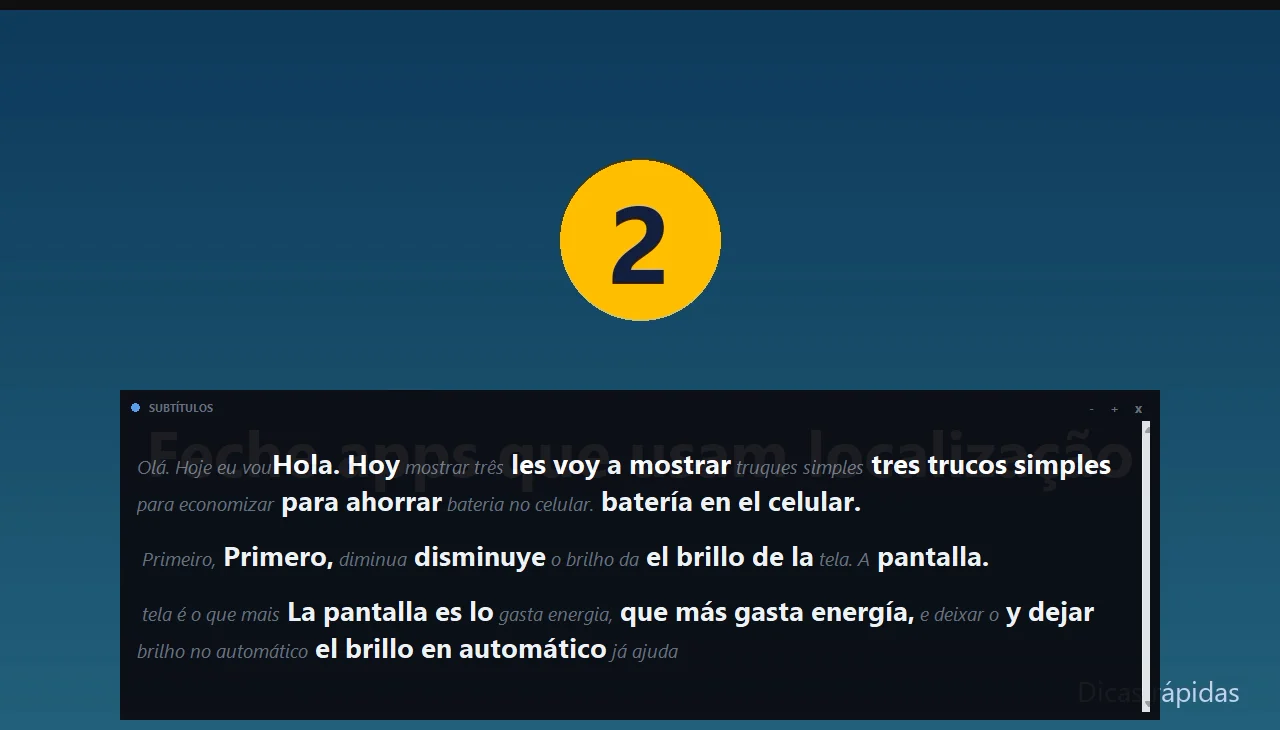
For those minutes to be of any use, use them with the audio you are actually going to translate, not with a clean demo video. Fifteen minutes is enough for a short class or half a meeting, which is what you need to know if it works for you.
Spend your 15 daily minutes on your real audio
Translated voice and subtitles in your language from any Windows application. No card required.
2. Chrome’s Live Caption
It’s the most powerful free option that almost no one knows about. Chrome for Windows and Mac generates subtitles for everything that plays in the browser—videos, podcasts, video calls in a tab—and, with live translation, switches them to another language. It doesn’t count minutes or ask for an account.
Its two conditions: the audio must play inside Chrome, so a local player or a desktop app is left out; and, according to Google’s help, the recognition is done on your device, but the subtitles are sent to Google to translate them. It only gives text, not voice. If your specific case is a video, you have the step-by-step in how to translate a YouTube video.
3. Google Translate, on mobile and web
It is offered “at no cost” and with over 200 languages in total, but it treats audio very differently depending on where you use it. The interesting part is in the mobile app: a turn-based conversation mode, a face-to-face mode that splits the screen, and, on Android, a Transcribe mode that writes what someone says almost in real time, designed for a class or a talk. Its list of languages for live translation is 73 (our own count based on the help list).
On the web, the help itself is blunt: you can’t speak and translate at the same time. You press the microphone, speak, press stop, and the translation comes out; it works well in Chrome and has limited support in Safari and Edge. It’s useful for phrases, not for listening to audio. And a privacy detail: if you are signed in, the history is saved to the cloud.
4. YouTube’s auto-translate
If the audio is a YouTube video with subtitles, the platform translates them for free from the subtitles menu with “Auto-translate”. Auto-generated subtitles exist in 68 source languages, though not on all videos: very long ones, those with poor sound, or those that start with a long silence might be left without them. On live streams, it’s only in English.
Also, more and more videos come with auto-dubbing, which the creator turns on and the viewer chooses under “Audio track”. It’s free and spoken, but it depends on the channel having enabled it. The most common translation errors are explained in this YouTube subtitles guide.
5. JotMe: a quota that renews every month
JotMe is one of the few paid tools with a permanent free plan: 20 minutes a month of live translation and 50 of transcription, no card required. It has desktop apps for Windows and Mac, captures computer audio without putting a bot in the call, and advertises over 200 languages.
The fine print: the fast mode, the real-time one, “currently offers 13 target languages”, so the 200 don’t apply to on-the-fly translation. Transcripts and notes are saved in its cloud dashboard. And twenty minutes a month is enough for a short call, not for a training session. Its quota comes back every month; ours, every day: 15 daily minutes versus 20 a month.
6. TransyncAI: the largest welcome balance
TransyncAI gives away 40 minutes of real-time translation upon registration, the highest number we’ve seen, and it works on Mac, Windows, mobile, and web. It captures both the microphone and the computer audio at the same time, without a bot, and offers translated voice and a virtual microphone so the other person hears you in their language.
These are one-time minutes, not a monthly quota. It works with 60 languages and, if you translate into several at once, consumption multiplies by 2 to 9 times. Its own pages contradict each other on whether or not it has ISO 27001 certification, a detail worth knowing if you are going to use it at work.
7. Maestra: free for subtitling, not for translating
Maestra’s live website can be used without an account or payment, but its free mode is “captions only”: subtitles in the same language being spoken. Translation, voice, and saving belong to the Pro mode. Its web subtitler is free for up to 10 minutes, and the company advertises over 125 languages. It’s useful for checking how it recognizes audio, not for translating it without paying. We analyzed it thoroughly in this comparison.
8. Windows 11 Live Captions
Windows 11 includes a feature that on paper has it all: it translates any audio going through the PC, on the device itself, and without saving anything. The problem is the requirements. It only exists on Copilot+ PCs with Windows 11 24H2 or later, and it only translates into English (from over 40 languages) or into Simplified Chinese (from 27). While this is great if you want to read in English, it won’t help if you need to translate into other languages.
9. Microsoft Translator
The app is free and designed for in-person conversations, including multi-device ones where each person reads in their own language. But it no longer has a Windows version, only Android and iOS, and its help clarifies that it does not support translating external sources like movies or videos. To translate playing audio, this isn’t the tool.
Which free translator works for you depending on where the audio comes from
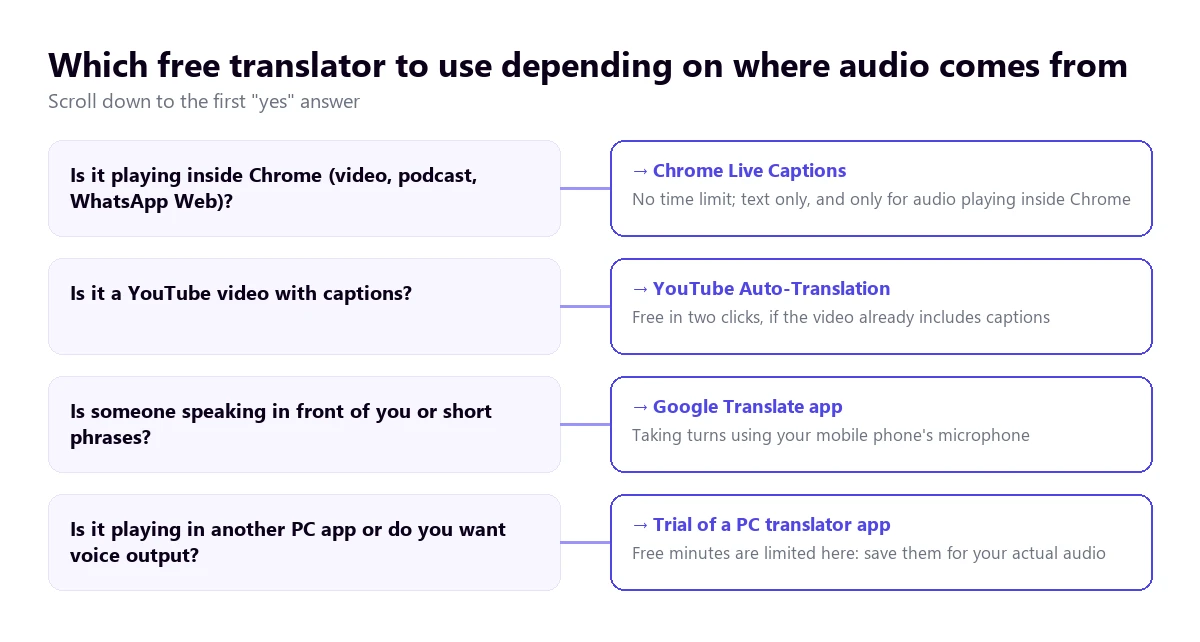
The tree summarizes an idea repeated throughout the article: free is tied to a place. Chrome translates what plays in Chrome; YouTube, its videos; the mobile app, what its microphone hears. When the audio lives in another program—a class on a custom platform, a player, a call on a desktop app—free options are reduced to trial balances. If the voice note also reaches you via messaging, how to translate WhatsApp audio has the specific ways.
What a free translator almost never gives you
- Translated voice. Reading subtitles is free in many places; hearing the translation, almost never. Generating voice costs money for whoever offers it, which is why it’s the first thing reserved for paid plans.
- Consecutive hours. Free quotas are measured in tens of minutes. A course, a day of meetings, or a series will drain them on the first day.
- Any application. Quota-free features are built into a specific product and don’t leave it.
- Even quality across languages. Neither free nor paid: the number of languages mixes highly polished pairs with others that barely work.
- Support. If something fails in a free feature, there is no one to write to.
The price not listed on the pricing page
When a free audio translator isn’t paid for with money, you should look at what happens to the audio. Official answers vary widely. Chrome recognizes speech on your device, but sends the text to Google to translate it. Google Translate saves your history to the cloud if you are signed in. JotMe saves transcripts and notes to its dashboard, although it assures it doesn’t use them for training. TransyncAI says it deletes the audio as soon as it processes it and keeps only the text. And Windows Live Captions does everything on the device, without saving anything.
For a public video, it doesn’t matter. For a meeting with a client or a medical consultation, that difference matters more than the price. Before bringing a free translator into a work call, check its help to see where the audio is processed and how long the text is saved; if it doesn’t say, don’t assume it’s safe.
How to make the most of trial minutes
With quotas of 15 to 40 minutes, every minute counts, and a free audio translator for a few minutes is only useful if those minutes answer your questions. Here is how to use them well:
- Test your language pair as the source. A program might translate into English from a hundred languages and misunderstand exactly the one you care about.
- Use your worst audio. A thick accent, an echoing room, or two people talking over each other. If it works there, it will work on the rest.
- Measure the delay with a watch. For a video, ten seconds don’t matter; to reply in a call, more than five feels long.
- Check names and numbers. They are what comes out worst in all tools and what costs the most if misunderstood.
- See what stays saved when you finish: if there is a history, where it is, and how to delete it.
- If the balance is one-time, don’t spend it on the first day if your real use case is different: wait until you have the actual class or meeting in front of you.
More questions about free audio translators
How can I translate the audio I am listening to?
It depends on where it plays. If it’s in Chrome, turn on Live Caption with translation; if it’s a YouTube video, its subtitle translation. If it plays in another computer application, you need a program that captures that audio, and there the free options are reduced to quotas of 15 to 40 minutes (a day, a month, or just once, depending on the program).
How can I translate audio in real time?
With any tool that listens while it plays instead of asking for a file: Chrome’s Live Caption, the Google Translate app taking turns, or a PC voice translator. The difference lies in the delay and whether it gives voice or just text. How it works inside is in this explanation of simultaneous translation.
Is there a free online audio translator?
Yes, but with a naming catch: almost all “online” ones ask you to upload a file and give a few free minutes before charging. Maestra’s website subtitles for free without an account, but without translating. The closest thing to a free online translator with no quota is Chrome’s Live Caption, which works with whatever plays in the browser.
Is there a free Spanish to English voice translator?
For phrases and conversations, the Google Translate app does it by turns at no cost. To hear a long Spanish audio in English, we haven’t found any unlimited free option: those that give translated voice do so with trial balances. All the ways for that specific pair are in our Spanish to English audio guide.
So, which one do we use?
We use the free ones whenever they are enough, which is more often than it seems: Chrome’s Live Caption for videos and podcasts in the browser, YouTube’s translation when the video has subtitles, and Google Translate on mobile for a phrase on the street. We turn to a paid translator when the audio plays outside the browser, when we need to hear it spoken, or when it’s for hours. To compare the paid ones calmly, you have our comparison of PC voice translators.
When free isn’t enough
Translated voice and subtitles from any Windows application. Try it for free: 15 minutes a day, no card required.