Translating a Spanish video into English without uploading it to any website is possible in three ways: hearing it translated while you play it on your computer, generating subtitles with a voice model that runs on your own PC, or opening it in Chrome and using its automatic subtitles. None of these require handing over the entire file to a third-party server, and that matters more than it seems when the video is an internal recording, a paid course lesson, or client material.
This guide is about files you already have on your drive: a downloaded .mp4, a screen recording, a saved webinar, or a video a supplier sent you. If the video is on YouTube, you have a separate guide to translate a YouTube video, and if it’s just audio, another one on Spanish audio. We tested the local route on a standard PC and explain what leaves your computer in each case; third-party data comes from their official websites and help pages, checked in September and October 2026.
In short
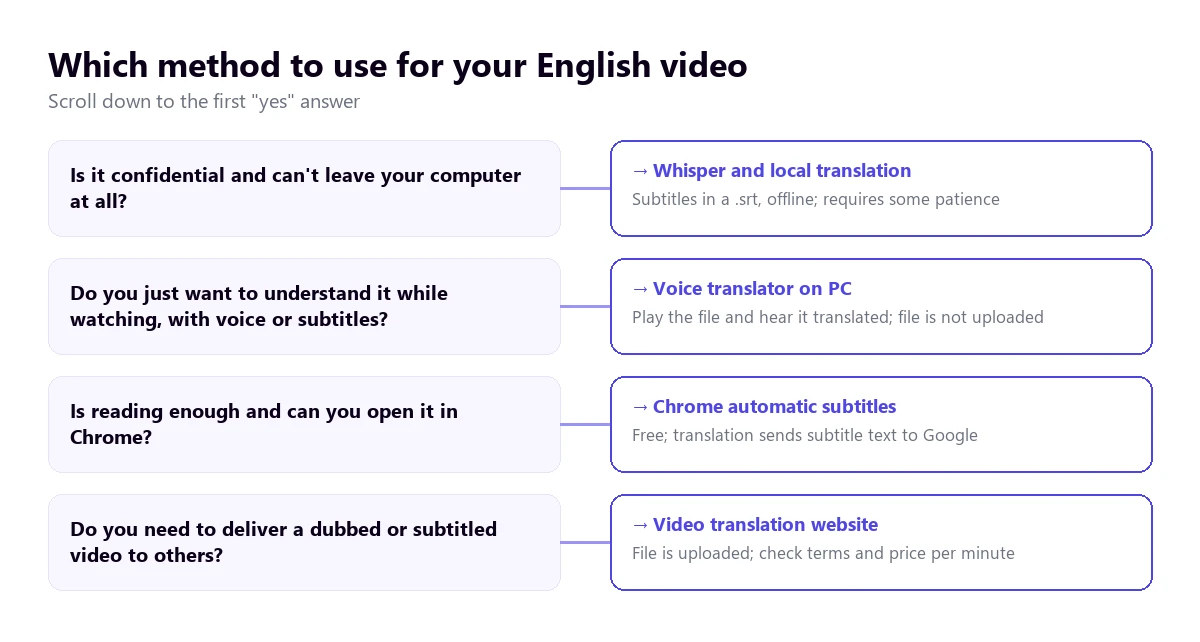
- You just want to understand it while you watch: a voice translator on your PC listens to the player and gives you English voice or subtitles (method 1).
- Reading is enough and Chrome can open the format: drag the file to a tab and turn on its automatic subtitles (method 2).
- The video is confidential and cannot leave your computer: transcription with Whisper and local translation, all offline (method 3).
- You need to deliver a dubbed or subtitled video: that is when websites that upload the file are worth it (method 4).
In this article
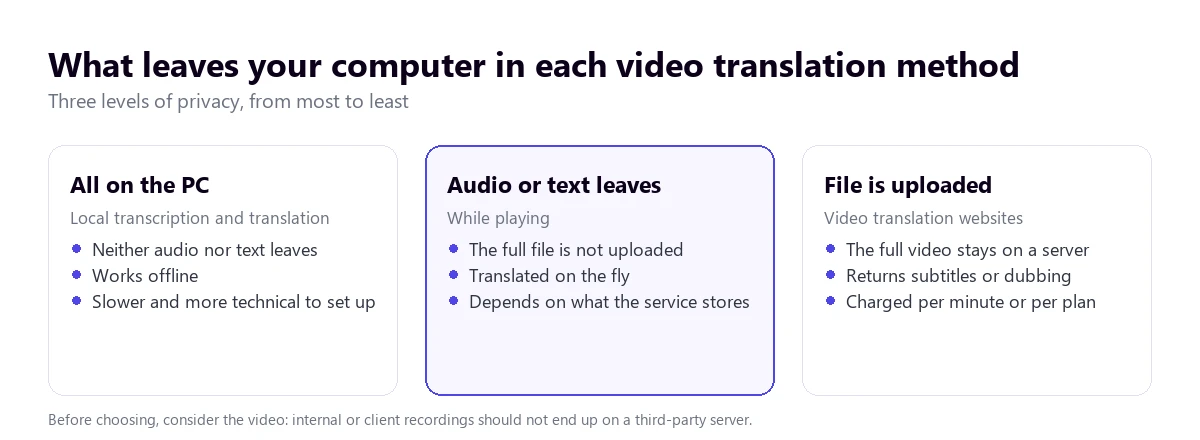
- Why not upload the video: what happens to the file on a website
- How a video is translated inside the computer
- The four methods at a glance
- 1. Hear it in English while you play it, with a voice translator on your PC
- 2. Open the file in Chrome and use its automatic subtitles
- 3. English subtitles offline: Whisper and a local translator
- 4. When it is worth uploading: video translation websites
- What gets lost when translating a video from Spanish to English
- How to get a cleaner result
- More questions about translating a Spanish video to English
- So, which one do we use?
Why not upload the video: what happens to the file on a website
If you search for “translate Spanish video to English”, Google shows you almost exclusively online tools: Maestra, Happy Scribe, Clideo, Adobe, ElevenLabs, Canva, or HeyGen dominated the top spots when we checked in October 2026. They all work the same way: you upload the file, wait, and download the subtitles or a dub. For a marketing video that will be published, it is the most convenient option.
For other videos, not so much. By uploading it, the entire file ends up on a third party’s server, subject to their retention policy, jurisdiction, and terms of use. Read those terms before uploading anything that isn’t yours: some services keep the file until you delete it, and the exact retention period isn’t always published. In Maestra’s case, for example, their help section says that deleting a file or account deletes the associated data, but it doesn’t specify the retention period.
There are cases where uploading it isn’t even your decision to make. A recording of a client meeting contains their voices and data. An internal training video might show company software screens. Supplier material usually comes with a non-disclosure agreement. And a paid course lesson has copyright protections. In all these cases, the prudent thing is for the file not to leave your computer, or to leave as little as possible.
Then there is the practical side. A one-hour video in good quality takes up several gigabytes, and uploading it on a home connection takes a while. Websites charge per minute or via a monthly plan: Maestra sells 60 credits for $12 and its Business subtitle plan costs $159 a month billed annually, with 900 minutes of subtitles to another language, according to its pricing page in September 2026. If you only want to understand a video once, paying to generate a new file is overkill.
How a video is translated inside the computer
Translating what is said in a video always involves three chained operations. First, speech recognition turns the sound into Spanish text. Then, machine translation turns that text into English. Finally, the result is shown as a subtitle or read with a synthetic voice. What changes from one tool to another is where each step happens.
A few years ago, high-quality speech recognition only existed on big tech servers. That changed in 2022 when OpenAI released Whisper under a free license: a model that transcribes dozens of languages and can run on a home computer. Since then, optimized versions like faster-whisper have come out, along with windowed programs that use it under the hood.
Whisper has a detail that confuses many people. Besides transcribing, it has a “translation” function, but it only translates into English. With a Spanish video, this works perfectly: you get the English text directly. But if you ever need to translate an English video into another language, you will get the English text and have to translate it with another tool. For that second step, there are translators that also work offline, like the open-source Argos Translate, or online services that only receive text.
We tested it on a standard desktop computer, with an eight-thread processor and without using the graphics card. With the “small” faster-whisper model, one minute of audio was transcribed in about 11 seconds, plus a second and a half to load the model. We measured the speed, not the quality of the translation: the clip was from our test bench. A one-hour video would take, at that rate, about ten or eleven minutes of waiting. Larger models are more accurate with accents and noise, but take much longer without a graphics card.
The alternative is not to generate anything: translate while the video plays. In that case, there is no subtitle file at the end, but no waiting beforehand either. This is what a voice translator on your PC does, and it is the method that feels most like watching the video with an interpreter next to you.
The four methods at a glance
| Method | What leaves the PC | What you get | Wait time | Cost |
|---|---|---|---|---|
| Voice translator on the PC | The sound, on the fly and without being saved | English voice and subtitles while you watch | None; a few seconds of delay per sentence | 15 min free per day; paid plans |
| Chrome automatic subtitles | Only the subtitle text, if you turn on translation | On-screen subtitles | None | Free |
| Whisper and local translation | Nothing | An English .srt file | Proportional to the length | Free; your time and your PC |
| Video translation websites | The entire file | Subtitles, dubbing, or a new video | Upload and processing | Per minute or per plan |
1. Hear it in English while you play it, with a voice translator on your PC
The most direct way to watch a Spanish file without uploading it is to open it in your usual player, VLC, Movies & TV, or whatever you use, and put a program on top that listens to that player and translates at the same time. You don’t have to convert anything or wait for a process to finish: you hit play and follow it in English.
Traducore is a program of this type for Windows 10 and 11. On Windows 11, it captures the sound of the application you choose, so if you select VLC, notifications or music from another window don’t get mixed in. It offers subtitles in a banner over the screen, English voice, or both, and leaves the original voice in the background, at 65% by default, so you don’t lose the speaker’s tone.
Regarding privacy, it is worth being exact: the file is not uploaded, but the sound does travel while it plays, in real time, to the translation engine. Neither the audio nor the text is saved. It is an intermediate level: much less than handing over the full video, but it is not the same as the local route in method 3.
Step by step
- Open the video in your player and pause it at the beginning.
- In the program, choose the Video / talk mode and select the player in “LISTEN FROM (ORIGINAL VOICE)”.
- Set Spanish as the source language, or let it detect it, and English as the target.
- Decide if you want subtitles, voice, or both, and click start.
- Resume the video. If you miss a sentence, rewind a few seconds: it will be translated again.
What you should know
The translation arrives with a delay of three to six seconds per sentence, because the program waits to have a complete idea. In a movie or a talk, it doesn’t get in the way; in a very fast tutorial, it is sometimes better to pause. It works with any format your player can open, because it doesn’t read the file: it listens to what is playing.
It doesn’t generate a subtitle file to save. If what you need is an .srt to reuse, go to method 3. It only exists for Windows. The Free plan gives you 15 minutes a day, without a card and with no expiration date, and the paid plans are on the pricing page.
Try it with a video you have on your drive
Open it in your player and listen to it in English, with voice or subtitles, without uploading the file anywhere. 15 minutes free every day, no card required.
2. Open the file in Chrome and use its automatic subtitles
Chrome plays videos in the most common web formats, like MP4 with H.264 or WebM, in a tab: just drag the file to an empty tab. And Chrome has two accessibility features that work with whatever plays inside the browser: Live Caption and Live Translate.
According to Google’s help, checked in September 2026, Live Caption processes the audio on the device itself and the subtitles “are never stored or leave your device”. Translation is another story: to turn them into English, Chrome sends the subtitle text to Google. The audio doesn’t leave, but the text does. The help page mentions videos, podcasts, and other audio “from the Chrome browser”; it doesn’t explicitly mention local files, although a file opened in a tab plays inside the browser like any other video.
How to turn it on
- In Chrome, go to “More” › “Settings” › “Accessibility”.
- Turn on “Live Caption”. If Spanish isn’t there, add it under “Manage languages”.
- Turn on “Live Translate” and choose English under “Translate to”.
- Drag the video to a tab and hit play.
It is free and doesn’t require an account. Its limits: text only, a small subtitle box that you have to reposition, and no final file. And if the format isn’t web-friendly, for example an .mkv with certain codecs or an old .avi, Chrome might not open it; then you have to convert it or use another method.
3. English subtitles offline: Whisper and a local translator
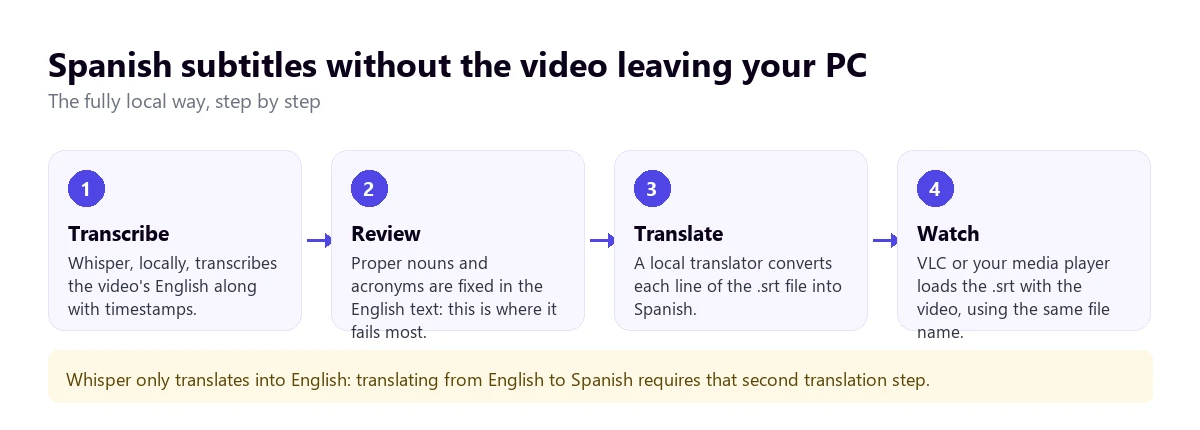
If the video absolutely cannot leave the computer under any circumstances, this is the only method where nothing leaves: not the file, not the sound, not the text. In exchange, it requires a bit more patience and a reasonable computer. The result is an English .srt file that you can reuse, edit, or deliver.
With windows: Subtitle Edit
To avoid touching the command line, the most comfortable route on Windows is Subtitle Edit, a free and open-source subtitle editor. Among its tools, it includes audio-to-text conversion with Whisper: you give it the video, choose the model, and it returns the Spanish subtitles with their timestamps. The first time, it downloads the model, which takes up anywhere from tens of megabytes to several gigabytes depending on the size.
For the step from Spanish to English, the program offers machine translation with several services. Be careful here: some of those engines work online, and then the text does leave the computer. If you want everything to stay in-house, use a local translator, like LibreTranslate or Argos Translate installed on your machine, and check which engine you have selected before clicking.
Which model to choose
Whisper comes in several sizes, from “tiny” to “large”. The small ones are fast and make more mistakes with accents, noise, and proper nouns; the large ones are more accurate, but without a graphics card they can take longer than the video itself. For a Spanish video with good sound, “small” or “medium” are usually a good balance. With a heavy accent or an echoey room, it is worth using the large one and leaving it working while you do something else.
See the result
Save the .srt in the same folder as the video and with the same name, changing only the extension: “talk.mp4” and “talk.srt”. VLC loads it automatically when you open the video, and if not, you can add it from the subtitles menu. It is the slowest of the four methods, but the only one that leaves you with your own editable file without anyone else having seen the video. If what you want is the text as a document, we have a guide on how to convert audio to text and translate it.
4. When it is worth uploading: video translation websites
It isn’t all about privacy. If the video is yours, will be published, and you need to deliver it dubbed or with hardcoded subtitles, the websites that dominate Google do a job that the other methods don’t: they generate a new file, sometimes with synthetic voices that mimic the speaker’s or with lip sync.
Before choosing one, look at three things. First, what they keep and for how long: if the policy doesn’t say, ask. Second, how they count usage: per minute of video, per target language, or by credits that are spent differently depending on the feature. On Maestra, for example, lip-sync dubbing costs $2 per minute and is only available starting from their Voice Business plan, according to their website in September 2026. Third, whether the free plan leaves a watermark or limits the length, which is common in these tools. We have an in-depth comparison of Maestra vs. a PC translator.
A useful rule: if the video is yours and public, upload it without fear; if it belongs to others or is internal, ask first or stick to methods 1 to 3.
What gets lost when translating a video from Spanish to English
No way of translating a video from Spanish to English is perfect, and almost all of them fail in the same places. Knowing this helps you not to trust the translation blindly.
Text length changes. A sentence translated from one language to another changes in length—for example, translating into Spanish takes up 15 to 25% more characters. While translating into English might save space, length is still a problem for subtitles, because professional style guides limit each line to about 42 characters. Automatic tools don’t trim like a human subtitler: they either split the sentence into more lines or leave it on screen for less time.
Units are not converted. “Seis metros”, “30 grados”, or “un kilómetro” are translated word for word: six meters, 30 degrees, one kilometer. Those 30 degrees are Celsius, about 86 ºF, and nobody is going to warn you. The same goes for large numbers like “mil millones” (a billion), and with dates, which in many countries put the day before the month.
On-screen text stays in the original language. Any tool that works with sound ignores the captions, slides, and code that appear in a tutorial. If the video explains something with graphics, you will hear “as you see here” without being able to read the “here”.
Names, acronyms, and jargon. A speech recognizer writes what it thinks it hears, and with a rare surname, a brand, or an internal acronym, it makes up something similar. The translation inherits that error and makes it worse. Puns and irony don’t survive either: a sarcastic “great, just great” comes out as a literal compliment.
Overlapping voices. In an interview or a round table, when two people speak at the same time, all tools lose one of the two. The file-based methods, moreover, don’t always distinguish who says what.
How to get a cleaner result
- Improve the sound before the tool. A video with loud background music or a distant microphone performs worse in any method. If the player has an equalizer or volume normalization, use them.
- Set the source language. A video with many technical words can confuse automatic detection. Telling it “this is Spanish” prevents surprises.
- Review the original text before translating. In the local route, five minutes correcting proper nouns in the Spanish .srt saves twice that time in the English one.
- Use a glossary if there is one. Some tools allow you to set how a company term or product name is translated.
- Slow down the speed in tutorials. At 0.75×, the translation delay is less annoying and gives you time to look at the screen.
- Compare at key moments. If a number or an instruction is important, rewind and listen to the original: the translation is an aid, not a transcript.
More questions about translating a Spanish video to English
How to translate a Spanish video to English audio?
If you want to hear it in English, there are two options: a dub generated by a website, which requires uploading the file and waiting, or a voice translator on your PC that reads what is playing in English while you watch the video. For a video that only you are going to watch, the second is faster and doesn’t create any copies.
How can I translate while listening to audio?
With a tool that captures the sound while it plays, instead of asking for a file. On the computer, this is done by Chrome’s Live Caption, inside the browser, and voice translators for Windows, in any application. You can see options compared in our list of PC real-time voice translators.
Can you translate Spanish videos to English for free?
Yes. Chrome’s subtitles are free, Whisper and local translators are open-source, and many voice translators have a free plan, like the 15 daily minutes of ours. What usually costs money is dubbing with synthetic voices and long videos on websites that charge by the minute.
How to translate Spanish videos to English on my phone?
With the video saved on your phone, the methods in this guide don’t work as is, because they are for computers. The most practical thing is to transfer the file to your PC, or use a mobile app that uploads the video, with the same privacy precautions as websites. If it is a YouTube video, the mobile app itself translates the subtitles, as we explain in the YouTube guide.
So, which one do we use?
To watch a Spanish video that we have on our drive and understand it well, we use our program: we open it in VLC, listen to it with English voice and the original in the background, and there is no need to wait or upload anything. When we need a subtitle file to save, or the video belongs to a client and shouldn’t leave the computer, we rely on Whisper locally and review the .srt before translating it. And if we ever have to deliver a dubbed video to publish, then we do look at websites, reading first what they do with the file.
If you are dealing with recorded courses, in the guide to following Udemy courses and webinars in English we look at what the platforms themselves offer before resorting to anything else.
Your Spanish video, in English and without uploading it
English voice and subtitles over any Windows player. Create your account and use 15 minutes free every day.