JotMe and Traducore translate your live meeting voice, but they don’t solve the same problem. JotMe is an AI meeting suite: it translates, transcribes, records, writes minutes, and lets you ask questions about what was said later, on Windows, Mac, mobile, and a Chrome extension for Meet. Traducore is a Windows program that listens to the audio of the app you choose and translates it into voice and subtitles, with two-way conversation and without saving anything.
Simply put: if you need meeting minutes and a record of the call, or you work on a Mac, choose JotMe. If you need to understand and be understood during the call itself, from your PC, choose Traducore. Below is the full comparison, including the fine print JotMe doesn’t show on its homepage: the fast mode with 13 languages, the shared minutes with the summary, and what gets saved in its dashboard. JotMe’s data comes from its official website, checked in October 2026.
Traducore is our product
We are saying this upfront. We compare it with what JotMe publishes and we also explain where we beat them, which is in quite a few things.
In short
- You need minutes, transcription, recording, or to ask questions about the meeting later: JotMe.
- You work on a Mac or want to translate in person with your phone: JotMe, because Traducore only works on Windows.
- You want the other person to hear you in English during the call: Traducore, with its virtual microphone.
- You translate every week without paying: Traducore gives 15 minutes a day; JotMe, 20 a month.
- You prefer that no trace is left of what was discussed: Traducore doesn’t save audio or text.
In this article
- What exactly is JotMe?
- Traducore and JotMe, head to head
- How each one listens to the meeting audio
- What each one delivers during and after
- Making the other person understand you
- Languages: the fine print of the 200
- Pricing and minutes: where the catch is for each
- Privacy and data
- How to do a fair test with both free plans
- Where each one wins
- Which one suits you depending on the case
- More questions about JotMe
- So, which one do we use?
What exactly is JotMe?
JotMe presents itself as a “real-time voice translator and AI meeting minutes,” and the order matters: translation is one of four pillars. The other three are transcription, automatic minutes, and an assistant, Ask JotMe, which you can ask about what was discussed. Under that brand, there are actually four different products, and they don’t do the same thing:
- The desktop apps for Windows, Mac, and Mac Intel. These are the core product: they capture the computer’s audio during any meeting and translate, transcribe, and summarize it.
- The mobile apps for iPhone and Android, designed, according to their website, “for in-person conversations.” Here they do offer AI-generated translated voice.
- The Chrome extension, which only works for Google Meet and advertises “over 77” languages, not the 200 of the desktop app.
- The standalone tools: uploading an audio or video file to transcribe it, document and PDF translation, and a voice keyboard.
This mix explains almost all the confusion you read about JotMe. Someone tries the extension in Meet and sees fewer languages than advertised; someone else looks for translated voice on the desktop and finds it on mobile. Before comparing anything, you need to know which of the four you are going to use.
Traducore is just one thing: a desktop program for Windows 10 and 11 that translates what plays in an application live. It doesn’t transcribe to save, it doesn’t write minutes, it has no mobile app or extension. That difference in scope is noticeable in everything that follows.
Traducore and JotMe, head to head
| Tool | How it listens | Where it works | Translated voice | They hear you translated on the call | Languages | Free | Starter plan |
|---|---|---|---|---|---|---|---|
| Traducore | The audio of the app you choose | Windows 10 and 11 | Yes | Yes (virtual microphone) | Translates to 78 | 15 min a day | €7.95 / 2 h (Video); €10.45 / 2 h (Conversation) |
| JotMe | Computer audio, no bot | Windows, Mac, iPhone, Android, and Meet extension | In the mobile app; cloned voice shared via link or QR | Not confirmed | 200+ (13 target in fast mode) | 20 min a month | $20 / month with 200 min ($10 with annual payment) |
How each one listens to the meeting audio
Here the similarities begin, and it’s good news for both: neither puts a bot in the call. JotMe spells it out clearly on its website: “No bot joins the call. Participants don’t need plugins.” The desktop app captures the computer’s audio locally and sends it to be translated. It works the same in Zoom, Teams, Meet, Webex, or any other platform, and also in an in-person meeting with the laptop on the table.
The absence of a bot is more important than it seems. In many companies, an assistant that joins as a participant asks the host for permission, appears in the attendee list, and makes someone ask who is recording. Capturing the audio on your own computer avoids that conversation, although it doesn’t exempt you from giving notice if you are going to save what is said.
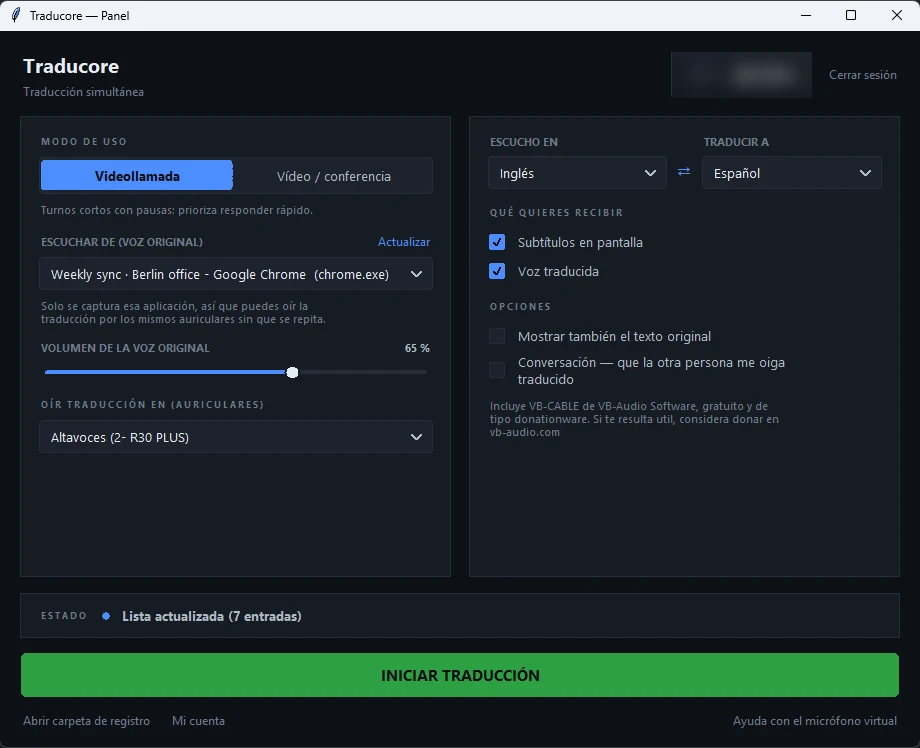
The difference lies in what audio is captured. JotMe talks about “computer audio,” with no further detail on the pages checked: if a notification or a video in another tab plays, it’s reasonable to assume it also gets picked up. Traducore, on Windows 11, captures only the app you choose: if you choose Teams, other apps don’t bleed through. Note that it’s the entire app, not a tab: if you choose the browser, all its tabs are included. On Windows 10, the system doesn’t allow separating by app, so a full audio device is captured.
What each one delivers during and after
During the meeting, JotMe shows translated subtitles with speaker tags, and lets you share that translation with others via URL, QR code, or as “live camera subtitles,” meaning written over your video feed. Traducore shows floating subtitles and, at the same time, reads the translation out loud to you with the original voice in the background at 65%, so you can still hear the speaker’s tone.
After hanging up is where the two tools completely separate.
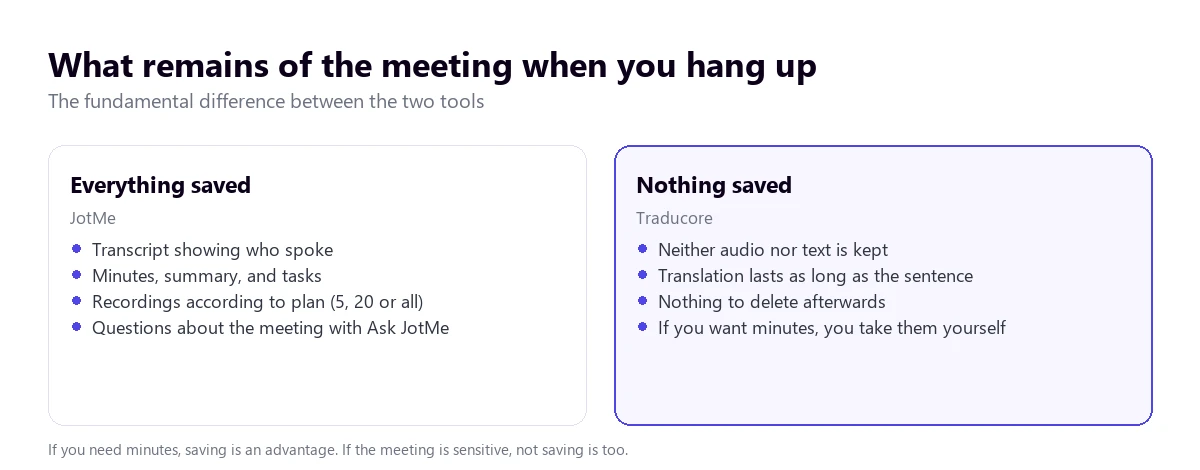
JotMe saves the transcription, notes, summary, decisions, and tasks in its dashboard, and on paid plans, the recording too: the last 5 on the free plan, 20 on PRO, and all of them on PREMIUM. With Ask JotMe, you can ask “what deadline did the supplier give?” weeks later. For a project manager or a salesperson who strings calls together, that is worth as much as the translation.
Traducore saves nothing: neither the audio nor the text. The translation exists while the sentence is spoken and disappears with it. It’s a clear limitation if you need the minutes, and an equally clear advantage if the meeting is about health, a dismissal, or a contract that no one wants to see on a third-party server.
Making the other person understand you
Translating what they say to you is half of a conversation. The other half is replying, and here the two tools take very different paths.
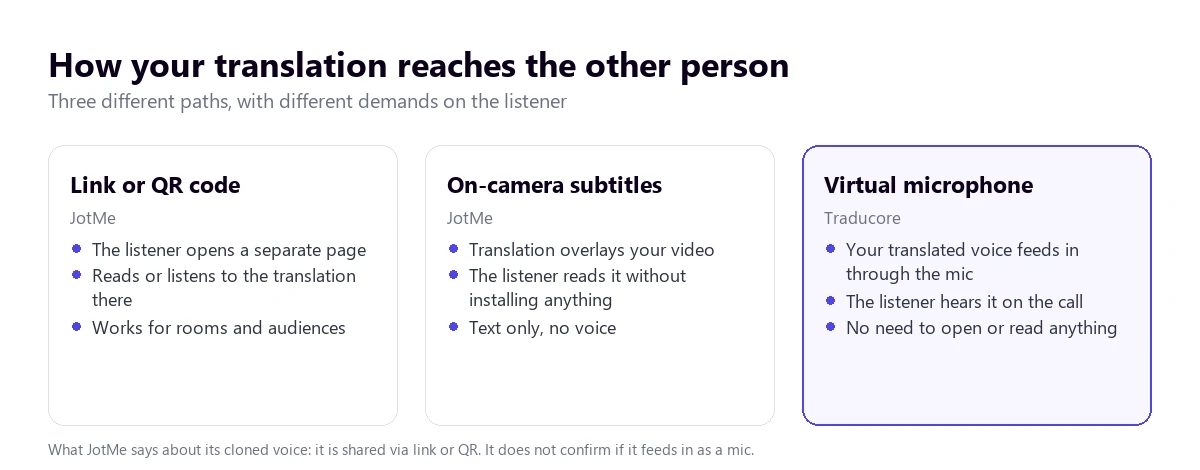
JotMe offers three ways. The first, sharing the translation via link or QR: the other person opens a page and reads or listens to what you say there. The second, subtitles over your camera: your video feed has the translation written on it. The third is voice-to-voice “with your own cloned voice,” which its voice translator page describes as something shared “via link or QR code.” On the pages checked, JotMe does not confirm that this voice can enter Zoom or Teams as if it were your microphone.
Traducore uses a virtual microphone that the program itself installs (Windows asks for administrator permission). In Teams, Zoom, or Meet, you choose “CABLE Output” as your microphone and the other person hears your translated voice inside the call, without opening or reading anything. A practical detail: if you use speakers, the program doesn’t send your microphone while something is playing, so you take turns speaking; headphones remove that wait.
Which is better? It depends on who is on the other side. For a presentation to fifty people, JotMe’s QR is more practical: each attendee follows the translation on their phone. For a call with a client who isn’t going to open any links, the voice in the call itself is what works.
Languages: the fine print of the 200
JotMe advertises “over 200 languages and dialects” and more than 39,000 pairs, a figure well above the 78 languages Traducore translates to. But the sentence you should read is in their own FAQ: the 200 target languages are for desktop and web flows “in non-fast mode,” and fast mode currently offers 13 target languages. The pages checked don’t detail what makes the other mode slower or how much delay it adds.
There are more figures depending on the product. The Chrome extension for Meet says “over 77”; the voice-to-voice translator page talks about “over 100” and specifies that the best results are in pairs like English, Japanese, Mandarin, Spanish, and Korean. That’s four numbers for four products, and the one that affects you depends on which one you use.
Traducore detects the source language and translates to 78 languages, with varying quality among them: from English, Portuguese, or French into Spanish it works very well; in uncommon pairs, you have to test it. The translated voice on the free plan is available in English, Spanish, French, German, Italian, and Portuguese; in other languages, the free plan gives subtitles. The same goes for any long list: no figure guarantees that your specific pair will work well. The only way to know is to test it with your audio.
Pricing and minutes: where the catch is for each
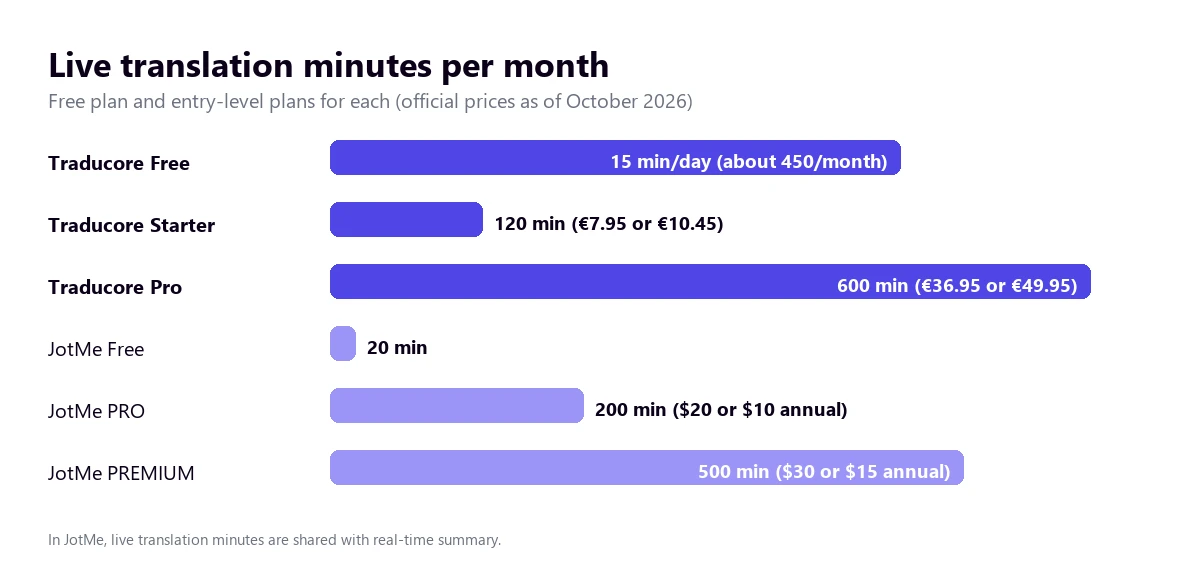
JotMe’s plans, according to its website in October 2026:
- FREE ($0): 20 minutes a month of live translation, 50 of transcription, 5 AI credits, and access to the last 5 recordings. No card required.
- PRO: $20 a month per user with monthly payment, or $10 a month paying $120 a year. 200 minutes of translation and 500 of transcription on desktop.
- PREMIUM: $30 a month, or $15 a month paying $180 a year. 500 minutes of translation, 2,000 of transcription, and unlimited recordings.
- TEAMS from $60 ($30 with annual payment) and custom ENTERPRISE.
Two details change the math. First: live translation minutes are shared with the “real-time summary”; their pricing table presents them as a single pool, “monthly agentic live translation or real-time summary.” Second: the price is per user, so a team of five pays five times. In return, with annual payment, PRO comes out to $10 a month, a very low entry price, and annual PREMIUM gives 500 minutes for $15.
Traducore is paid per account and per hours a month: Video plan for €7.95 (2 h), €36.95 (10 h), or €108.95 (30 h), and Conversation plan, with the other person hearing you translated, for €10.45, €49.95, or €146.95. Full details in pricing. The free plan gives 15 minutes a day, no card and no expiration date, with two-way conversation included.
To be fair: someone who translates about 3 hours a month and pays a year in advance has a cheaper option in JotMe’s annual PRO than our 10-hour Video plan, and they also get minutes and transcriptions. Where we come out ahead is in daily use without paying and in conversation within the call itself.
Privacy and data
JotMe says it encrypts transcriptions, translations, notes, and recordings in transit and at rest, that it complies with GDPR, and that data is “never used to train” its models or sold. The SOC 2 Type II certification is listed as “in progress,” not achieved, as of the time of checking. Everything a meeting generates stays in your dashboard, which is exactly what allows you to go back to it later.
Traducore doesn’t save audio or text. The useful question, with any tool of this type, is not whether it encrypts, but whether someone can recover what was said later. In JotMe, yes: you, and whoever has access to your account. In Traducore, no one, not even you. Before using either in a work meeting, you should ask your company if saving client transcriptions is allowed.
How to do a fair test with both free plans
Both have a free tier with no card required, so you can decide based on data. With JotMe’s 20 minutes a month, there’s room for only one serious test, so you should prepare it:
- Use a difficult, real audio: a recorded meeting with two or three voices, some noise, and accents. Anyone can translate a clean voiceover well.
- Same clip and same language pair in both, about five minutes.
- In JotMe, note the mode: if your target language isn’t among the 13 in fast mode, the test won’t reflect live usage.
- Time the delay between the end of a sentence and its translation. In Traducore it’s 3 to 6 seconds; JotMe doesn’t publish theirs on the pages checked.
- Look at three things: proper nouns, numbers, and what happens when two people talk over each other. That’s where all tools fail.
- Test the reply too: ask a colleague to listen from another computer and check what reaches them.
Where each one wins
- JotMe wins in languages (200+ in non-fast mode), in platforms (Windows, Mac, Mac Intel, iPhone, Android, and Meet extension), in minutes, transcription, recordings, and Ask JotMe, in sharing the translation with a room via QR, in cloned voice, and in the entry price with annual payment.
- Traducore wins in letting the other person hear you translated inside the call, in capturing only the chosen app on Windows 11, in translated voice for you with the original in the background, in the 15 free minutes every day, and in not saving anything that is said.
Try two-way conversation
Traducore, with 15 free minutes a day and no card required, in your own meetings.
Which one suits you depending on the case
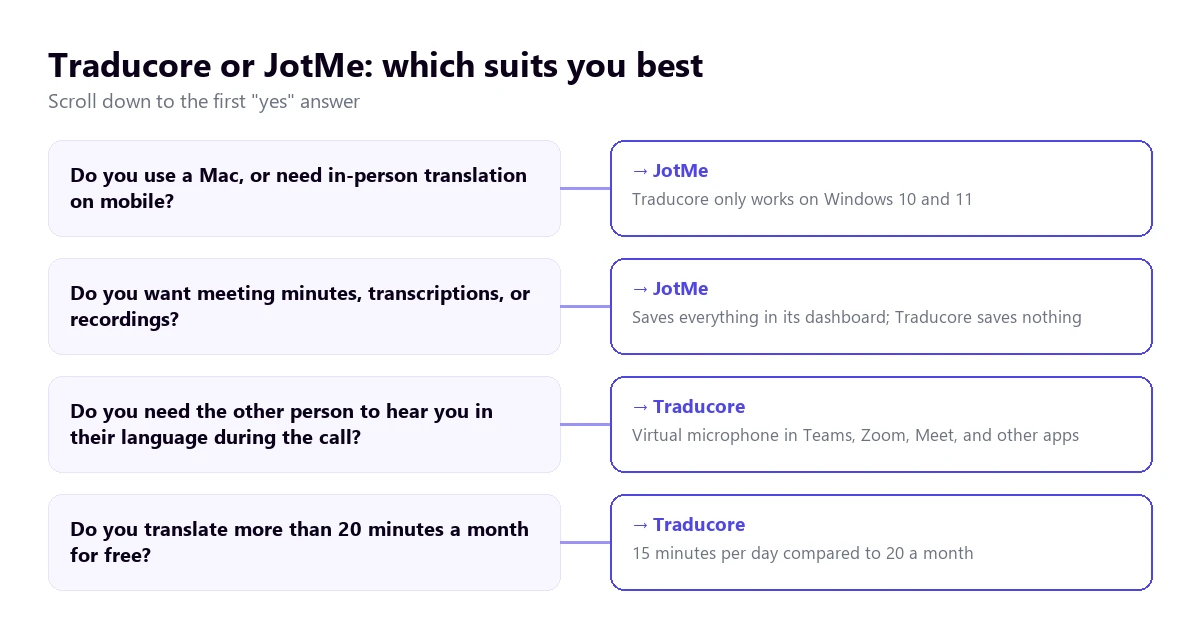
- Freelancer with clients in another language, who needs to reply in the call: Traducore, because of the virtual microphone. You have the step-by-step in how to translate a Zoom meeting and in the translator for Teams.
- Project manager who strings meetings together and needs the minutes for each one: JotMe, which writes summaries and tasks.
- Sales team with everything on Google Meet and Chrome: JotMe’s extension, knowing it gives 77+ languages. If you also use WhatsApp desktop, check out the options for Meet and WhatsApp.
- Speaker at an event with a multi-language audience: JotMe, with the translation shared via QR.
- Courses, webinars, or videos in another language from the PC: either of the two; Traducore if you want to hear them in voice and not just read them.
- You use a Mac or need to translate in person: JotMe, because Traducore only works on Windows and has no mobile app.
If neither fits, there are more tools reviewed in the comparison of voice translators for PC, and direct comparisons with DeepL Voice and Maestra AI.
More questions about JotMe
How much does JotMe cost?
It has a free plan with 20 minutes a month of live translation. PRO costs $20 a month per user, or $10 a month with annual payment, and includes 200 minutes; PREMIUM is $30 or $15 with annual payment, with 500 minutes. Prices from its website in October 2026.
What does the JotMe extension do?
It translates live subtitles, transcribes, and records Google Meet meetings from Chrome, in over 77 languages. It only works for Meet: for Zoom, Teams, or other platforms, you need the desktop app.
Where do you download JotMe?
From its official website, jotme.io, which has downloads for Mac, Mac Intel, and Windows; the mobile apps are on the App Store and Google Play, and the extension is on the Chrome Web Store.
Does JotMe work with Zoom?
Yes. With the desktop app for Mac or Windows, you choose the spoken language and the target language and join Zoom as usual; JotMe captures the computer’s audio without adding bots or participants to the meeting.
So, which one do we use?
For our needs, meetings with foreign clients and suppliers and training on the PC, we use Traducore: we want to hear the translation and be heard replying, and we don’t need to save the conversations. If our day-to-day were internal meetings that require minutes, or if we worked on a Mac, JotMe would be the first tool to try. They don’t compete as much as it seems: JotMe is a meeting memory that also translates; Traducore is an interpreter that doesn’t take notes.
Understand and reply in any language
Translated voice and subtitles on your Windows PC. 15 free minutes a day, no card required.