Transync AI and Traducore translate your meeting voices in real time, but they are designed for different people. Transync AI is a translation app for Mac, Windows, mobile, and web that captures your microphone and computer sound, shows bilingual subtitles, reads the translation out loud, and writes meeting minutes. Traducore is a Windows-only program that listens to the application you choose, translates it into voice and subtitles, and doesn’t save anything that is said.
In short: if you work on a Mac or mobile, or want meeting minutes and to share the translation with a room, Transync AI. If you use a Windows PC and want to translate every day without paying, Traducore. Below is the full comparison, including the fine print for Transync AI that doesn’t appear on its homepage: the 40 free minutes given only once, the multiplier for the multilingual mode, and its own pages contradicting each other about a certification. The Transync AI data comes from its website and official help pages, checked in October 2026.
Traducore is our product
We are stating this before we start. We compare it with what Transync AI publishes and also point out where it beats us, which is in several important areas.
Summary
- You work on a Mac, iPhone, or Android, or translate face-to-face: Transync AI, because Traducore only works on Windows.
- You want meeting minutes, summaries, or for a room to follow the translation via QR code: Transync AI.
- You pay little and translate a lot: Transync AI’s $8.99/month plan gives 10 hours, more than our entry plan.
- You translate every week without paying: Traducore gives 15 minutes a day; Transync AI gives 40 minutes when you sign up, and that’s it.
- You want only the meeting application to be translated and leave no trace: Traducore.
In this article
- What exactly is Transync AI
- Traducore and Transync AI, head to head
- What audio each one listens to on the computer
- Transync AI’s three modes and what each one consumes
- Having the other person hear you translated
- What you see and hear during the meeting
- Languages: 60 versus 78, and what they mean
- Pricing: hours per month and the free plan trap
- Privacy: what each one saves
- How to do a fair test between the two
- Where each one wins
- Which one suits you depending on the case
- More questions about Transync AI
- So, which one do we use?
What exactly is Transync AI
Transync AI presents itself as an AI voice translator for online meetings, calls, and in-person conversations. Its homepage sells it with three ideas: bilingual subtitles in split-screen or an always-on-top floating window, reading the translation out loud, and automatic meeting minutes when finished. It works on Mac, Windows, iPhone, Android, and the web, with data synced across devices.
Behind it is a company with two faces. According to its pricing page, enterprise quotes are issued by Transync AI Inc. for international clients and Shanghai Tongyan Quanyi Technology Co., Ltd. for mainland China, where it also charges in yuan. This is not a minor detail if your company checks where meetings are processed: you should ask their support which region your data goes to, because the website doesn’t specify it.
What Transync AI doesn’t have is a meeting bot or extension. Its homepage says it clearly: “No meeting bot or browser extension required”. The app listens on your own computer, so no one else sees an extra participant in the call. This is the same approach as ours, and the reason this comparison makes sense.
Traducore is smaller: a desktop program for Windows 10 and 11 that translates what plays in an application in real time. It has no mobile app, web version, or meeting minutes. It has two modes, Video / talk for listening and Video call for conversing, and that’s it.
Traducore and Transync AI, head to head
| Tool | What it listens to | Where it works | Translated voice | They hear you translated in the call | Languages | Free | Starter plan |
|---|---|---|---|---|---|---|---|
| Traducore | The application you choose (Windows 11) | Windows 10 and 11 | Yes, with the original voice in the background | Yes (virtual microphone) | Translates to 78 | 15 min a day | €7.95 / 2 h (Video); €10.45 / 2 h (Conversation) |
| Transync AI | Microphone and computer sound, no bot | Mac, Windows, iPhone, Android, and web | Yes, with AI voices or cloned voice | Yes (virtual microphone; step-by-step guide only for macOS) | 60 | 40 min once, upon sign-up | $8.99 / month with 10 h |
What audio each one listens to on the computer
Both capture the audio on your computer, but they don’t capture the same thing. Transync AI’s help section explains that there are two sources activated before the meeting: “Microphone Audio”, which picks up your voice, and “Computer Audio”, which picks up “voices, videos, or meeting sound playing on your computer”. That is, the computer sound in general. Their guide doesn’t explain if it can be limited to a single application.
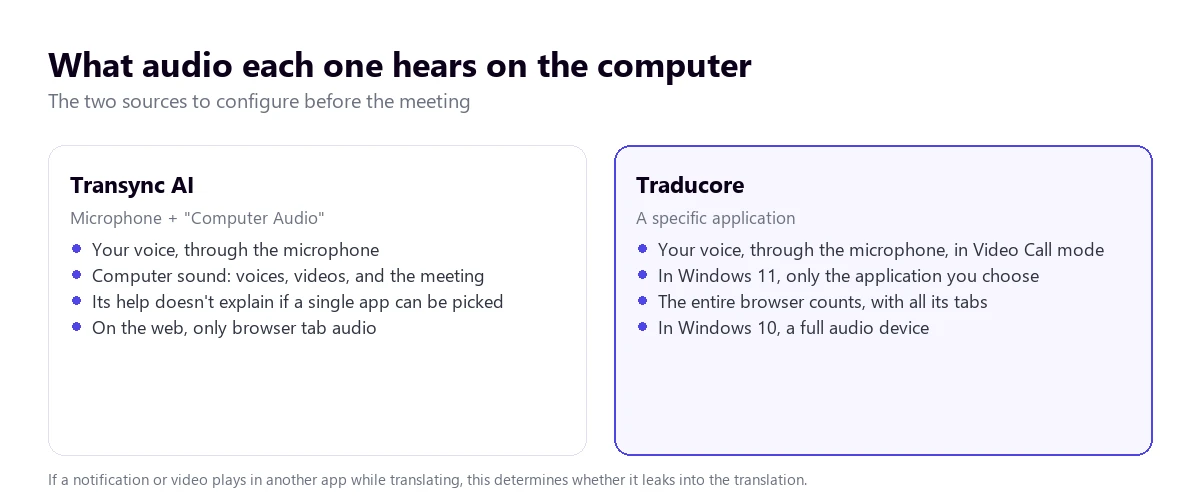
This has practical consequences. If an email notification pops up, a video plays in another tab, or you have background music while translating a meeting, it’s reasonable to assume it gets into the translation when the entire computer’s sound is captured. Transync AI also recommends its desktop app for this: in the web version, the capture “only supports sharing the sound from browser tabs”.
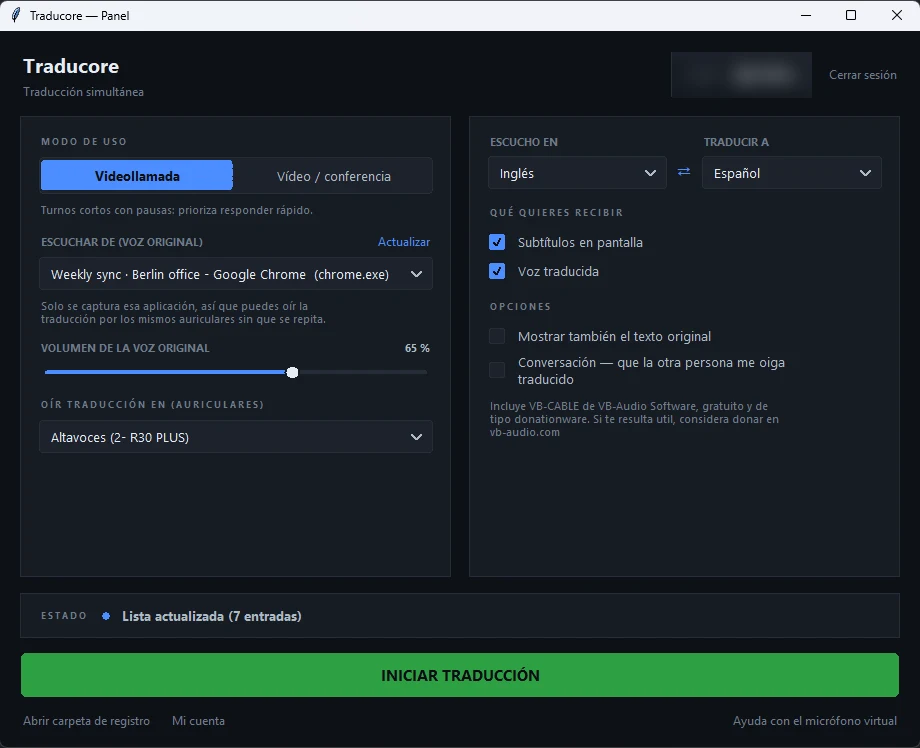
Traducore, on Windows 11, captures only the application you choose: if you choose Zoom, whatever plays on Spotify or in the browser doesn’t slip in. Keep in mind one detail: it’s the entire application, not a tab, so if the meeting is on Chrome, all Chrome tabs are included. On Windows 10, the system doesn’t allow separating by application, and a full audio device is captured, just like any other program would do.
Transync AI’s three modes and what each one consumes
Transync AI organizes translation into three modes chosen before starting, and its help section insists that changing modes requires you to stop the task and start another:
- One-way: one person or source translated into English. For classes, webinars, videos, and talks.
- Two-way: a conversation between two languages, back and forth. For meetings, calls, interviews, or travel.
- Multilingual: several target languages at once in the same task, from 3 to 10. For international teams or training with a mixed audience.
The first two are charged at a standard rate: one hour of meeting deducts one hour from the plan. The multilingual mode does not. According to its pricing page, it starts at 3 languages with a 2x consumption, and each additional language adds 1x, up to 9x with 10 languages. The help section itself gives an example: 8 languages count as 7x. The app warns about the consumption before starting, which is honest, but it’s worth keeping in mind when choosing a plan.
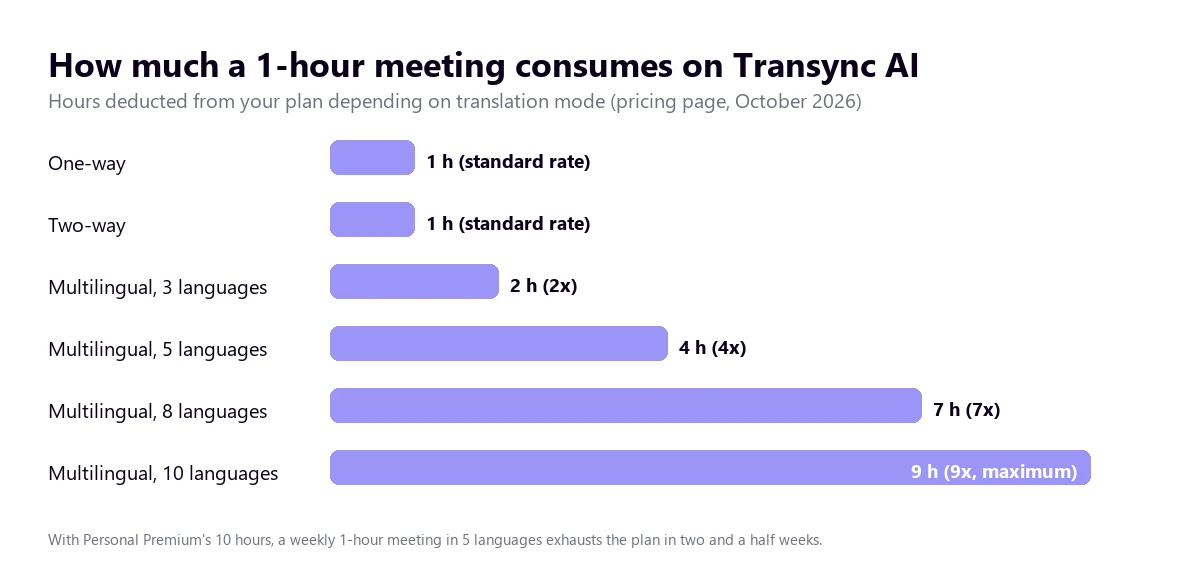
Traducore doesn’t have a multilingual mode of that kind: you choose one target language on the panel and the program only detects the source language. For a user translating for themselves, this is normal. For someone presenting to a room with five languages, Transync AI’s multilingual mode solves something we don’t solve, although it charges for it.
Having the other person hear you translated
Understanding what they tell you is half the job. The other half is replying, and here both programs use the same idea: a virtual microphone. The program translates your voice, voices it in the other language, and outputs it through a microphone that doesn’t physically exist; in Zoom, Teams, or Meet you choose that microphone, and the others hear the translation instead of your original voice.
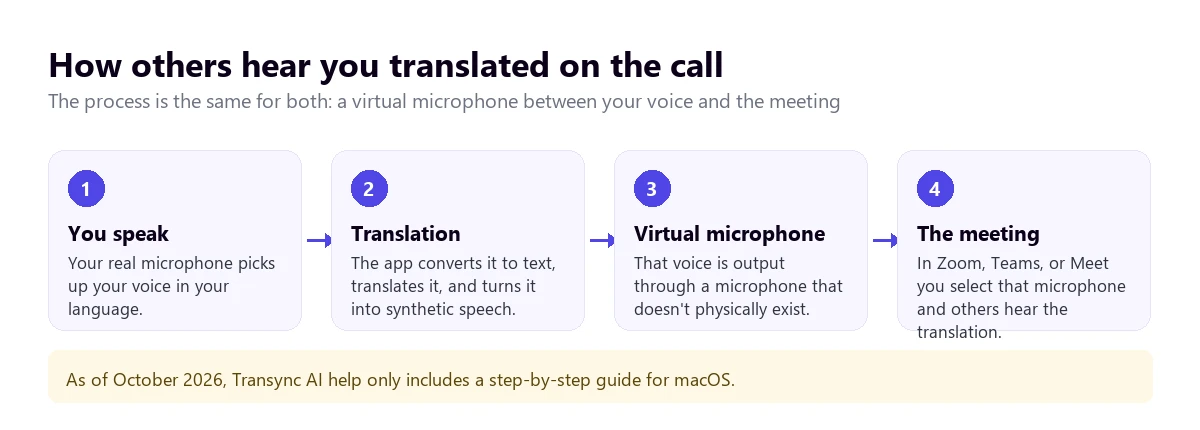
In Transync AI, its virtual microphone guide describes the process on macOS: activating it from the microphone menu, granting system audio recording permission, and choosing “Transync AI Translation Mic” in the meeting app. Its help section warns about something useful: the others don’t hear your original voice, only the translated one. For Windows, the help section links to a separate guide that didn’t appear in the documentation index when we checked it, so we can’t confirm how it’s installed there.
Transync AI adds two extras we don’t have. The first is voice cloning: the translation can sound similar to your own voice, and its help section says it doesn’t save your recordings to train the AI. The second is a presentation mode where the audience joins via QR code or link and follows the translation on their phone.
In Traducore, the program itself installs the virtual microphone the first time (Windows asks for administrator permission), and in Teams, Zoom, or Meet you choose “CABLE Output” as your microphone. A detail worth knowing: with speakers, the program doesn’t send your microphone while something is playing, so you speak in turns; with headphones, the conversation is much more fluid. On the free plan, the voice is synthetic; with a paid plan, it’s natural and keeps the speaker’s tone, although it doesn’t clone your voice. Two-way conversation is included in the free plan every day.
What you see and hear during the meeting
While someone speaks, Transync AI shows subtitles with the original text and the translation, in split-screen or an “Always-on-top” floating window that stays over Zoom or Teams. You can choose to see only the original, only the translation, or both mixed. If you activate the read-aloud feature, you hear the translation with a male or female AI voice.
Its help section also allows you to prepare for the meeting: adding keywords with names, products, or technical terms, and describing the topic as context so the AI is more accurate. It also has a personal vocabulary and a “memory” of preferences. It’s a good idea, and the same one behind a glossary: proper nouns are the point where all automatic translators fail.
Traducore shows floating subtitles and reads the translation out loud to you, with the original voice in the background at 65% so you keep hearing the speaker’s tone. It has a glossary to set how certain terms are translated; on paid plans it corrects the subtitles, and on the free plan, subtitles and voice.
Regarding delay, Transync AI talks on its homepage about “near-zero-latency” output and low latency, without giving a figure in seconds on the pages checked. In Traducore, between the end of a sentence and its translation arriving, 3 to 6 seconds pass. Any voice translator needs to hear a part of the sentence to understand it, so you should measure the real delay with your audio instead of trusting the label.
Languages: 60 versus 78, and what they mean
Transync AI advertises 60 languages, including Chinese, English, Japanese, Korean, German, French, Russian, Italian, and Spanish. On the homepage it appears once as “60+” and another time as “60”, and the pricing page says 60. It doesn’t publish on the pages checked which languages have voice and which have subtitles only.
Traducore detects the source language and translates to 78 languages. Be careful reading that figure as a guarantee: the quality isn’t the same in all of them. From Spanish, Portuguese, or French to English it works very well; in less common pairs you have to test it. The translated voice on the free plan is in English, Spanish, French, German, Italian, and Portuguese; in the other languages, the free plan gives subtitles.
The useful question isn’t who has more languages, but whether your specific pair works well with your audio: a thick accent, a bad connection, or two people speaking at once change the result more than a ten-language difference on the list.
Pricing: hours per month and the free plan trap
Transync AI’s plans according to its pricing page in October 2026, in dollars and paid monthly:
- Free ($0): “40 minutes of real-time translation upon sign-up”. That’s 40 minutes when you sign up, not every month.
- Personal Premium ($8.99 a month): 10 hours of translation a month, renewing every month. If you fall short, packs of 10 hours for $7.99, 30 for $22.99, or 100 for $69.99, which don’t expire but can only be used with an active subscription.
- Enterprise ($24.99 a month per seat): up to 40 hours a month per seat, and the excess is charged at $0.70 per hour.
To be fair, Transync AI’s price per hour is very low: 10 hours for $8.99 comes out to less than $0.90 an hour, and our 10-hour plan costs €36.95 in Video and €49.95 in Conversation. If you translate more than a few hours a month in one or two ways, Transync AI is cheaper than Traducore. We say this bluntly because it’s true.
The fine print is in two places. The first is the free plan: 40 minutes only once is good for testing, not for using it. The second is the multilingual mode: a weekly one-hour meeting in 5 languages consumes 4 hours each time, and exhausts the 10 hours in two and a half weeks.
Traducore is paid by hours per month: Video plan for €7.95 (2 h), €36.95 (10 h), or €108.95 (30 h), and Conversation plan, with the other person hearing you translated, for €10.45, €49.95, or €146.95. All the details are in pricing. Where we come out better is the free plan: 15 minutes a day, no credit card, and no expiration date, with two-way conversation included. For someone translating a short meeting or a video a day, that’s about 450 minutes a month without paying.
Privacy: what each one saves
Transync AI says it deletes the audio right after processing it: “All audio is immediately deleted after processing and never stored”. What it does save is the processed text, because it needs it for the meeting minutes and summaries, and the user can delete it. It adds that the data is not used to train the AI and that it encrypts with AES-128 and TLS 1.3.
With certifications, there’s a mess you should know about. In October 2026, its homepage says it complies with GDPR, ISO 27001, and HIPAA. Its pricing page, in the privacy section, says it complies with GDPR and HIPAA and that it is “pursuing” ISO 27001, meaning it’s still chasing it; and in the Enterprise plan, that ISO 27001 and SOC 2 Type II are “under audit”. That’s three versions on the same website. If your company requires ISO 27001, ask for the certificate before signing up.
Traducore saves neither the audio nor the text: the translation exists for as long as the sentence lasts. It’s a limitation if you want the meeting minutes, and an advantage if the meeting is about health, a dismissal, or a contract. The useful question with any tool of this type is who can later recover what was said: in Transync AI, the text stays in your account until you delete it; in Traducore, there is nothing left to recover.
How to do a fair test between the two
Both have a free tier without paying, so you can decide with data. Since Transync AI’s 40 minutes are given only once, you should prepare that test well:
- Use a real or recorded meeting with two or three voices, some noise, and accents. A studio voiceover is translated well by anyone.
- Same clip, same language pair, and the same mode: one-way to listen, two-way to converse.
- Let something else play at the same time, a notification or a video, and see if it slips into the translation.
- Time the delay between the end of a sentence and its translation, using your phone’s clock.
- Pay attention to names, figures, and cut-off sentences: this is where all tools fail. In Transync AI, test before and after adding keywords.
- Test the reply: ask someone to listen to you from another computer and check what reaches them through the virtual microphone.
Where each one wins
- Transync AI wins in platforms (Mac, Windows, iPhone, Android, and web), in price per hour (10 hours for $8.99), in meeting minutes and summaries, in the multilingual mode and the presentation mode with QR, in voice cloning, and in keywords to prepare for the meeting.
- Traducore wins in the free plan of 15 minutes every day versus 40 minutes only once, in capturing only the chosen application on Windows 11, in the translated voice with the original in the background, in translating to 78 languages, and in not saving anything that is said.
Test it with your next meeting
15 free minutes every day, no credit card, and with two-way conversation included.
Which one suits you depending on the case
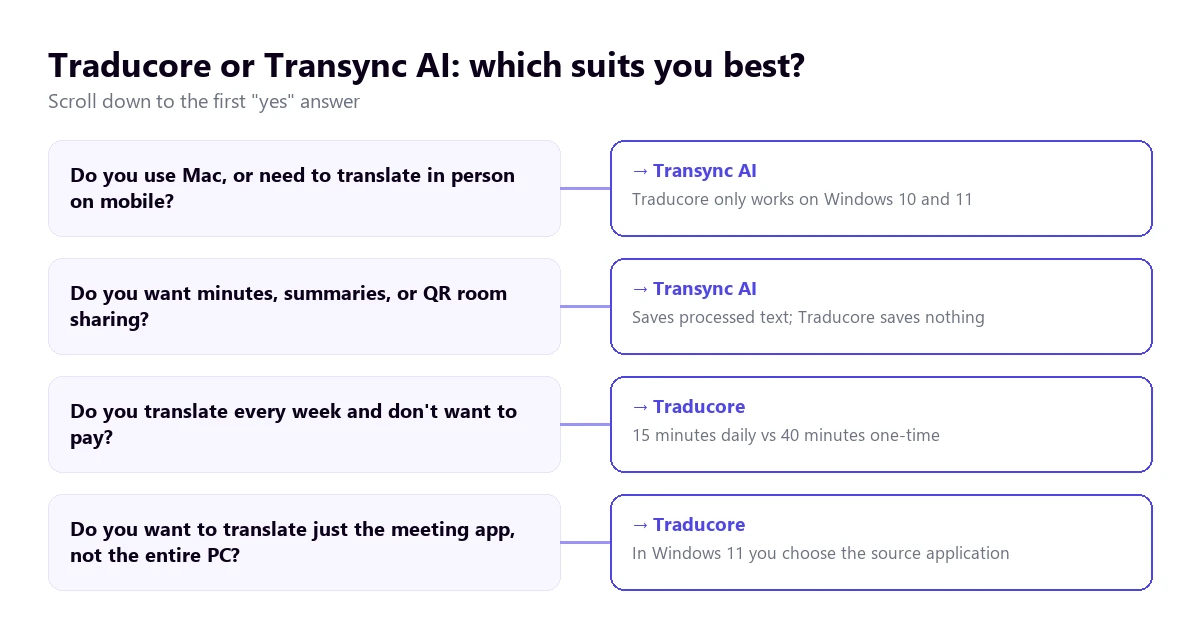
- Freelancer with clients in another language who uses Windows and wants to test without paying: Traducore. The specific steps are in how to translate a Zoom meeting and in the translator for Teams.
- Professional who translates many hours a month and doesn’t mind paying: Transync AI, for the price per hour, as long as they don’t use the multilingual mode often.
- Mac user, or someone who needs to translate face-to-face with their phone: Transync AI.
- Speaker or trainer with a multi-language audience: Transync AI, with the presentation mode and the multilingual mode, keeping track of the hours.
- Sensitive meetings where no text should be left anywhere: Traducore. If you use desktop WhatsApp or Meet, check out the options for Meet and WhatsApp.
If neither fits, there are more tools analyzed in the comparison of voice translators for PC, and direct comparisons with JotMe, DeepL Voice, and Maestra AI.
More questions about Transync AI
How much does Transync AI cost?
It has a free plan with 40 minutes upon sign-up. Personal Premium costs $8.99 a month with 10 hours, and Enterprise, $24.99 a month per seat with up to 40 hours. The multilingual mode consumes 2 to 9 times more. Prices from its website in October 2026.
Does Transync AI work on Windows?
Yes. It has a desktop app for Windows and Mac, and also apps for iPhone and Android and a web version. Its help section recommends the desktop app to capture the computer sound, because the web version only captures the audio from browser tabs.
Does Transync AI work with Zoom?
Yes. With the desktop app you activate the microphone and the computer sound before joining Zoom, and Transync AI translates what is heard without adding a bot to the meeting. For them to hear you translated, you choose its virtual microphone in Zoom’s audio settings.
Does Transync AI work with Microsoft Teams?
Yes, in the same way: the app listens to the computer sound while Teams is open, and its virtual microphone is chosen as the Teams microphone if you want the others to hear the translation.
So, which one do we use?
For our needs, meetings with foreign clients and suppliers and training on the PC, we use Traducore: we want only the meeting application to be translated, to hear the translation with the original voice in the background, and not to save the conversations. If we worked on a Mac, presented to rooms with several languages, or translated many hours a month paying little, Transync AI would be the first tool to test. The best thing is to test both with the same meeting: the free minutes of each are enough to do so.
Translate only the meeting app
Voice and subtitles on your Windows PC, without saving anything. Every day, 15 free minutes.